Feature Summary
Restore cleared documents from the Recycle Bin.
Feature Specifications
| Dimension | Description |
|---|---|
| Plan Limit | Some features require subscribing to an organization plan. |
| Version Limit | No version limits. |
Operating Steps
Restore Files
Feature Entry
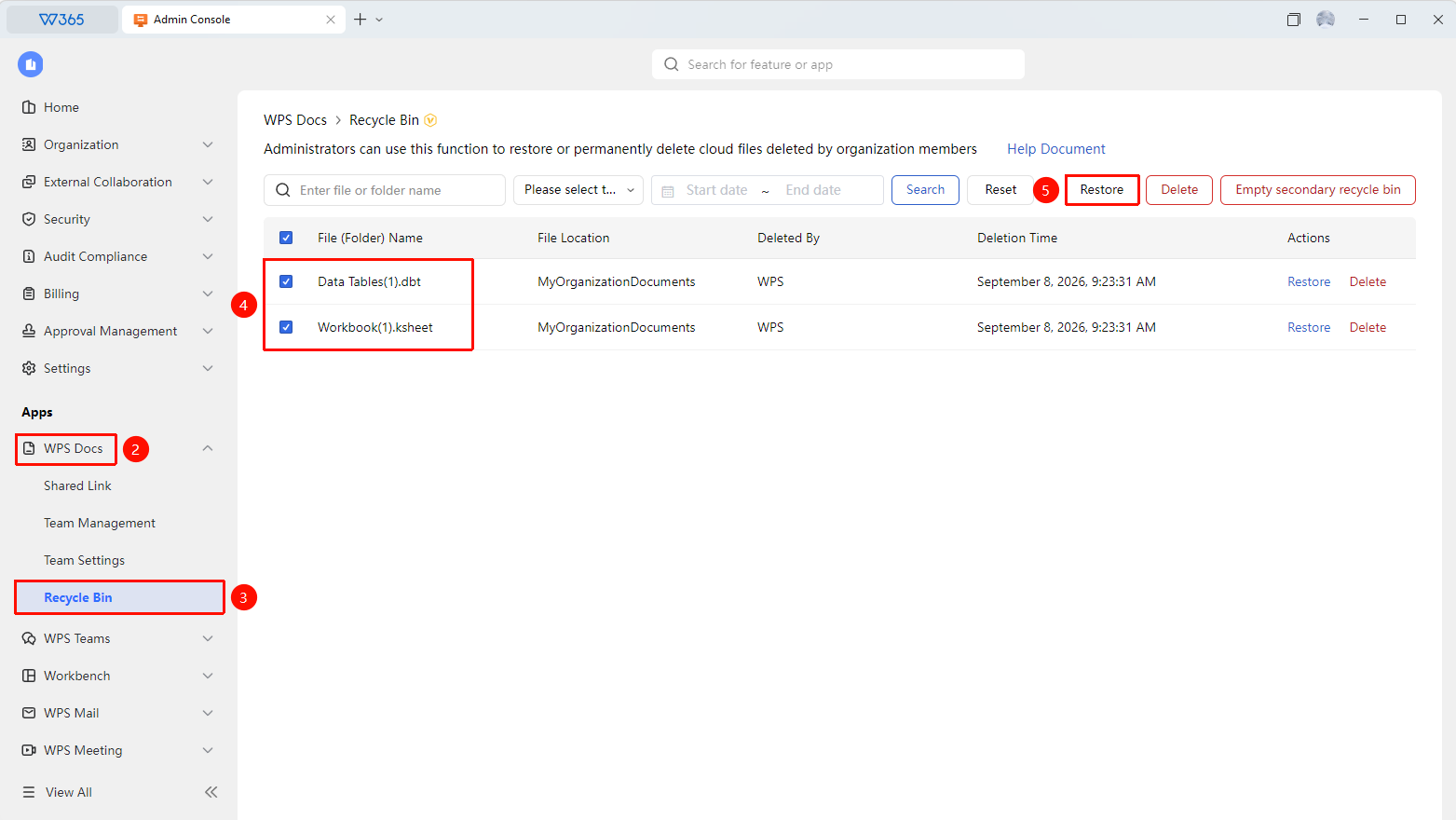
Admin Console > Document Management > Recycle Bin
- Open the WPS 365 client, and click Admin Console in the lower-left corner of the home page.
- Click Documents & Teams in the left list to expand the dropdown list.
- Click Recycle Bin to open the tab.
- Search by file or folder name, deletion time, deleted by, or other criteria.
- Select the files or folders you want to restore, and click Restore.
- After confirmation, the files will be restored to their original locations.

FAQ
Question 1: Will restored files return to their original locations?
- Solution: Yes. Restored files will return to the folder locations where they were deleted.
Question 2: Will file permissions be restored after the file is restored?
- Solution: File permission settings will be restored to their state before deletion. However, if original members have left the organization or the team has changed, some permissions may need to be reconfigured.
Question 3: Will conflicts occur if multiple people restore the same file at the same time?
- Solution: No. The system will process requests sequentially. The second restore operation will prompt that the file already exists because it has already been restored.
Notes
- We recommend checking the integrity of restored files as soon as possible.
- Batch restoring a large number of files may take some processing time. Please wait patiently.
- Confirm the remaining organization storage before restoring documents to avoid operation failure due to insufficient organization storage.