Feature Summary
Permanently delete documents from the recycle bin.
Feature Description
| Feature Dimension | Description |
|---|---|
| Plan Limits | Some features require subscribing to an organization plan |
| Version Limits | No version limits |
Operating Steps
Permanently Delete Files
Feature Entry
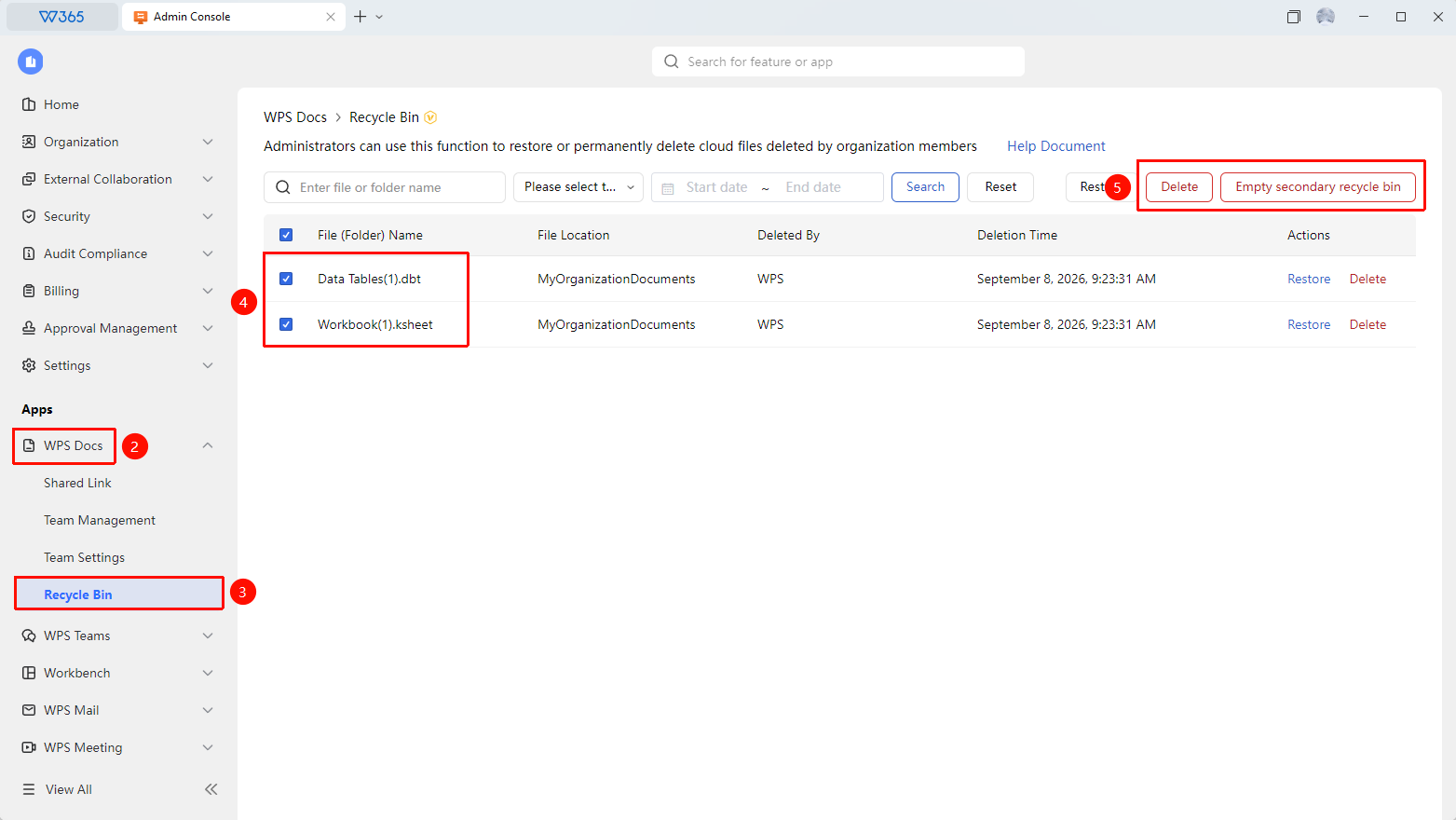
Admin Console > Documents & Teams > Recycle Bin
- Open the WPS 365 client, and click Admin Console in the lower-left corner of the homepage.
- Click Documents & Teams in the left list to expand the dropdown menu.
- Click Recycle Bin to open the tab.
- Search by file/folder name, deletion time, deleted by, or other conditions.
- Click Delete or Empty Recycle Bin.
- Once confirmed, the files cannot be restored.

FAQ
Q1: Can files deleted from the recycle bin be restored?
- Solution: No. Files permanently deleted from the second-stage recycle bin will be permanently cleared and cannot be restored. Make sure the files are no longer needed before proceeding.
Q2: Can I batch delete files from the recycle bin?
- Solution: Yes. You can select multiple files to permanently delete them in bulk, or click Empty Second-Stage Recycle Bin directly. This is suitable for clearing a large number of expired files to free up storage space.
Q3: Will deleting files from the recycle bin free up cloud storage space?
- Solution: Yes. Permanently deleting files will free up the cloud storage space they occupy, increasing the total available space for the organization.
Notes
- Permanent deletion cannot be undone. Proceed with caution.
- We recommend using the search feature to confirm the files you want to delete before performing a batch deletion.
- Regularly clearing the second-stage recycle bin helps maintain efficient use of organization cloud storage space.