Feature Summary
Sync calendar data from the organization's Exchange server to WPS 365 Calendar to achieve unified management of organization events.
Feature Description
| Feature Dimension | Description |
|---|---|
| Plan Limit | No plan limit |
| Version Limit | No version limit |
Steps
Configure Exchange Calendar Sync
Feature Entry
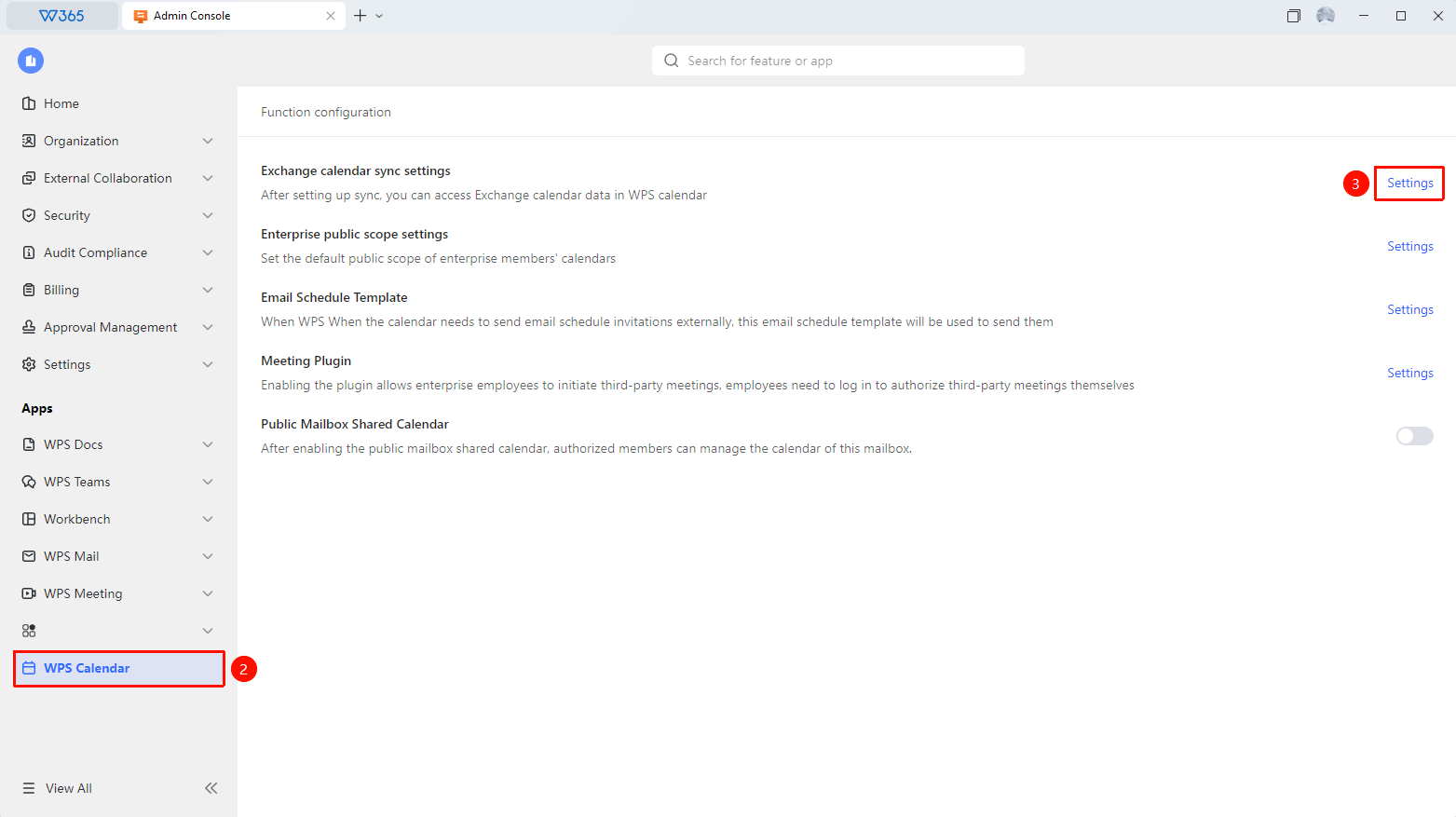
Admin Console > WPS Calendar > Exchange Calendar Sync Settings > Set Up
Open the WPS 365 client, and click Admin Console in the lower-left corner of the homepage.
Click WPS Calendar in the left list to expand it.
Find Exchange Calendar Sync Settings in the list.
Click the Set Up button.
Fill in the Exchange server connection information:
- Add Admin Account: Add an Exchange calendar Admin account.
- Exchange Server Address: The URL of the organization's Exchange service.
- Admin Account: An Exchange account with calendar read permissions.
- Admin Password: The password for the corresponding account.
- Sync Range: Select the calendars or emails that need to be synced.
Click Test Connection to verify if the configuration is correct.
Set the sync frequency (such as syncing once every hour/day).
Click Save to enable automatic sync.

FAQ
Q1: What should I do if there is a data conflict during the sync process?
- Solution: The sync rules follow the timestamp priority principle, and the latest modified version shall prevail. If the same event is modified on both sides at the same time, the system will automatically select the last modified version. It is recommended to perform the first full sync during non-working hours.
Q2: Will the synced calendar data be lost after disconnecting the Exchange sync?
- Solution: No. After disconnecting the sync, the event data already synced to WPS 365 Calendar will be retained and will not be automatically deleted. However, subsequent event changes in Exchange will no longer be synced to WPS 365.
Notes
- Configuring Exchange sync requires access permissions to the organization's Exchange server.
- It is recommended to use a dedicated sync account to avoid using a personal account, which may affect data security.
- The first full sync may take a long time. It is recommended to perform it during off-peak network hours.
- After the sync is complete, it is recommended to spot-check some event data to ensure accuracy.