Guide to Using Enterprise public scope settings Feature in WPS365
Feature Summary
Set the default visibility and access permissions for organization calendars to control the visibility of organization event information to internal and external members.
Feature Description
| Dimension | Description |
|---|---|
| Plan Limit | No plan limit |
| Version Limit | No version limit |
Operation Steps
Set Calendar Visibility
Feature Entry
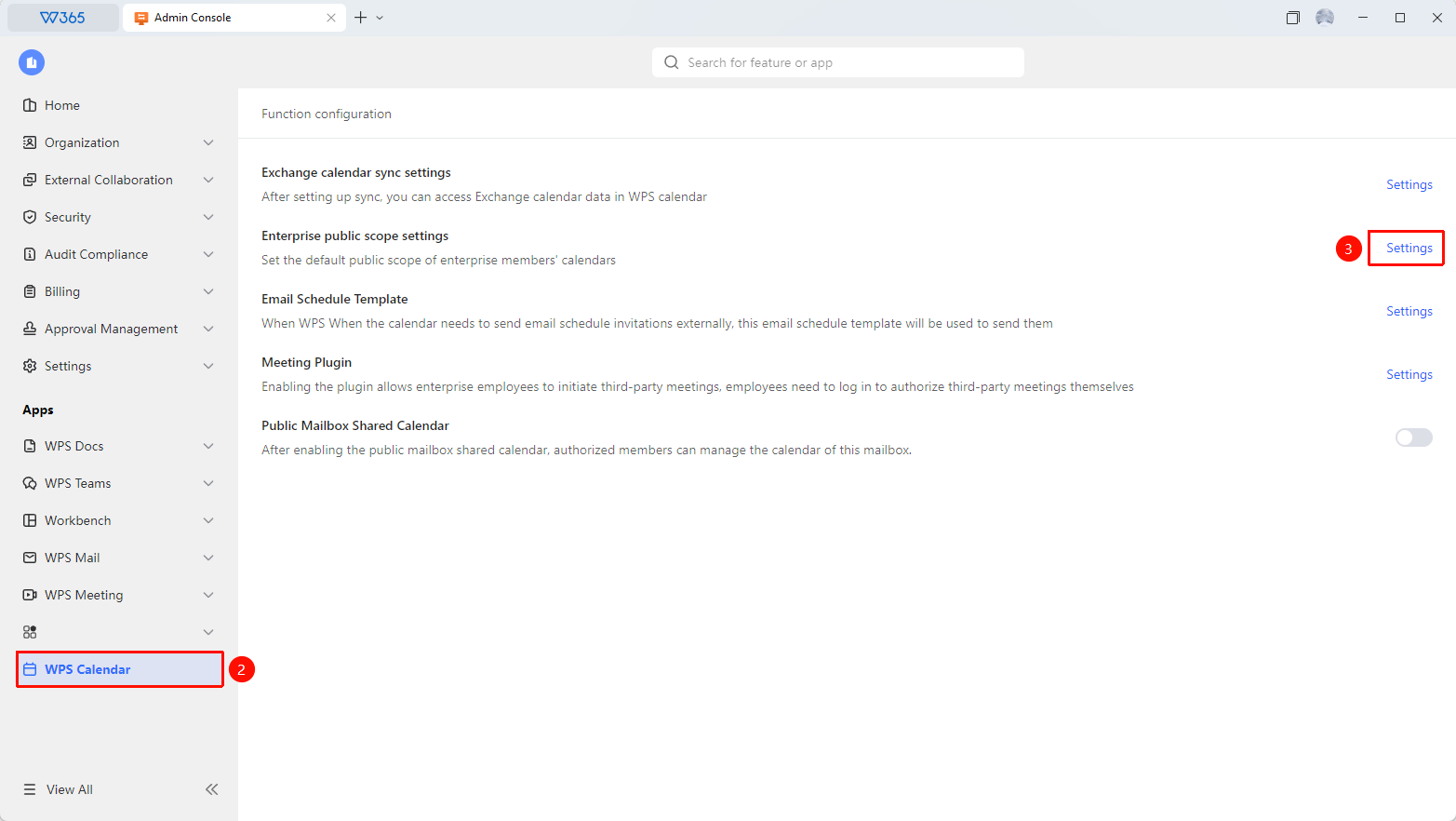
Admin Console > WPS Calendar > Organization Visibility Settings
Open the WPS 365 client, and click Admin Console in the lower-left corner of the homepage.
Click WPS Calendar in the left list to expand it.
Find Organization Visibility Settings in the list.
Click the Settings button.
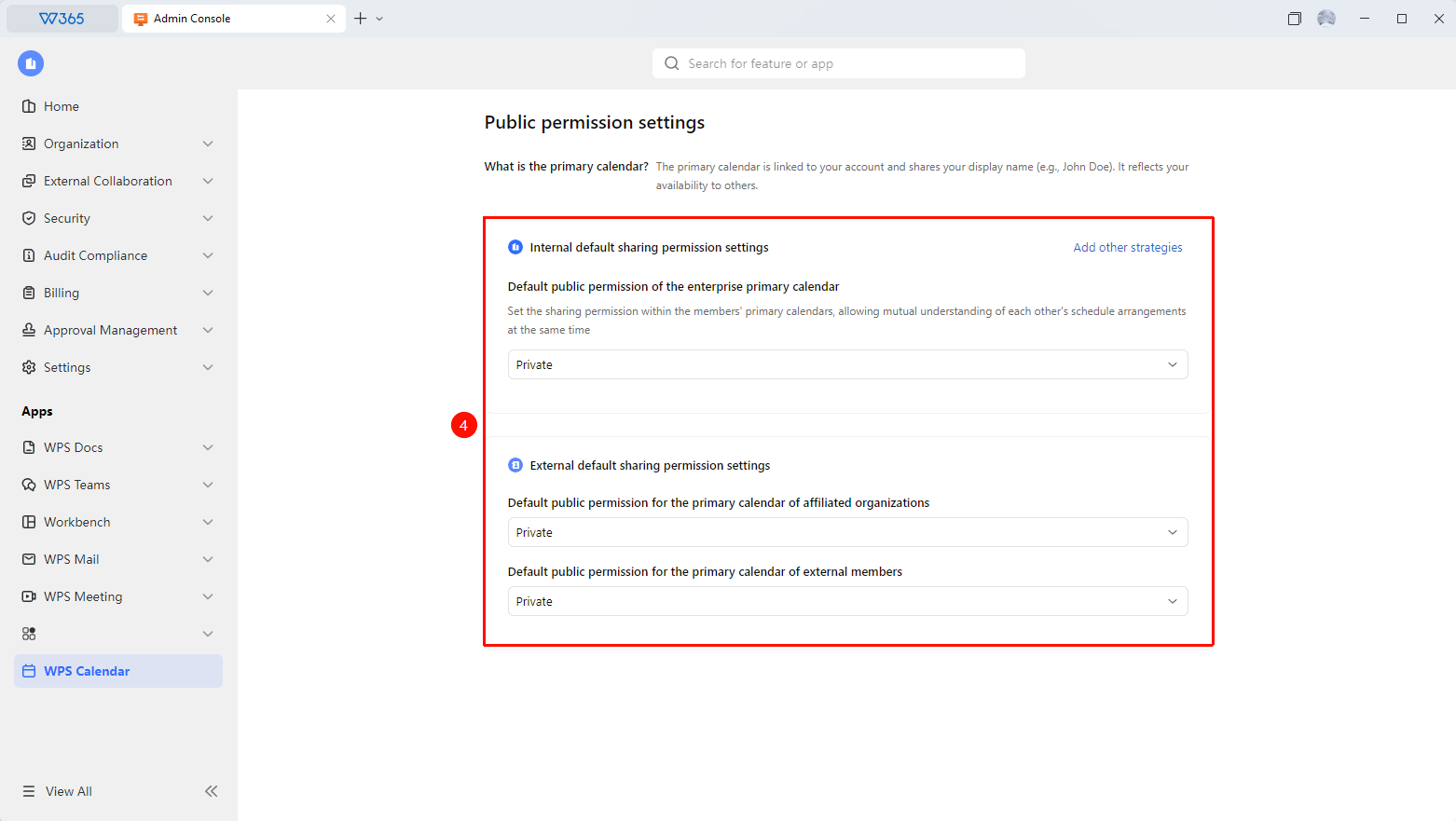
Choose the default visibility for the calendar:
- Internal Default Share Permission Settings: Private, can view busy/free, can view event details
- Default Visibility Permission for Associated Organization's Primary Calendar: Private, can view busy/free, can view event details
- Default Visibility Permission for External Member's Primary Calendar: Private, can view busy/free, can view event details
Add other policies:
- Share Range: All superiors/direct superiors
- Default Share Permission: Can view busy/free, can view event details
- Prevent Employees from Modifying: Select whether to prevent employees from making changes
Click OK to apply the changes.

FAQ
Q1: After setting to show busy/free status only, can other members still see event details?
- Solution: When set to show busy/free status only, other members can only see the occupancy of the time slot (busy/free) and cannot view details such as the event subject, location, or attendees. We recommend using this mode for regular employees to protect privacy.
Q2: Can visibility be set individually for specific events?
- Solution: Yes. When creating or editing an individual event, the event creator can adjust the visibility of that event separately, which will override the default organization visibility settings. For example, even if the organization sets all events to be visible to everyone, a sensitive meeting can be changed to be visible to attendees only.
Q3: Do visibility settings apply to events that have already been created?
- Solution: Changes to organization visibility settings apply to newly created events. Existing events will retain their visibility settings from when they were created. To adjust the visibility of existing events in bulk, changes must be made individually by members.
Notes
- Organization visibility settings serve as the default rules for all events. Members can still adjust individual events separately.
- Visibility settings work together with event permissions to ensure the security of event information.