Feature Summary
Create and manage email Schedule templates. Save frequently used meeting invitations and Schedule notifications as templates to quickly reuse them and improve efficiency.
Feature Description
| Dimension | Description |
|---|---|
| Plan Limit | No plan limit |
| Edition Limit | No edition limit |
Steps
Create an Email Schedule Template
Feature Entry
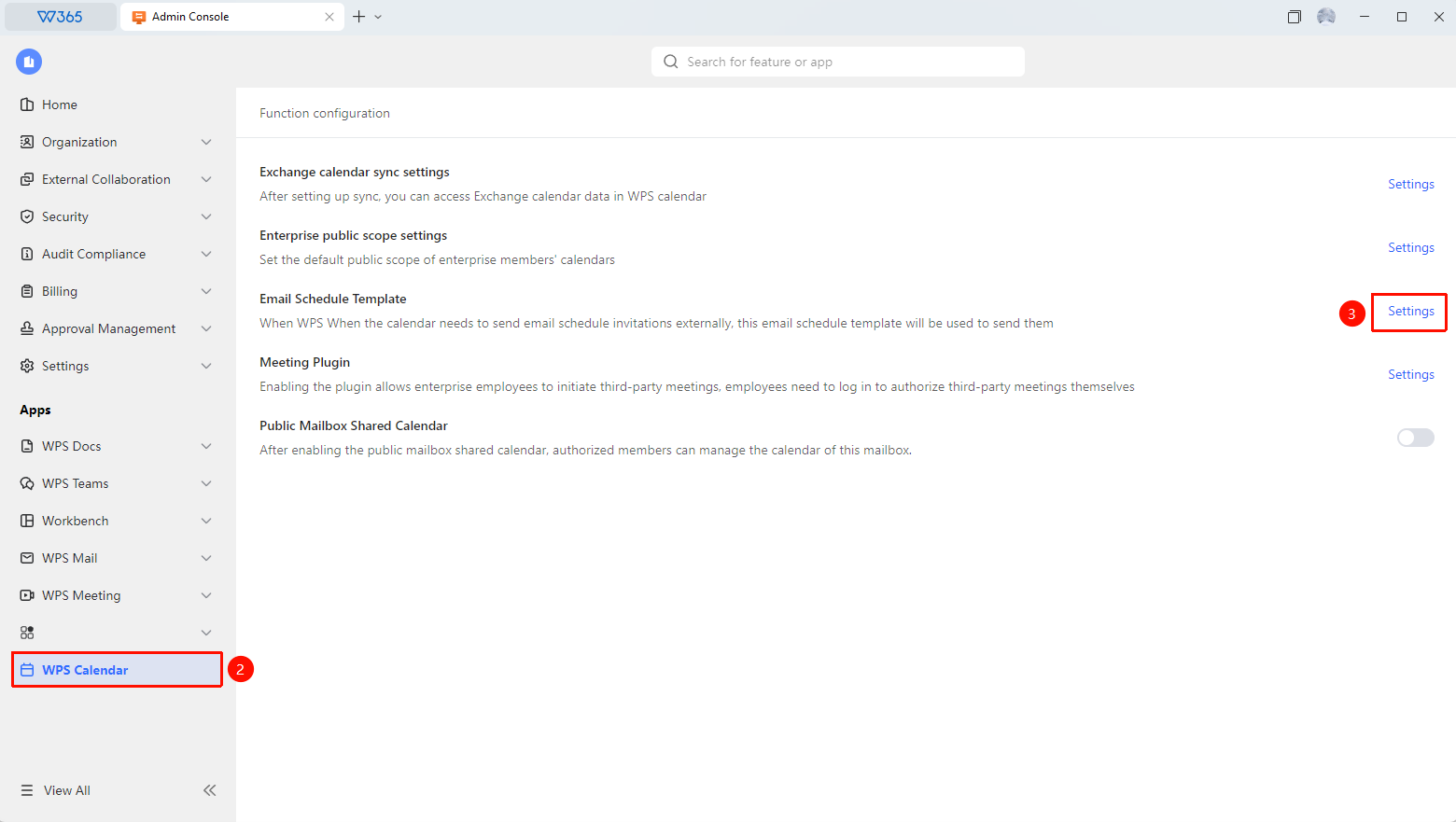
Admin Console > WPS Calendar > Email Schedule Templates > Settings
- Open the WPS 365 client, and click Admin Console in the lower-left corner of the homepage.
- Click WPS Calendar in the left list to expand it.
- Find Email Schedule Templates in the list.
- Click Settings.
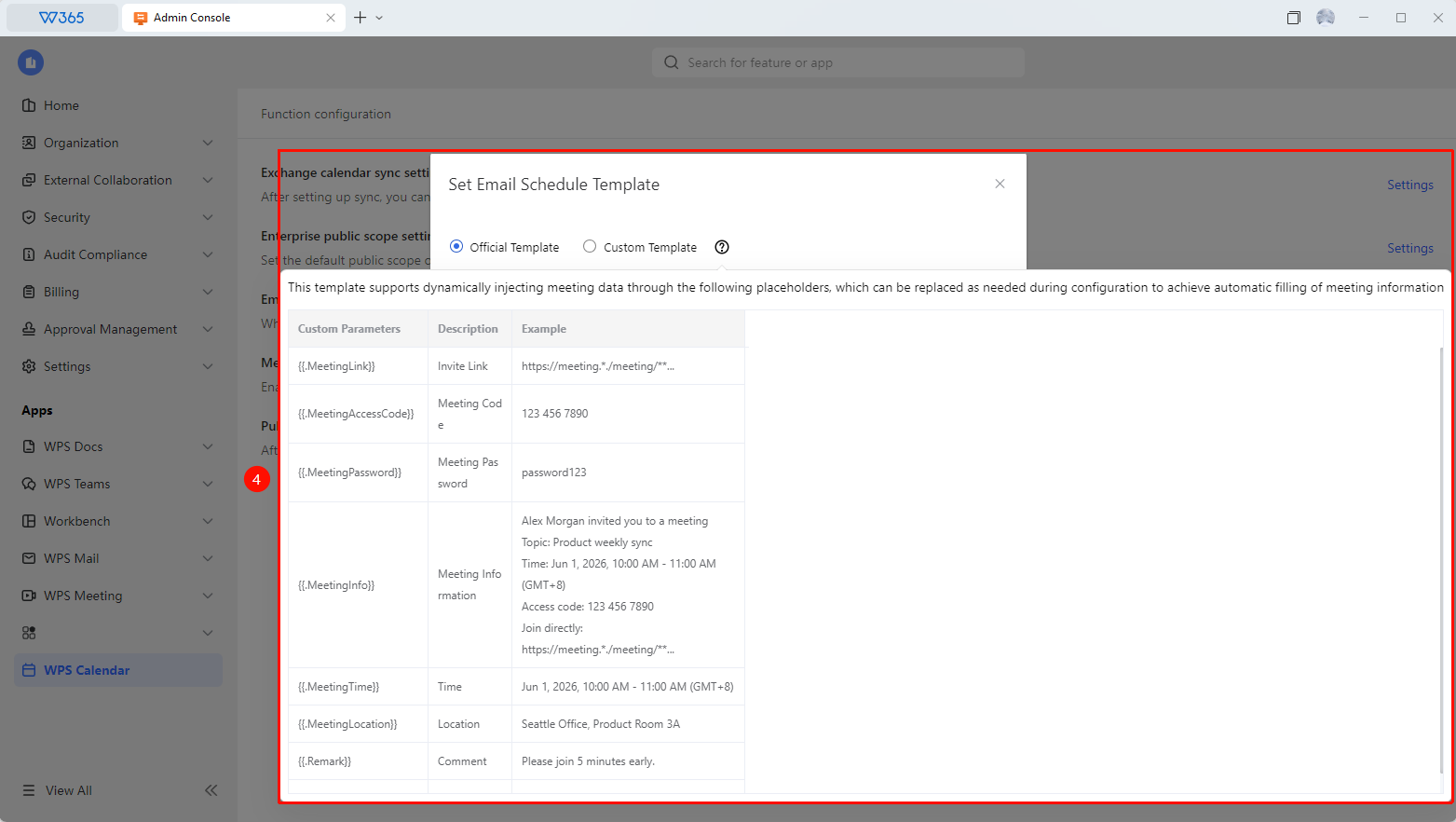
- Use an Official Template or a Custom Template.
- Click Save Template to apply.

FAQs
Q1: Can I set variables in email Schedule templates?
- Solution: Yes. You can set variable placeholders in templates, and the system will automatically replace them with actual content when used. The variable list is described in detail on the template editing page.
Q2: Can templates be modified after creation?
- Solution: Yes. On the email Schedule template management page, click the template name to edit and modify its content. Modifications will not affect invitations already sent using this template, and the updated template will be applied for future use.
Q3: Can regular members create their own email Schedule templates?
- Solution: Email Schedule templates in the Admin Console are configured by the Admin and serve as global templates available to all members. Individual members can create their own email templates in WPS Email, but these will not sync to the Admin Console.
Notes
- Email Schedule templates support placeholder variables. We recommend testing the template effect before use.
- Global templates are visible to all organization members. We recommend naming them clearly for easy identification.
- Clean up unused templates regularly to keep the template list tidy.