Feature Summary
The Dashboard feature allows users to display key metrics from data sheets through visual components, supporting various display methods such as charts and statistic cards. It is suitable for data overviews and business monitoring scenarios.
Feature Description
| Feature Dimension | Description |
|---|---|
| Membership Restriction | No membership restriction |
| Version Restriction | No version restriction |
Steps
Create a Dashboard
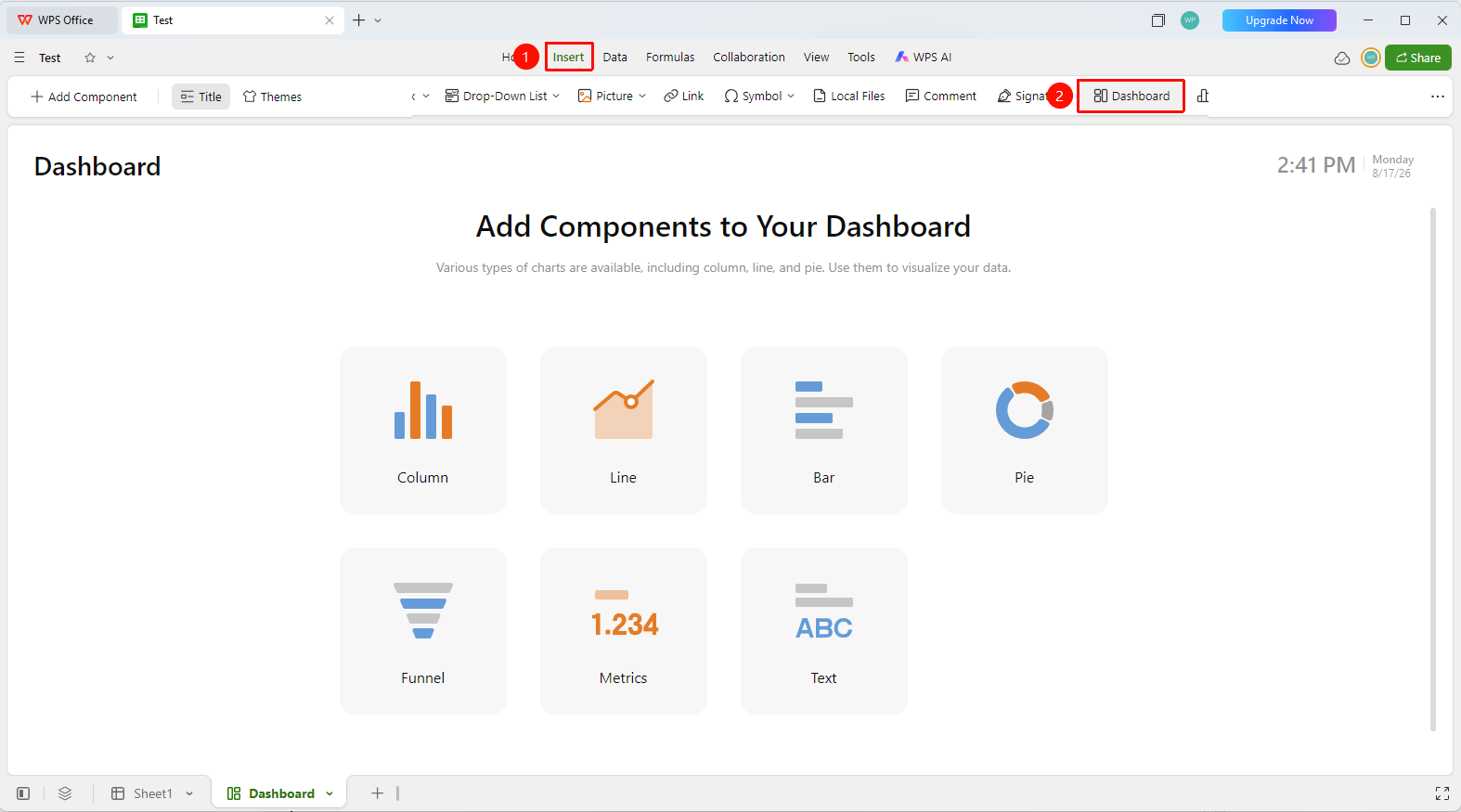
Feature Entry 1
「Insert」 tab → 「Dashboard」
- Click the 「Dashboard」 button in the 「Insert」 tab
- The system automatically creates a dashboard sheet
- You can click the "Add Component" button in the dashboard to start building the dashboard.
- Select the data source (associate with an existing data sheet)
Feature Entry 2
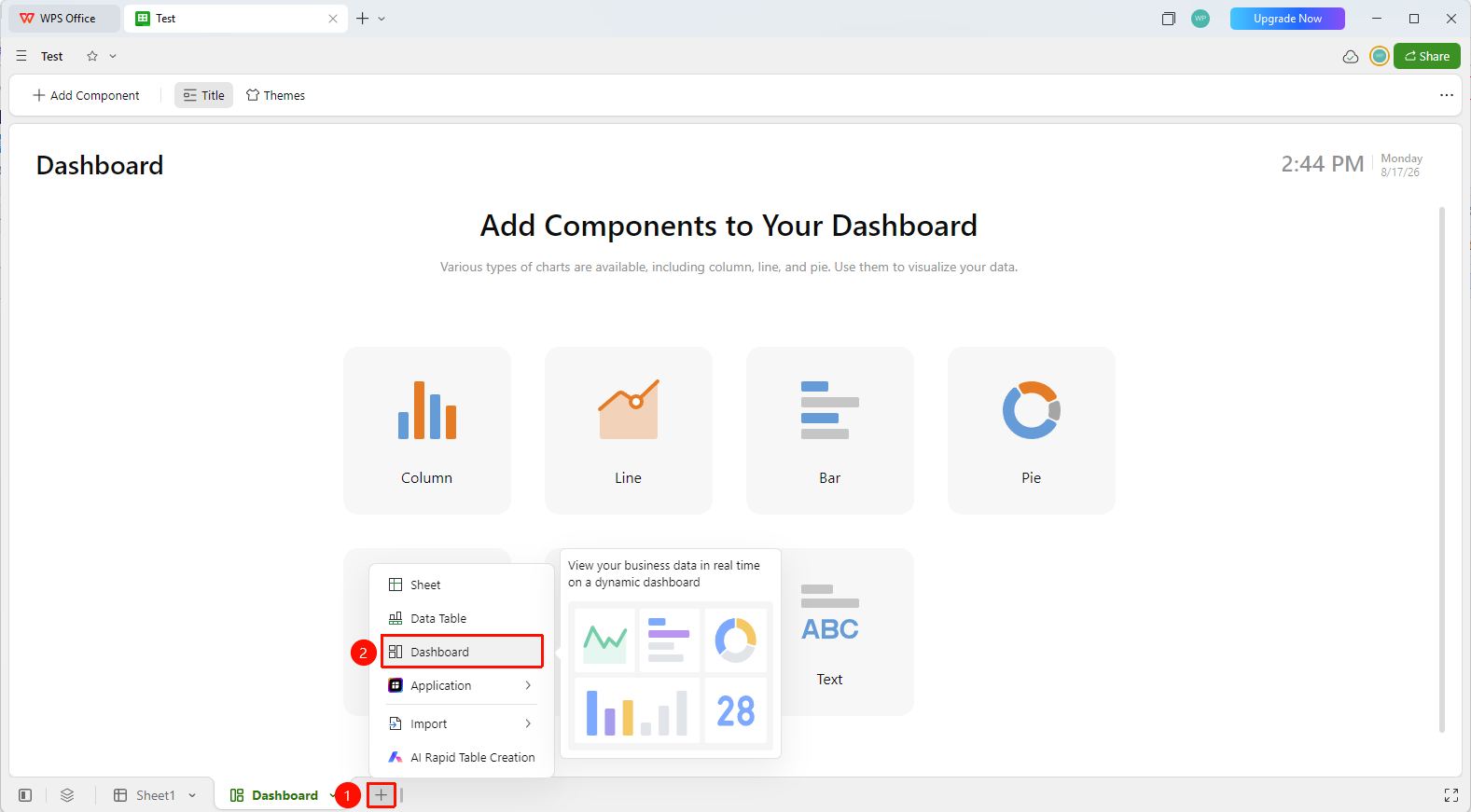
Bottom Status Bar: "New Worksheet" → "Dashboard"
- Click the "New Worksheet" button (+) icon in the bottom status bar
- Select "Dashboard"
- The system automatically creates a dashboard sheet
- You can click the "Add Component" button in the dashboard to start building the dashboard.
- Select the data source (associate with an existing data sheet)
Add Data Components
Feature Entry
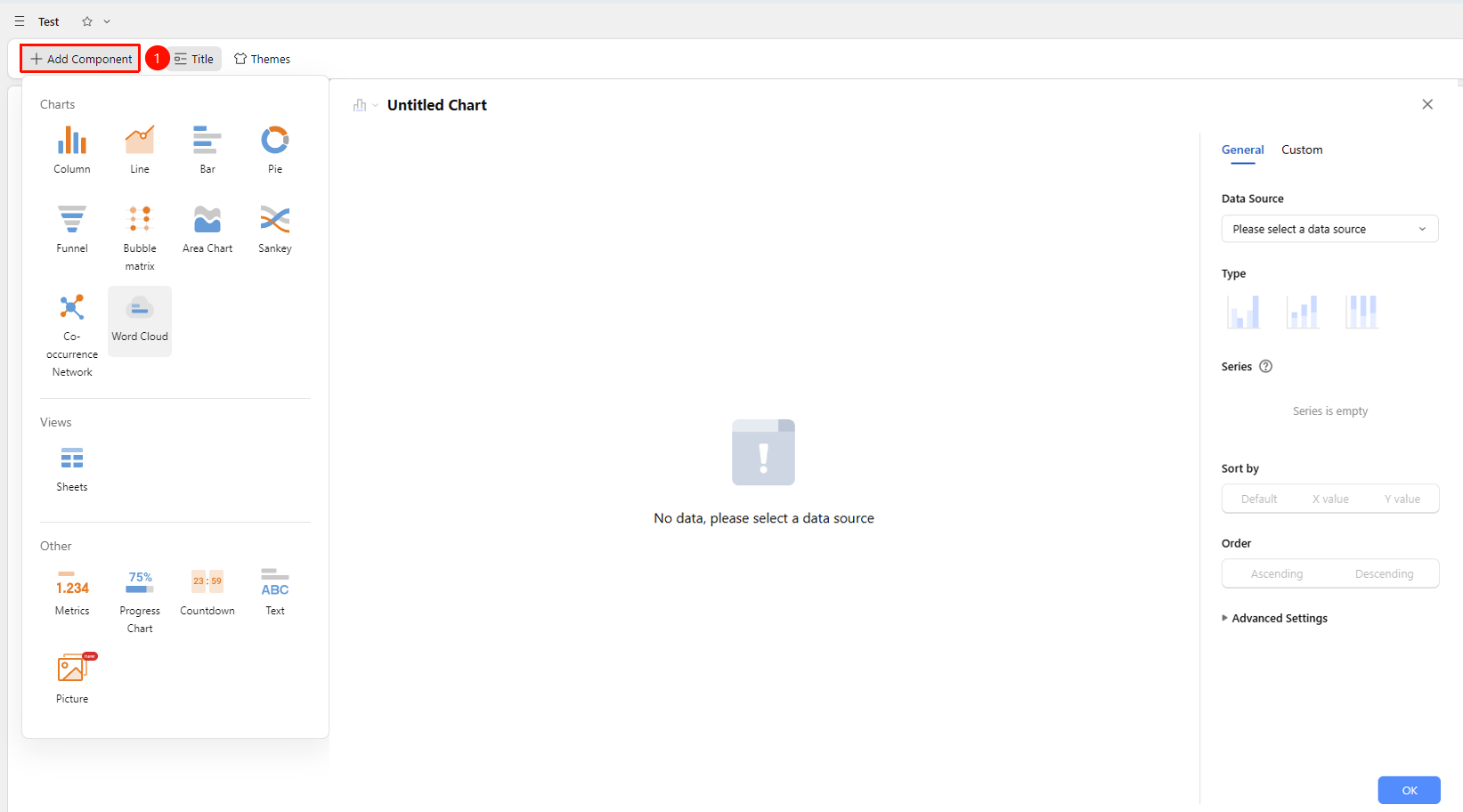
Dashboard editing interface → 「Add Component」
- Click **「Add Component」**in dashboard editing interface to select a chart type (bar chart, pie chart, statistic card, etc.)
- Configure the data source: select the associated sheet and fields
- Set the aggregation method: count, sum, average, etc.
- Adjust the component size and position, drag to arrange the layout
Show/Hide Dashboard Title
Feature Entry
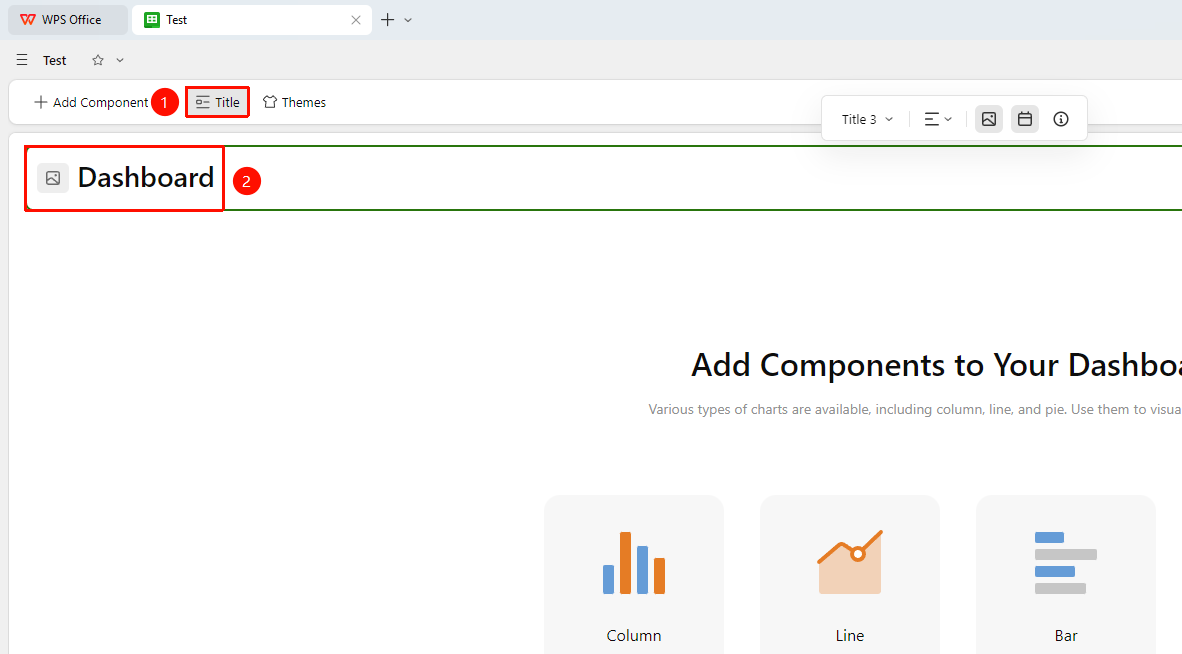
Dashboard editing interface → 「Title」
- Click 「Title」 in dashboard editing interface to show/hide the dashboard title
- Click the title to edit the dashboard title
Edit Data Components
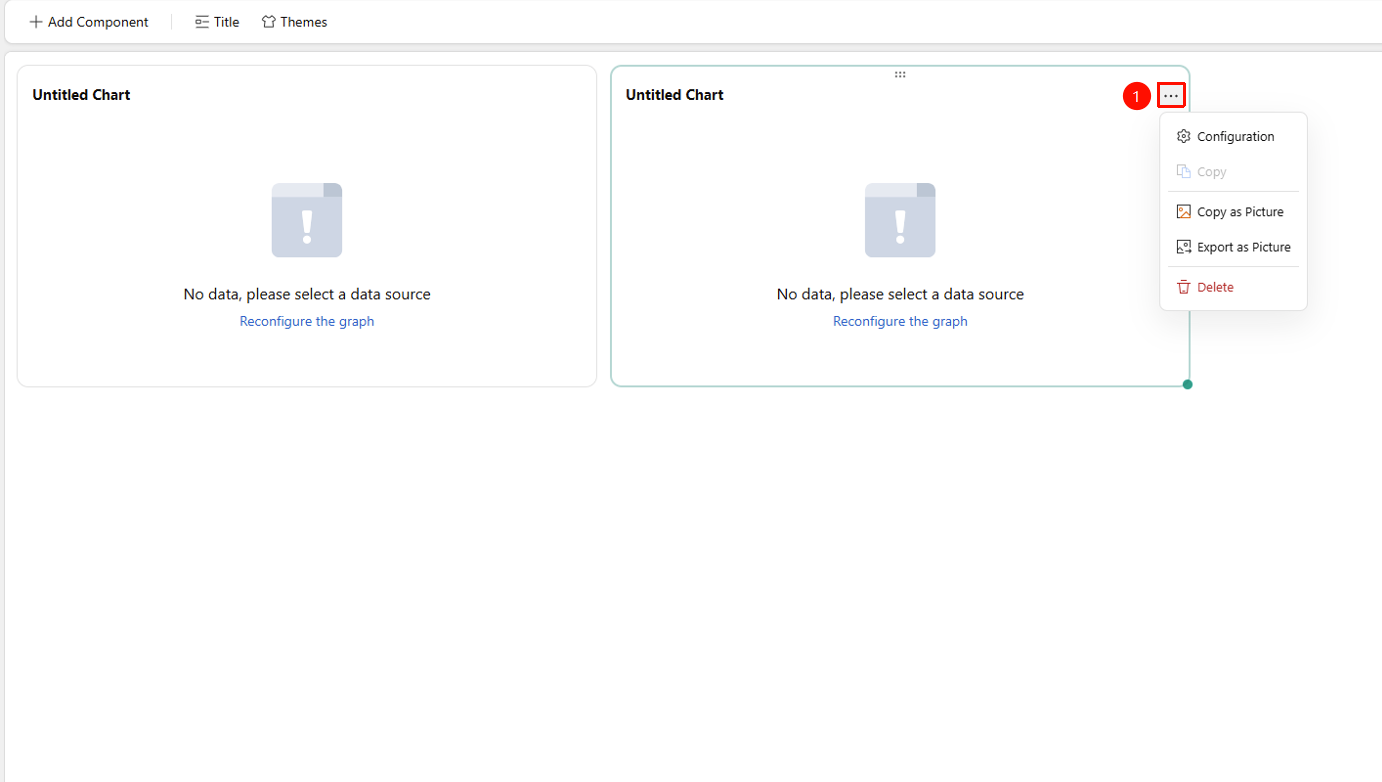
「...」 icon in the upper right corner of the component
- Click an added component, find and click the 「...」 icon in the upper right corner of the component to expand the dropdown menu
- Select from the following options in the dropdown menu:
- Configure : Reconfigure the component's data source, style, text format, and other options
- Copy : Copy the data component
- Copy as Image : Copy the data component as an image
- Export as Image : Export the data component as an image
- Delete : Delete the data component
FAQ
Q1: How many components can be displayed on a single dashboard?
- Solution: A single dashboard supports adding multiple components. It is recommended to keep it within 10 to maintain a clear layout and loading speed.
Q2: How does the dashboard data update?
- Solution: Dashboard data is linked to the underlying data sheet in real time. The dashboard refreshes automatically when the data sheet is updated, requiring no manual operation.
Q3: Can the dashboard be shared with others?
- Solution: Yes, the dashboard is shared along with the document as part of the sheet. Recipients can view the dashboard content.
Notes
- The dashboard depends on the data sheet. You need to create a data sheet and populate it with data before configuration.
- Drag to adjust component size and position is supported for flexible layout.
- The dashboard is suitable for projection display in Slides mode. Click a component to enter the details page.
- Deleting a data component from the dashboard cannot be undone via undo. It can be recovered through the sheet's version history.