Feature Summary
The co-occurrence network chart is used to display the association relationships and co-occurrence frequency between data fields in a dashboard, suitable for association analysis scenarios.
Feature Description
| Feature Dimension | Description |
|---|---|
| Membership Restriction | No membership restriction |
| Version Restriction | No version restriction |
Steps
Add a Co-occurrence Network Chart Component to the Dashboard
Feature Entry
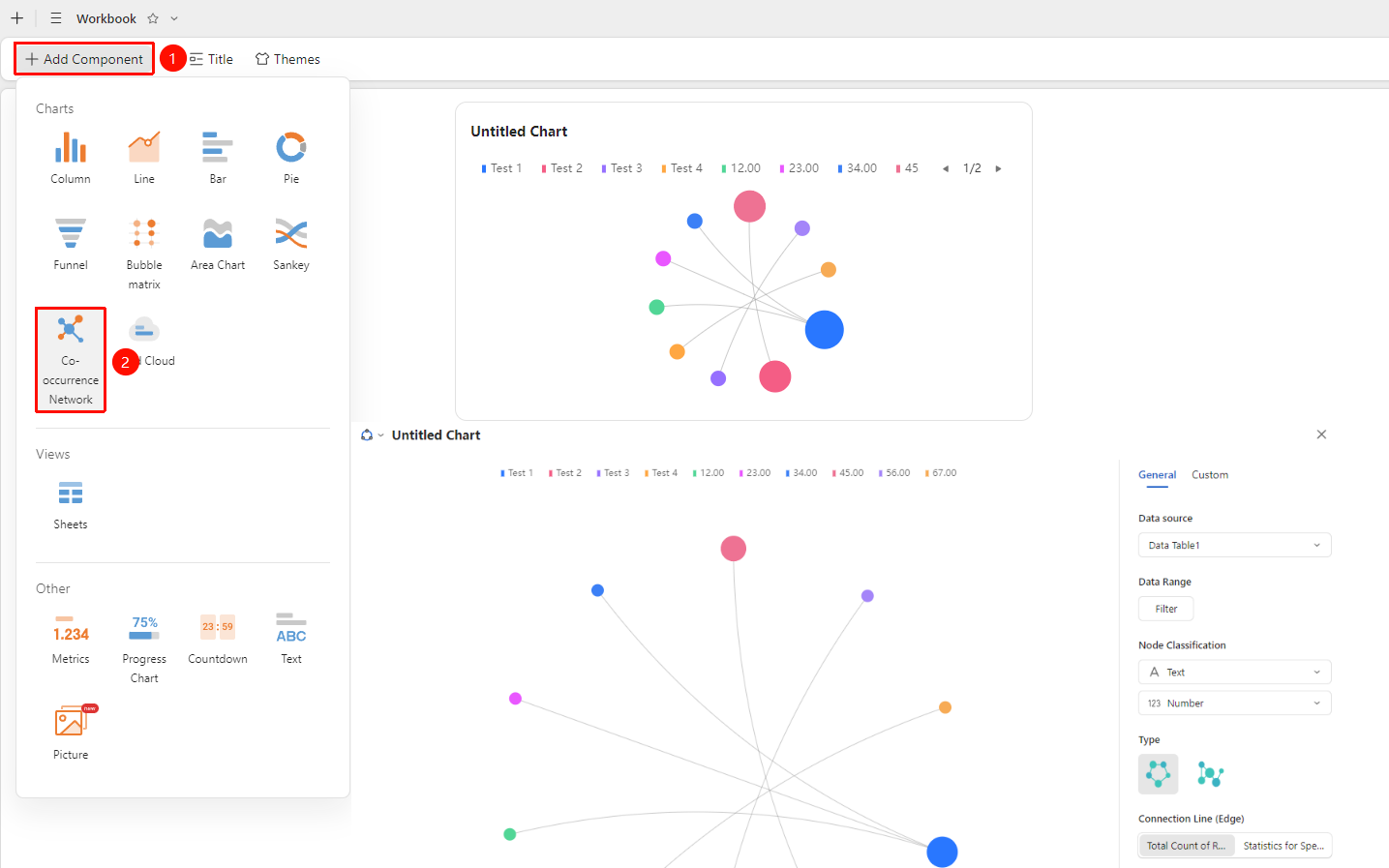
Dashboard interface → 「+ Add Component」 → Chart → 「Co-occurrence Network Chart」
- Enter the dashboard interface and click the 「+ Add Component」 button in the upper left corner
- In the pop-up component panel, find the 「Co-occurrence Network Chart」 icon under the 「Chart」 category
- Click the component to enter Read Mode and configure data as needed
- A Co-occurrence Network Chart will be automatically generated after confirmation
Edit/Export Chart
Feature Entry
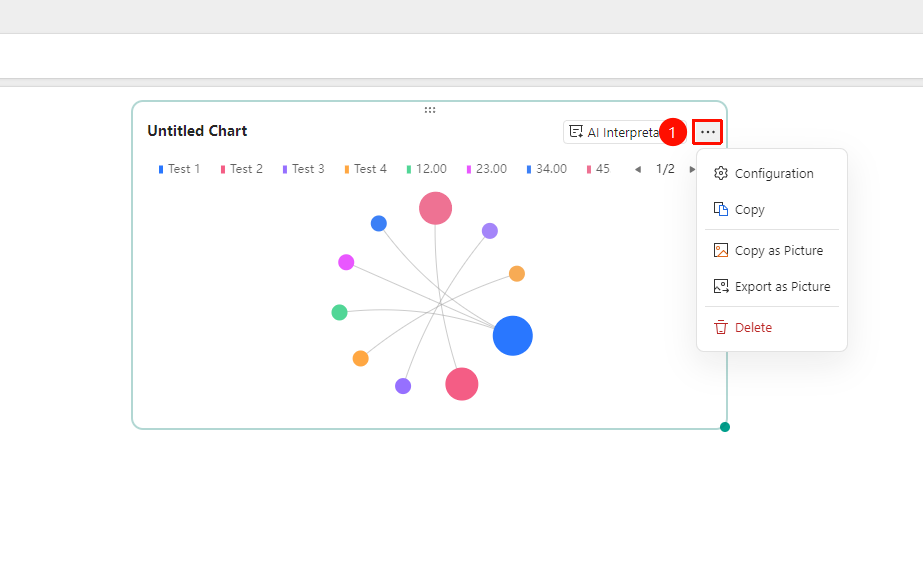
Click an added chart → 「...」 icon in the upper right corner
- Click an added chart, then click the 「...」 icon in the upper right corner to expand the edit chart dropdown menu
- Select the following options from the expanded dropdown menu:
- Configuration : Reconfigure chart data/style settings
- Copy : Copy the chart
- Copy as Image : Copy this chart as an image
- Export as Image : Export this chart in image format
- Delete : Delete the chart
General Settings
Feature Entry
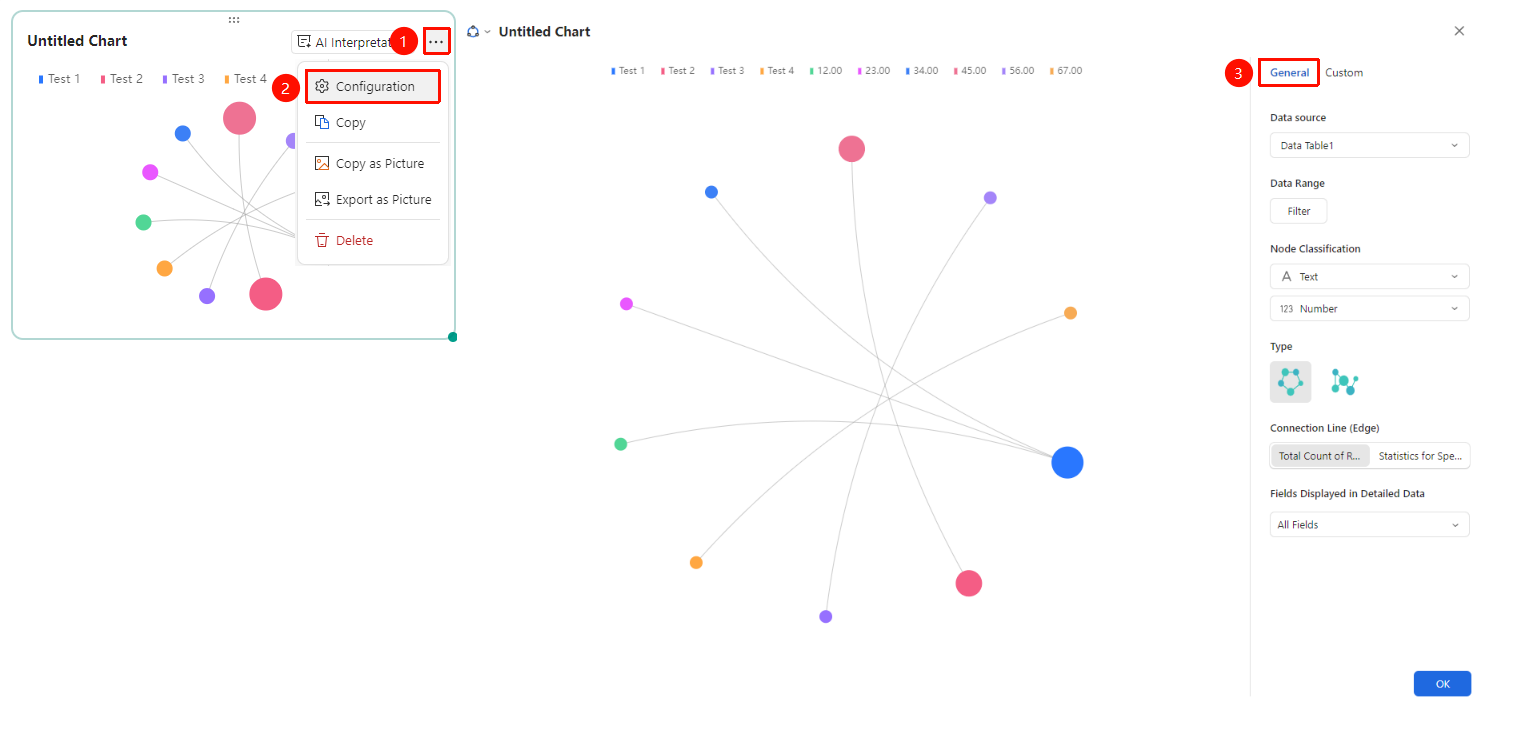
Click the added chart → 「...」 icon in the upper right corner →「Configuration」 → 「General」 tab
- Click the added chart, then click the 「...」 icon in the upper right corner to expand the edit chart dropdown menu
- Select the 「Configuration」 option from the expanded dropdown menu
- Switch to the 「General」 tab to edit the following chart configurations:
- Data Source: Select the data Sheets to use
- Data Range: Click 「Data Filter」 to set filter conditions
- Node Type: Select the co-occurrence network chart style
- Type: Select circular/free layout
- Link Line: Select 「Count Total Records」 or 「Count Specified Field」
- Fields Displayed in Detail Data : Hide/show all fields in the data source
After switching setting options, you can preview the effect in the left preview pane. Click 「Confirm」 to apply the settings
Custom Settings
Feature Entry
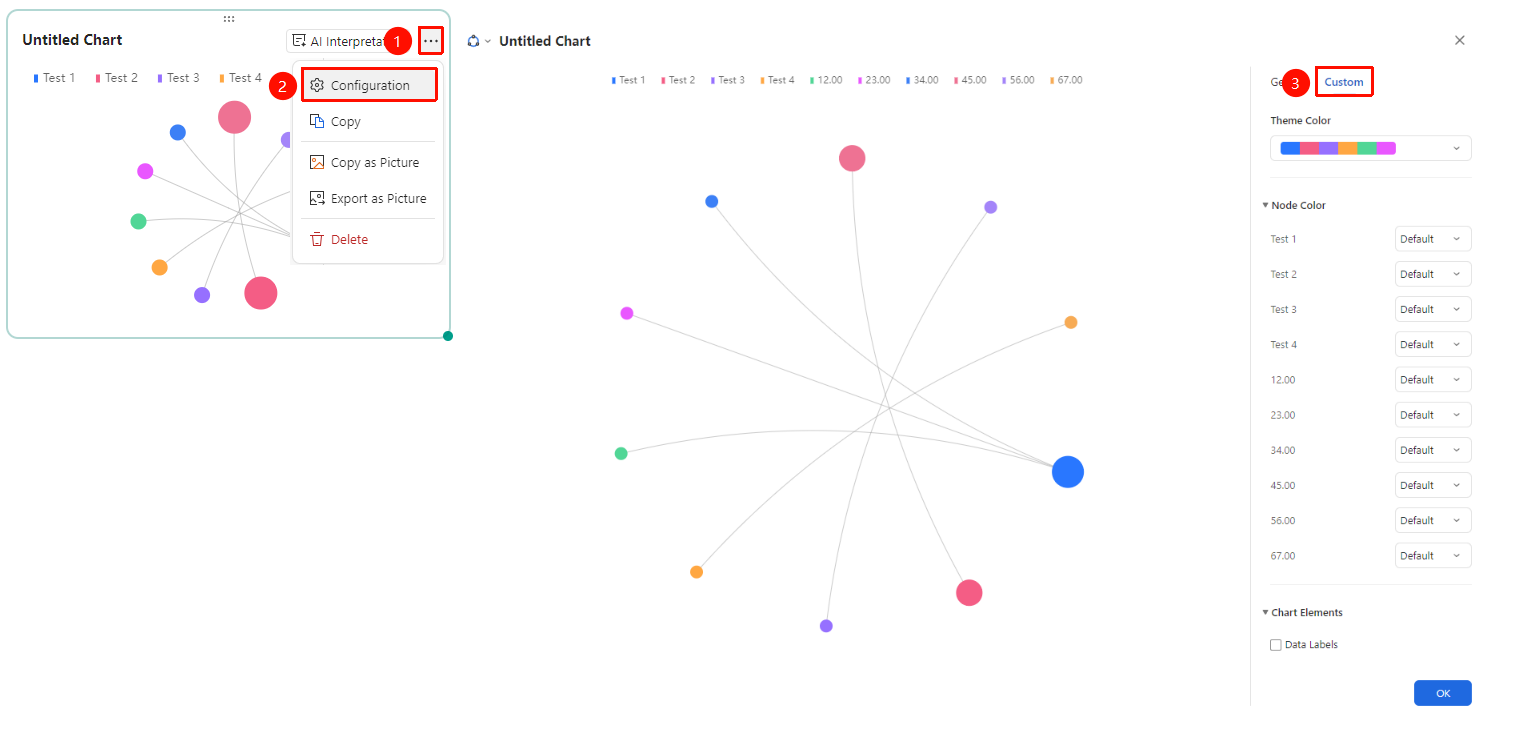
Click the added chart → 「...」 icon in the upper right corner →「Configuration」 →「Custom」 tab
- Click the added chart, then click the 「...」 icon in the upper right corner to expand the edit chart dropdown menu
- Select the 「Configuration」 option from the expanded dropdown menu
- Switch to the 「Custom」 tab to edit the following chart configurations:
- Theme Color: Preset color scheme, click the color bar dropdown to switch
- Node Color: Expand to custom the color of each node
- Chart Elements: Expand to set legend, node size, etc.
After switching setting options, you can preview the effect in the left preview pane. Click 「Confirm」 to apply the settings
FAQ
Q1: What scenarios is the co-occurrence network chart suitable for analyzing?
- Solution: It is suitable for analyzing association relationships between fields, such as tag co-occurrence, keyword association, user interest relationships, etc. Node size represents the frequency of field occurrence, and link thickness represents the frequency of two fields co-occurring.
Q2: How to interpret the co-occurrence network chart?
- Solution: Larger nodes indicate that the field appears more frequently, and thicker links indicate a stronger association between two fields. Nodes without links have no direct association.
Q3: What to do if there are too many nodes to see clearly?
- Solution: It is recommended to control the number of nodes within 20. Too many nodes will reduce chart readability. You can reduce the data volume through data filter conditions.
Notes
- When the data volume is too small, the links in the network chart may not be rich enough
- It is recommended to use colors to distinguish different types of nodes