Feature Summary
The word cloud is used to display the frequency and importance of text data in the dashboard using Docs of varying sizes.
Feature Description
| Feature Dimension | Description |
|---|---|
| Membership Restriction | No membership restriction |
| Version Restriction | No version restriction |
Operation Steps
Adding a Word Cloud Component to the Dashboard
Feature Entry
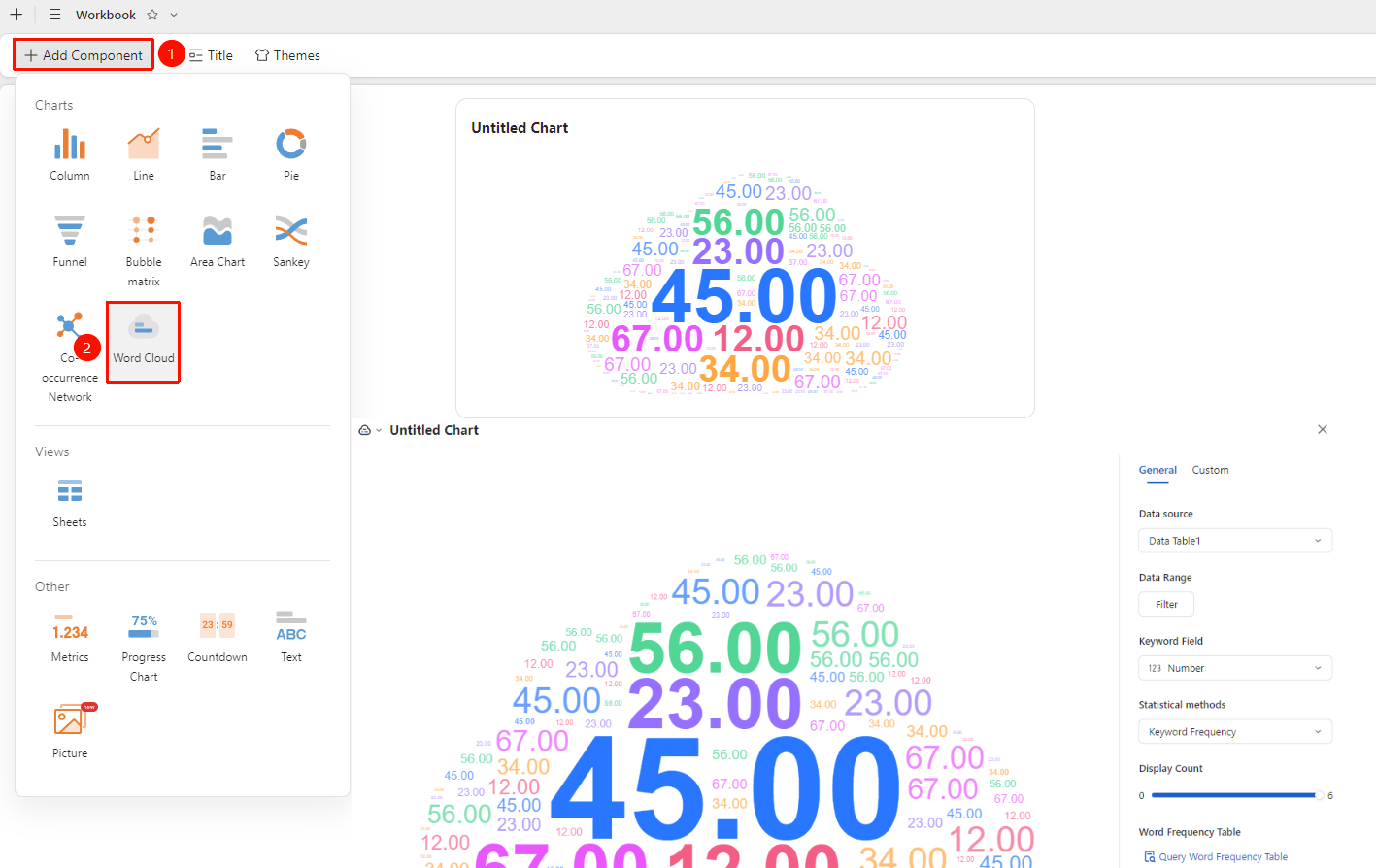
Dashboard interface → 「+ Add Component」 → Charts → 「Word Cloud」
- Enter the dashboard interface and click the 「+ Add Component」 button in the upper left corner
- In the pop-up component panel, find the 「Word Cloud」 icon under the 「Charts」 category
- Click the component to enter Read Mode and configure data as needed
- A Word Cloud Feature component will be automatically generated after confirmation
Editing / Exporting Charts
Feature Entry
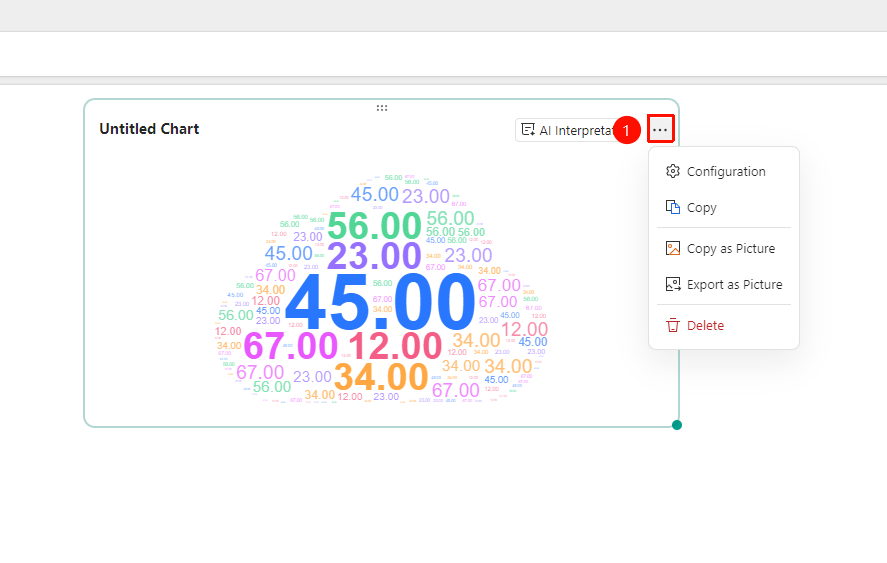
Click the added chart → 「...」 icon in the upper right corner
- Click the added chart, then click the 「...」 icon in the upper right corner to expand the edit chart dropdown menu
- Select the following options from the expanded dropdown menu:
- Configuration : Reconfigure chart data/style settings
- Copy : Copy the chart
- Copy as Image : Copy this chart as an image
- Export as Image : Export this chart in image format
- Delete : Delete the chart
General Settings
Feature Entry
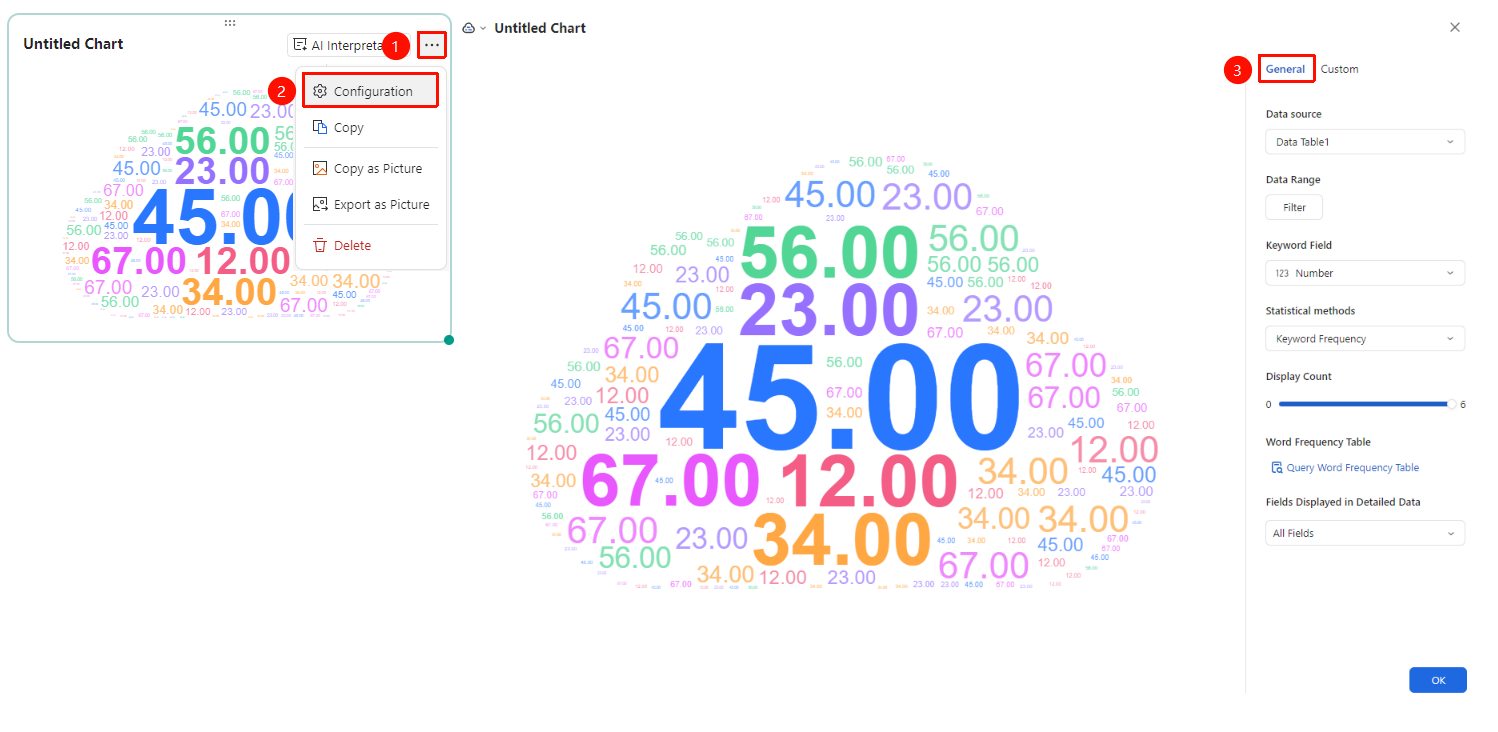
Click the added chart → 「...」 icon in the upper right corner →「Configuration」 → 「General」 tab
- Click the added chart, then click the 「...」 icon in the upper right corner to expand the edit chart dropdown menu
- Select the 「Configuration」 option from the expanded dropdown menu
- Switch to the 「General」 tab to edit the following chart configurations:
- Data Source: Select the data table to use
- Data Range: Click 「Data Filter」 to set filter conditions
- Keyword Field: Select the source of the keyword field
- Statistical Method: Switch the statistical method
- Display Count: The display format of keywords (0-6)
- Word Frequency Table: View word frequency status
- Fields Displayed in Detail Data : Hide/Show all fields in the data source
After switching setting options, you can preview the effect in the left preview pane. Click 「Confirm」 to apply the settings
Custom Settings
Feature Entry
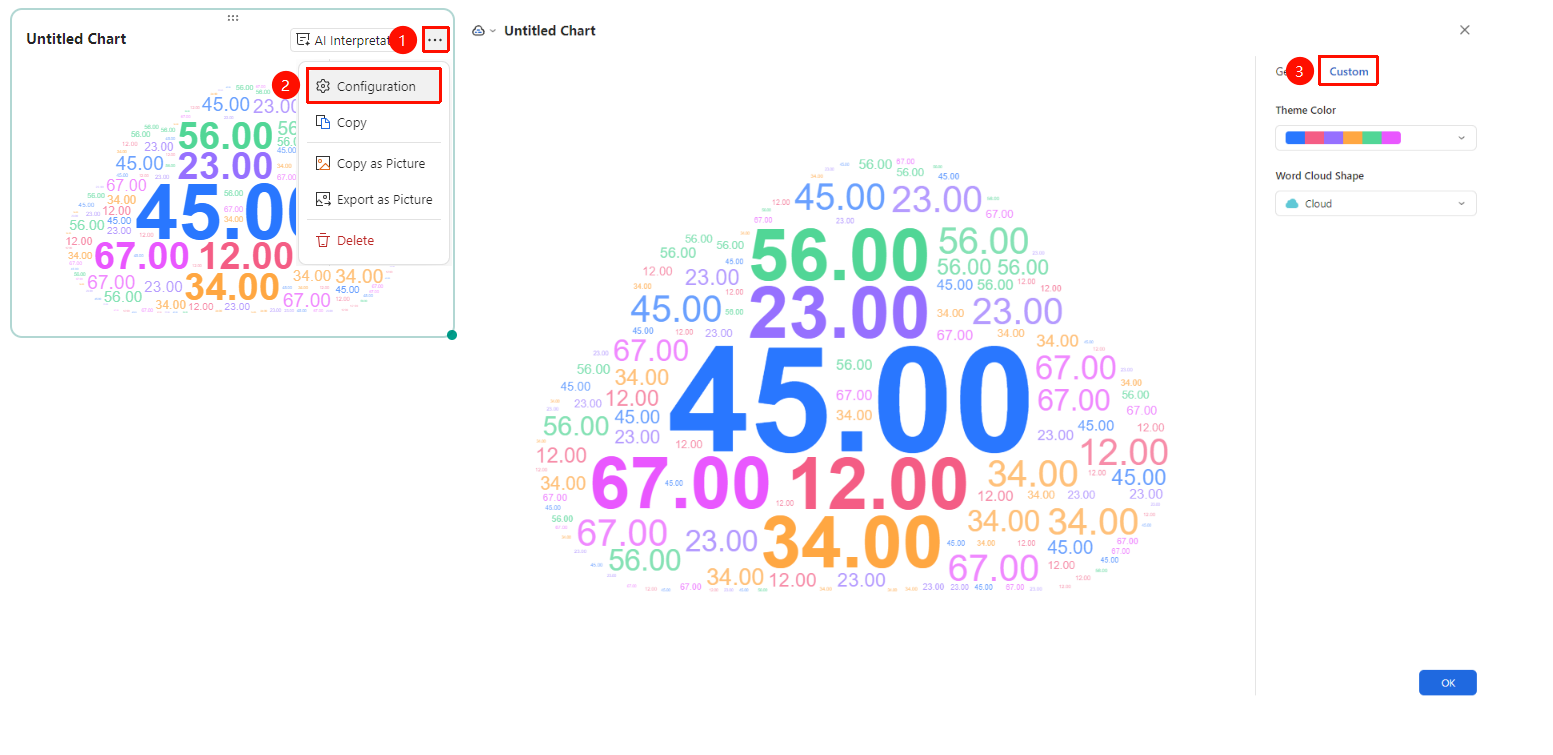
Click the added chart → 「...」 icon in the upper right corner →「Configuration」 →「Custom」 tab
- Click the added chart, then click the 「...」 icon in the upper right corner to expand the edit chart dropdown menu
- Select the 「Configuration」 option from the expanded dropdown menu
- Switch to the 「Custom」 tab to edit the following chart configurations:
- Theme Color: Preset color schemes, click the color bar to switch via dropdown
- Word Cloud Shape: Switch between different word cloud shapes
After switching setting options, you can preview the effect in the left preview pane. Click 「Confirm」 to apply the settings
FAQ
Q1: What scenarios are word clouds suitable for analyzing?
- Solution: Word clouds are suitable for analyzing the frequency and importance of text data, such as high-frequency word analysis of user comments, tag popularity display, keyword extraction, etc. Larger text indicates a higher frequency of occurrence.
Q2: What is the data source for the word cloud?
- Solution: The data source for the word cloud is usually a text-type field, and the visualization effect is automatically generated by counting word frequency.
Q3: How to display more keywords in the word cloud?
- Solution: Word cloud editing panel → 「General」 → Display Count, increase the number of keywords.
Notes
- The word source field should be of text type. The richer the content, the better the generated word cloud effect
- Common stop words (such as "the" "is" etc.) may be automatically filtered out
- It is recommended to focus on one theme for the same word cloud. Mixing different themes will affect interpretation
- To ensure the word cloud effect, the keyword character limit is 30 characters. Content exceeding this limit will not be displayed temporarily