Feature Summary
The text component is used to add descriptive text, explanatory information, or data notes to the dashboard, helping to understand the data content within the dashboard.
Feature Description
| Feature Dimension | Description |
|---|---|
| Membership Restriction | No membership restriction |
| Version Restriction | No version restriction |
Operation Steps
Adding a Text Component
Feature Entry
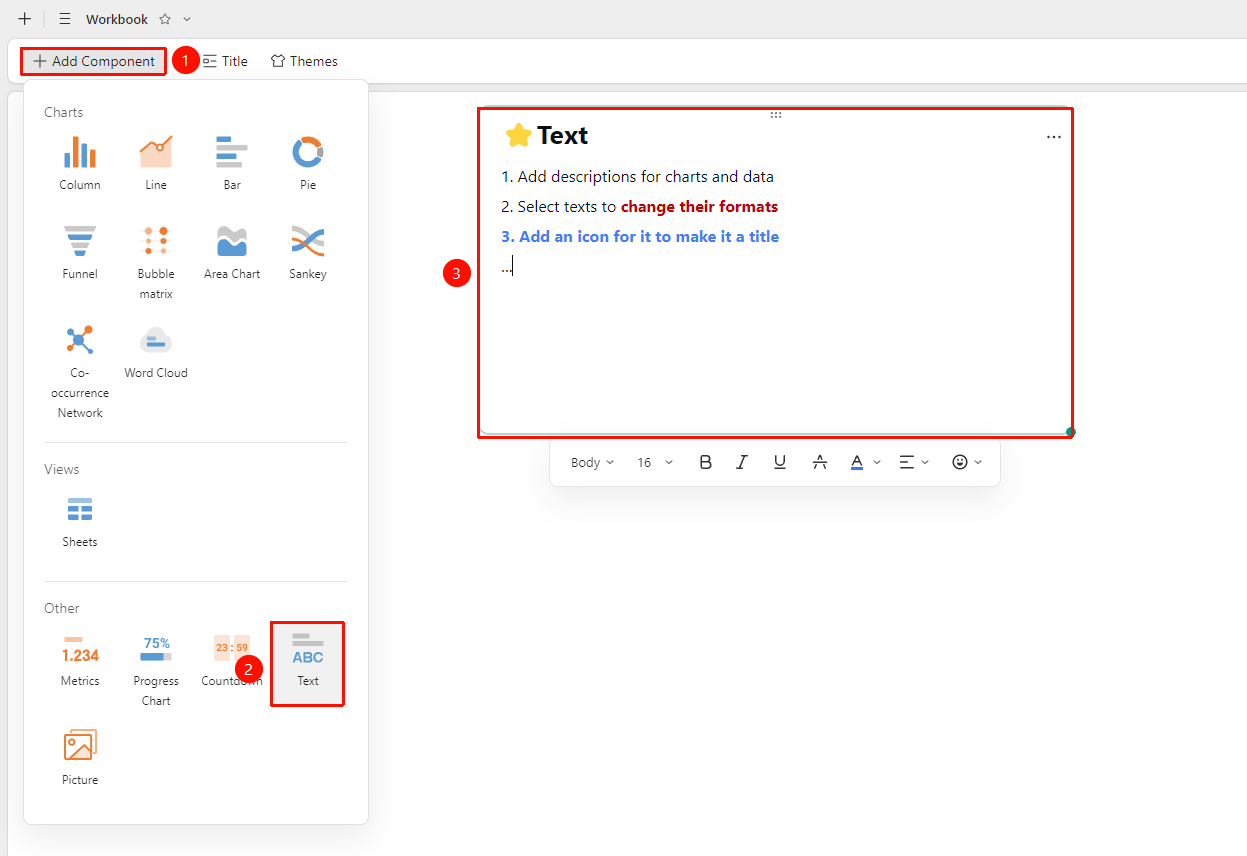
Dashboard interface → 「+ Add Component」 → Others → 「Text」
- Enter the dashboard interface and click the 「+ Add Component」 button in the upper left corner
- In the pop-up component panel, find the 「Text」 icon under the 「Others」 category
- Click to automatically generate a text component
- Click the component to enter Read Mode and enter the text content to be displayed
Editing/Deleting a Component
Feature Entry
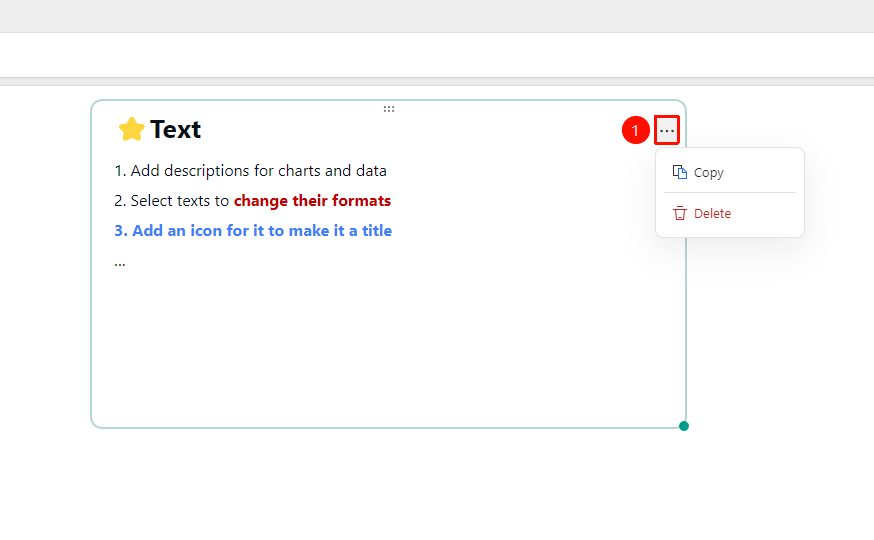
Click the added text component → 「...」 icon in the upper right corner
- Click the added text component, then click the 「...」 icon in the upper right corner to expand the edit Sheets dropdown menu
- Select the following options from the expanded dropdown menu:
- Copy : Copy component
- Delete : Delete component
Text Component Editing
Feature Entry
Click the text component editing area
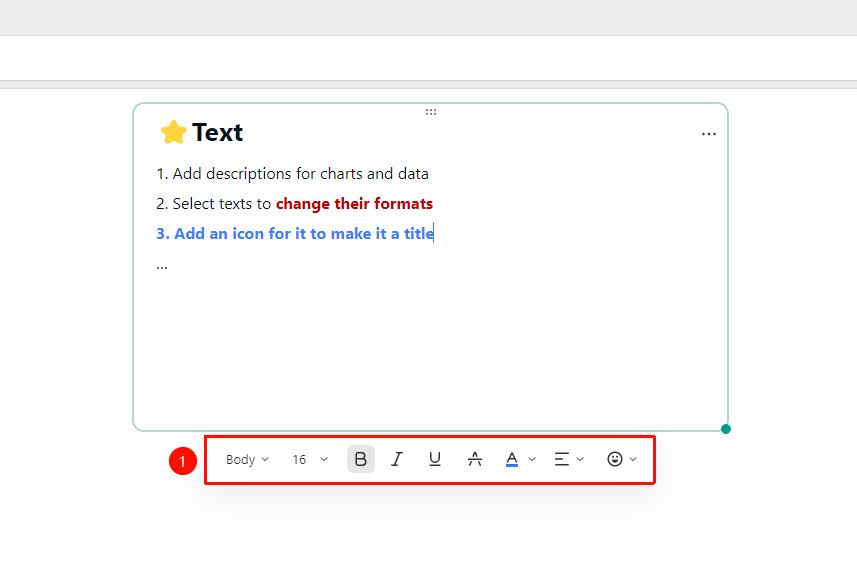
- Click the text component editing area to invoke the text editing floating menu bar
- The text editing floating menu bar consists of:
- Title: Set the component title
- Font Size: Set the font size of the selected content
- Bold: Bold/Unbold the font
- Italic: Italicize/Unitalicize the font
- Underline: Add/Remove underline from the font
- Strikethrough: Add/Remove strikethrough from the font
- Alignment: Set the text alignment
- Emoji: Add emoji expressions
FAQ
Q1: What are the usage scenarios for the text component?
- Solution: It is commonly used to add dashboard descriptions, data interpretations, statistical caliber explanations, notes, etc., existing in the form of a text box.
Q2: Can the text component insert links?
- Solution: Not currently supported.
Q3: Can the size of the text component be adjusted?
- Solution: Yes. You can adjust the size by dragging the component border, and you can also drag to move its position.
Notes
- Text content should be concise and clear, avoiding excessive text that makes reading difficult
- The text component is mainly used for supplementary explanations and is not recommended to replace data display components
- You can use a combination of title and body to display important information