Feature Summary
The Export Dashboard feature allows you to export dashboard data as images or data files for easy sharing and archiving.
Feature Description
| Feature Dimension | Description |
|---|---|
| Membership Restriction | No membership restriction |
| Version Restriction | No version restriction |
Steps
Export Dashboard
Feature Entry
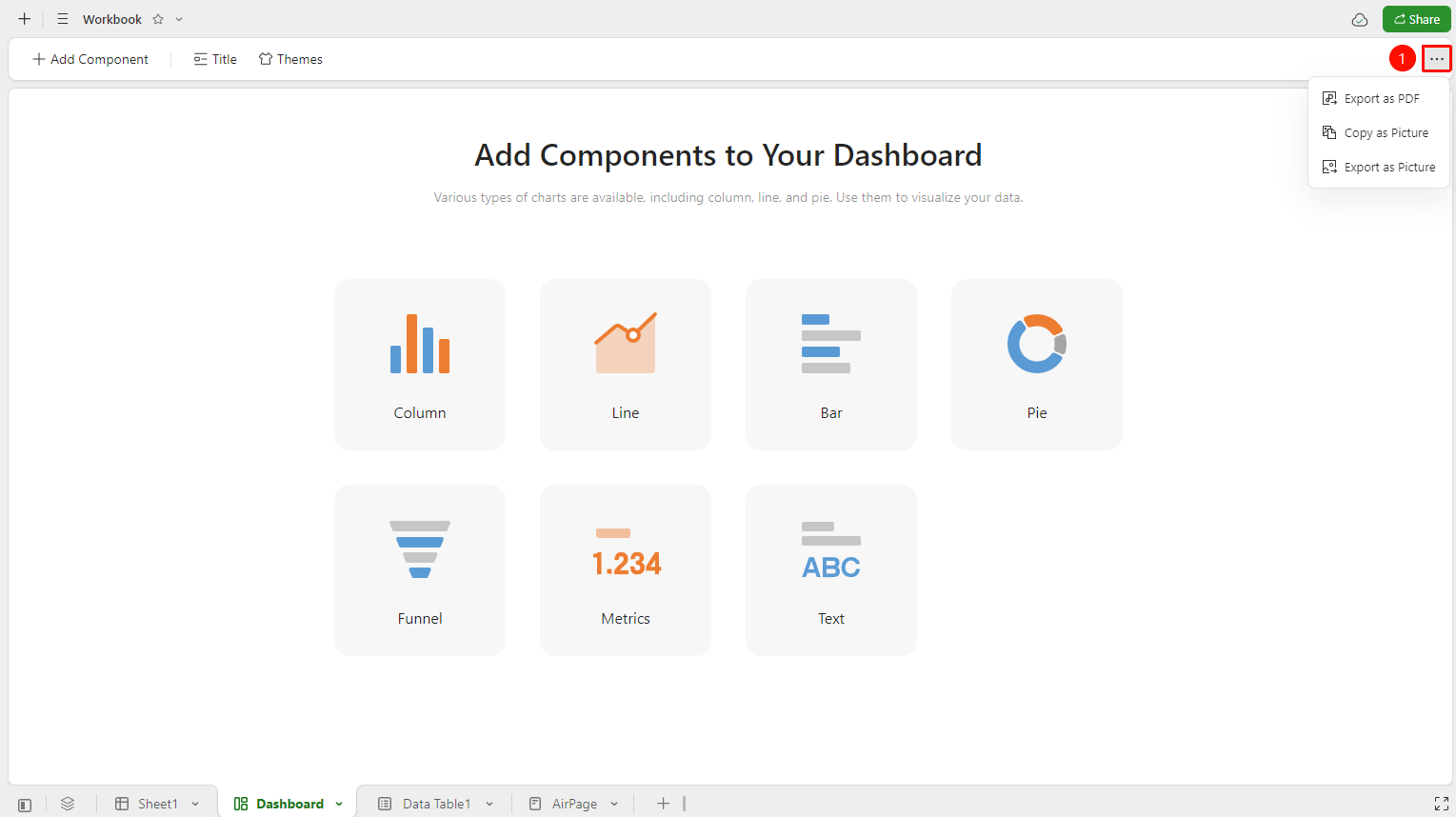
Dashboard interface → "..." menu in the upper right corner → "Export Data"
- Open the target AirSheet and switch to the Dashboard view.
- Click the "..." more menu button in the upper right corner to expand the drop-down menu.
- Select one of the following export methods:
- Export as PDF: Export the dashboard snapshot in PDF format.
- Copy as Image: Copy the dashboard snapshot as an image for easy pasting anytime.
- Export as Image: Export the dashboard snapshot as an image, preserving the visual display effect.
FAQ
Q1: Is the exported data real-time?
- Solution: The latest data available at the time of export will be exported. The data will not be updated after export. If you need the latest data, you must export again.
Notes
- Please ensure sensitive data is desensitized before sharing.