Feature Summary
When you need to quickly locate or batch-modify content in AirPage, the Find and Replace feature supports searching for specified content in the Document by keywords and supports one-click batch replacement, helping you efficiently complete content retrieval and batch modification.
Feature Description
| Feature Dimension | Description |
|---|---|
| Membership Restriction | No membership restriction |
| Version Restriction | No version restriction |
| Find Feature Shortcut | Ctrl+F |
| Replace Feature Shortcut | Ctrl+H |
Operation Steps
Find Content
Feature Entry
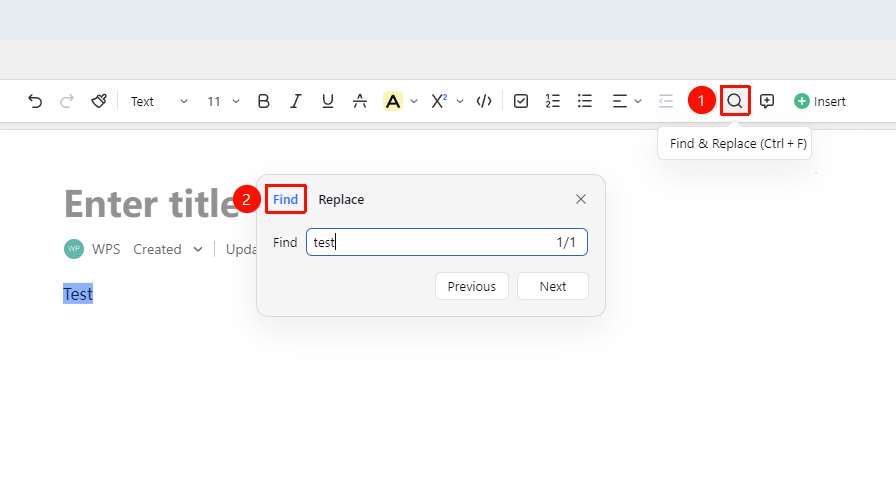
Top Ribbon → "Find and Replace" button (magnifying glass icon) → "Find" option
- Open AirPage and click the Search button (magnifying glass icon) in the ribbon
- Select Find in the dialog box that pops up in the upper right
- Enter the keyword you want to find in the input box
- Press the Enter key or click the "Next" button to locate the matching content in the Document
- Continue clicking "Next" to jump to subsequent matching items in sequence
Replace Content
Feature Entry
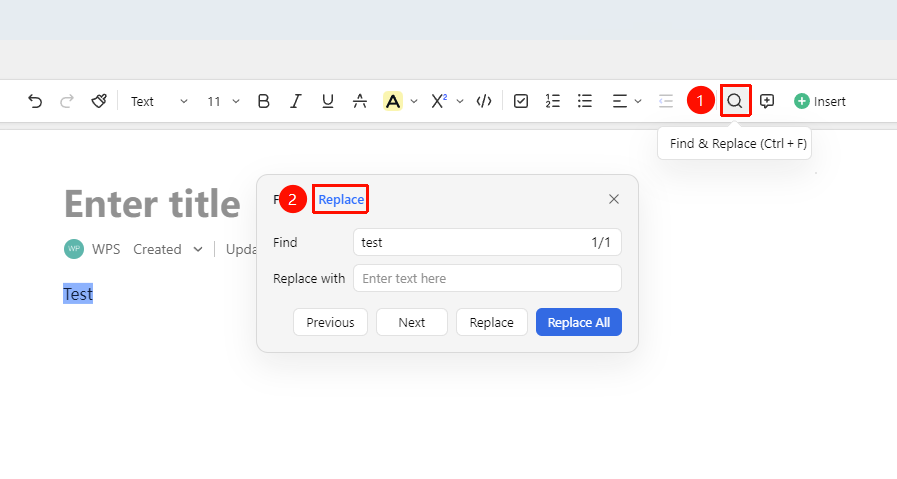
Top Ribbon → "Find and Replace" button (magnifying glass icon) → "Replace" option
- Open AirPage and click the Search button (magnifying glass icon) in the ribbon
- Select Replace in the dialog box that pops up in the upper right
- In the "Find" input box, enter the original text to be replaced
- In the "Replace with" input box, enter the new text after replacement
- Click the "Replace" button to replace one by one, or click the "Replace All" button to complete all replacements with one click
FAQ
Q1: Why can't I find certain content in the Find box?
- Solution: The Find feature in AirPage currently supports text content retrieval. Titles in highlight blocks and Sheets may not be searched. Please confirm that the search keyword is spelled correctly, or try using different keywords for the search.
Q2: How can I recover if I made a mistake after replacing content?
- Solution: You can use the shortcut Ctrl + Z (Cmd + Z on Mac) to gradually undo the replacement operations and restore the content before replacement. It is recommended to use "Replace" to confirm the replacement effect one by one before executing "Replace All".
Q3: Can I find and replace content with formatting?
- Solution: Currently, the Find and Replace feature in AirPage supports finding and replacing plain text content. If you need to replace content with specific formatting (such as font color), you can use the Find and Replace "Format" filtering feature in the WPS client, which supports finding and replacing by font format.
Notes
- Find and Replace is a full-text search, covering all paragraph content in the Document
- It is recommended to back up the Document before executing "Replace All", or use "Find Next" to preview and confirm the content to be found first
- Shortcut operations are supported: Find
Ctrl+F, Find and ReplaceCtrl+H