Feature Summary
When you need to quickly apply the formatting of a certain piece of text in a Document to other paragraphs, the Format Painter feature allows you to copy the font style, color, size, and other formatting attributes of the selected text with one click and quickly apply them to the target text, greatly improving document layout efficiency.
Feature Description
| Feature Dimension | Description |
|---|---|
| Membership Restriction | No membership restriction |
| Version Restriction | No version restriction |
Steps
Using Format Painter via the Ribbon
Feature Entry
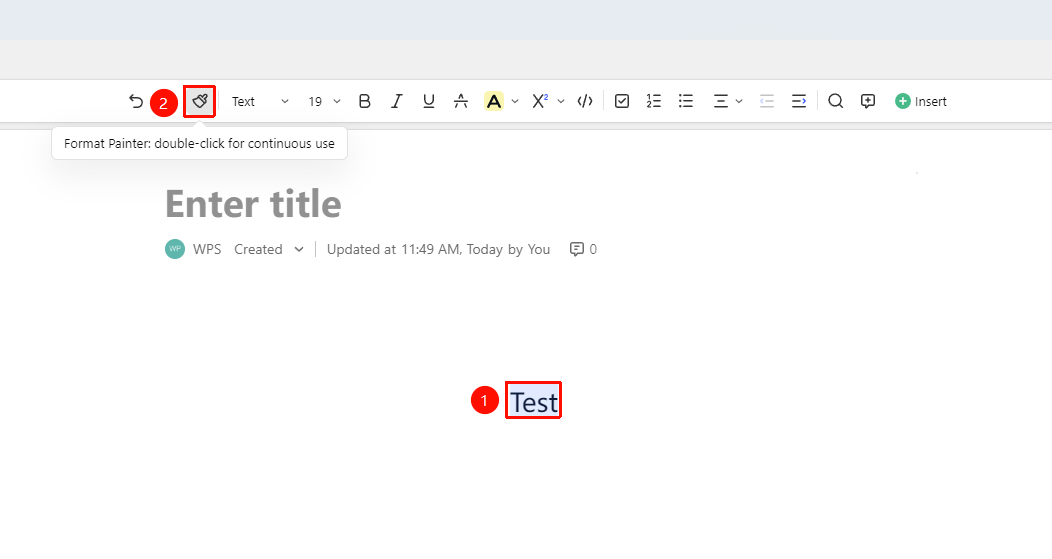
Select formatted text → Top Ribbon → "Format Painter" button
- Select a piece of text that has been formatted (source formatted text)
- Click the Format Painter icon button in the top ribbon
- The mouse pointer will change to a brush style
- Use the mouse to drag and select the target text to which you want to apply the same formatting
- After releasing the mouse, the target text will acquire the same formatting as the source text
Using Format Painter via Shortcuts
Feature Entry
Select formatted text Ctrl+Shift+C to copy formatting → Select target text Ctrl+Shift+V to paste formatting
- Select the text that has been formatted
- Press Ctrl + Shift + C (Cmd + Shift + C on Mac) to copy the formatting
- Select the target text to which you want to apply the formatting
- Press Ctrl + Shift + V (Cmd + Shift + V on Mac) to paste the formatting
Using Format Painter Multiple Times in Succession
Feature Entry
Double-click the "Format Painter" button → Apply to multiple locations continuously
- After selecting the formatted text, double-click the Format Painter button in the ribbon
- The Format Painter will enter multiple-use mode
- Drag and select multiple target texts in the Document that need formatting in sequence
- The formatting will be continuously applied to all selected texts
- Press the Esc key or click the Format Painter button again to exit multiple-use mode
FAQ
Q1: What formatting does the Format Painter copy?
- Solution: The Format Painter copies all character formatting attributes of the source text, including font, font size, color, bold, italic, underline, etc. Paragraph formatting (such as alignment, indentation, etc.) needs to be set using the paragraph handle.
Q2: After applying formatting to multiple places, how do I undo just one?
- Solution: After applying formatting using the Format Painter, you can use Ctrl + Z (Cmd + Z on Mac) to step-by-step undo the most recent formatting change. Each press of the shortcut key undoes one step.
Q3: Can the Format Painter copy the formatting of Sheets?
- Solution: Currently, the Format Painter in AirPage mainly supports copying text paragraph formatting.
Notes
- The Format Painter only copies formatting, not the text content itself
- Single-clicking the Format Painter allows one-time use; double-clicking allows continuous multiple uses
- Press the Esc key to cancel the Format Painter mode