Feature Summary
When you need to protect certain critical content from being arbitrarily modified by others in a collaborative Document, the Content Protection Area feature can create a protected editing region for the specified content. Only users with edit permission can modify the content within the protection area; other users can view only.
Feature Description
| Feature Dimension | Description |
|---|---|
| Membership Restriction | No membership restriction |
| Version Restriction | No version restriction |
Operation Steps
Insert Content Protection Area via Slash Command
Feature Entry
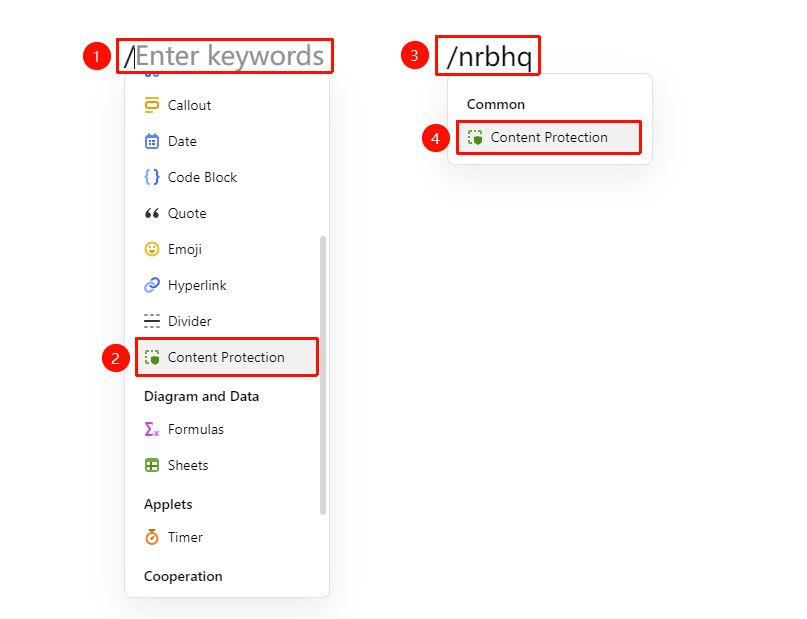
Document editing area → Input: / → "Content Protection Area" option
- In the Document, enter / on a blank line where you want to set the protection area
- Select "Content Protection Area" from the pop-up shortcut menu
- Or search by keyword: enter /nrbhq to quickly locate it
- After insertion, enter the content you want to protect within the protection area
Insert via Paragraph Handle Menu
Feature Entry
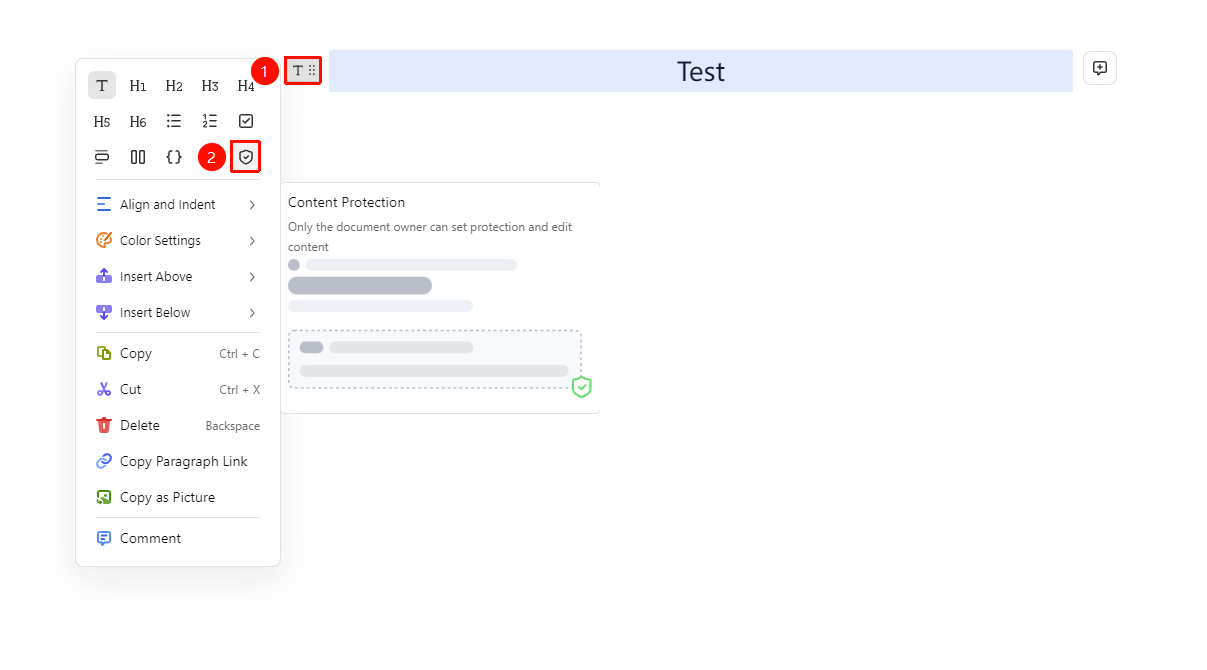
"Paragraph Handle" button on the left side of the paragraph (icon is "⠿") → "Content Protection Area" icon
- Place the cursor where you want to add the protection area
- Click the Paragraph Handle button on the left side of the paragraph
- Select the "Content Protection Area" icon from the menu
Add Content Protection Area via Insert Menu
Feature Entry
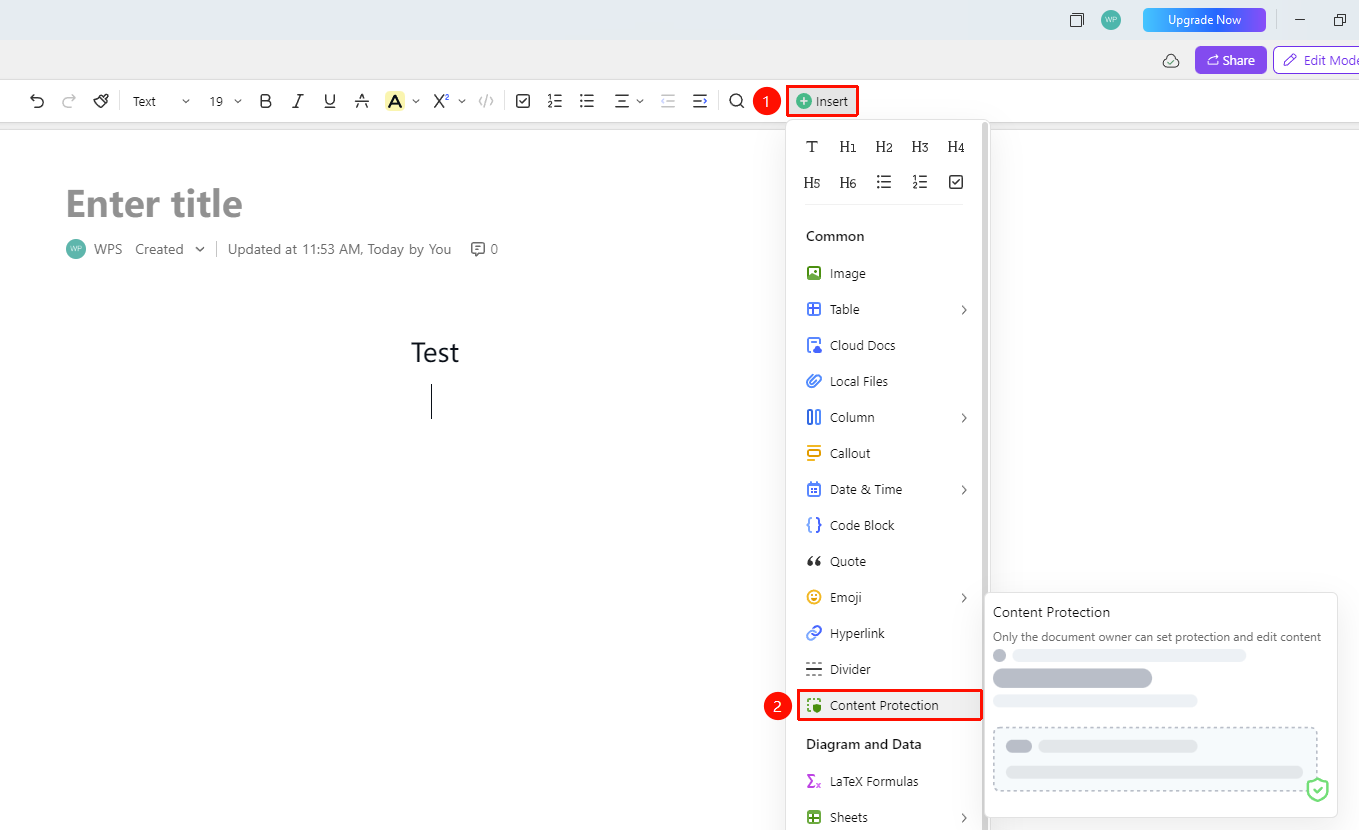
"Top" functional area → "Insert" button → "Highlight Block" option
- Place the cursor where you want to add the protection area
- Click the "Insert" button in the top functional area
- Select "Content Protection Area" from the pop-up menu
FAQ
Q1: For whom is the Content Protection Area effective?
- Solution: The Content Protection Area is effective for all collaborators. Only the Document owner and users granted edit permission can modify the content within the protection area; other collaborators (including users with comment and view permissions) cannot modify the protected content.
Q2: Will deleting the Content Protection Area affect the content inside?
- Solution: After deleting the boundaries of the Content Protection Area, the content inside will become a normal paragraph and will no longer be protected. The content itself will not be deleted; only the protection effect will disappear.
Q3: Can a Poll be set with content protection?
- Solution: Yes. The Document owner can set content protection for a Poll. Once set, other collaborators cannot modify the Poll content and can only participate in the Poll. This can be done by selecting the Poll and enabling content protection in the settings.
Notes
- The Content Protection Area is mainly used in multi-person collaboration scenarios to protect critical information from being accidentally modified
- Content within the protection area can only be modified by users with edit permission
- After creating a Content Protection Area, all collaborators can see the protection area marker, but the edit button is only visible to users with permission