Feature Summary
When you need a multi-column side-by-side layout in a Document (e.g., left-right comparison, mixed text and images), the Insert Column feature allows you to display Document content in multiple columns, enhancing the visual appeal and information density of your Document.
Feature Description
| Feature Dimension | Description |
|---|---|
| Membership Restriction | No membership restriction |
| Version Restriction | No version restriction |
Steps
Insert Columns via the Top Ribbon
Feature Entry
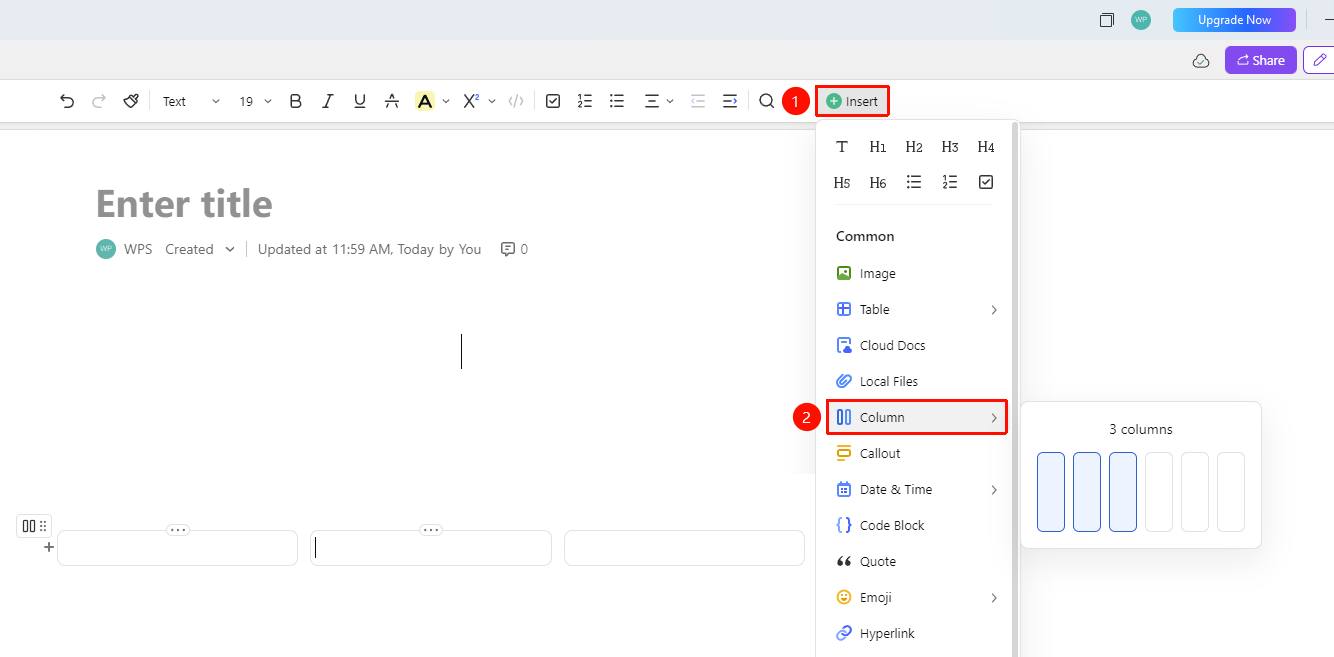
Top Ribbon → "Insert" Button → "Column" Option
- Place the cursor where you want to insert columns
- Click the "Insert" menu button at the top
- Select the "Column" option from the Insert menu
- Choose the desired number of columns (e.g., two columns, three columns, etc.)
- After insertion, you can enter content separately in each column area
Quickly Insert Columns via Slash Command
Feature Entry
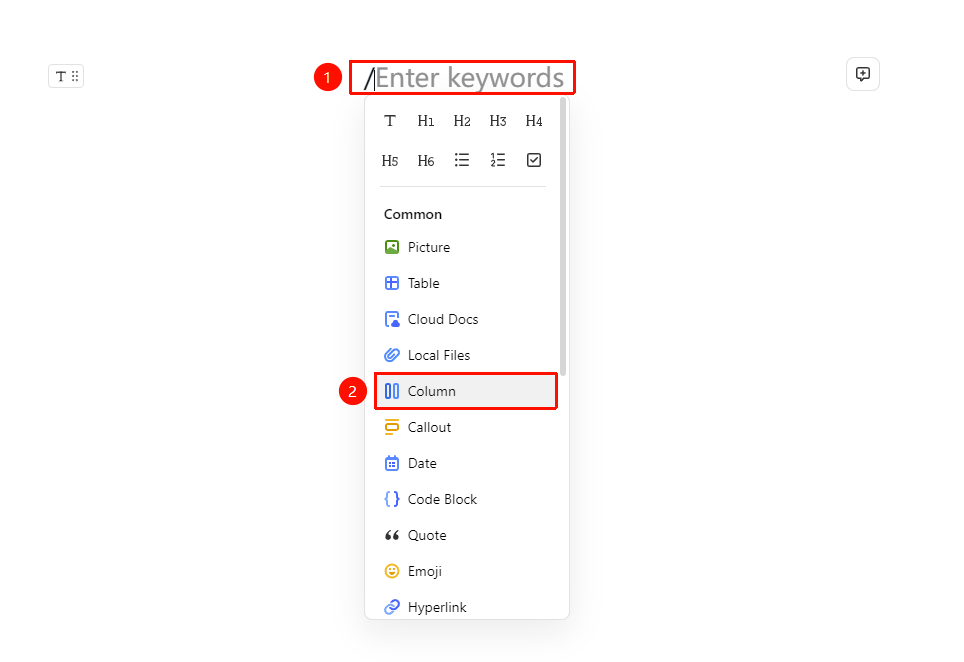
"Document Editing Area" → Type: / → Select the "Column" Option
- Type / directly on a blank line in the Document
- In the pop-up quick menu, select "Column"
Insert via Paragraph Handle Menu
Feature Entry
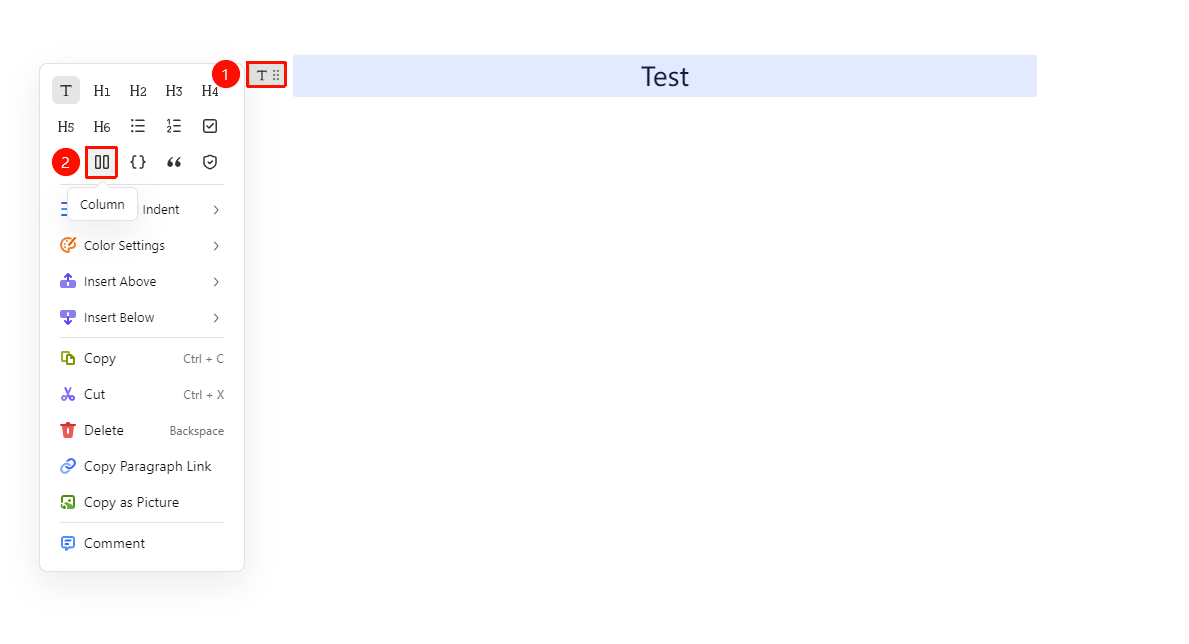
"Paragraph Handle" button on the left side of the paragraph (icon is "⠿") → "Column" icon
- Position the cursor where you want to add the protection area.
- Click the Paragraph Handle button on the left side of the paragraph.
- Select the "Column" icon from the menu.
FAQ
Q1: What should I do if content displays incorrectly after adding columns?
- Solution: The width of content within columns automatically adapts to the column width. If content displays incorrectly, you can drag to adjust the width of each column, or drag content blocks out of the columns and rearrange them. Ensure that the size of the content within each column does not exceed the current column width.
Q2: Can I insert images into columns?
- Solution: Yes. Columns support inserting all content types supported by AirPage, including images, Sheets, code blocks, etc. Simply use the corresponding insert feature directly within the column area.
Q3: How do I delete columns?
- Solution: Place the cursor inside the column area, then select delete column via the paragraph handle menu, or drag all content out of the column area using the mouse; the columns will automatically disappear.
Notes
- Columns are primarily designed for widescreen display on desktop/tablet devices; they may be rendered as a single column on mobile devices
- Content blocks within columns support independent editing and formatting
- It is recommended to use columns in content-rich Documents to improve layout utilization