Feature Summary
When you need to add structured titles to your Document content, the Chapter Title feature supports setting multiple heading levels (H1–H6), giving your Document a clear logical structure. At the same time, chapter titles are automatically recognized and displayed by the table of contents feature.
Feature Description
| Feature Dimension | Description |
|---|---|
| Membership Restriction | No membership restriction |
| Version Restriction | No version restriction |
Steps
Setting Titles via the Format Menu
Feature Entry
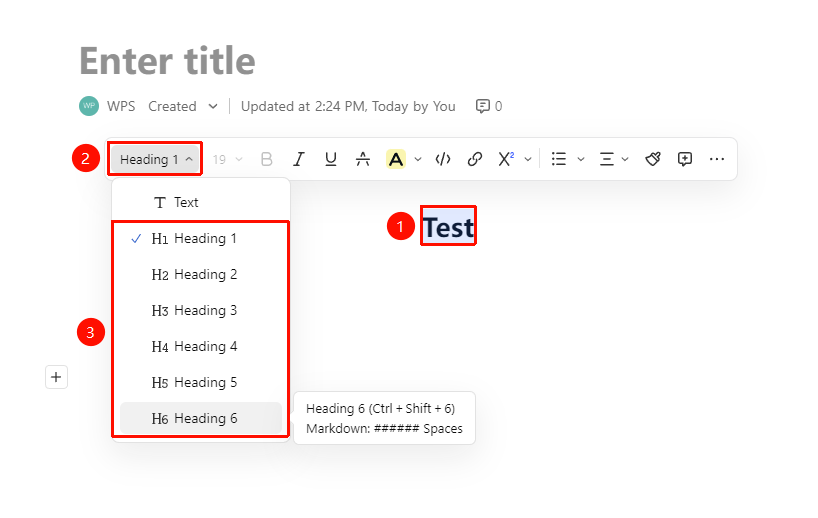
Select Docs → "Floating Toolbar" → Choose a heading style
- Select the Docs paragraph you want to set as a title
- In the pop-up Floating Toolbar, find the heading format dropdown menu
- Choose the corresponding heading level: Heading 1 (H1) to Heading 6 (H6)
- The paragraph will then be displayed in the corresponding heading style
Setting Titles via the Ribbon
Feature Entry
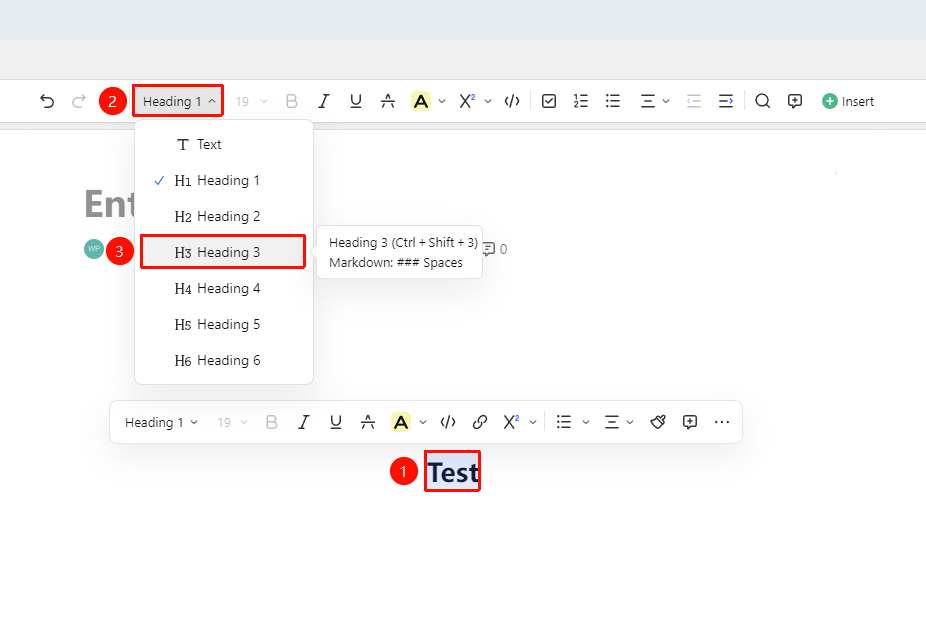
Select Docs → Ribbon "Choose Heading Style"
- Select the Docs paragraph you want to set as a title
- In the top Ribbon, find the heading format dropdown menu
- Choose the corresponding heading level: Heading 1 (H1) to Heading 6 (H6)
- The paragraph will then be displayed in the corresponding heading style
Setting Titles via the Paragraph Handle
Feature Entry
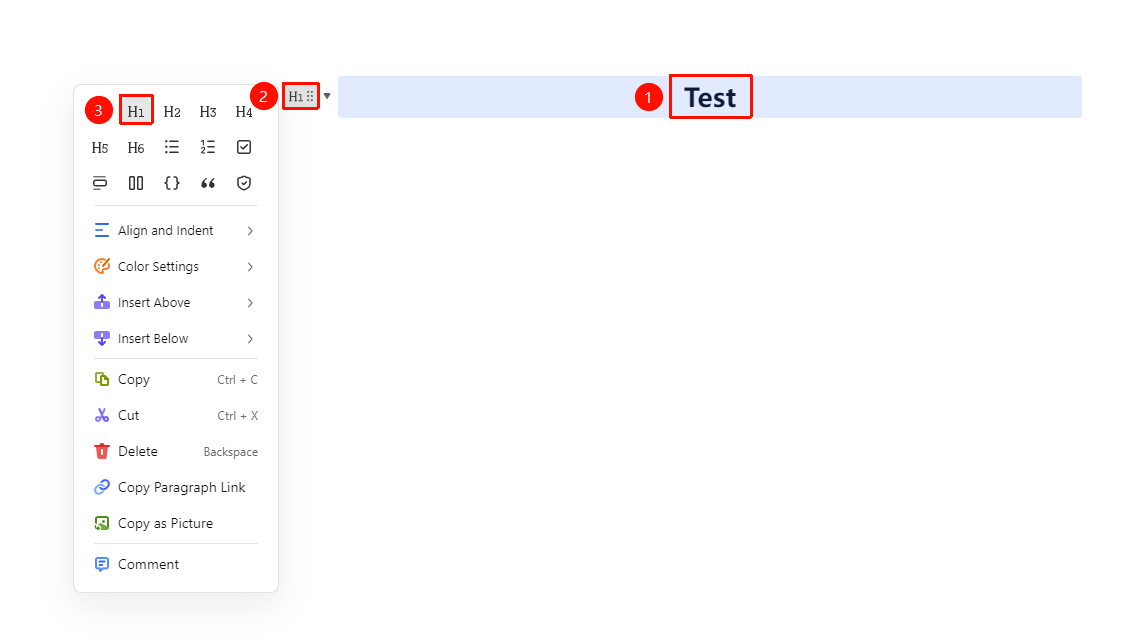
Select the paragraph you want to set as a title → "Paragraph Handle" icon → "Task List" button
- Select the Docs paragraph you want to set as a title
- Choose the corresponding heading level: Heading 1 (H1) to Heading 6 (H6)
- The paragraph will then be displayed in the corresponding heading style
Inserting Titles via Slash Command
Feature Entry
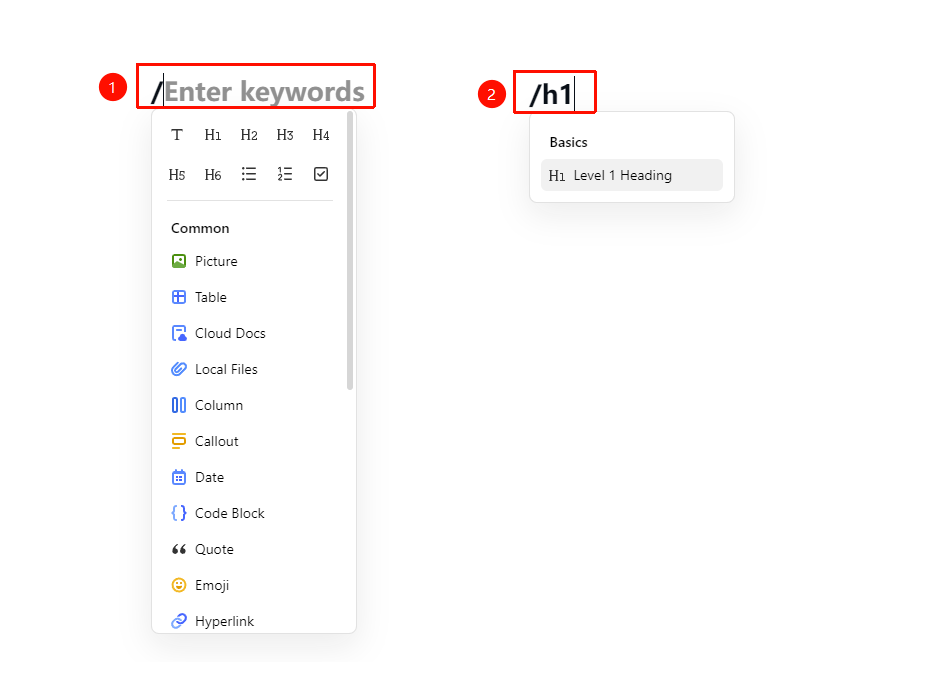
Document editing area → Enter: / → "Choose heading level"
- Enter / on a blank line in the Document
- Choose the corresponding heading level from the pop-up menu: Heading 1 (H1) to Heading 6 (H6)
- Or quickly create by entering shortcut commands: /h1 to /h6
FAQ
Q1: I set a title, but it doesn't appear in the table of contents?
- Solution: Confirm whether the Docs has a heading style applied (rather than manually adjusting the font size). Titles inside callout blocks and Sheets will not appear in the table of contents. Ensure the content is set as a title in the body area and that the table of contents feature is enabled in the Document.
Q2: How do I choose heading levels?
- Solution: It is recommended to use 2–3 heading levels in a Document to keep the structure clear. Use H1 as the main Document title, H2 as chapter titles, and H3 as sub-chapter titles. Avoid too many levels, which can make the structure complex.
Q3: Can I change the level of an existing title?
- Solution: Select the title paragraph and switch to the desired level in the heading level menu of the Floating Toolbar. After switching, the heading style will automatically update, and the table of contents will change accordingly.
Notes
- Heading levels decrease sequentially from H1 to H6, with H1 being the largest level
- Heading styles affect the hierarchical structure of the Document's table of contents
- Titles in callout blocks are not recognized by the table of contents; only titles in the body area will appear in the table of contents