Feature Summary
When you need to beautify the formatting of text in your Document, the Text Style feature supports setting font, font size, color, bold, italic, underline, strikethrough, and other text formats, helping you create professional and aesthetically pleasing document layouts.
Feature Description
| Feature Dimension | Description |
|---|---|
| Membership Restriction | No membership restriction |
| Version Restriction | No version restriction |
Operation Steps
Setting Bold Style via the Ribbon
Feature Entry
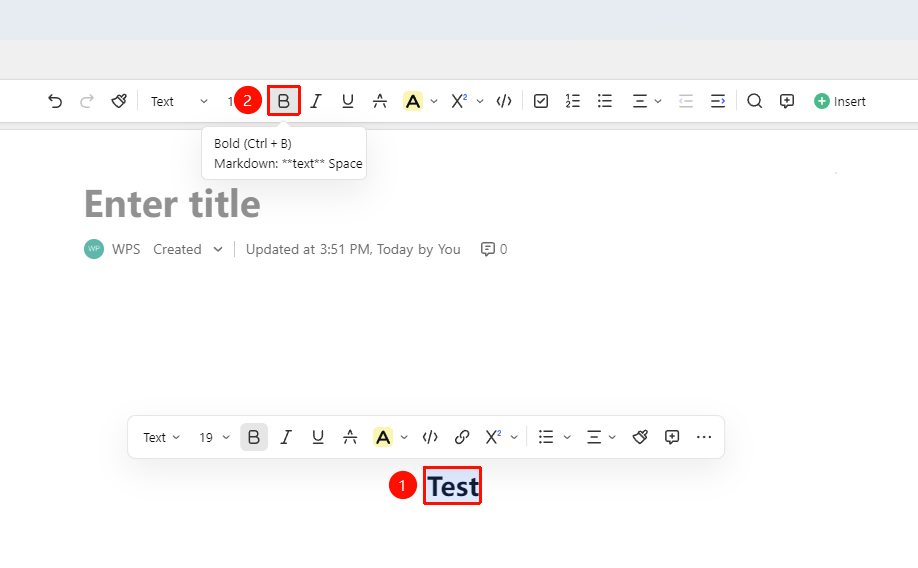
Select text → 「Ribbon」 → 「Bold」 button
- Select the text paragraph you want to style
- In the Ribbon above
- Choose the 「Bold」 button
Setting Italic Style via the Ribbon
Feature Entry
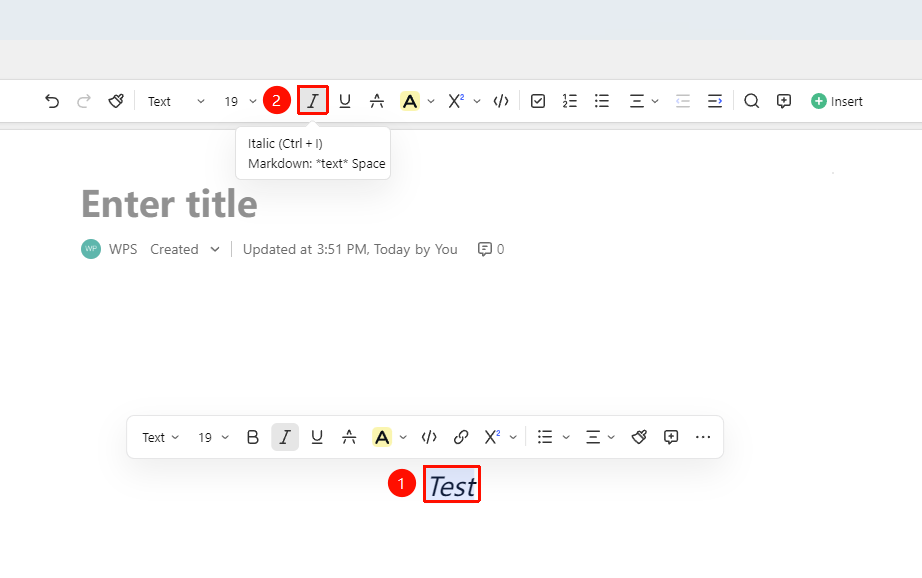
Select text → 「Ribbon」 → 「Italic」 button
- Select the text paragraph you want to style
- In the Ribbon above
- Choose the 「Italic」 button
Setting Underline Style via the Ribbon
Feature Entry
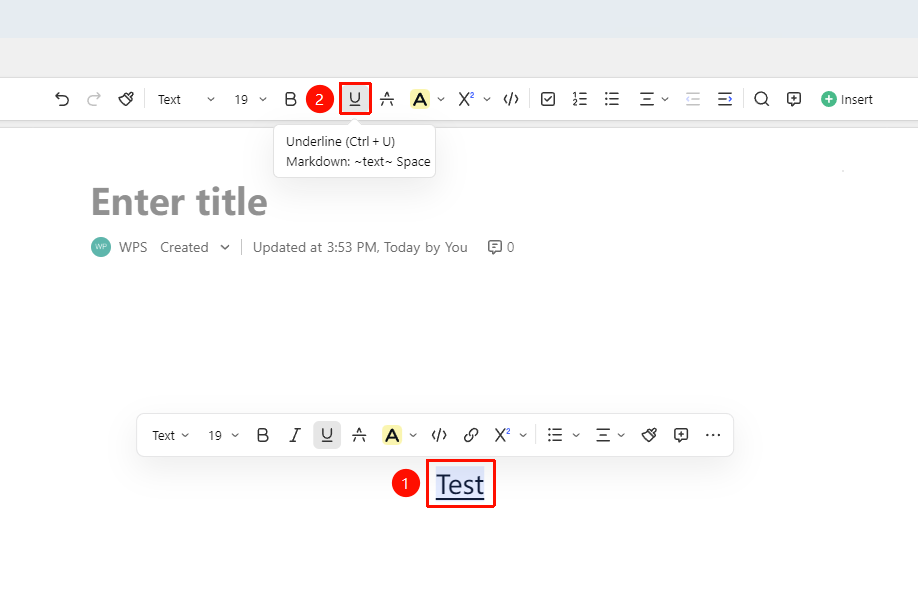
Select text → 「Ribbon」 → 「Underline」 button
- Select the text paragraph you want to style
- In the Ribbon above
- Choose the 「Underline」 button
Setting Strikethrough Style via the Ribbon
Feature Entry
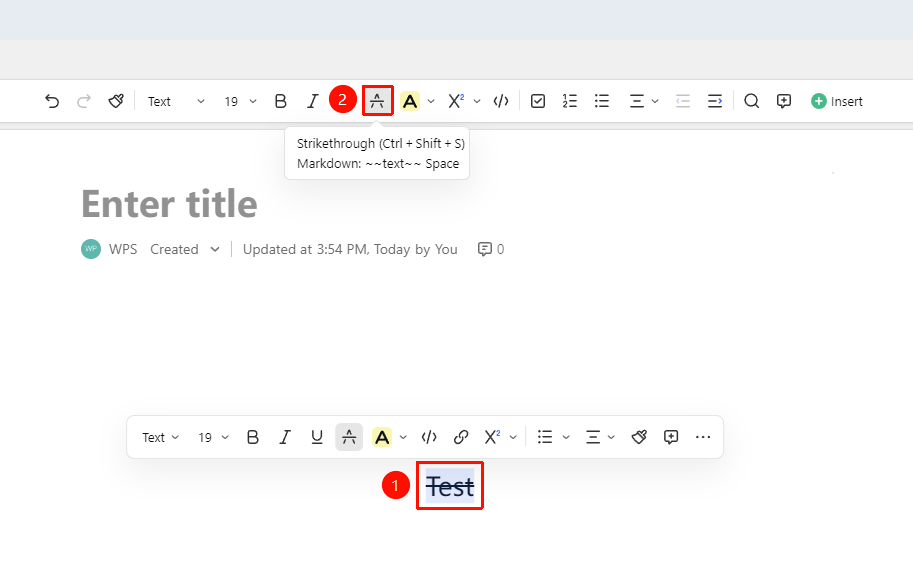
Select text → 「Ribbon」 → 「Strikethrough」 button
- Select the text paragraph you want to style
- In the Ribbon above
- Choose the 「
Strikethrough」 button
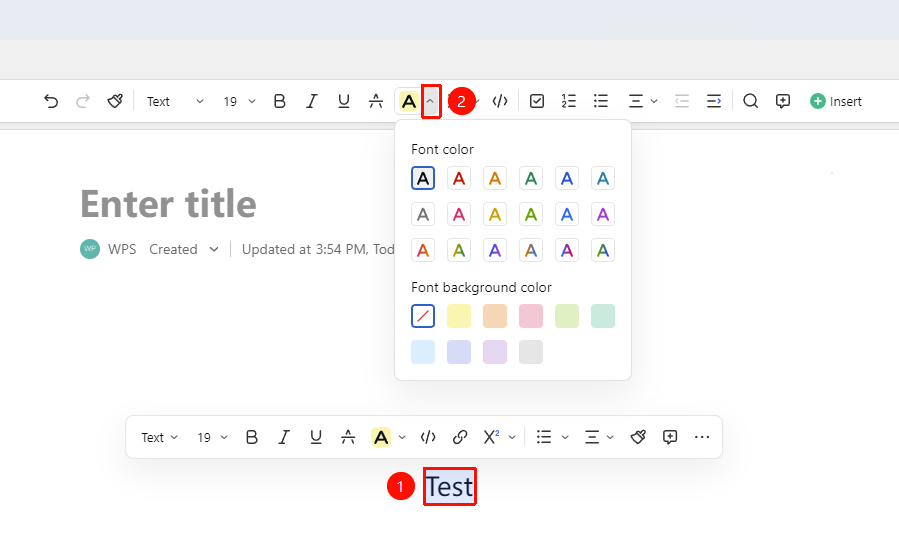
Setting Font Color via the Ribbon
Feature Entry
Select text → 「Ribbon」 → 「Font Color」 dropdown menu
- Select the text paragraph you want to style
- In the Ribbon above
- Choose the 「Font Color」 dropdown menu
- Select the desired color from the menu above
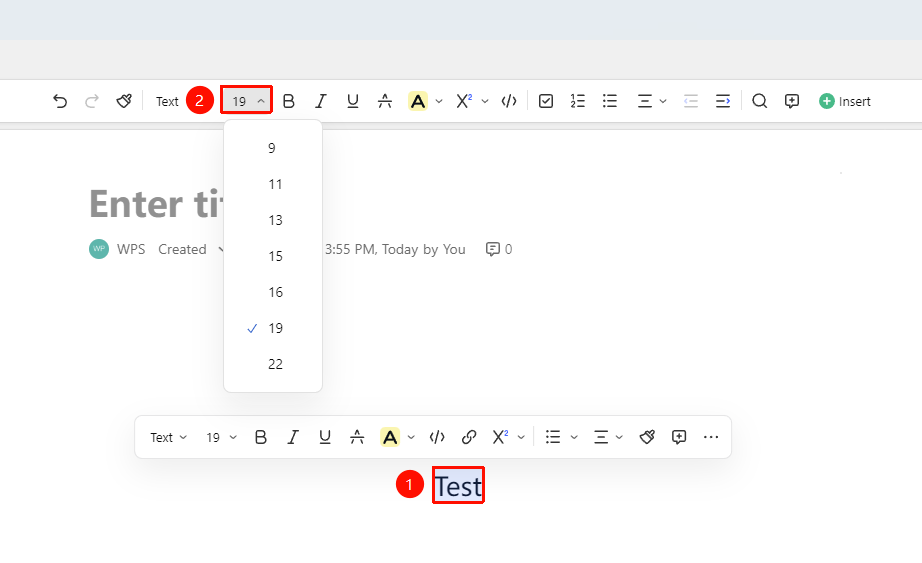
Setting Font Size via the Ribbon
Feature Entry
Select text → 「Ribbon」 → 「Font Size」 dropdown menu
- Select the text paragraph you want to style
- In the Ribbon above
- Choose the 「Font Size」 dropdown menu
- Select the font size from the menu above
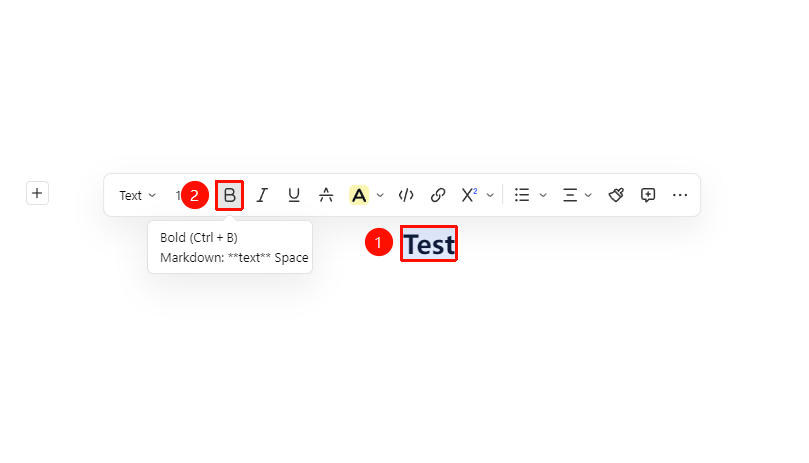
Setting Bold Style via the Floating Toolbar
Feature Entry
Select text → 「Floating Toolbar」 → 「Bold」 button
- Select the text paragraph you want to style
- In the pop-up Floating Toolbar
- Choose the 「Bold」 button
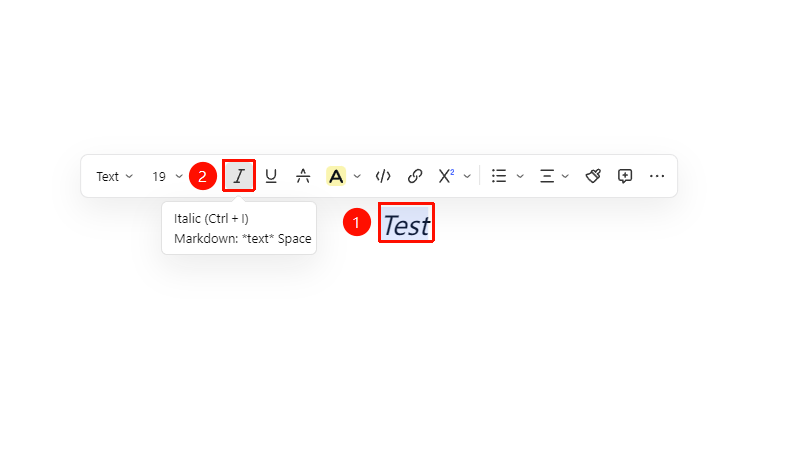
Setting Italic Style via the Floating Toolbar
Feature Entry
Select text → 「Floating Toolbar」 → 「Italic」 button
- Select the text paragraph you want to style
- In the pop-up Floating Toolbar
- Choose the 「Italic」 button
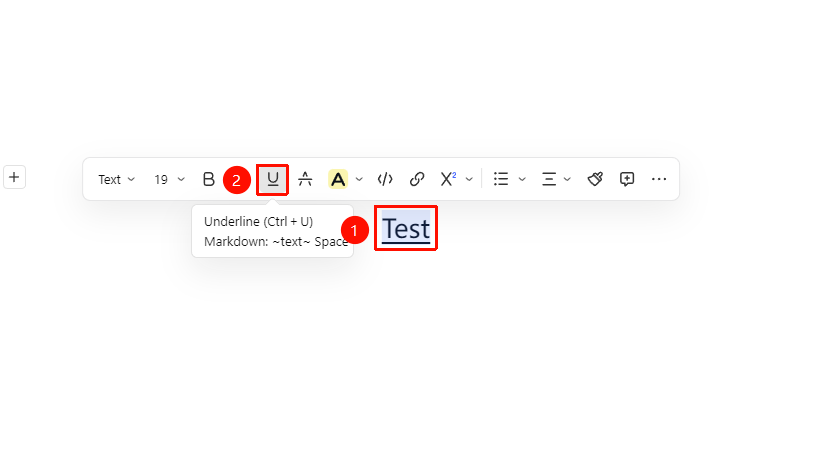
Setting Underline via the Floating Toolbar
Feature Entry
Select text → 「Floating Toolbar」 → 「Underline」 button
- Select the text paragraph you want to style
- In the pop-up Floating Toolbar
- Choose the 「Underline」 button
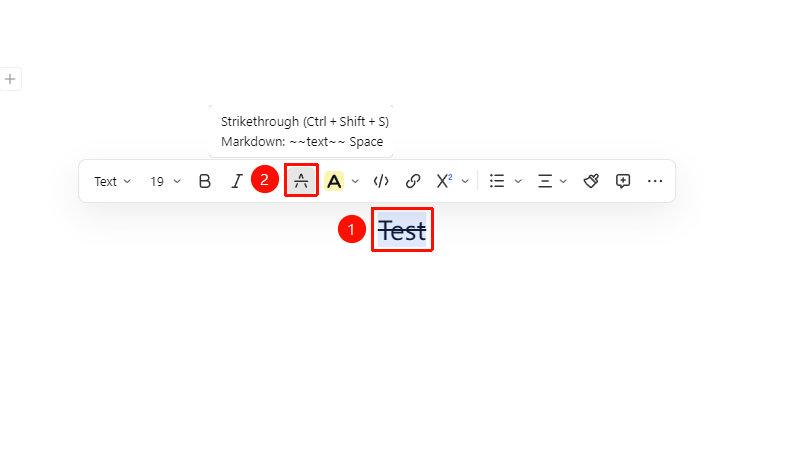
Setting Strikethrough Style via the Floating Toolbar
Feature Entry
Select text → 「Floating Toolbar」 → 「Strikethrough」 button
- Select the text paragraph you want to style
- In the pop-up Floating Toolbar
- Choose the 「
Strikethrough」 button
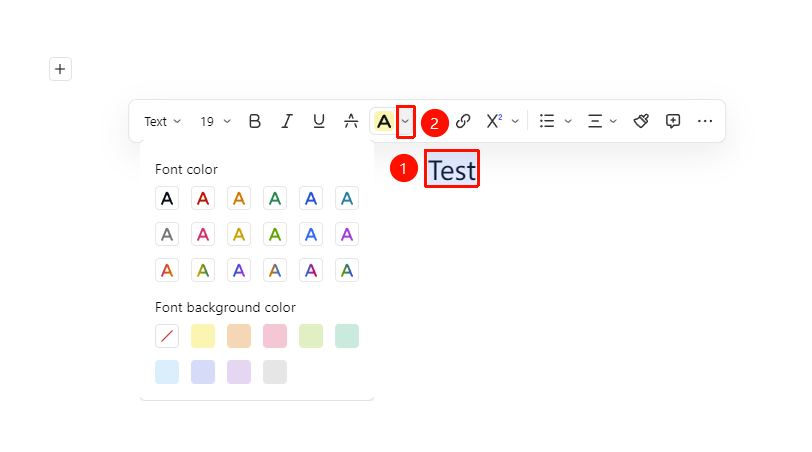
Setting Font Color via the Floating Toolbar
Feature Entry
Select text → 「Floating Toolbar」 → 「Font Color」 dropdown menu
- Select the text paragraph you want to style
- In the pop-up Floating Toolbar
- Choose the 「Font Color」 dropdown menu
- Select the desired color from the pop-up menu
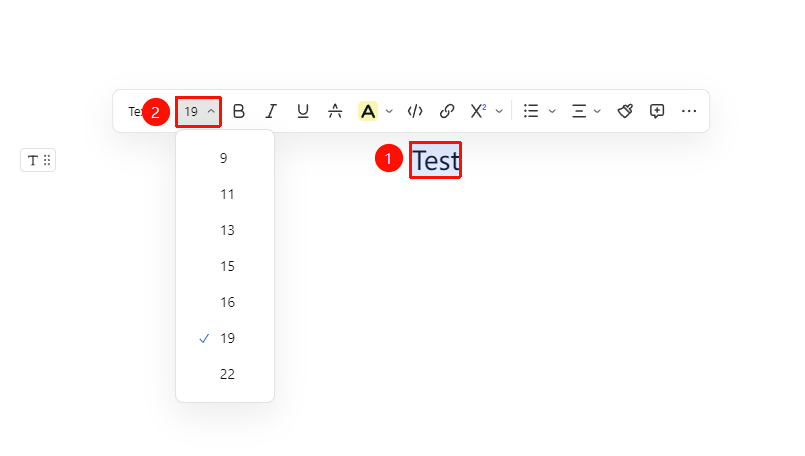
Setting Font Size via the Floating Toolbar
Feature Entry
Select text → 「Floating Toolbar」 → 「Font Size」 dropdown menu
- Select the text paragraph you want to style
- In the pop-up Floating Toolbar
- Choose the 「Font Size」 dropdown menu
- Select the font size from the pop-up menu
Setting Text Styles via Shortcuts
Feature Entry
「Select text」 → 「Keyboard Shortcuts」
- Bold:
Ctrl + B(Mac:Cmd + B) - Italic:
Ctrl + I(Mac:Cmd + I) - Underline:
Ctrl + U(Mac:Cmd + U)
After selecting text, simply press the corresponding shortcut to quickly apply the format.
FAQ
Q1: Can multiple text styles be applied simultaneously?
- Solution: Yes. After selecting text, you can set multiple styles such as bold, italic, and color at the same time. Each style takes effect independently and is displayed in combination.
Q2: How to clear all applied text styles?
- Solution: Select the Docs you want to clear formatting from, and use the shortcut Ctrl + \ (Mac: Cmd + ) to clear all formatting and restore the default body style.
Question 3: Does text style affect the Format Painter?
- Solution: Yes, it does. The Format Painter will completely copy all style attributes of the source text (including bold, color, font, etc.). If you need to keep only the content without the style, you can use the "Clear Formatting" feature.
Notes
- Text styles can be quickly copied to other Docs using the Format Painter
- Style settings support multiple layers of overlay; it is recommended to control them appropriately to avoid formatting confusion
- Additional text styles can still be added on top of styles such as lists and headings