Feature Summary
When you need to quickly browse and navigate the chapter structure of a long Document, the Table of Contents feature automatically generates a TOC tree from Document headings (H1-H6). It supports clicking a TOC node to jump directly to the corresponding paragraph, and also supports collapsing/expanding chapter nodes, improving reading efficiency for long Documents.
Feature Description
| Feature Dimension | Description |
|---|---|
| Membership Restriction | No membership restriction |
| Version Restriction | No version restriction |
Steps
Show Table of Contents
Feature Entry
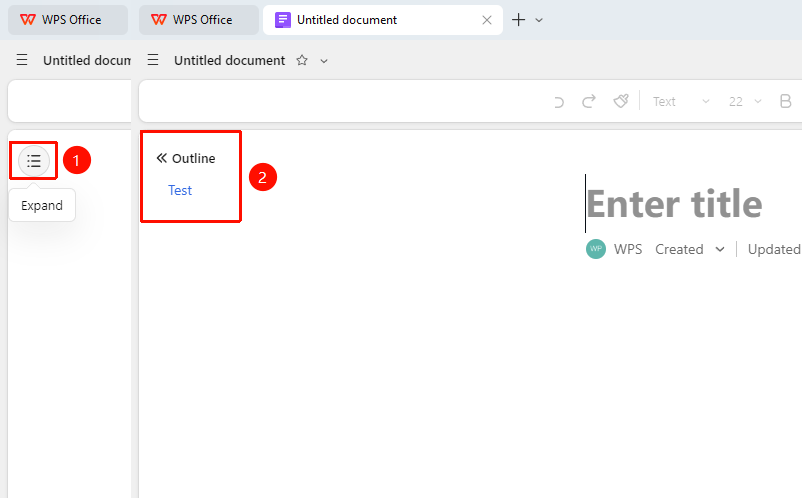
Open Document → "Expand" button on the left
- Open an AirPage
- Click the "Expand" button on the left
- The Table of Contents panel will be displayed after clicking
Hide Table of Contents
Feature Entry
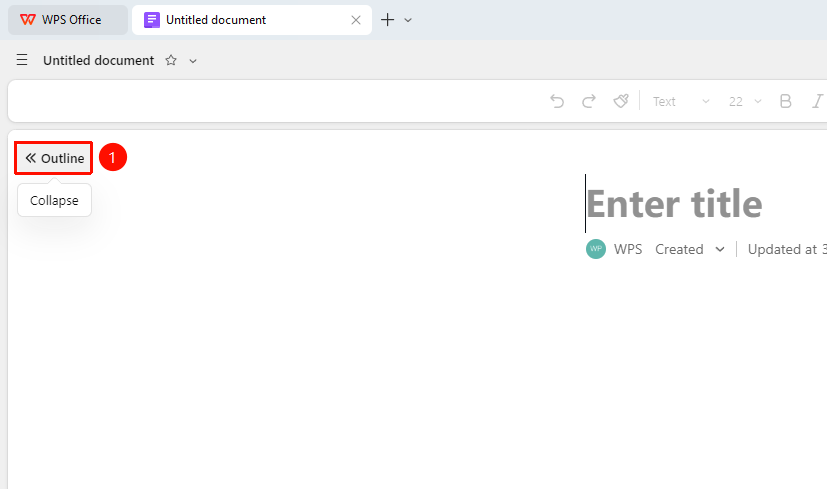
Open Document → "Collapse" button on the left
- Open an AirPage
- Click the "Collapse" button on the left
- The Table of Contents panel will be hidden after clicking
Jump to Document Location via Table of Contents
Feature Entry
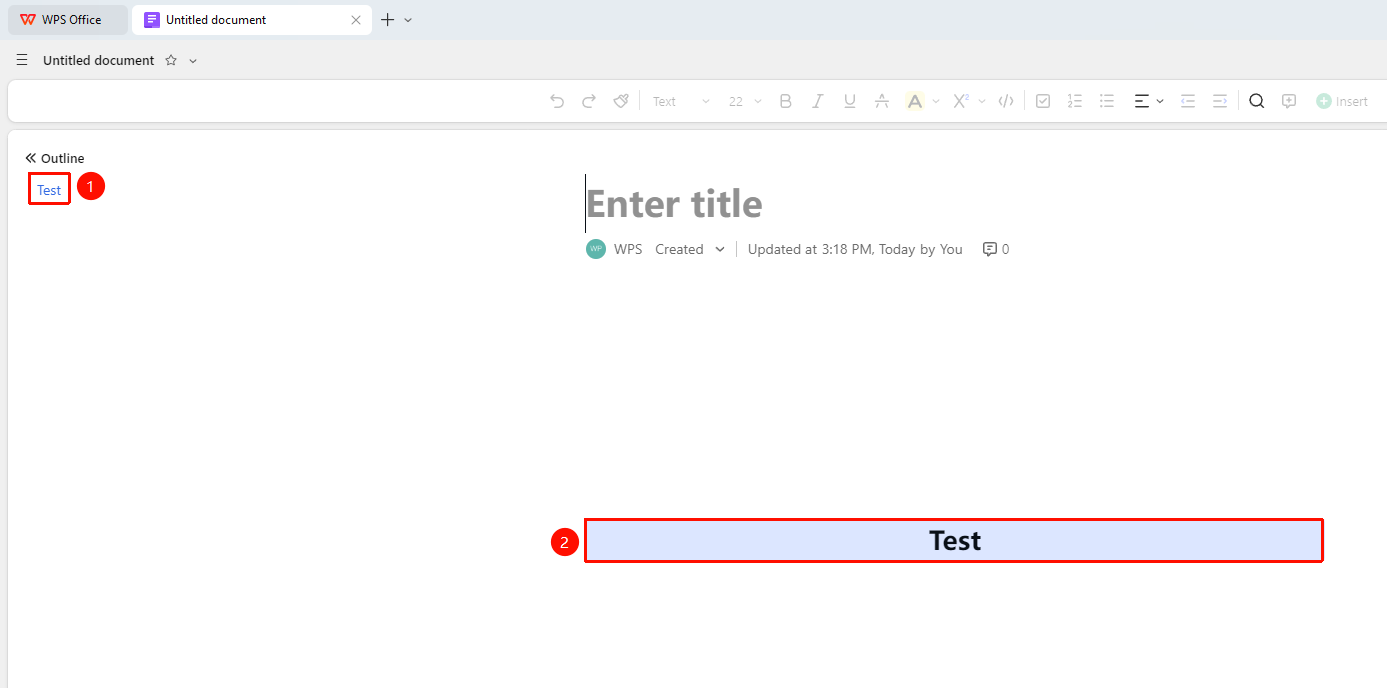
"Table of Contents panel" on the left → Click "Heading node"
- Directly click any heading node in the Table of Contents panel
- The Document will automatically scroll to the position corresponding to that heading
FAQ
Q1: The heading I set is missing from the Table of Contents?
- Solution: The Table of Contents only recognizes paragraphs in the body area that use heading styles (H1-H6). Headings set inside callout blocks and Sheets will not appear in the Table of Contents. Please ensure the heading is set within the body area.
Q2: Will the display state of the Table of Contents I set affect others?
- Solution: The display and hiding of the Table of Contents only takes effect for the current user and does not affect other collaborators. After the Document author collapses/expands TOC nodes, when other users join the collaboration for the first time, the collapse state will be the same as the author's settings.
Notes
- The Table of Contents is automatically generated based on heading styles (H1-H6) in the Document
- Headings inside callout blocks and Sheets will not appear in the Table of Contents
- On mobile, you can view the Table of Contents by tapping the TOC button in the lower right corner in Edit Mode