Feature Summary
When you need to adjust the horizontal arrangement of paragraph text, the Alignment feature supports multiple paragraph alignment options including left align, center align, right align, and justify, helping you precisely control document layout and enhance the neatness and professional feel of your document.
Feature Description
| Feature Dimension | Description |
|---|---|
| Membership Restriction | No membership restriction |
| Version Restriction | No version restriction |
Operation Steps
Set Alignment via the Floating Toolbar
Feature Entry
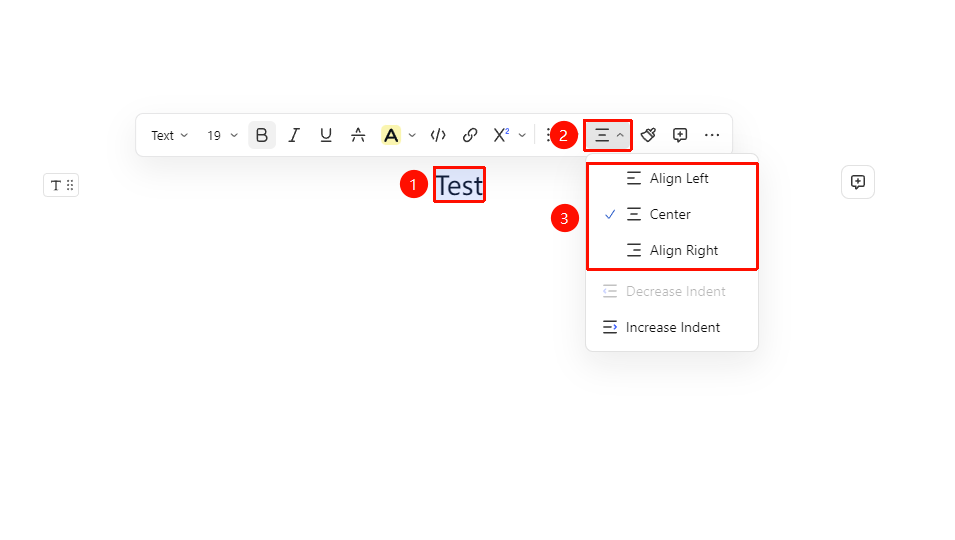
Select paragraph → 「Floating Toolbar」 → 「Alignment & Indentation」 button
- Place the cursor in the paragraph you need to adjust the alignment for (or select multiple paragraphs of text)
- Find the 「Alignment & Indentation」 button in the pop-up Floating Toolbar
- Select the corresponding alignment mode:
- Left Align: Text paragraph aligns to the left (default)
- Center Align: Text paragraph is centered
- Right Align: Text paragraph aligns to the right
Set Alignment via the Ribbon
Feature Entry
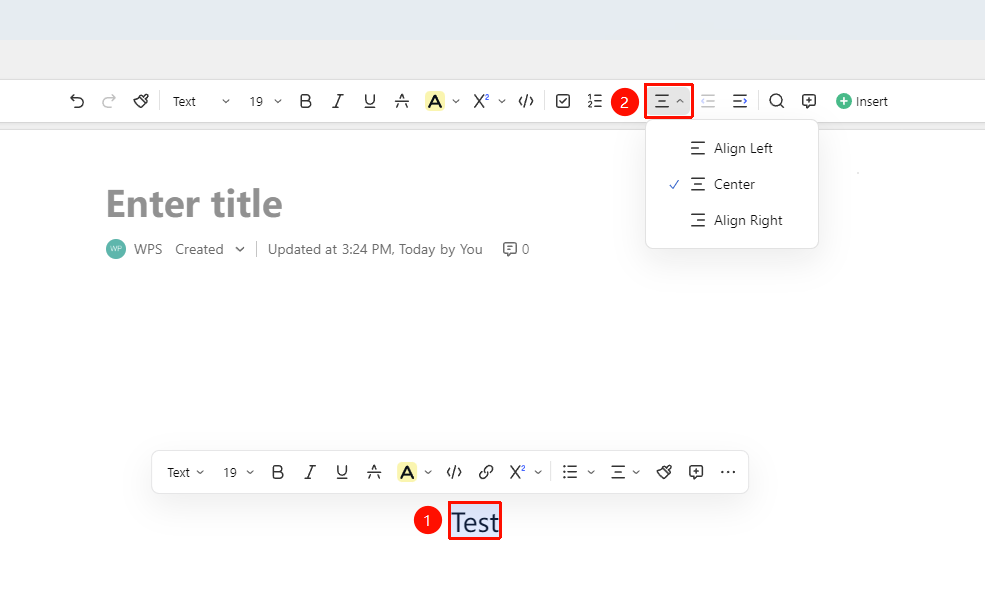
Select paragraph → Top Ribbon → 「Alignment」 button
- Place the cursor in the paragraph you need to adjust the alignment for (or select multiple paragraphs of text)
- Find the 「Alignment」 button in the Top Ribbon
- Select the corresponding alignment mode:
- Left Align: Text paragraph aligns to the left (default)
- Center Align: Text paragraph is centered
- Right Align: Text paragraph aligns to the right
Set Alignment via the Paragraph Handle
Feature Entry
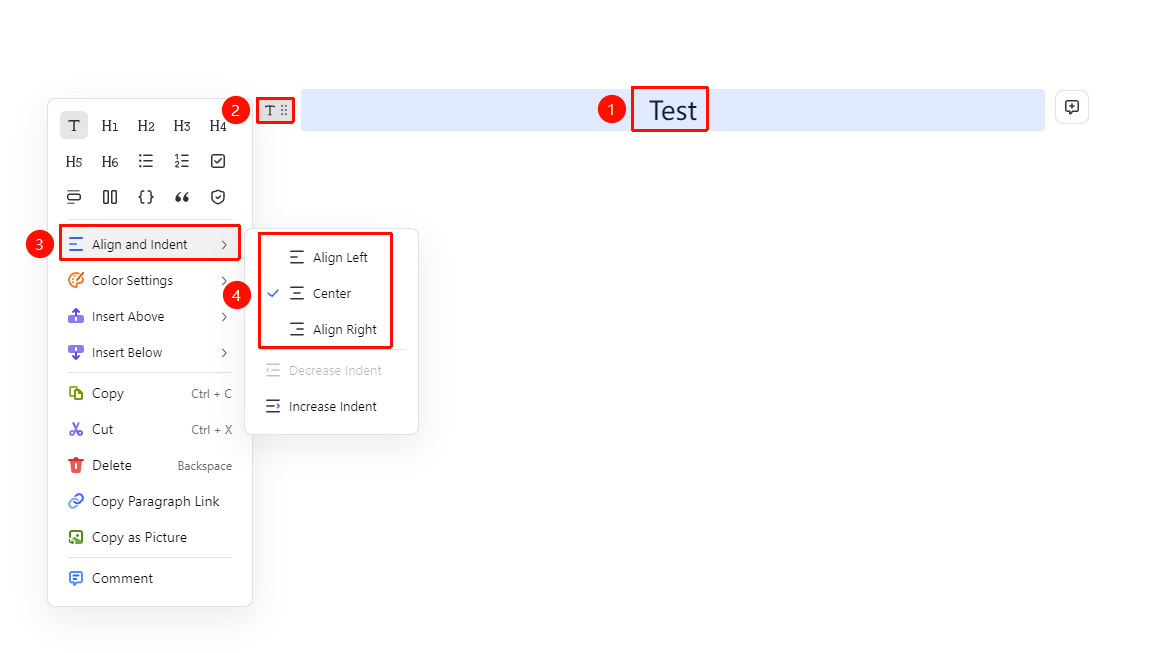
Select paragraph → 「Paragraph Handle」 icon → 「Alignment」 button
- Place the cursor in the paragraph you need to adjust the alignment for (or select multiple paragraphs of text)
- Click the Paragraph Handle icon on the left
- Click the 「Alignment & Indentation」 button
- Select the corresponding alignment mode:
- Left Align: Text paragraph aligns to the left (default)
- Center Align: Text paragraph is centered
- Right Align: Text paragraph aligns to the right
Set Alignment via Shortcuts
Feature Entry
「Select paragraph」 → 「Keyboard Shortcuts」
- Left Align:
Ctrl + L(Mac:Cmd + L) - Center Align:
Ctrl + E(Mac:Cmd + E) - Right Align:
Ctrl + R(Mac:Cmd + R) - Justify:
Ctrl + J(Mac:Cmd + J)
FAQ
Q1: Can I set the alignment for a single line of text individually?
- Solution: Yes. Select the single line of text or a single paragraph you want to set, and you can adjust its alignment individually. AirPage's alignment settings apply to the currently selected paragraph.
Q2: What alignment is typically used for titles?
- Solution: The document's main title (H1) typically uses center alignment, while chapter titles (H2/H3) typically use left alignment. You can flexibly adjust this according to the document style and requirements, or quickly set it via the Paragraph Handle menu.
Notes
- Alignment settings take effect immediately, no need to click confirm
- In table cells, you can also set the horizontal and vertical alignment of content via the Floating Toolbar
- The Format Painter can copy paragraph alignment to other paragraphs