Feature Summary
When you need to create a checkable to-do list in a Document, the Task List feature supports inserting task entries with checkboxes. Click the checkbox to mark a task as completed, suitable for scenarios such as project task assignment and Meeting To-do organization.
Feature Description
| Feature Dimension | Description |
|---|---|
| Membership Restriction | No membership restriction |
| Version Restriction | No version restriction |
| Shortcut | Cmd+Shift+Y |
Operation Steps
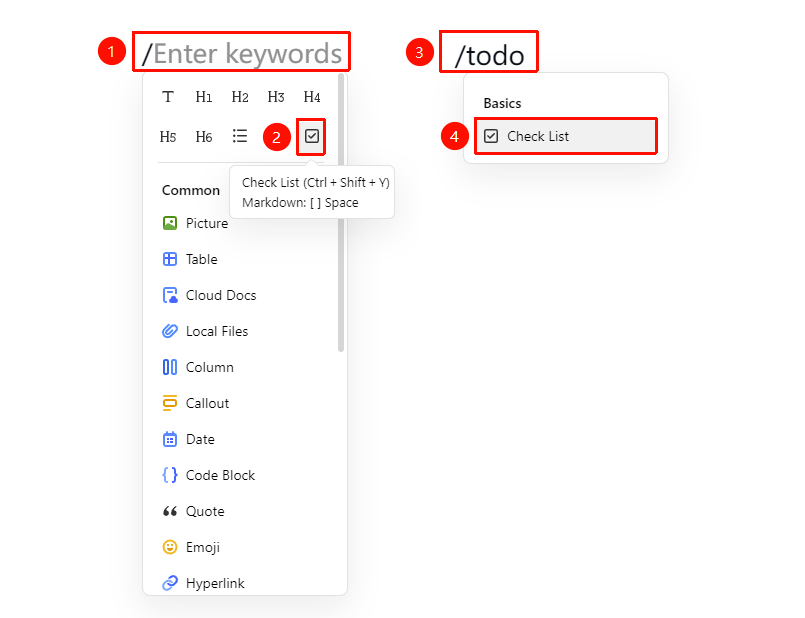
Insert Task List via Slash Command
Feature Entry
Document editing area → Input: / → "Task List" icon
- Enter / in a blank line of the Document
- Select "Task List" from the pop-up menu
- Or use quick commands: enter /dblb or /todo to quickly locate
- Enter the task content and press Enter to automatically add the next task item
Insert Task List via the Ribbon
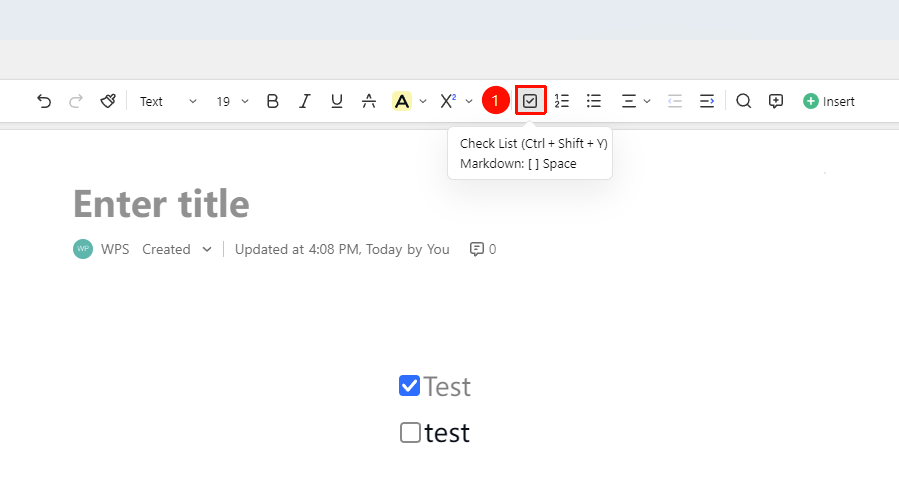
Feature Entry
Document editing area → Ribbon → "Task List" icon
- Place the cursor where you want to insert the task list
- Click the "Task List" icon in the Ribbon
- Enter the task content and press Enter to automatically add the next task item
Insert Task List
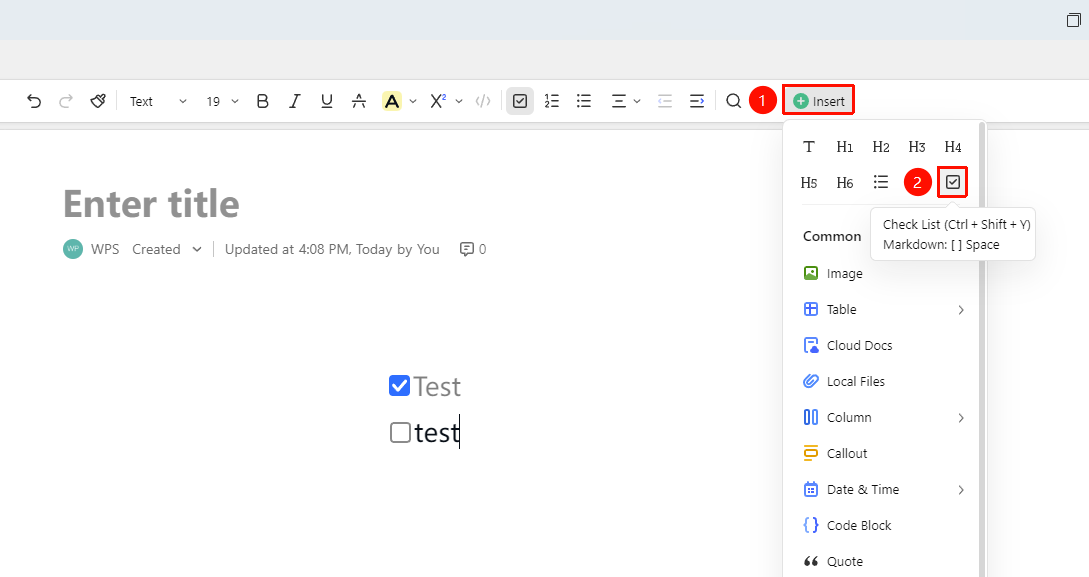
Feature Entry
Document editing area → Ribbon → "Insert" drop-down menu → "Task List" icon
- Place the cursor where you want to insert the task list
- Click the Insert drop-down menu in the Ribbon
- Click the "Task List" icon
- Enter the task content and press Enter to automatically add the next task item
Insert Task List via Paragraph Handle
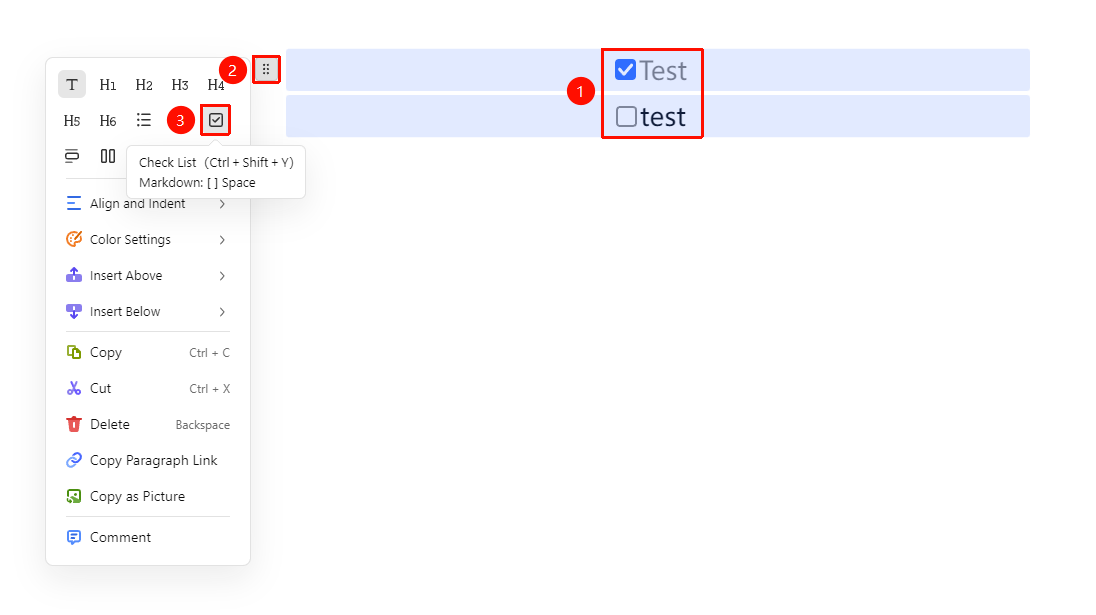
Feature Entry
Select the paragraph where you want to insert the task list → "Paragraph Handle" icon → "Task List" button
- Place the cursor in the paragraph where you need to adjust the alignment (or select multiple paragraphs of text)
- Click the Paragraph Handle icon on the left
- Click the "Task List" icon
Check/Uncheck Tasks
Feature Entry
Click the "Checkbox" on the left → Mark task as completed
- Click the checkbox on the left of the task entry
- After checking, the task text will display light color , indicating it has been marked as completed
- Click the checkbox again to uncheck and restore the uncompleted state
Frequently Asked Questions
Q1: How to hide checked tasks?
- Solution: In some scenarios, checked tasks can be summarized and displayed through plugins or collaboration tools. Currently, in AirPage, checked tasks display a strikethrough effect but are not automatically hidden. If you need to organize them, you can manually adjust the task positions for grouping.
Q2: Can a task list set task deadlines?
- Solution: The native task list in AirPage does not currently support setting deadlines. If you need to manage tasks with dates and priorities, it is recommended to use the "Insert" → "Countdown" feature in conjunction with the task list, or consider using DBSheet for more complex task management.
Q3: Can the text format of the task list be adjusted?
- Solution: Yes. After selecting the text paragraph of the task list, you can adjust font style, color, and other formats through the floating toolbar. The task checkbox functionality is not affected by text formatting.
Notes
- Pressing
Enterwill automatically add the next task entry - Pressing
Shift + Enterwill create a line break within the current task entry without adding a new task - Pressing
Entertwice will exit the task list mode and return to a normal paragraph