Feature Summary
When you need to list document content in a sequential manner, the Ordered List feature supports creating lists with automatic numbering. Content is numbered sequentially in order, and numbers will automatically update when items are added or removed later. This is suitable for scenarios requiring ordered display, such as operation steps and priority descriptions.
Feature Description
| Feature Dimension | Description |
|---|---|
| Membership Restriction | No membership restriction |
| Version Restriction | No version restriction |
Operation Steps
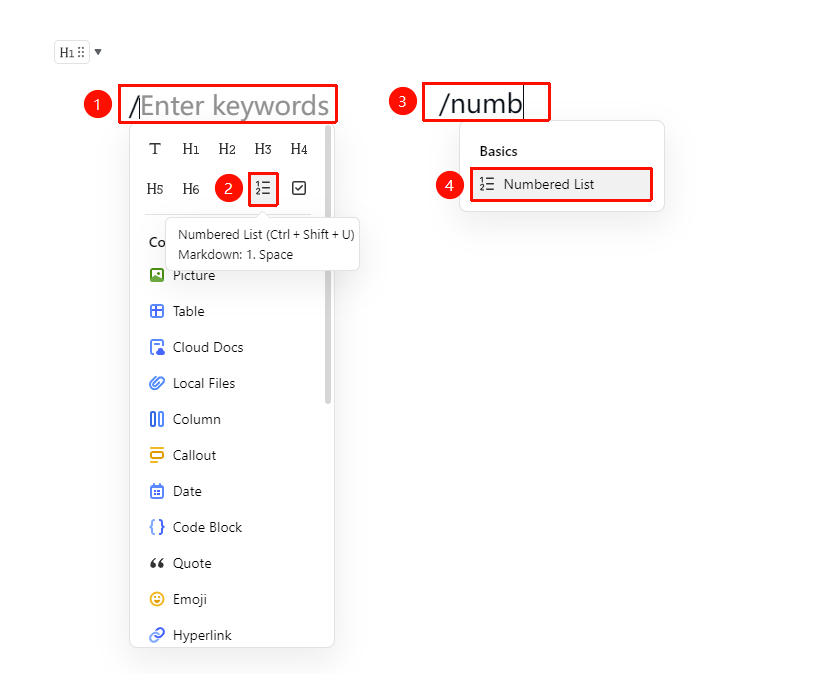
Insert an Ordered List via Slash Command
Feature Entry
Document editing area → Input: / → "Ordered List" icon
- Type / on a blank line in the document
- Select "Ordered List" from the pop-up menu
- Or use the shortcut command: type /szlb or /numb to quickly insert
- Enter the task content and press Enter to automatically add the next task item
Insert an Ordered List via the Ribbon
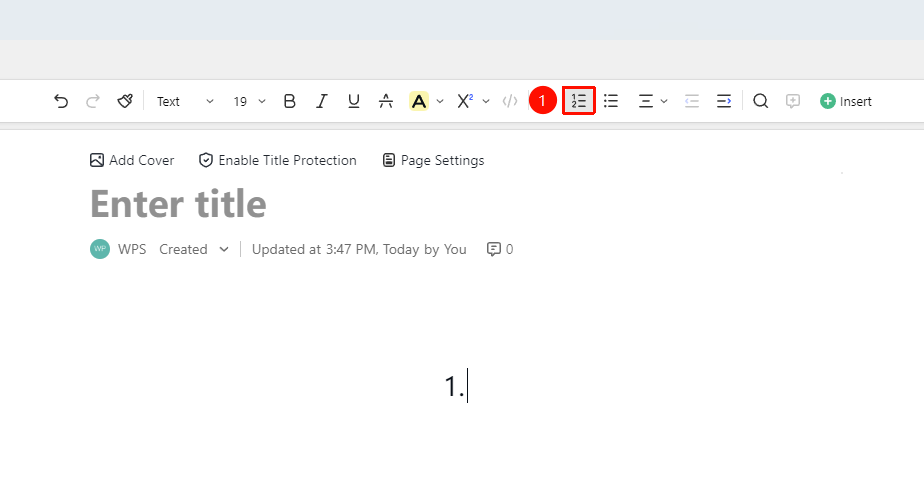
Feature Entry
Document editing area → Ribbon → "Ordered List" icon
- Place the cursor where you want to insert the ordered list
- Click the "Ordered List" icon in the Ribbon
- Enter the task content and press Enter to automatically add the next task item
Insert an Ordered List via the Paragraph Handle
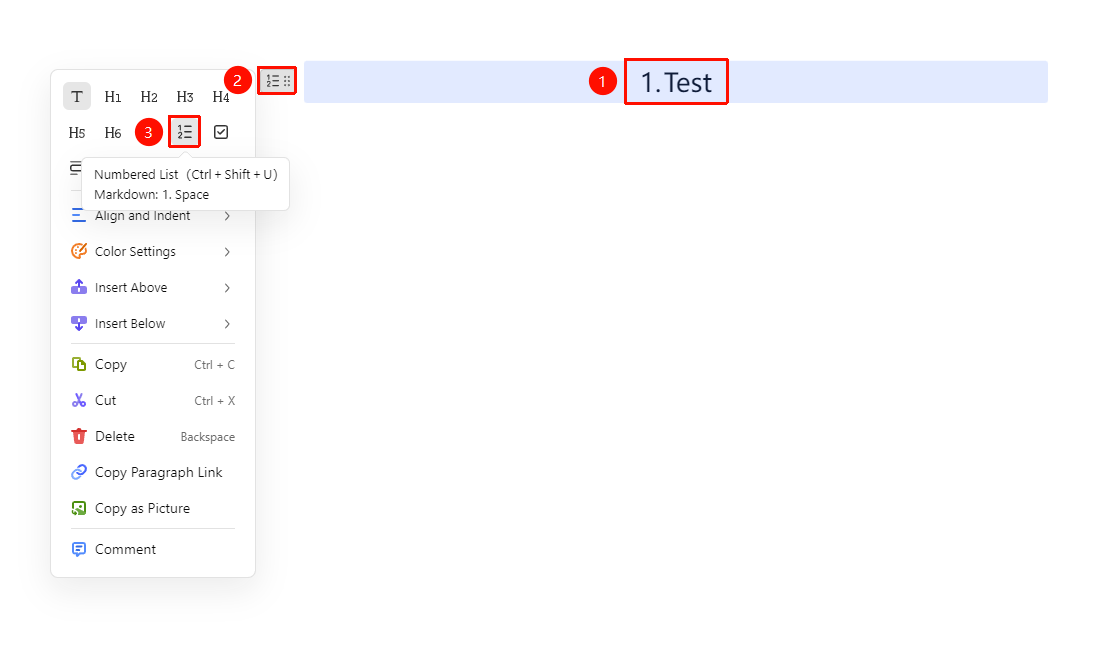
Feature Entry
Select the paragraph where you want to insert the ordered list → "Paragraph Handle" icon → "Ordered List" button
- Place the cursor in the paragraph where you want to adjust the alignment (or select multiple paragraphs of text)
- Click the Paragraph Handle icon on the left
- Click the "Ordered List" icon
Insert an Ordered List
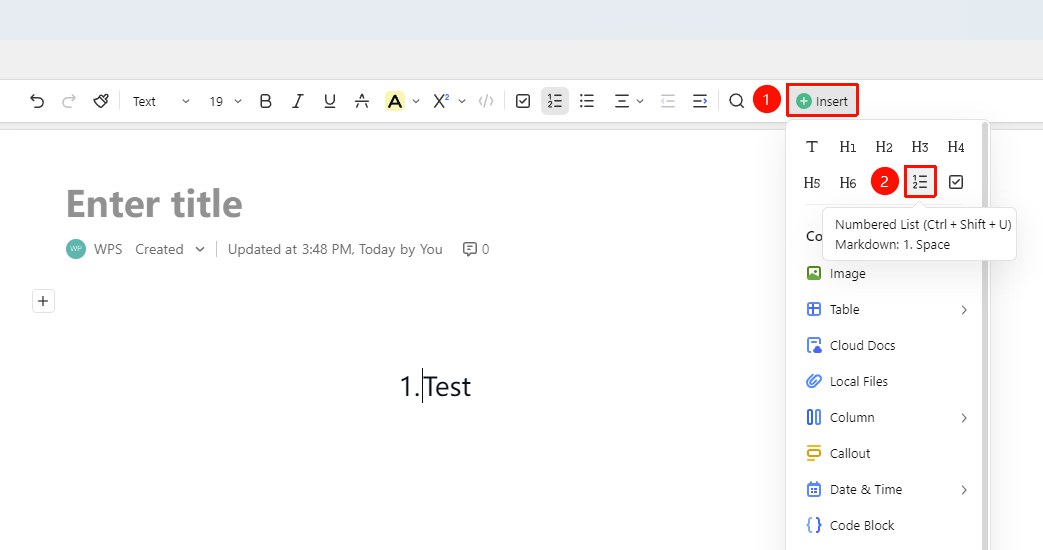
Feature Entry
Document editing area → Ribbon → "Insert" dropdown menu → "Ordered List" icon
- Place the cursor where you want to insert the ordered list
- Click the Insert dropdown menu in the Ribbon
- Click the "Ordered List" icon
- Enter the task content and press Enter to automatically add the next task item
FAQ
Q1: Does the ordered list numbering support custom formats (e.g., (1), Step 1, etc.)?
- Solution: Currently, AirPage ordered lists use automatic numeric numbering by default (1, 2, 3...), and custom numbering formats are not yet supported. If you need a special numbering format, you can manually enter the number and use it with a regular paragraph.
Q2: Will the numbering automatically update after inserting a new item in the middle?
- Solution: Yes. When you add or delete an item in the middle of an ordered list, the numbering of subsequent items will automatically regenerate, maintaining continuous increment.
Q3: How do I add a sublist to an ordered list?
- Solution: Press the Tab key at the end of the current list item to create a new sub-level item. Sublists use a smaller numbering format. Press Shift + Tab to promote the sublist to the previous level.
Notes
- Pressing Enter will automatically add the next item and continue automatic numbering
- Press Enter twice to exit the ordered list mode and return to a regular paragraph
- Multi-level nested ordered list numbering is maintained independently by level