Feature Summary
When you need to present document content in an unordered manner, the Unordered List feature supports creating bulleted lists, automatically displaying an identifier symbol before each item. It is suitable for scenarios such as displaying parallel content, summarizing key points, and other situations that do not require sorting.
Feature Description
| Feature Dimension | Description |
|---|---|
| Membership Restriction | No membership restriction |
| Version Restriction | No version restriction |
Operation Steps
Insert an Unordered List via Slash Command
Feature Entry
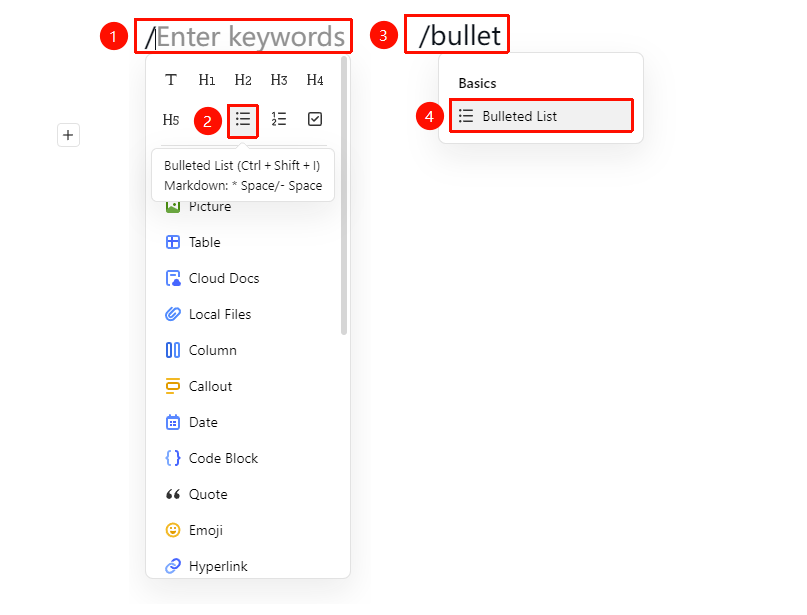
Document editing area → Enter: / → "Unordered List" icon
- Enter / on a blank line in the document
- Select "Unordered List" from the pop-up menu
- Or use a quick command: Enter /wxlb or /bullet to quickly insert
- After entering each item, press Enter to automatically add a new entry with a list symbol
Insert an Unordered List via the Ribbon
Feature Entry
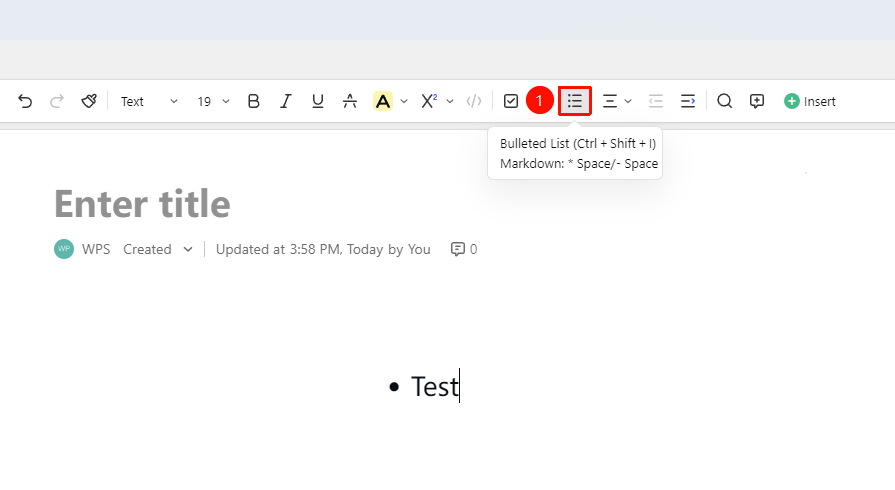
Document editing area → Ribbon → "Unordered List" icon
- Place the cursor where you want to insert the unordered list
- Click the "Unordered List" icon in the Ribbon
- After entering the task content, press Enter to automatically add the next task item
Insert an Unordered List via the Paragraph Handle
Feature Entry
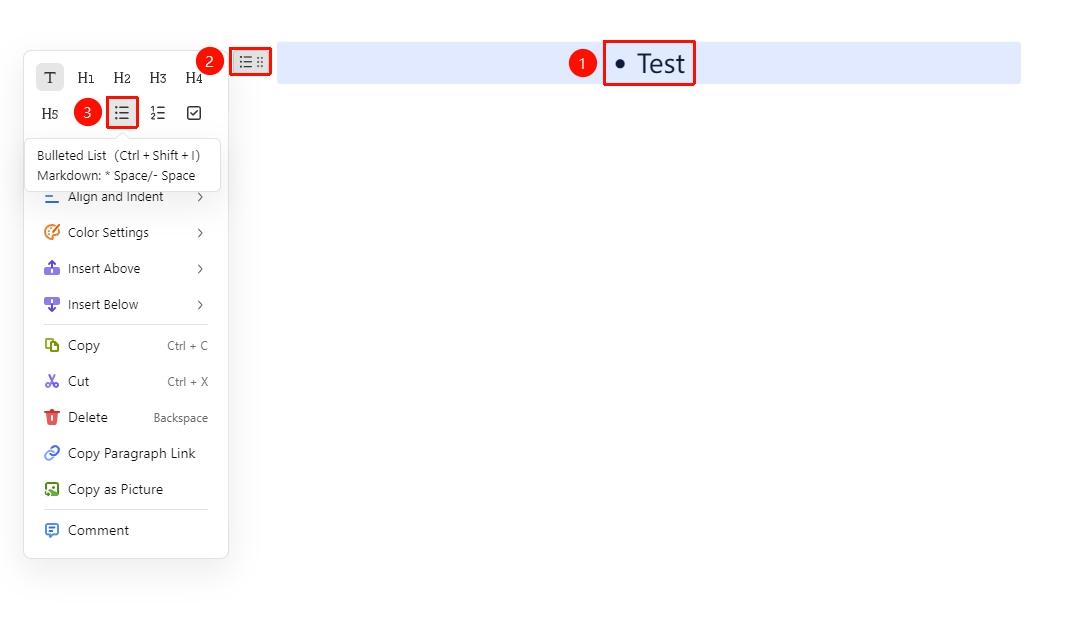
Select the paragraph where you want to insert the unordered list → "Paragraph Handle" icon → "Unordered List" button
- Place the cursor in the paragraph where you need to adjust the alignment (or select multiple paragraphs of text)
- Click the Paragraph Handle icon on the left
- Click the "Unordered List" icon
Insert an Unordered List
Feature Entry
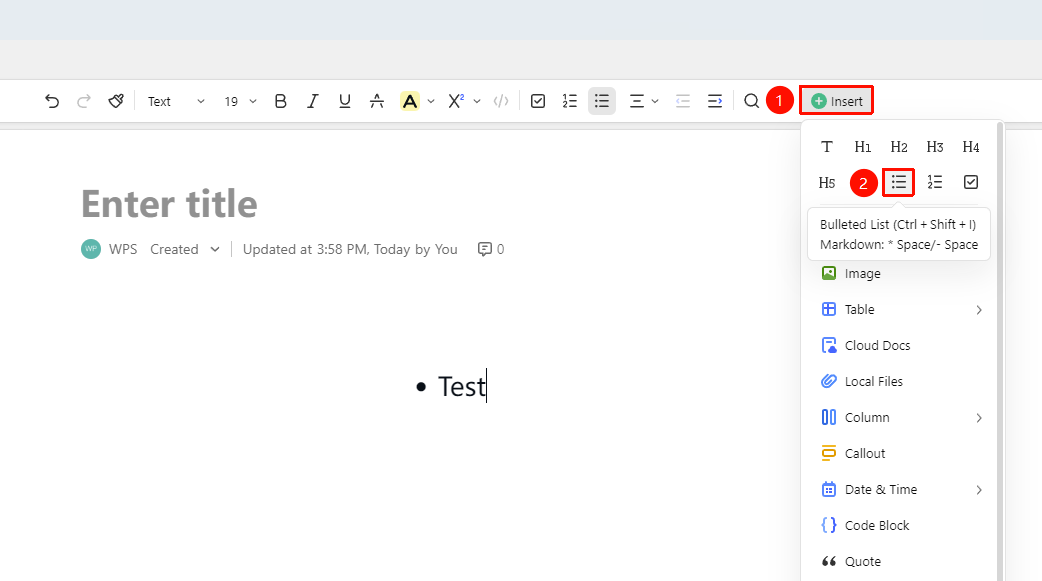
Document editing area → Ribbon → "Insert" drop-down menu → "Unordered List" icon
- Place the cursor where you want to insert the unordered list
- Click the Insert drop-down menu in the Ribbon
- Click the "Unordered List" icon
- After entering the task content, press Enter to automatically add the next task item
Quick Input via Markdown Syntax
Feature Entry
Blank line in the document → Enter "* + Space"
- Enter asterisk (*) + space on a blank line in the document (e.g.,
* content)
Alternatively, press hyphen (-) + space (e.g.,
- content) to also generate an unordered list
FAQ
Q1: Can the symbol style of the unordered list be modified?
- Solution: Currently, the symbol style of AirPage unordered lists is automatically assigned by the system (such as dots, squares, etc.). When nesting multiple levels, different levels will automatically use different symbol styles to distinguish the hierarchy.
Q2: Can unordered lists and ordered lists be converted to each other?
- Solution: Yes. After selecting the entire list area, you can switch between unordered lists and ordered lists through the quick setting options in the paragraph handle menu. The numbering will be automatically regenerated according to the new format.
Q3: How to add a sublist to an unordered list?
- Solution: Place the cursor at the end of a list item's content and press the Tab key to add a new sub-level list item. The sublist will use a different symbol style to distinguish the hierarchy. Press Shift + Tab to promote the item to the previous level.
Notes
- Pressing Enter will automatically add a new list entry with a symbol
- Press Enter twice to exit unordered list mode
- Multi-level nested list symbols will automatically change to maintain a clear hierarchical structure