Feature Summary
When you need to embed or reference files from your local computer in AirPage, the Insert Local File feature allows you to insert local images, documents, and other files directly into the document, making it easy to manage and display related file resources in a collaborative document.
Feature Description
| Feature Dimension | Description |
|---|---|
| Membership Restriction | No membership restriction |
| Version Restriction | No version restriction |
Steps
Insert Local File via Top Ribbon
Feature Entry
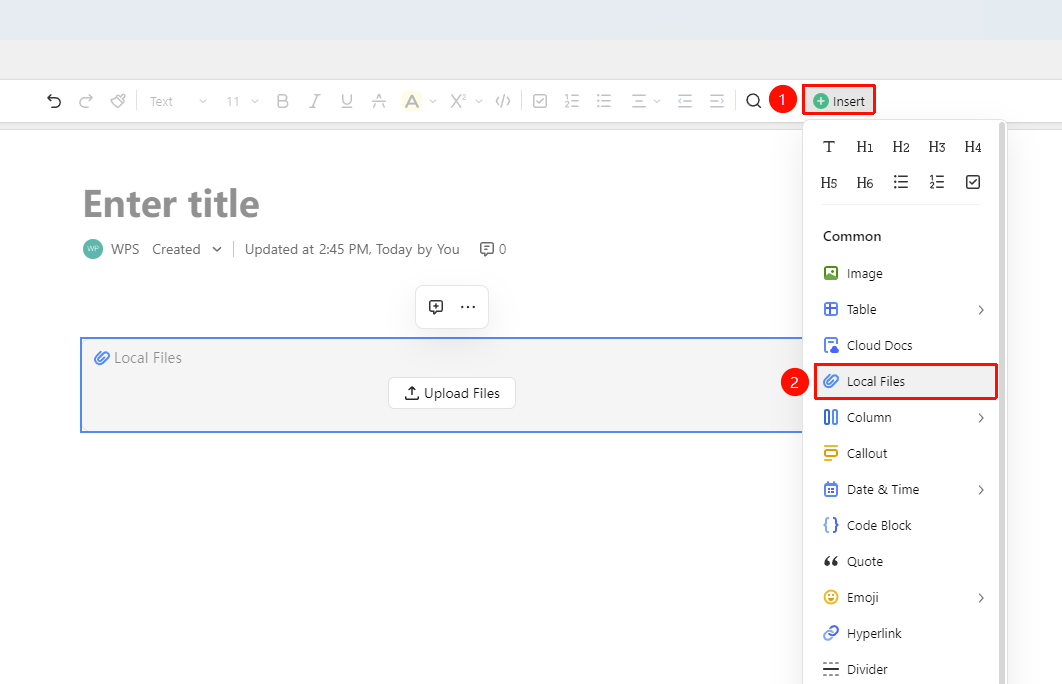
Top Ribbon → "Insert" dropdown menu → "Local File" option
- Place the cursor where you want to insert the file
- Click the "Insert" menu button at the top
- Select the "Local File" option
- In the pop-up file picker, select a file from your local device
- Click "Open" to complete the insertion
Insert Local File via Insert Content Menu
Feature Entry
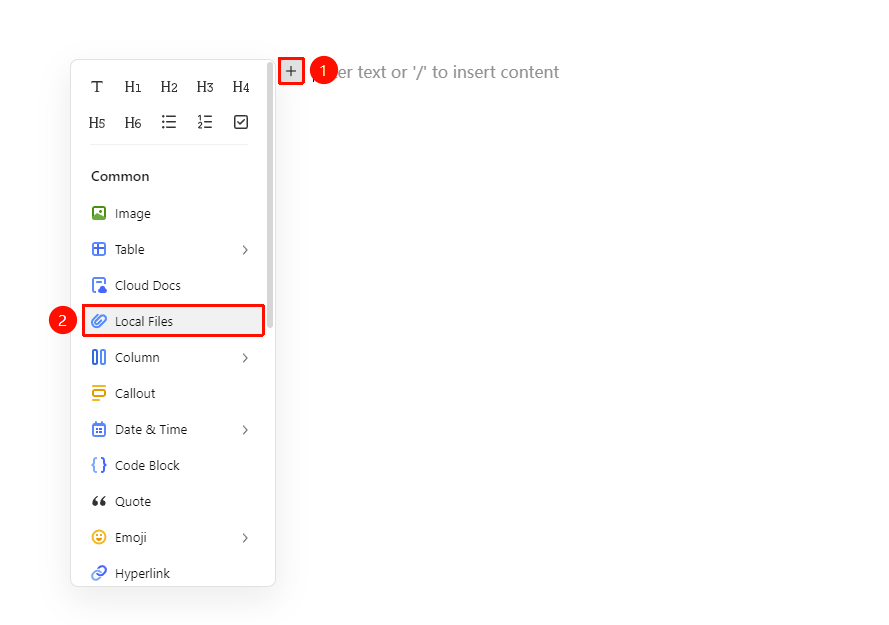
"Insert Content" dropdown menu → "Local File" option
- Place the cursor on an empty paragraph where you want to insert the file
- Click the "Insert Content" menu button on the left (icon is "+")
- Select the "Local File" option
- In the pop-up file picker, select a file from your local device
- Click "Open" to complete the insertion
Insert Local File via Paragraph Handle
Feature Entry
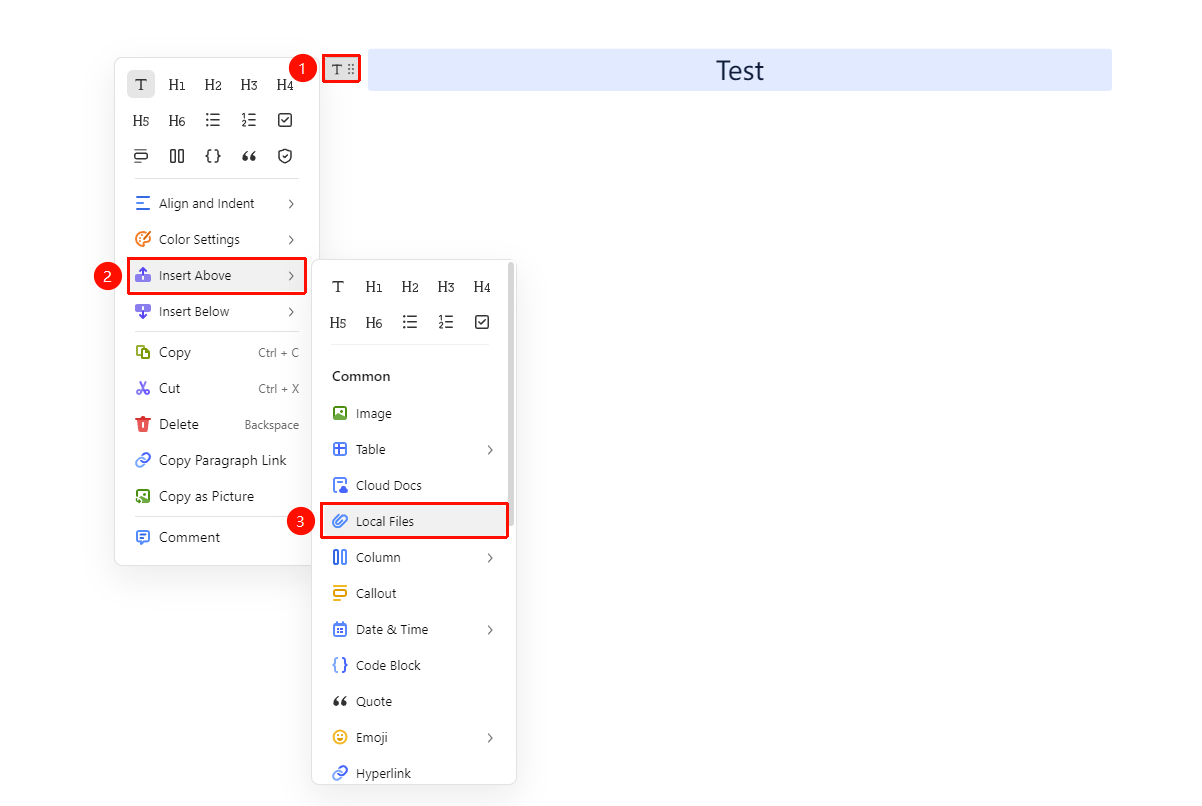
"Paragraph Handle" button → "Insert Above/Below" option → "Local File" option
- Place the cursor on the paragraph immediately above or below where you want to insert the file
- Click the "Paragraph Handle" menu button on the left (icon is "⠿")
- Click the "Insert Above" or "Insert Below" option
- Select the "Local File" option
- In the pop-up file picker, select a file from your local device
- Click "Open" to complete the insertion
Insert by Dragging and Dropping
Feature Entry
Local folder → Drag file to document editing area
- Open the AirPage editing interface
- Select the file from your local file system
- Drag the file directly into the document editing area
- Release the mouse button, and the file will be automatically inserted into the document
Insert by Pasting
Feature Entry
Copy local file → Paste into document area
- Copy the target file in your local file system
- Return to the AirPage editing interface and perform the paste operation (
Ctrl + V/Cmd + V) - The file will be inserted into the document in the corresponding format
FAQ
Q1: What file formats are supported for local file insertion?
- Solution: Image files (JPG/PNG/GIF/WebP, etc.), video files, and common document formats are supported. Images will be displayed directly in the document, while other files will be embedded as attachments.
Q2: Can collaborators see the file after a local file is inserted?
- Solution: After insertion, the file content will be uploaded to the Cloud, and all collaborators can view it. For video files, ensure the upload is complete before others can play and view it correctly.
Q3: Will modifying the original file affect the document content after insertion?
- Solution: No. Once a file is inserted into AirPage, it is uploaded as a Cloud copy, independent of the local original file. Modifying the local original file will not affect the content already inserted in the document.
Notes
- Uploading large files (such as high-definition videos) takes some time; please wait patiently
- After insertion, images support resizing, rotating, adding borders, and other operations
- It is recommended to use the Shortcut Ctrl+V paste method to improve file insertion efficiency