Feature Summary
When you need to insert images into AirPage to enrich your content, the Insert Image feature supports multiple insertion methods (toolbar, slash command, drag-and-drop, paste) and provides capabilities such as image border display, rotation, adding descriptions, image text recognition, and multi-image side-by-side arrangement, helping you create beautifully illustrated Documents.
Feature Description
| Feature Dimension | Description |
|---|---|
| Membership Restriction | No membership restriction |
| Version Restriction | No version restriction |
Steps
Insert an Image via the Top Ribbon
Feature Entry
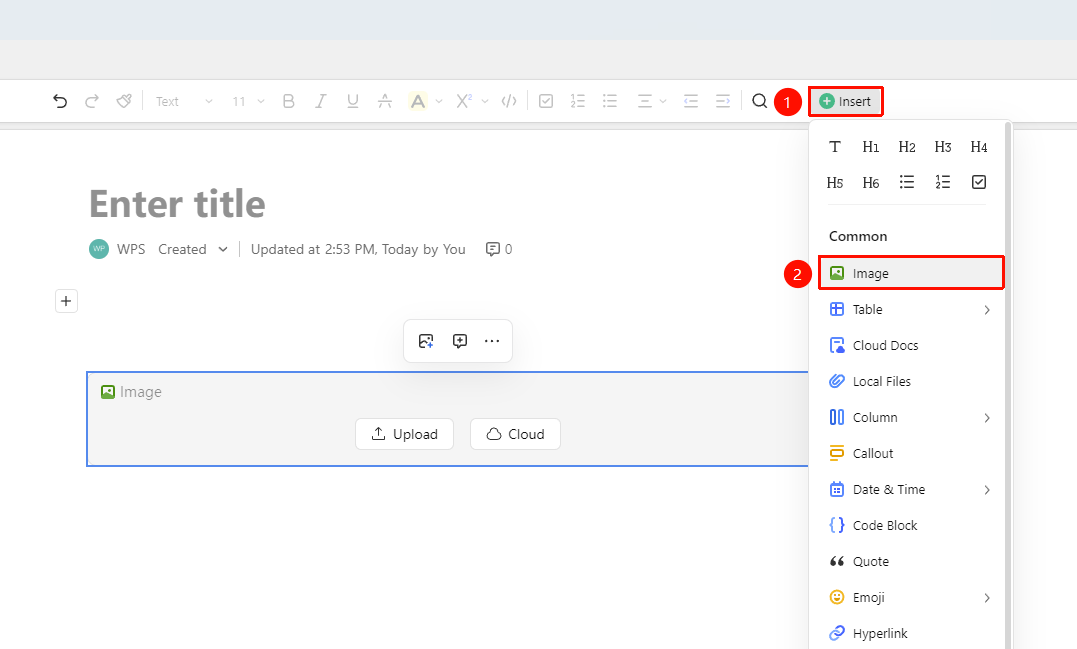
「Top Ribbon」→「Insert」dropdown menu→「Image」option
- Place the cursor where you want to insert the image
- Click the 「Insert」 menu button at the top
- Select the 「Image」 option, and choose an image file in the file picker
- Click 「Open」 to complete the image insertion
Insert an Image via Slash Command
Feature Entry
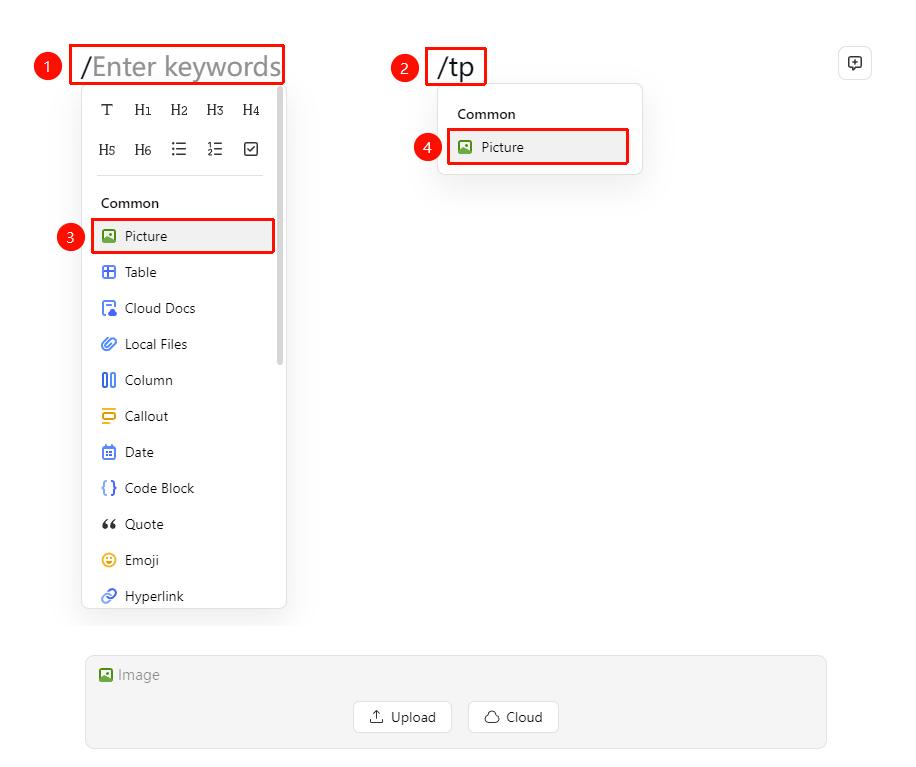
Empty line in the Document→Type: /→「Image」option
- Type / on an empty line in the Document
- Select 「Image」 from the menu
- Or type /tp, /image, /pic to quickly locate the option
- Select a local image file to complete the insertion
Insert via Drag-and-Drop or Paste
Feature Entry
「Drag-and-drop/Paste image file」→「Drop into the Document area」
- Drag-and-drop: Select an image file from a local folder and drag it directly into the Document area
- Paste: Copy an image elsewhere, return to the Document and paste it (
Ctrl+V/Cmd+V)
Image Management Operations
Feature Entry
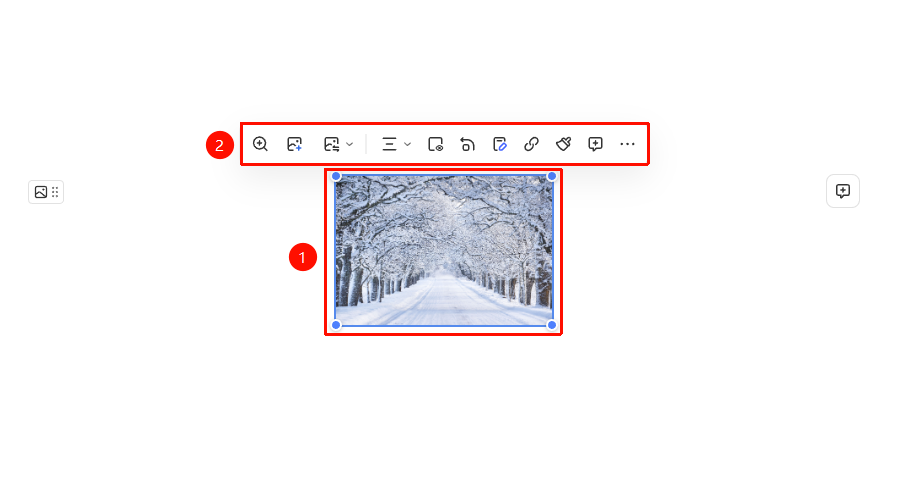
Select an image →「Floating Toolbar」
After inserting an image, select the image, and in the floating toolbar you can:
- Show Border: Add a border display to the image
- Rotate 90°: Rotate the image 90 degrees; this operation can be repeated
- Add Description: Add descriptive text below the image
- Hyperlink: Set a clickable jump link for the image
- Recognize Text: Recognize text content in the image via OCR
Arrange Multiple Images Side by Side
Drag an image → to either side of another image → release the mouse
- Select and drag an image to the left or right edge of another image
- Release the mouse after the side-by-side prompt appears
- The two images will automatically be arranged side by side
FAQ
Q1: What is the maximum number of images that can be placed side by side?
- Solution: To ensure consistent viewing across different platforms, a single image side-by-side group currently supports a maximum of 5 images.
Q2: The inserted image is blurry. How can I adjust it?
- Solution: Please check if the original image resolution is high enough. AirPage saves images in high quality. If the image is still blurry, it is recommended to re-insert it using a higher-resolution original image, or adjust the image display size so the system loads it at its original ratio.
Notes
- Supports common image formats such as JPG, PNG, GIF, WebP
- After the Document is shared, other collaborators can view the inserted images (requires Document viewing permission)