Feature Summary
When you need to prominently mark important information in a Document, the Highlight Block feature supports adding a colored background block or highlight color block to selected text or paragraphs, making key content stand out more and enhancing the visual hierarchy and readability of the Document.
Feature Description
| Feature Dimension | Description |
|---|---|
| Membership Restriction | No membership restriction |
| Version Restriction | No version restriction |
Operation Steps
Adding a Highlight Block via the Insert Menu
Feature Entry
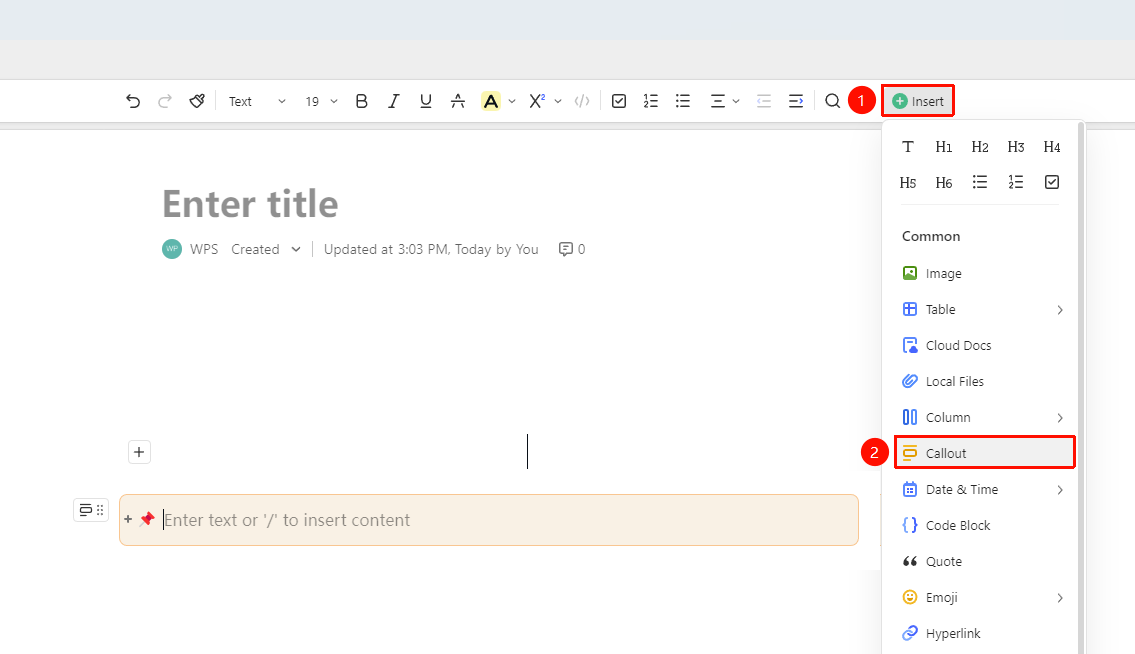
「Top」Toolbar → 「Insert」Button → 「Highlight Block」Option
- Place the cursor where you want to add the Highlight Block
- Click the 「Insert」 button in the top toolbar
- Select 「Highlight Block」 from the pop-up menu
- A color block with a default color will be inserted into the Document. Enter the desired text content into the color block.
Adding a Highlight Block via the Paragraph Handle Menu
Feature Entry
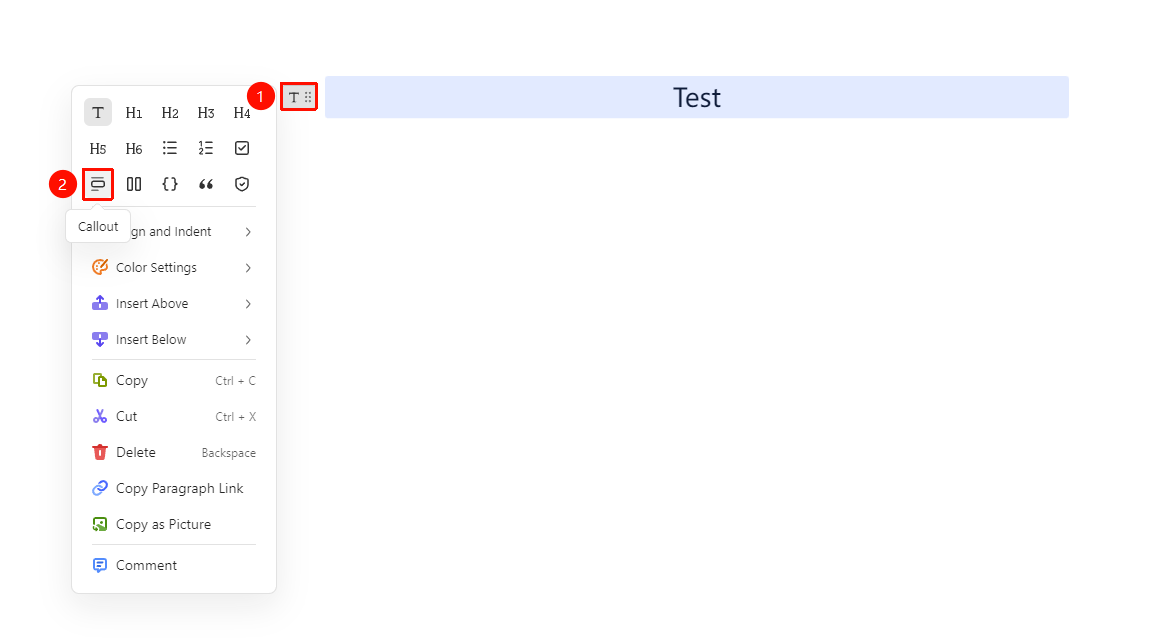
「Paragraph Handle」 button on the left side of the paragraph (icon is 「⠿」) → 「Highlight Block」 Option
- Place the cursor on the target paragraph, click the Paragraph Handle button on the left side of the paragraph (icon is 「⠿」)
- Select the 「Highlight Block」 option from the pop-up menu
Quickly Inserting a Highlight Block via Slash Command
Feature Entry
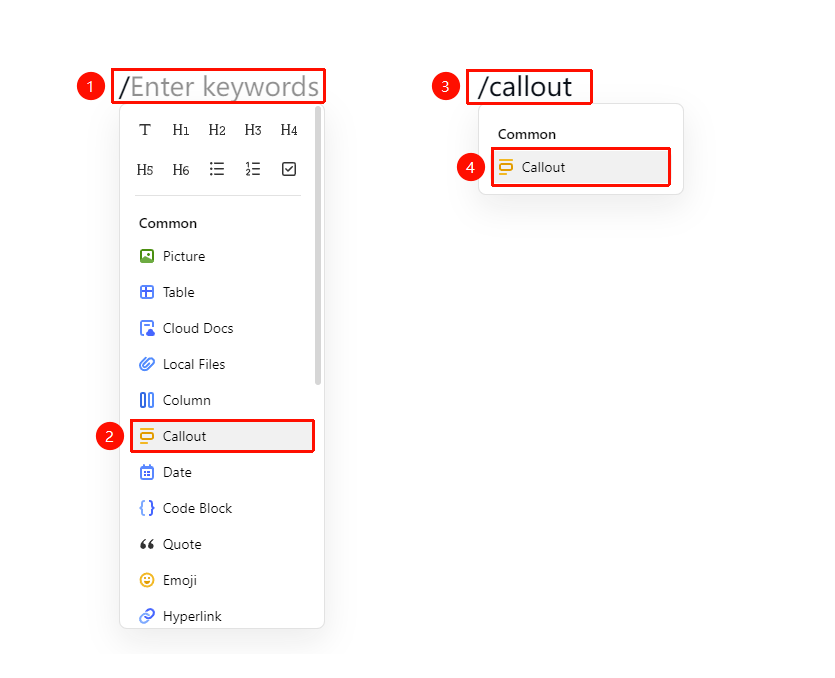
「Document Editing Area」 → Enter: / → Select 「Highlight Block」 Option
- Directly enter / in a blank line of the Document
- Select 「Highlight Block」 from the pop-up shortcut menu
- Or search by entering keywords: enter /glk or /callout to quickly locate the Highlight Block option
Changing the Highlight Block Color
Feature Entry
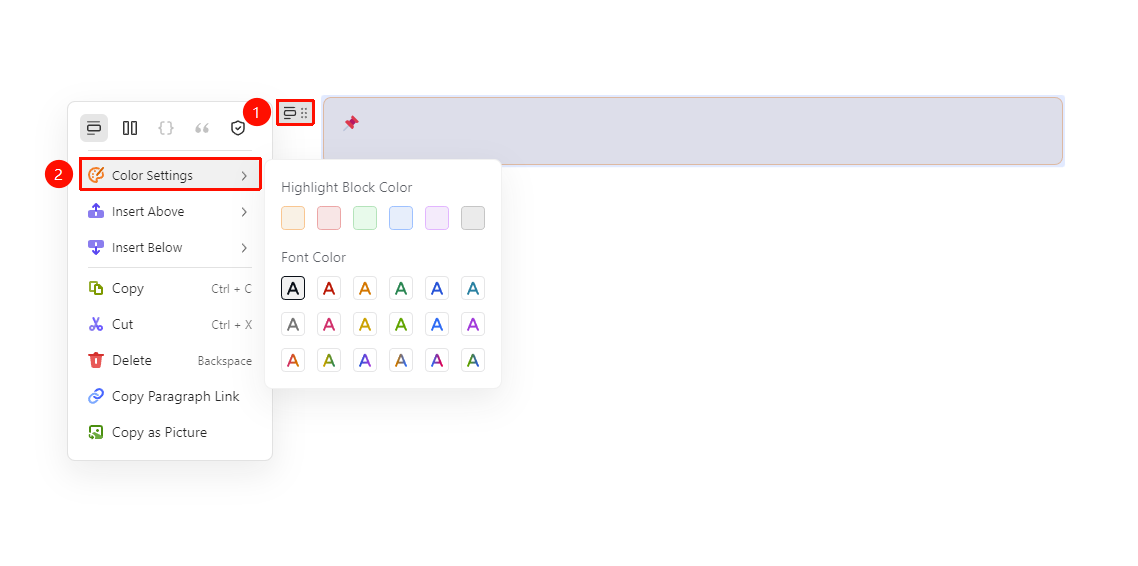
Select the Highlight Block → 「Paragraph Handle」 Button (icon is 「⠿」) → 「Color Settings」 Drop-down Menu
- Click the Paragraph Handle button on the left side of the Highlight Block (icon is 「⠿」)
- Select 「Color Settings」 from the menu to change the background color and font color of the color block
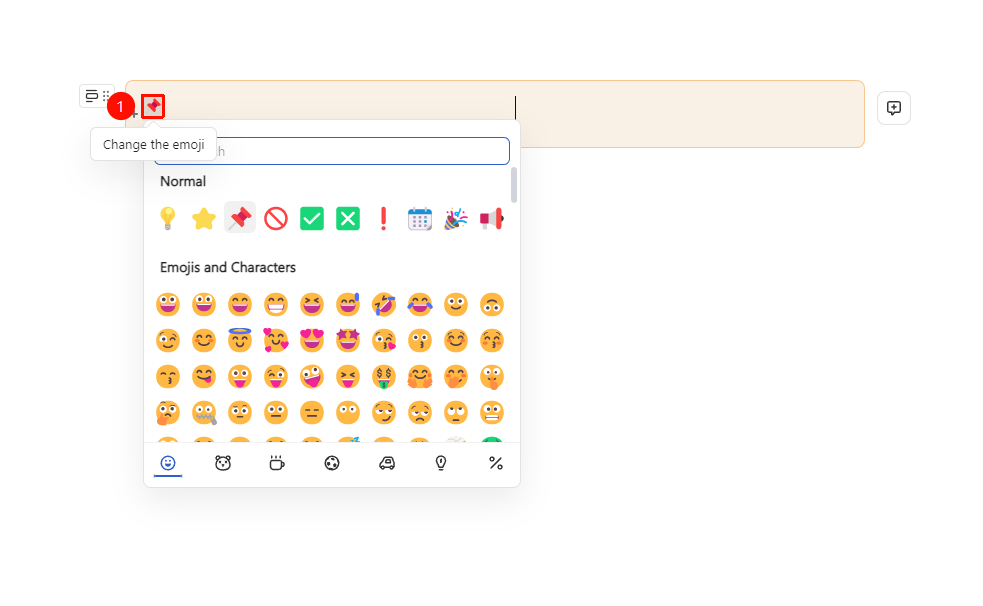
- Click the emoji icon on the Highlight Block to bring up the emoji selection panel, which includes 「Recently Used」 and 「Recommended」 categories. Select a suitable emoji to insert.
Changing the Highlight Block Icon
Feature Entry
Click anywhere inside the Highlight Block → 「Change Icon」 Option
- Click anywhere on the Highlight Block
- Click the 「Change Icon」 option on the left side
- This will bring up the emoji selection panel. Select a suitable emoji to insert.
FAQ
Q1: What color options are supported for the Highlight Block?
- Solution: The Highlight Block provides multiple preset color options, supporting changes to the background color and font color. Click 「Color Settings」 in the Highlight Block's Paragraph Handle menu to expand the color panel and select the desired color.
Q2: How to delete a created Highlight Block?
- Solution: After selecting the Highlight Block, you can place the cursor at the end of the block's content and press the Delete key to delete it, or select the delete operation via the Paragraph Handle menu. If you only need to remove the color effect but keep the text, you can move the content out of the color block and present it as a normal paragraph.
Q3: Can images or other elements be inserted into a Highlight Block?
- Solution: Currently, AirPage's Highlight Block supports inserting images and other elements, but some elements are not yet supported (tables, Markdown imports, etc.).
Notes
- Highlight Block titles (using heading styles within the Highlight Block) will not appear in the automatically generated table of contents
- The Highlight Block supports adding emojis, making it convenient to use corresponding identifiers in different scenarios
- The Highlight Block is an independent content block and supports repositioning by dragging