Feature Summary
AirPage supports inserting spreadsheets directly into documents, enabling data statistics and calculation functions to meet data processing needs within the document.
Feature Description
| Feature Dimension | Description |
|---|---|
| Membership Restriction | No membership restriction |
| Version Restriction | No version restriction |
Operation Steps
Add Spreadsheet via Ribbon
Feature Entry
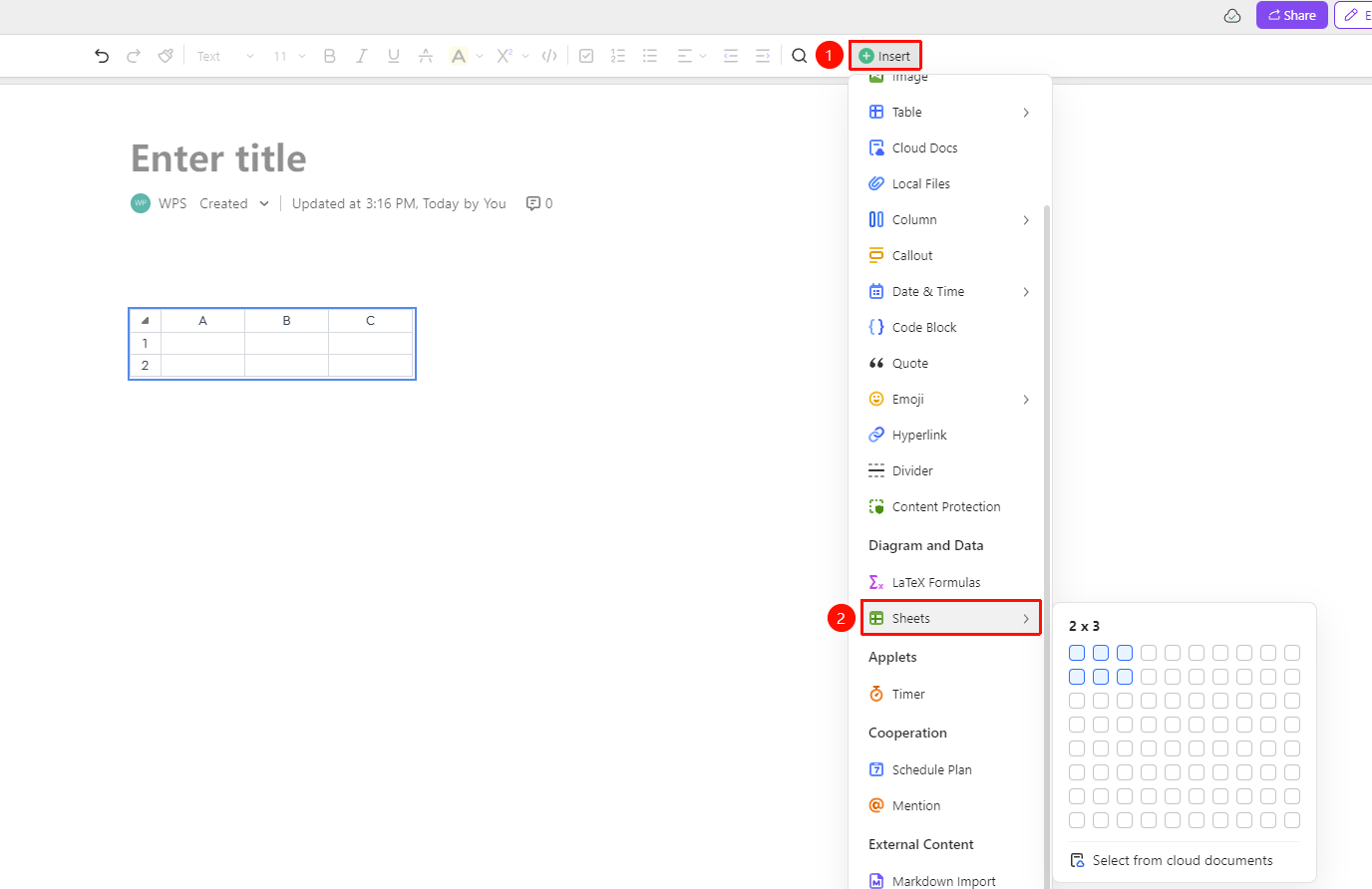
「Insert」tab → 「Spreadsheet」
- Place the cursor where you want to insert the spreadsheet
- Click the 「Insert」 button in the ribbon
- Select the 「Spreadsheet」 option
- Select from cloud documents or select the desired number of rows and columns to complete the insertion
Use Quick Commands
Feature Entry
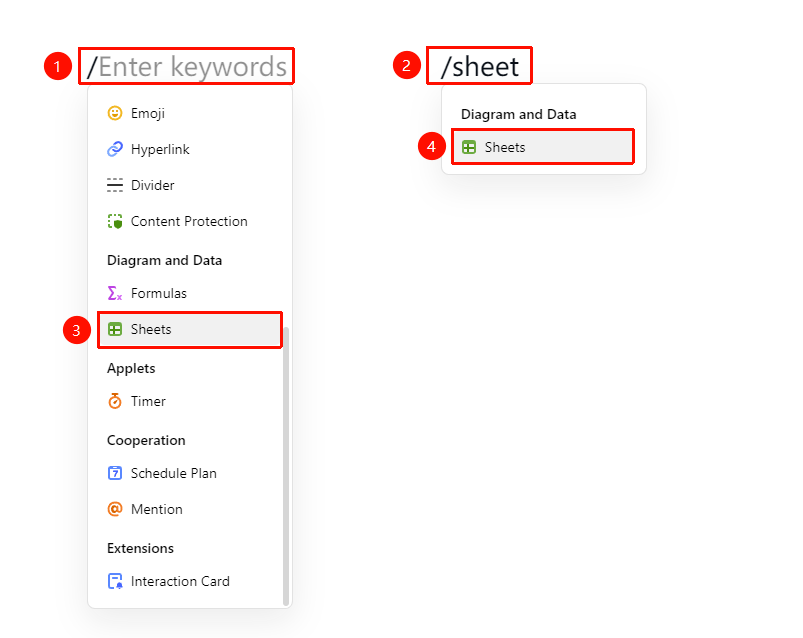
「Paragraph Input」→ 「/」 → 「Sheet」
- Enter / in a paragraph to bring up the quick insert menu,select the spreadsheet option to insert
- Or enter /sheet
- Select the spreadsheet option to insert
New Spreadsheet Shortcut Overview: /dzbg or /et or /sheet
Edit Spreadsheet
Feature Entry
「Double-click Sheet」 → 「Enter Read Mode」
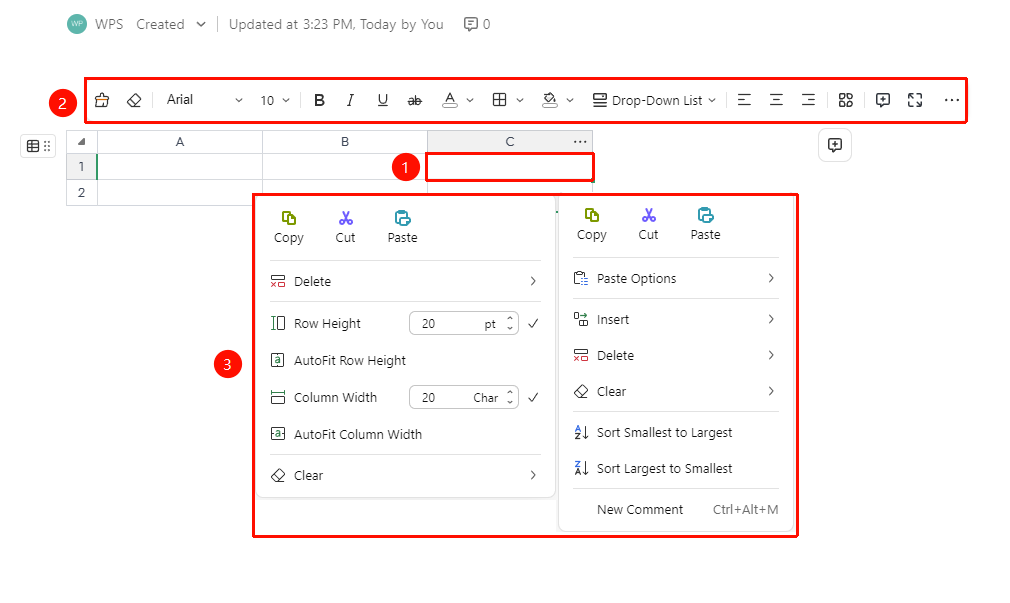
- Select a cell or double-click to enter a cell, then you can edit within the spreadsheet.
- After selecting a cell, you can set the cell style and content via the floating toolbar or right-click menu.
- Supports formula calculation, data filtering, sorting, adding drop-down lists, and other features
- Click outside the area to finish editing
FAQ
Q1: What is the difference between an inserted spreadsheet and a regular table?
- Solution: Spreadsheets support advanced features such as formula calculation, data filtering, and sorting, making them suitable for data processing; regular tables are only for content display.
Q2: Can a spreadsheet display across pages?
- Solution: Yes, the spreadsheet will automatically resize based on content and supports cross-page display.
Q3: Can a spreadsheet be exported separately?
- Solution: Yes, click 「More」 → 「Save as Spreadsheet」 in the spreadsheet floating toolbar to export the sheet separately as a new AirSheet file.
Notes
- Spreadsheets support over 300 functions and formulas
- You can adjust the sheet size by dragging
- Spreadsheet data is independent of other document content
- Enter /dzbg or /et or /sheet directly in the body to Generate Sheet
- Click the spreadsheet to bring up the floating editing bar, click the 「Full Screen」 button in the editing bar to view all supported features of the spreadsheet