Feature Summary
AirPage supports inserting other cloud documents into a document, establishing associations between documents for efficient and convenient management of multiple documents.
Feature Description
| Feature Dimension | Description |
|---|---|
| Membership Restriction | No membership restriction |
| Version Restriction | No version restriction |
Steps
Insert Cloud Documents on Desktop
Feature Entry
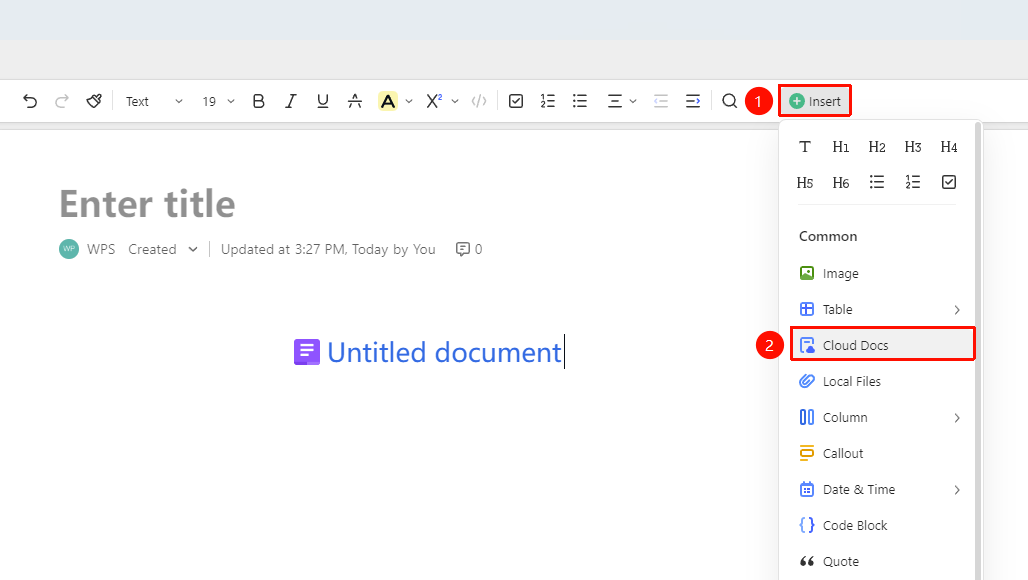
「Insert」 tab → 「Cloud Documents」
- Place the cursor where you want to insert the cloud document
- Click the 「Insert」 tab in the toolbar
- Select the 「Cloud Documents」 option
- Select the cloud document you want to insert in the file picker
Insert Using the @ Panel
Feature Entry
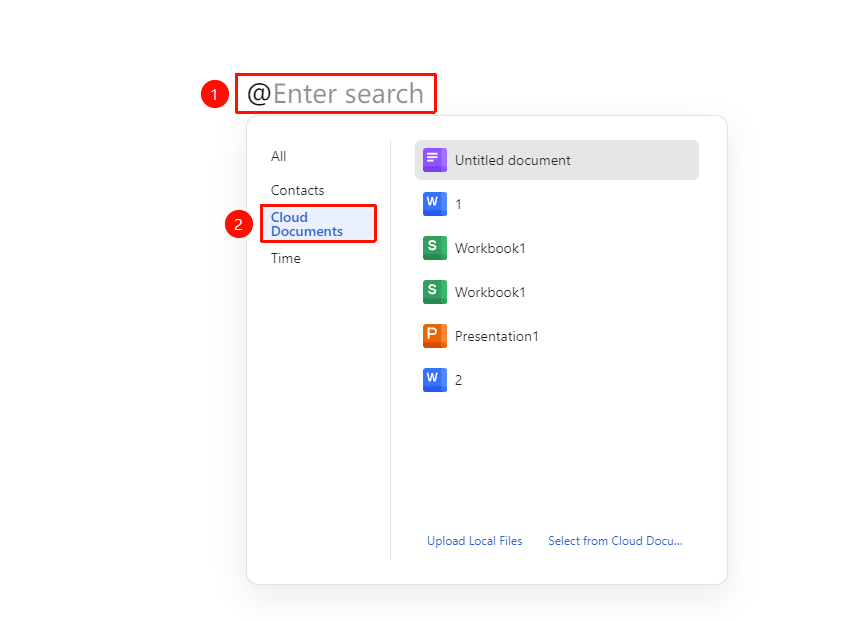
「@」 → 「Enter document name」 → 「Select document」
- Enter 「@」 in the document to bring up the insert panel
- Enter the name of the cloud document you want to insert to search
- Select the found document to insert
Insert Using the + Paragraph Handle
Feature Entry
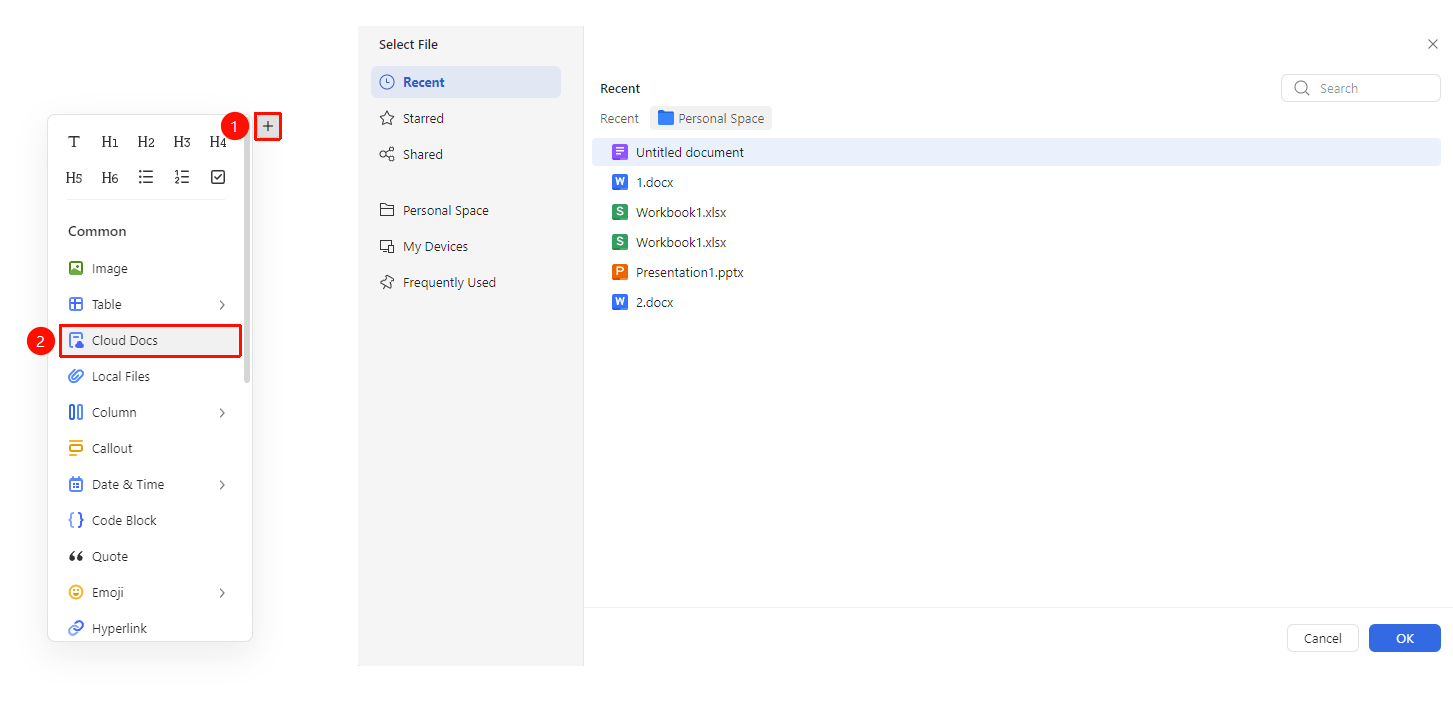
+ on the left side of the paragraph → 「Cloud Documents」
- Place the cursor where you want to insert the cloud document
- Click the 「+」 paragraph handle on the left side of the page, and find the 「Cloud Documents」 option in the dropdown menu
- Select the cloud document you want to insert in the file picker
Modify Cloud Document Permissions
Feature Entry
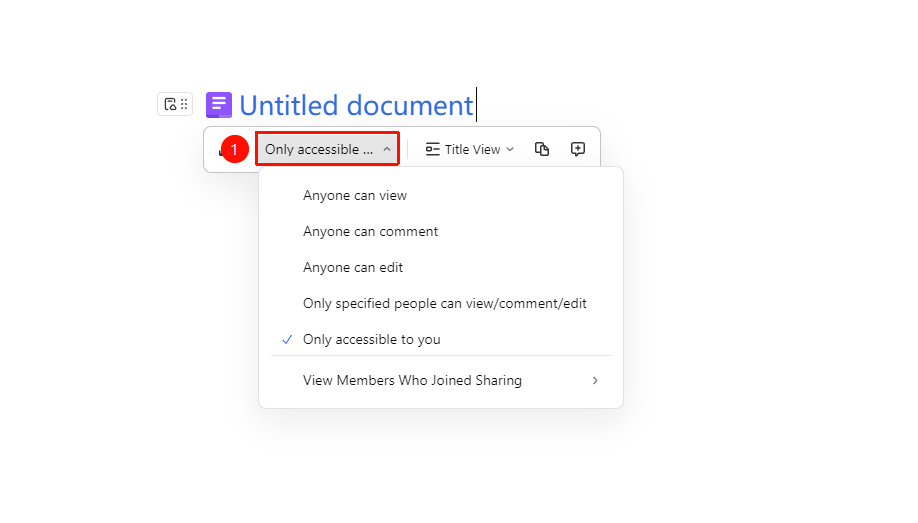
「Hover over cloud document」 → 「Permissions menu」 → 「Select permission」
- Hover the mouse over the inserted cloud document
- Expand the permissions list in the menu that appears
- Switch the permission type (View, Edit, etc.)
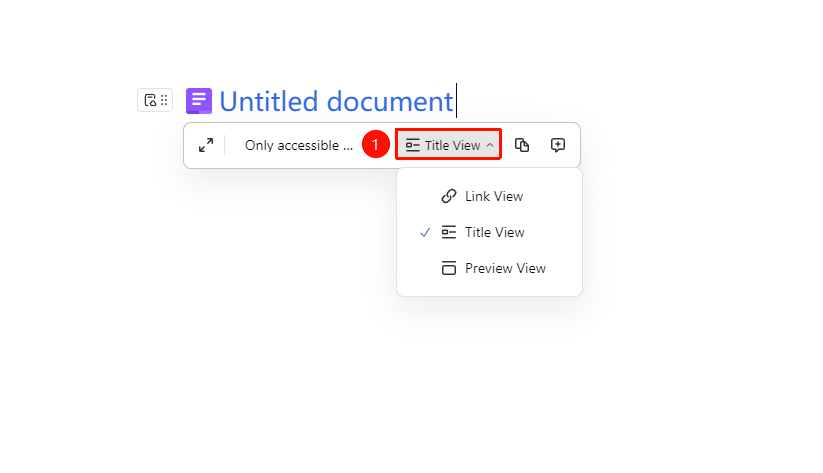
Modify Cloud Document View
Feature Entry
「Hover over cloud document」 → 「Title view」
- Hover the mouse over the inserted cloud document
- Click 「Title view」 in the menu that appears
- You can choose to switch between 【Preview view】 、【Title view】and 【Link view】
FAQ
Q1: What types of cloud documents can be inserted?
- Solution: All types of WPS documents are supported for insertion, including Docs, Sheets, Slides, etc.
Q2: Can the inserted cloud documents be previewed?
- Solution: Yes, after insertion, you can choose different display modes such as Preview view and Title view.
Q3: Is it supported to copy a link and paste it to be recognized as a cloud document?
- Solution: Yes, you can directly copy a cloud document link and paste it into the body, and the system will automatically recognize it as a cloud document.
Notes
- The inserted cloud document will maintain a link to the original document
- The recipient needs corresponding permissions to view the inserted document
- You can adjust the size of the inserted document by dragging
- If a document link pasted directly into the body is not a WPS Cloud Documents link, the recognition may fail