Feature Summary
AirPage supports inserting code blocks, which are better suited for presenting code content and support syntax highlighting for multiple programming languages.
Feature Description
| Feature Dimension | Description |
|---|---|
| Membership Restriction | No membership restriction |
| Version Restriction | No version restriction |
Operation Steps
Insert Code Block from the Ribbon
Feature Entry
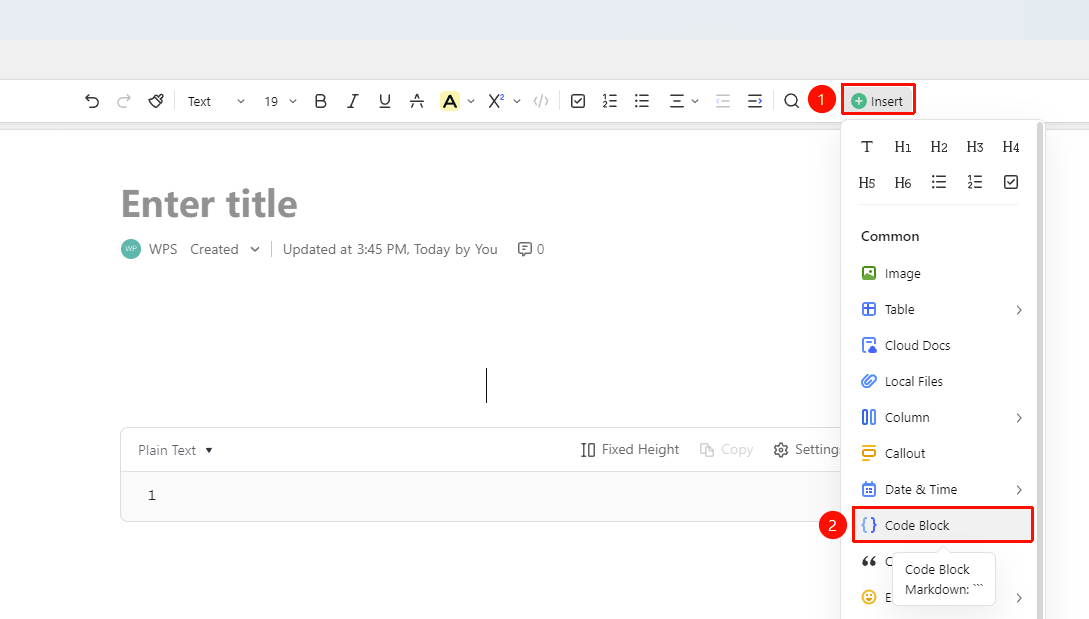
"Insert" tab → "Code Block"
- Place the cursor where you want to insert the code block
- Click the "Insert" button in the ribbon
- Select the "Code Block" option
- Enter the code content in the code block
Use Quick Commands
Feature Entry
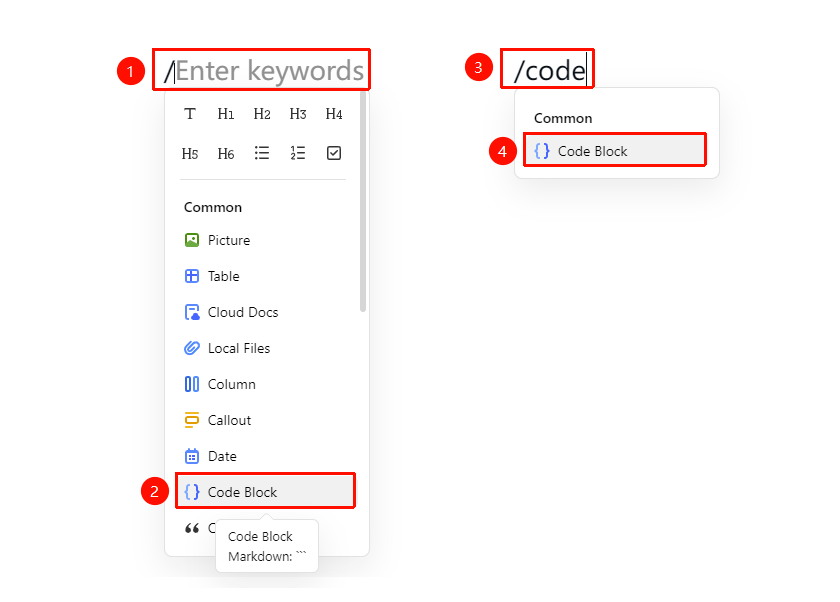
"Paragraph Input" → "/" → "Code Block"
- Enter / in a paragraph to bring up the quick menu,select the code block option to insert
- Or Enter /code
- Select the code block option to insert
Code Block Settings
Feature Entry
"Code Block Top" → "Language Selection"
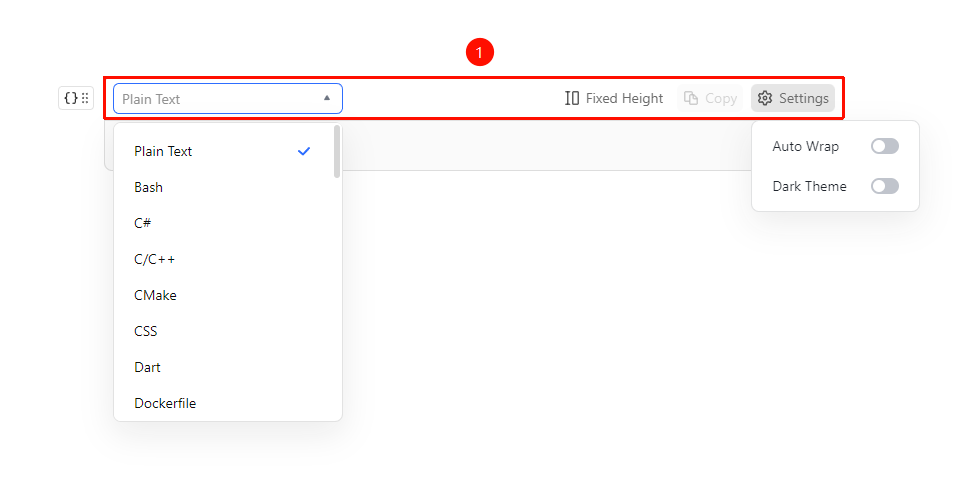
- Click the following entries at the top of the code block to configure different code block options:
- "Switch Code Block Language": Click on the left side of the top of the code block to switch the code block language, such as C, JSON, etc.
- "Fixed Height": Toggle "Fixed Height" / "Fit to Content"
- "Settings": Enable/Disable "Word Wrap", Enable/Disable "Dark Theme"
FAQ
Q1: What programming languages does the code block support?
- Solution: It supports mainstream programming languages such as Python, JavaScript, Java, C++, HTML, CSS, etc.
Q2: Can word wrap be set for the code block?
- Solution: Yes, click the settings button in the upper right corner of the code block to set the word wrap option.
Notes
- Code blocks are suitable for displaying short code snippets
- Dark mode display is supported
- Quick insertion in the body: "/code"