Feature Summary
AirPage supports adding hyperlinks, allowing you to quickly jump to related web pages with a single click and easily browse more relevant content.
Feature Description
| Feature Dimension | Description |
|---|---|
| Membership Restriction | No membership restriction |
| Version Restriction | No version restriction |
Steps
Adding a Hyperlink to Existing Text
Feature Entry
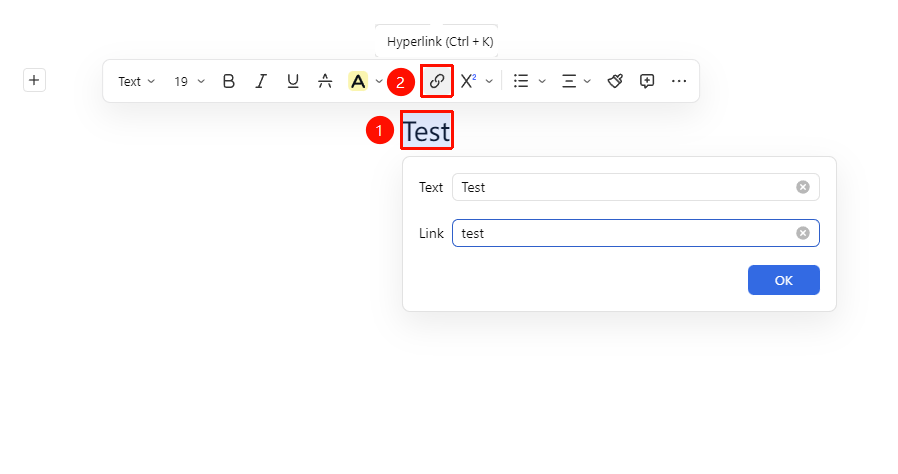
「Select text」→「Floating toolbar」→「Hyperlink」
- Select the text to which you want to add a hyperlink
- In the floating toolbar that appears, click the 「Hyperlink」 button
- Paste or enter the link address in the prompt box
- Click confirm to finish adding
Manually Entering/Pasting a Hyperlink
Feature Entry
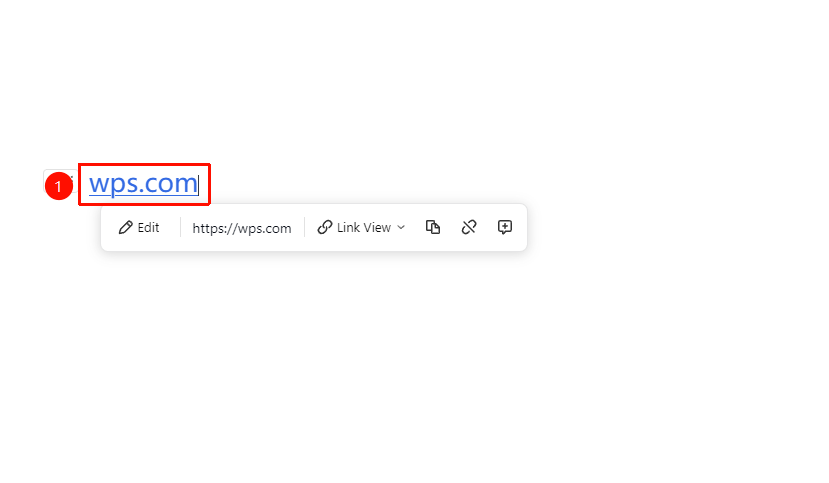
「Enter URL directly / Copy and paste URL」→「Auto-recognition」
- Position the cursor where you want to insert the link
- Directly enter or copy and paste the URL in the Document
- The system will automatically recognize it as a hyperlink
- Press Enter to confirm
Inserting from the Ribbon
Feature Entry
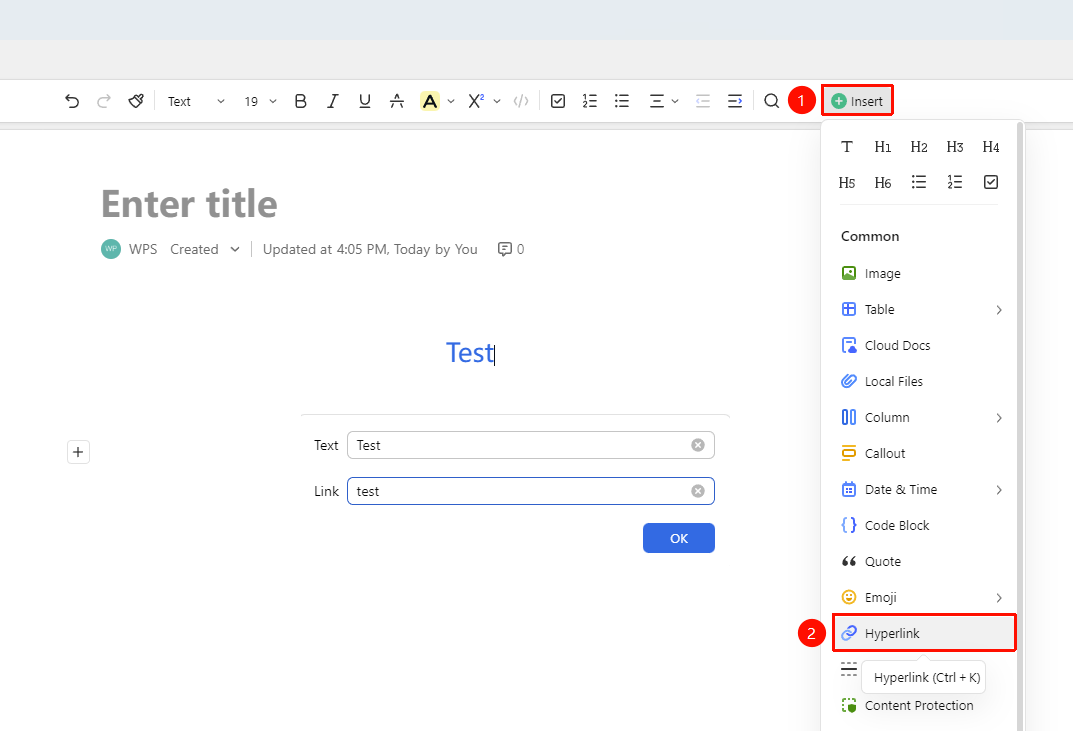
「Insert」 tab →「Hyperlink」
- Position the cursor where you want to insert the hyperlink
- Click the 「Insert」 button in the ribbon
- Select the 「Hyperlink」 option
- Enter the link address and confirm
Inserting via the + Paragraph Handle
Feature Entry
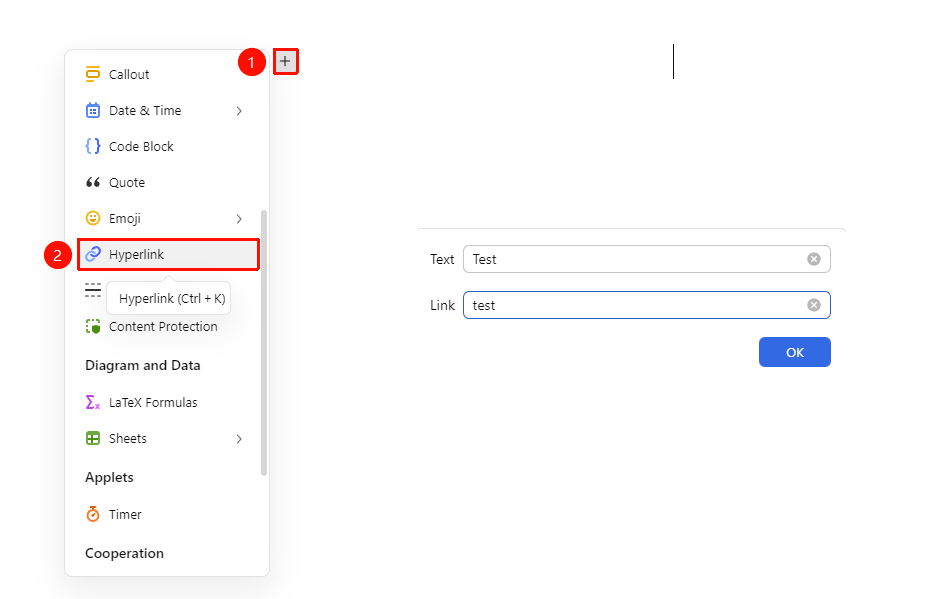
+ on the left side of a paragraph →「Hyperlink」
- Position the cursor where you want to insert the cloud Document
- Click the 「+」 paragraph handle on the left side of the page, and find the 「Hyperlink」 option in the drop-down menu
- Enter the link and text to complete the insertion
FAQ
Q1: How do I modify an added hyperlink?
- Solution: Hover your mouse over the hyperlink text, and click the 「Edit」 button in the floating toolbar to make changes.
Q2: How do I remove a hyperlink?
- Solution: Hover your mouse over the hyperlink text, and click the 「Unlink」 button in the floating toolbar.
Q3: The link does not open when clicked?
- Solution: Re-verify the link validity. You can copy the link and check it in a browser to see if it is a valid link.
Notes
- Supports adding hyperlinks to text and images
- Hovering over a hyperlink allows you to preview/remove/copy the link address
- Supports copying the hyperlink address