Feature Summary
AirPage supports the divider feature, allowing you to insert horizontal dividers into document content to enhance visual hierarchy and readability.
Feature Description
| Feature Dimension | Description |
|---|---|
| Membership Restriction | No membership restriction |
| Version Restriction | No version restriction |
Operation Steps
Inserting a Divider on Desktop
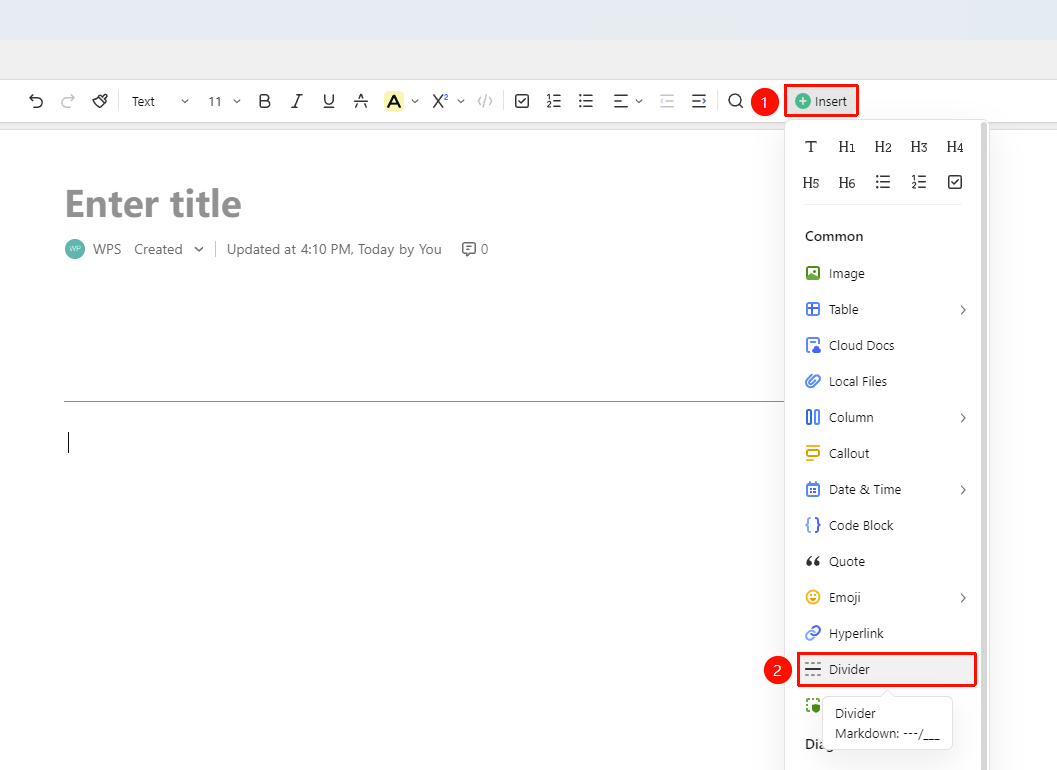
Feature Entry
「Insert」 tab → 「Divider」
- Place the cursor where you want to insert the divider
- Click the 「Insert」 button in the toolbar
- Select the 「Divider」 option
- A horizontal divider will be inserted at the current position
Inserting a Divider Using Quick Commands
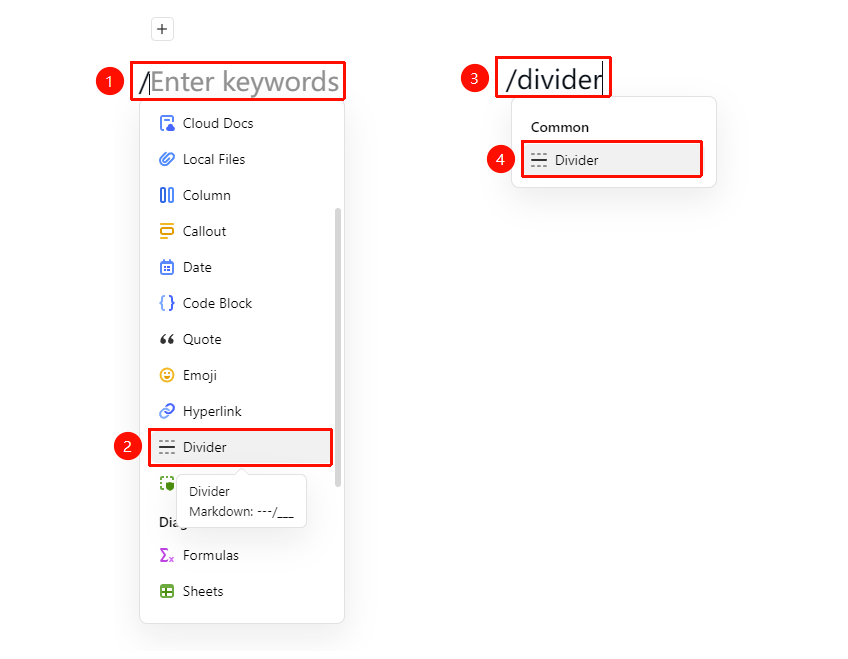
Feature Entry
「Paragraph input」 → 「/」 → 「Divider」
- Type / in a paragraph to bring up the quick menu, select the divider option to insert it
- Or Type /Divider
- Select the divider option to insert it
- Alternatively, type --- (three hyphens) in a paragraph to automatically convert it into a divider
Inserting Using the + Paragraph Handle
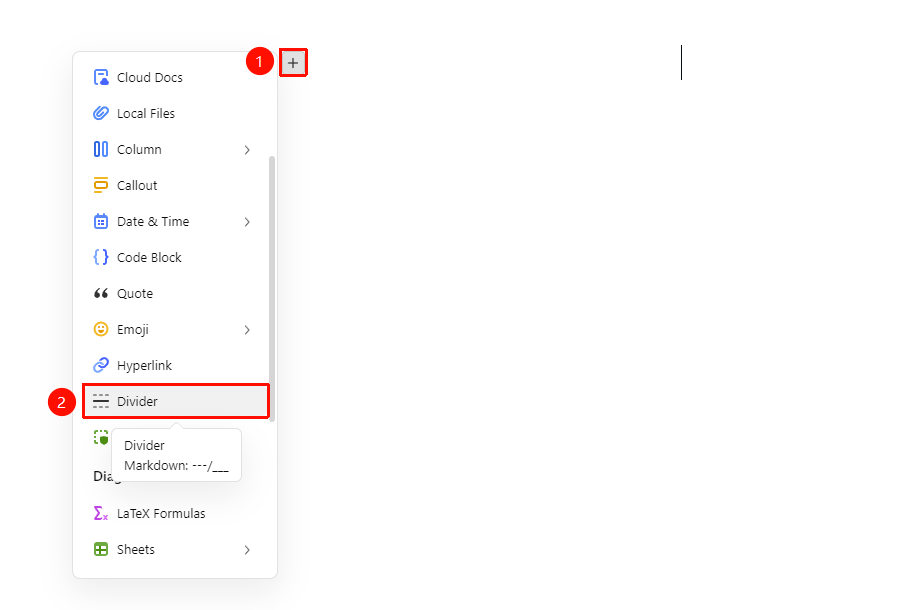
Feature Entry
+ on the left side of the paragraph → 「Divider」
- Place the cursor where you want to insert the cloud document
- Click the 「+」 paragraph handle on the left side of the page, and find the 「Divider」 option in the dropdown menu
- Click to complete the addition
Deleting a Divider
Feature Entry
「Select divider」 → 「Delete key」
- Click to select the divider you want to delete
- Press the Delete key or Backspace key to delete it
- The divider will be removed
- The content before and after will automatically merge
FAQ
Q2: How to adjust the length of the divider?
- Solution: The divider automatically adapts to the document width, so users do not need to manually adjust the length.
Notes
- The divider automatically occupies the full line width
- Suitable for chapter separation and content partitioning
- After insertion, color settings can be adjusted in the paragraph handle menu