Feature Summary
AirPage supports inserting a countdown timer, helping you better manage time in scenarios such as meetings, discussions, and events.
Feature Description
| Feature Dimension | Description |
|---|---|
| Membership Restriction | No membership restriction |
| Version Restriction | No version restriction |
Steps
Adding a Countdown from the Ribbon
Feature Entry
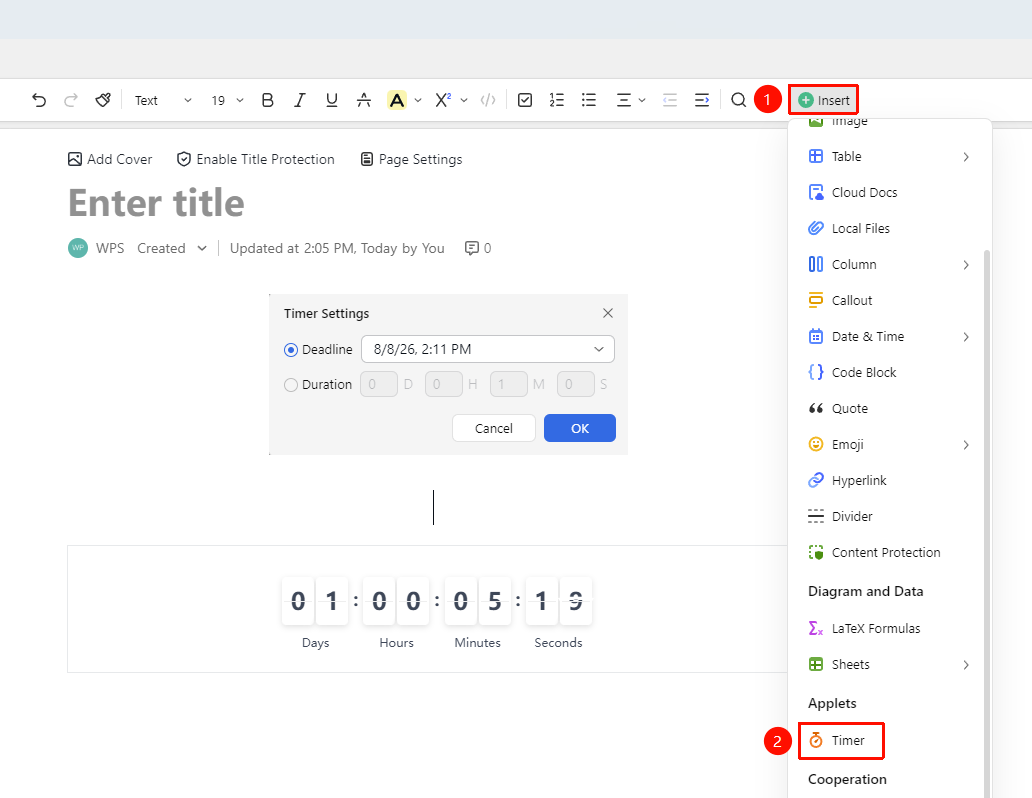
「Insert」 tab → 「Countdown」
- Place the cursor where you want to insert the countdown
- Click the 「Insert」 button in the toolbar
- Select the 「Countdown」 option
- In the countdown settings panel, set the 「End Time」 and 「Duration」
- Click OK to complete the insertion
Insert via Insert Content Menu
Feature Entry
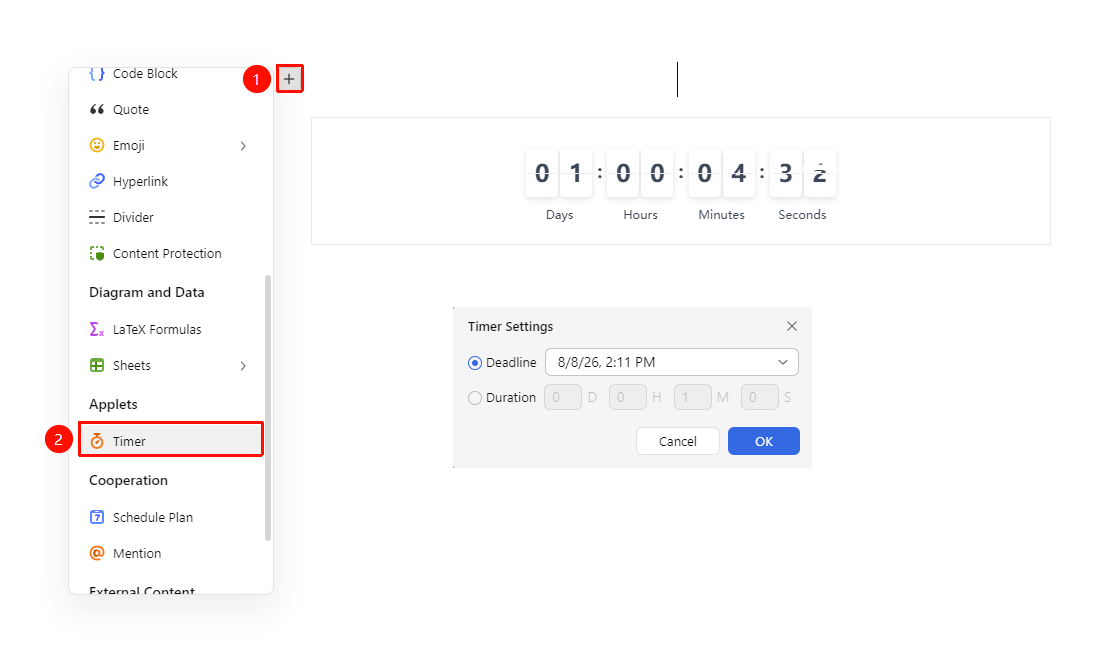
「Insert Content」 dropdown menu → 「Countdown」option
- Place the cursor on an empty paragraph where you want to insert the file
- Click the 「Insert Content」 menu button on the left (icon is "+")
- Select the 「Countdown」 option
- In the countdown settings panel, set the 「End Time」 and 「Duration」
- Click OK to complete the insertion
Using Quick Commands
Feature Entry
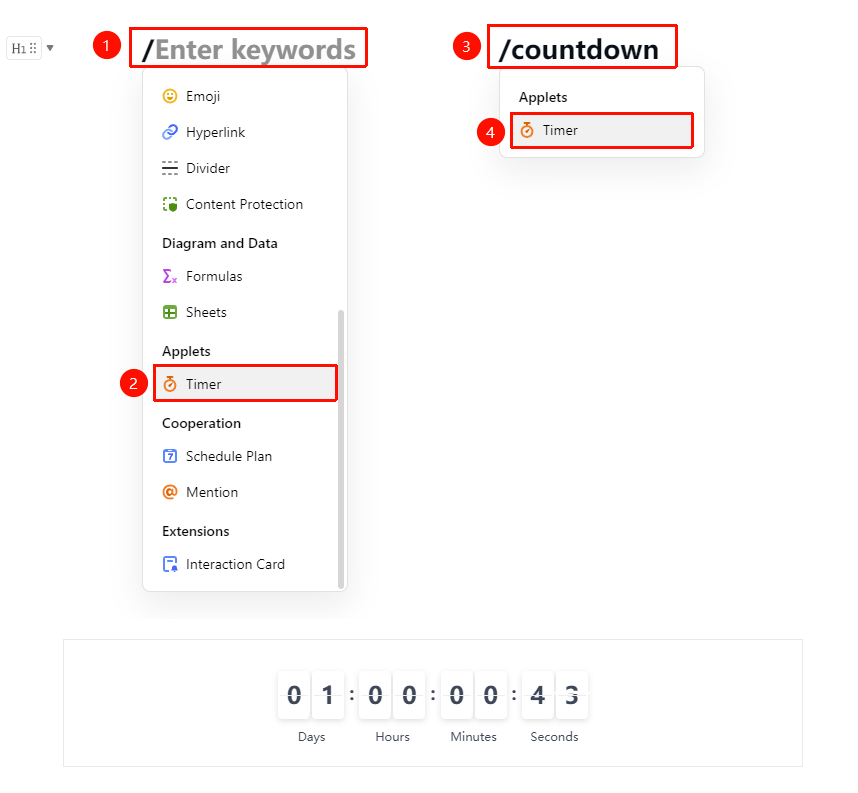
「Paragraph input」 → 「/」 → 「Countdown」
- Enter 「/」 in a paragraph to bring up the quick menu, select the countdown option to insert it
- Or type 「countdown」
- Select the countdown option to insert it
Modifying Countdown Settings
Feature Entry
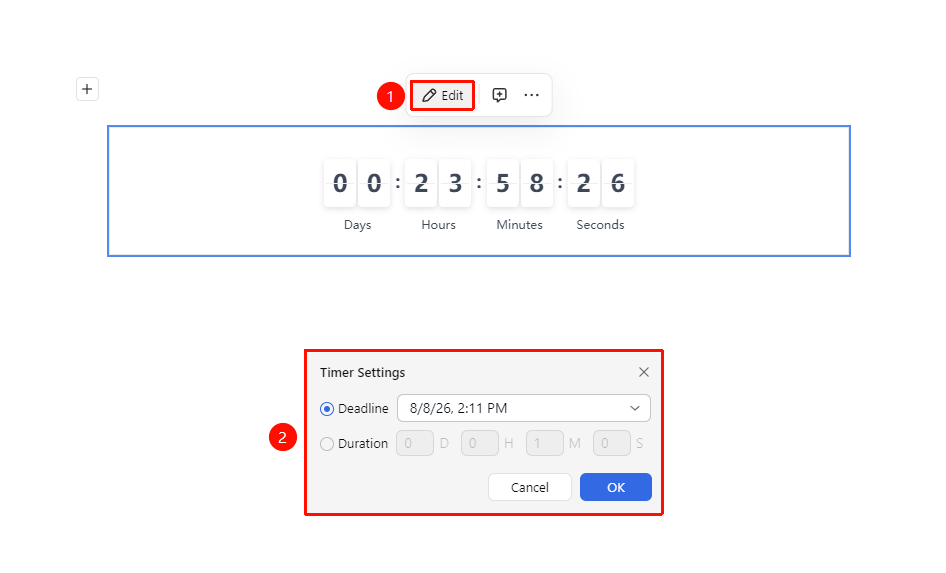
「Click the countdown element」 → 「Floating toolbar」 → 「Edit」
- Click the inserted countdown element
- Click the 「Edit」 button in the floating toolbar
- Open the settings panel to make changes
- Click OK to update
FAQ
Q1: How long can the countdown be set for?
- Solution: You can set a countdown of any duration, from a few minutes to several hours.
Q2: Will there be a notification when the countdown ends?
- Solution: The countdown will display a completion status in the document when it ends, but no automatic pop-up notification will appear.
Notes
- The countdown starts immediately after insertion
- The countdown end time can be modified
- Suitable for scenarios requiring time control, such as meetings, discussions, and events