Feature Summary
AirPage supports inserting event plan elements, making it easier to manage time information in a standardized way and link with the Calendar app.
Feature Description
| Feature Dimension | Description |
|---|---|
| Membership Restriction | No membership restriction |
| Version Restriction | No version restriction |
Steps
Insert an Event on Desktop
Feature Entry
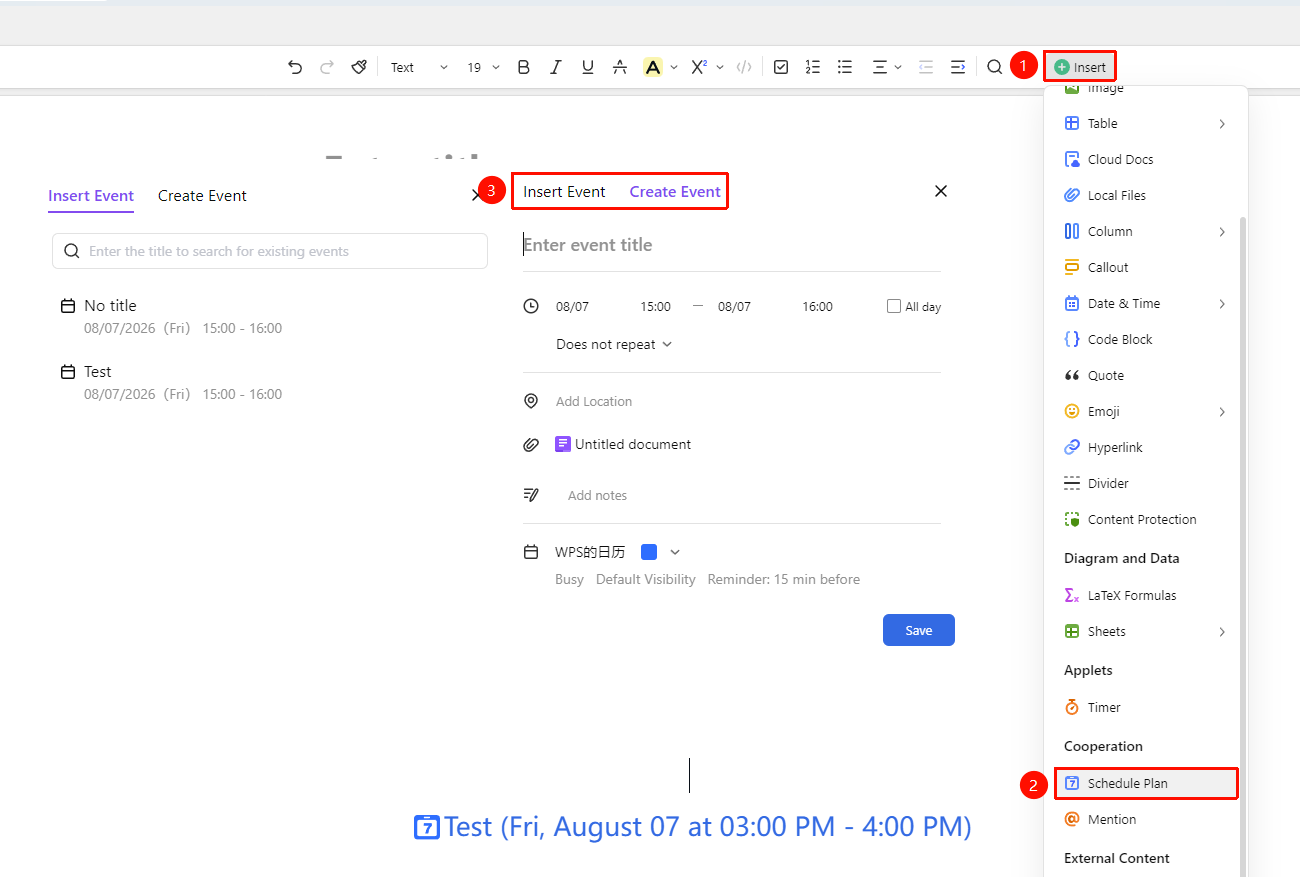
"Insert" tab → "Event Plan"
- Place the cursor where you want to insert the event
- Click the "Insert" button in the ribbon
- Select the "Event Plan" option
- Choose to insert an existing event or create a new one
- Confirm to insert it into the Document
Insert via Insert Content Menu
Feature Entry
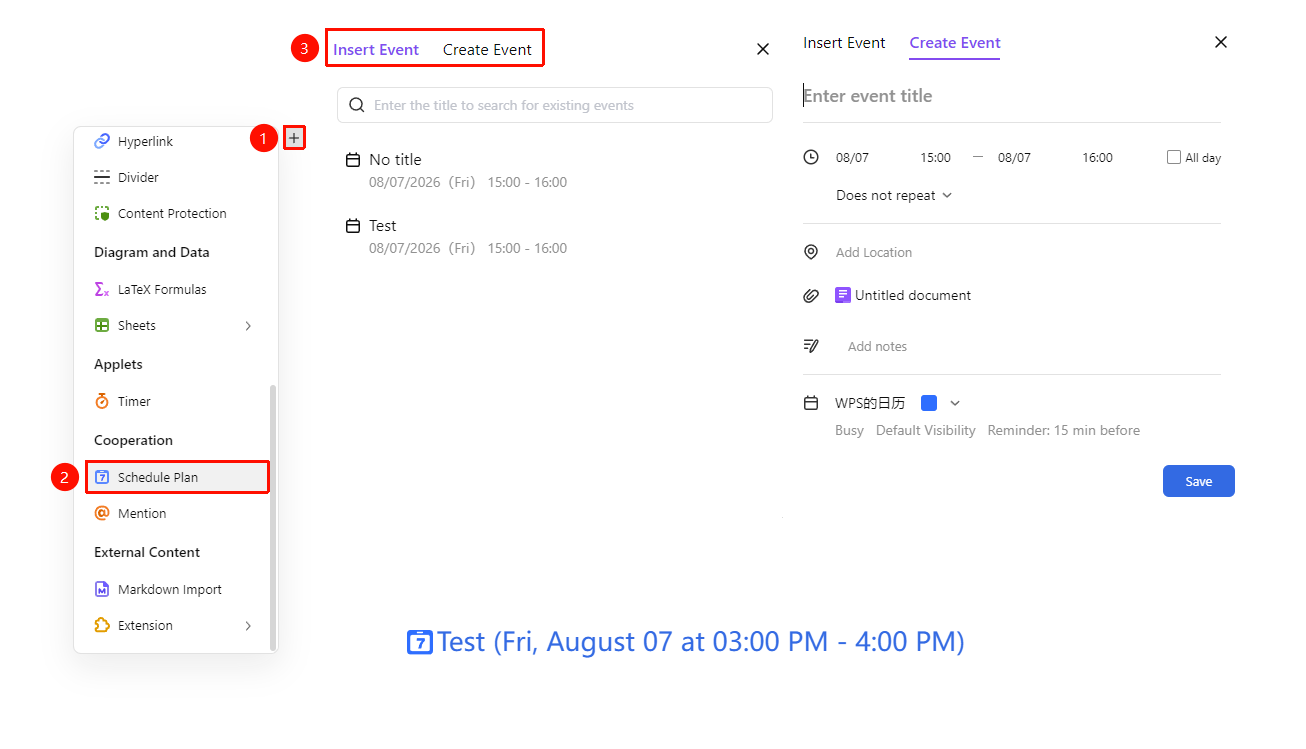
「Insert Content」 dropdown menu → 「Event Plan」option
- Place the cursor on an empty paragraph where you want to insert the file
- Click the "Insert Content" menu button on the left (icon is "+")
- Select the "Event Plan" option
- Choose to insert an existing event or create a new one
- Confirm to insert it into the Document
Use Quick Commands
Feature Entry
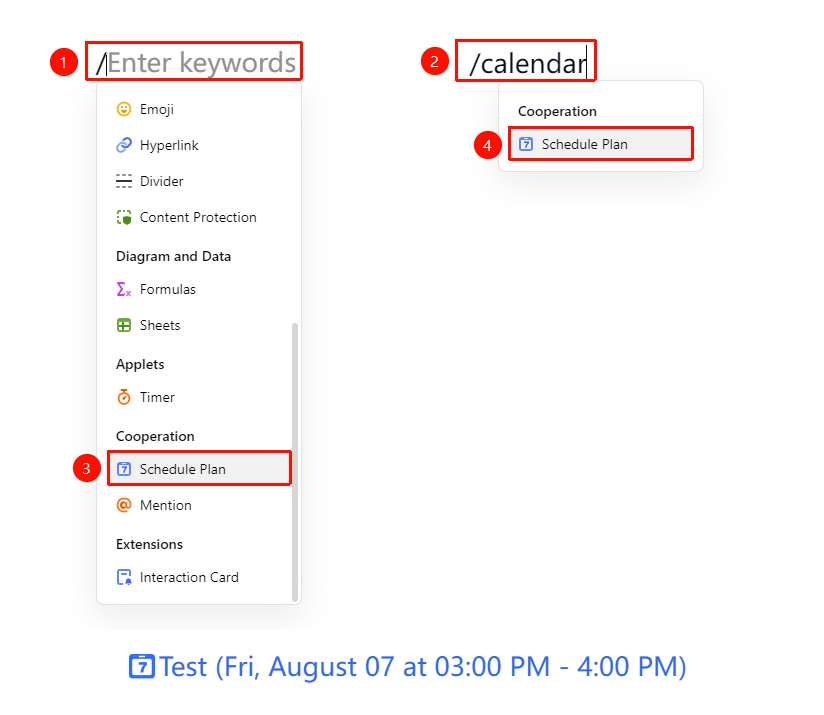
"Paragraph Input" → "/" → "Event"
- Enter / in a paragraph to bring up the quick menu, select the event plan option to insert
- Or type /calendar
- Select the event plan option to insert
View Event Details
Feature Entry
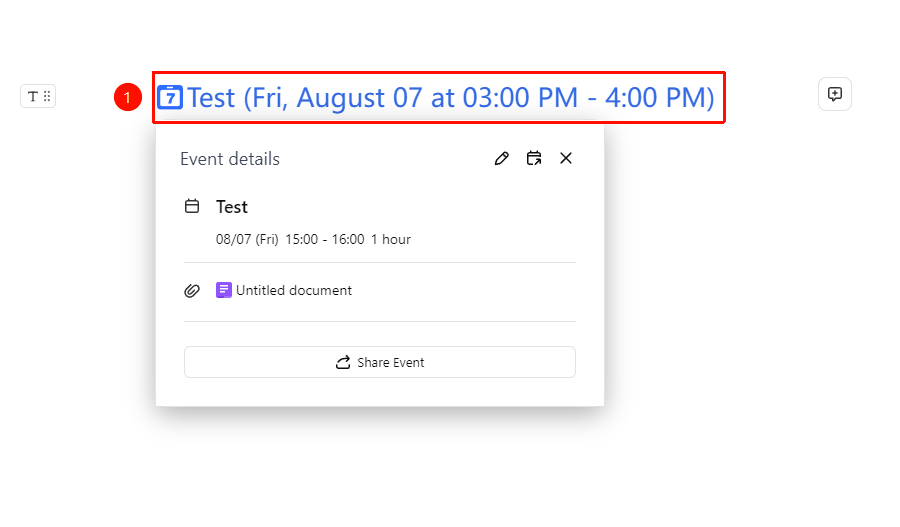
"Click Event Element" → "Details Panel"
- Click the inserted event element in the Document
- Open the details panel
- You can view the event's detailed information
- Supports sharing, editing, or opening in Calendar to view
FAQ
Q1: Will the inserted event sync to the Calendar app?
- Solution: Yes, the inserted event will link with the WPS Calendar app and sync the event information.
Q2: How do I modify an inserted event?
- Solution: Click the event element, select edit in the details panel, make changes, and confirm.
Notes
- The inserted event needs to be associated with a calendar account
- Supports creating a new event or selecting an existing one
- Event details include information such as time, location, and participants