Feature Summary
AirPage supports inserting extensions to enhance document interactivity and functionality.
Feature Description
| Feature Dimension | Description |
|---|---|
| Membership Restriction | No membership restriction |
| Version Restriction | No version restriction |
Steps
Inserting an Extension from the ribbon
Feature Entry
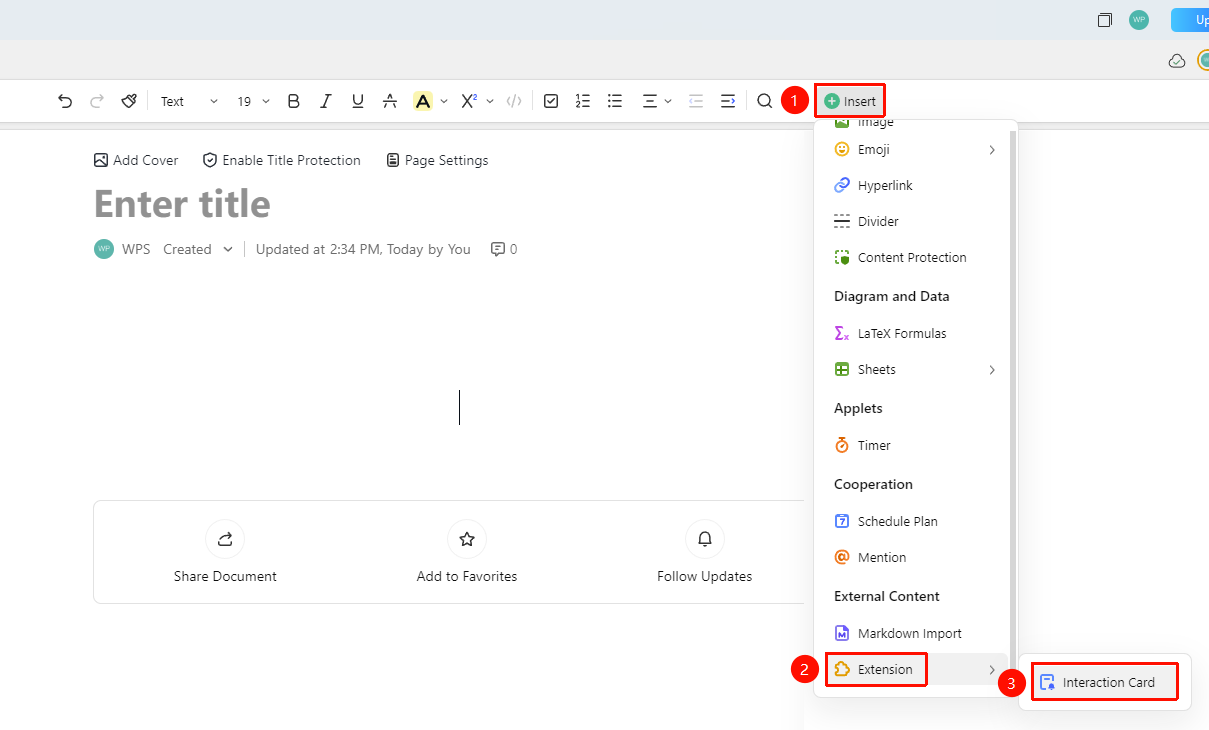
「Insert」 tab → 「Extension」 → 「Interactive Guide Card」
- Place the cursor where you want to insert the extension
- Click the 「Insert」 button in the ribbon
- Select the 「Extension」 option
- Click 「Interactive Guide Card」 to complete the insertion
Inserting Using the + Paragraph Handle
Feature Entry
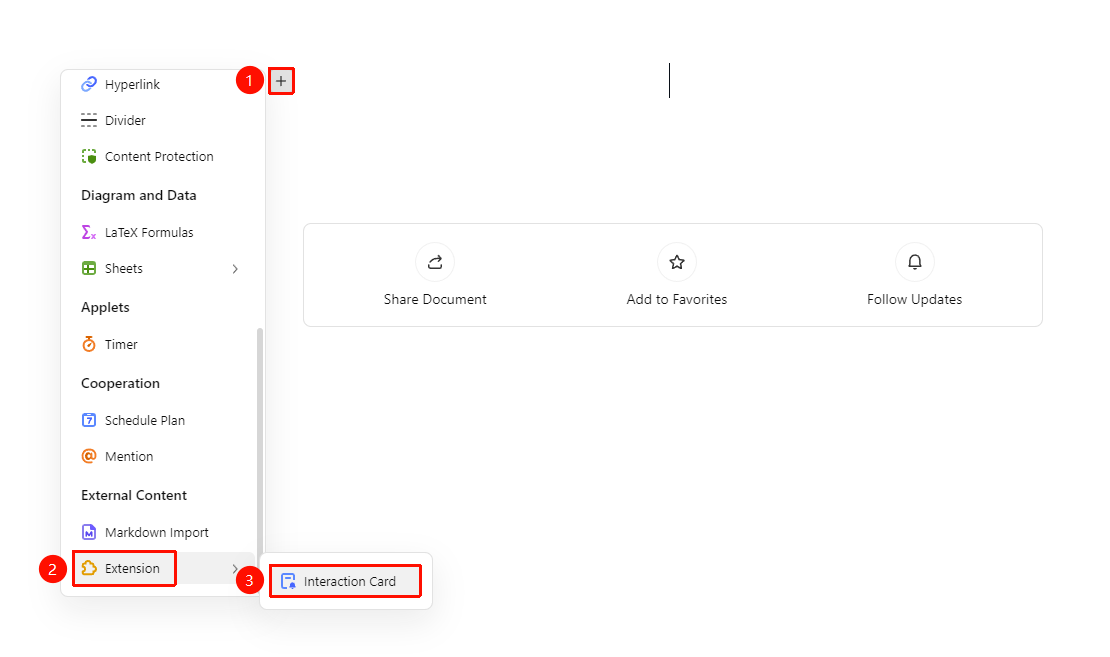
+ on the left side of the paragraph → 「Extension」 → 「Interactive Guide Card」
- Place the cursor where you want to insert a hyperlink
- Click the 「+」 paragraph handle on the left side of the page, and find the 「Extension」 option in the dropdown menu
- Click the 「Extension」 option, then select 「Interactive Guide Card」 to complete the insertion
Editing an Interactive Guide Card
Feature Entry
Interactive Guide Card floating toolbar
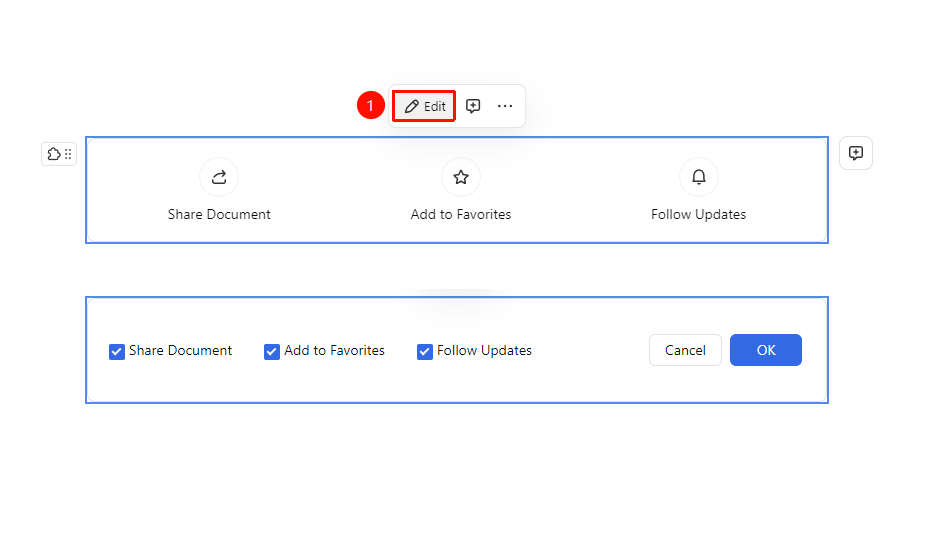
- Click the interactive guide card that has been added
- Click the 「Edit」 button in the floating toolbar
- You can choose to add/remove the following interactive options:
- Share Document: Share the document as a link
- Add to Favorites: Add the document to your account's Favorites
- Follow Document Updates: Receive push notifications when the document is updated
FAQ
Q1: What is the purpose of following document updates?
- Solution: After clicking, the user will follow the document. When the document is updated, they will receive a message notification, making it easy to track document changes.
Notes
- Following document updates requires the user to grant notification permissions