Feature Summary
AirPage supports the @ feature, allowing you to mention contacts, insert cloud documents, dates, and other elements for quick collaboration and content association.
Feature Description
| Feature Dimension | Description |
|---|---|
| Membership Restriction | No membership restriction |
| Version Restriction | No version restriction |
Steps
Using the @ feature
Feature Entry
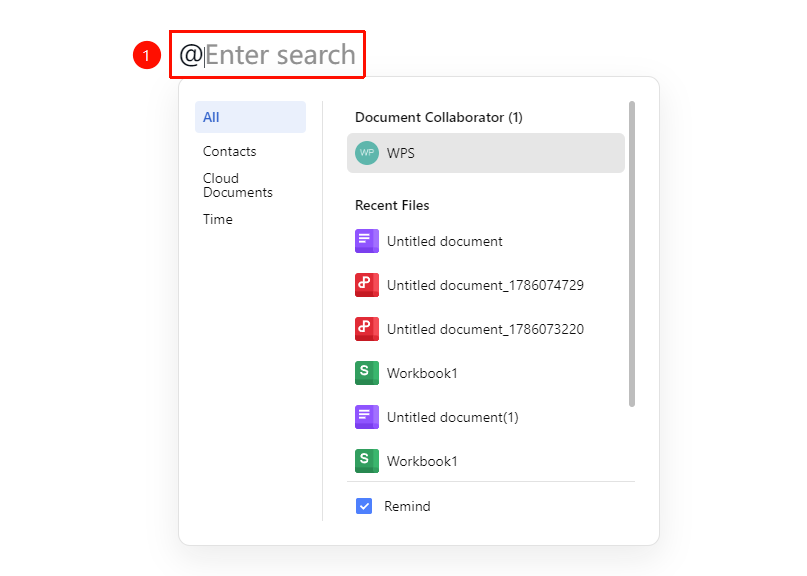
「Enter @」→「Bring up panel」→「Select content type」
- Place the cursor where you want to initiate @
- Enter the @ symbol
- Bring up the insert panel
- Enter the name of the contact or document you want to mention
- Select the corresponding result to mention or insert
Mentioning Contacts
Feature Entry
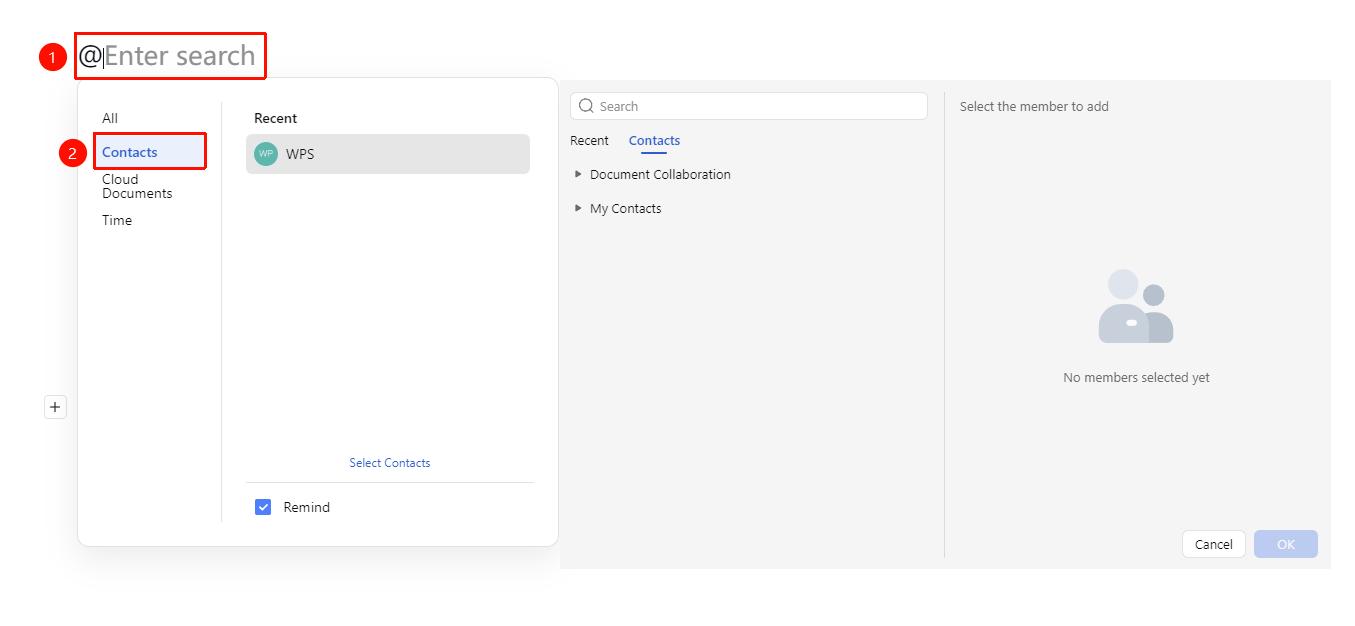
「Enter @」→「Contacts」→「Select contact」
- In the body, enter @ and then directly enter the contact's name, and select the contact you want to mention from the search results
- You can also select 「Contacts」 → 「Select from Contacts」 in the pop-up floating window
- After selecting the contact, enter the notification content normally and press Enter
- The contact will be highlighted and receive a notification
Inserting Cloud Documents
Feature Entry
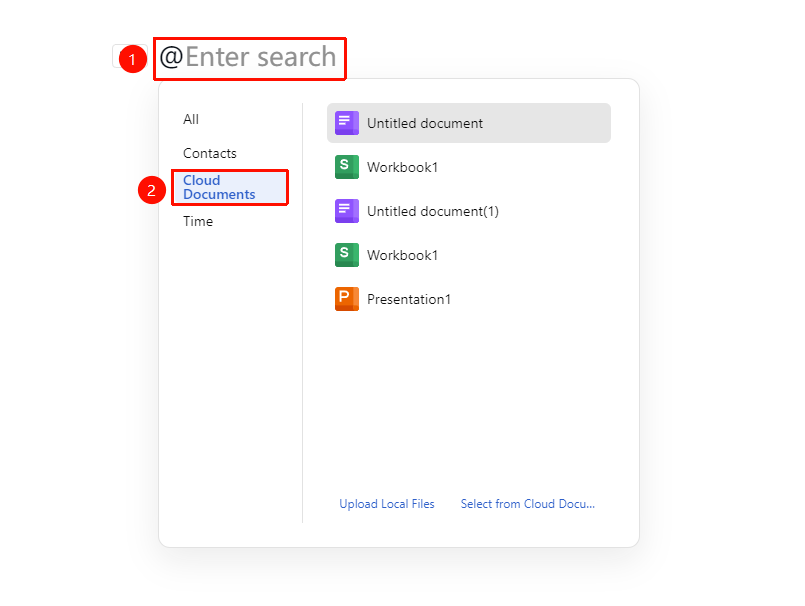
「Enter @」→「Enter document name」→「Select cloud document」
- Enter @ and then enter the cloud document name to search, and select to insert from the search results
- You can also click and select 「Cloud Document」 in the pop-up floating window
- Select 「Upload Local Document」 or 「Select from Cloud Document」 to insert
- The document will be inserted at the current position in card form
Inserting Time
Feature Entry
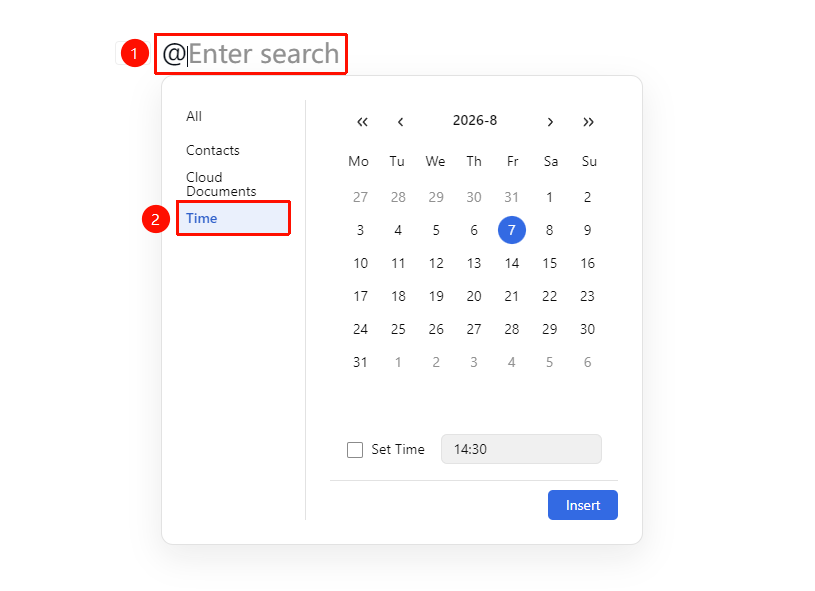
「Enter @」→「Time」
- After entering @, click and select 「Time」 in the pop-up floating window
- Select the date and whether to check 「Set Time」
- Click 「Insert」 to insert the date and time
FAQ
Q1: Will the person mentioned by @ receive a notification?
- Solution: Yes, the user mentioned by @ will receive a notifications message, making it easy to view the relevant content in time.
Q2: Can I @ mention multiple people?
- Solution: Yes, you can mention different people multiple times by selecting contacts each time after entering @.
Notes
- The @ feature requires the document to have collaboration permissions
- The mentioned user needs to have access permission to the document
- @ mentions will be recorded in the collaboration history