Feature Summary
When you need to use sheets in AirPage to categorize and display content, the Insert Sheet feature supports creating AirSheets, offering rich operational capabilities such as cell alignment, background color fill, row/column merging and splitting, and equal column width distribution, making content organization clearer and more intuitive.
Feature Description
| Feature Dimension | Description |
|---|---|
| Membership Restriction | No membership restriction |
| Version Restriction | No version restriction |
Steps
Insert a Sheet via the Top Toolbar
Feature Entry
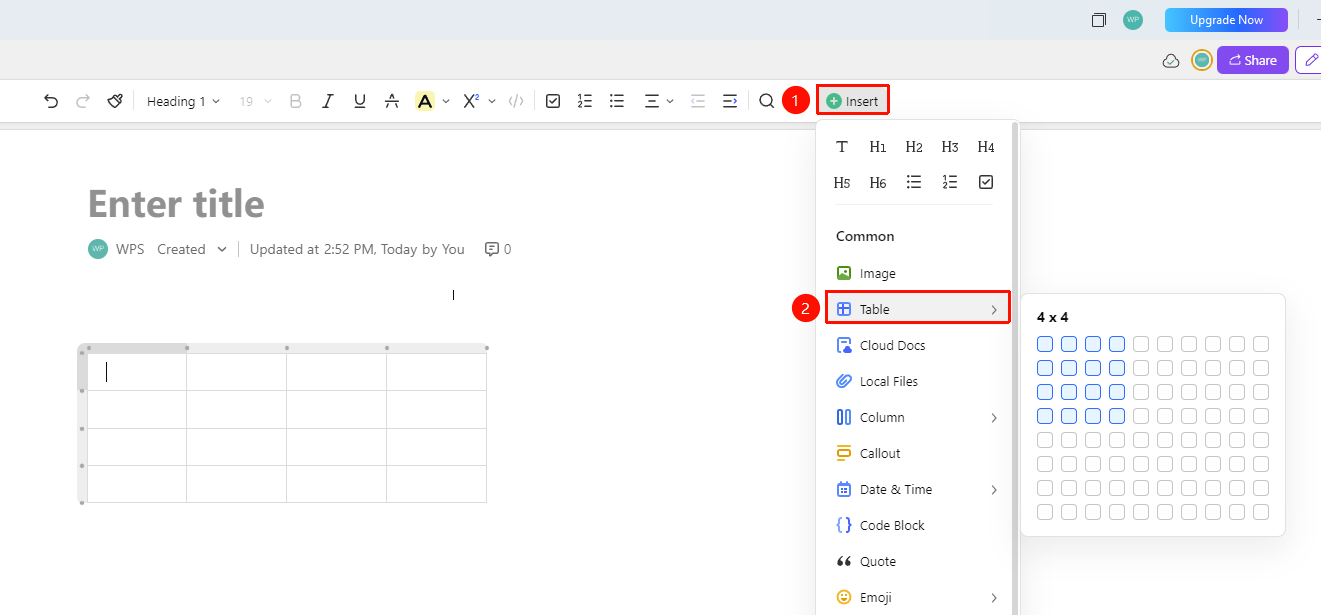
「Top Toolbar」→「Insert」→「Sheets」→「Select Number of Rows and Columns」
- Place the cursor where you want to insert the sheet
- Click the 「Insert」 menu button at the top
- Select 「Table」, and in the expanded row/column selection panel, select the number of rows and columns
- After clicking confirm, the sheet will be inserted into the Document, and you can enter content into the cells
Insert a Sheet via the Slash Command
Feature Entry
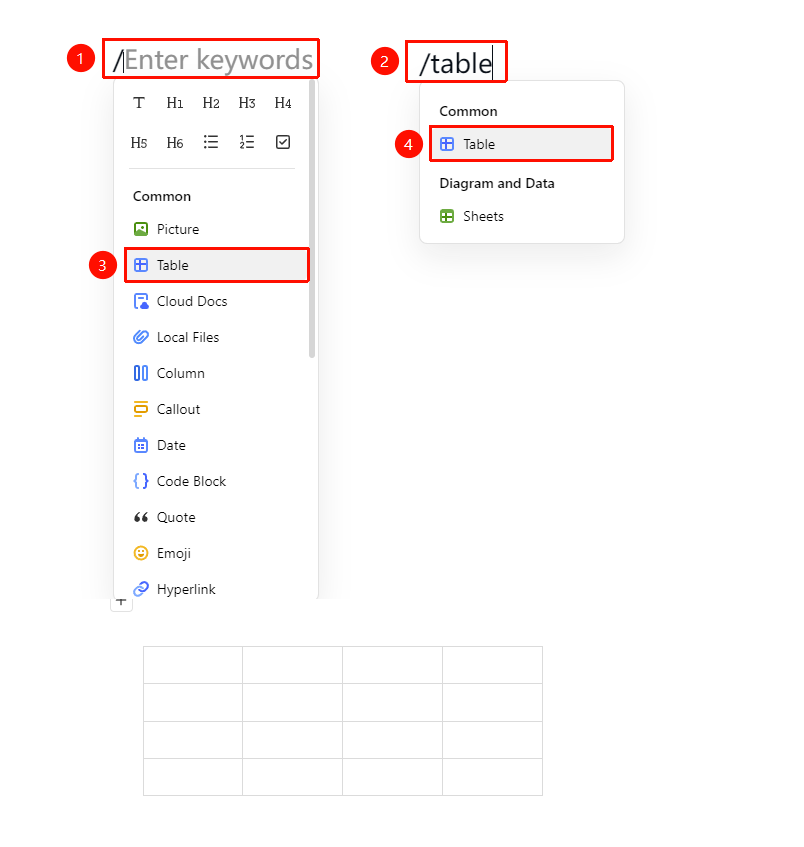
Blank line in Document→Enter: /→「Table」option
- Enter / on a blank line in the Document
- Select 「Table」 from the menu, or enter /bg, /table to quickly locate it
- Select the number of rows and columns (default is a 3*3 sheet) and confirm insertion
Edit Sheet Content
Feature Entry
「Double-click a sheet cell」→「Enter content」→「Use the floating toolbar」
- Edit Content: Double-click or single-click a cell to enter editing mode and enter content directly
- Select Entire Row/Column: Click the row header or column header to select the entire row/column for batch operations
- Add Rows/Columns: After selecting a row/column, click the add button on the floating toolbar; or hover the mouse over the gray dot on the row/column header and click the plus button
Alignment and Indentation Settings
Feature Entry
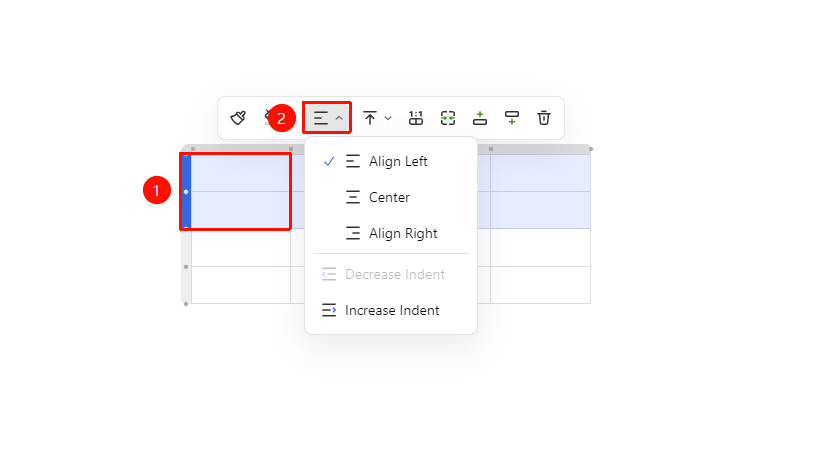
Select cells/rows/columns→「Floating Toolbar」menu→「Alignment and Indentation」button
- Select the cells, rows, or columns you want to adjust, and the floating toolbar will pop up
- Click the 「Alignment and Indentation」 button
- Select from the dropdown menu:
- Align Left
- Center Align
- Align Right
- Decrease Indent
- Increase Indent
Cell Background Color Settings
Feature Entry
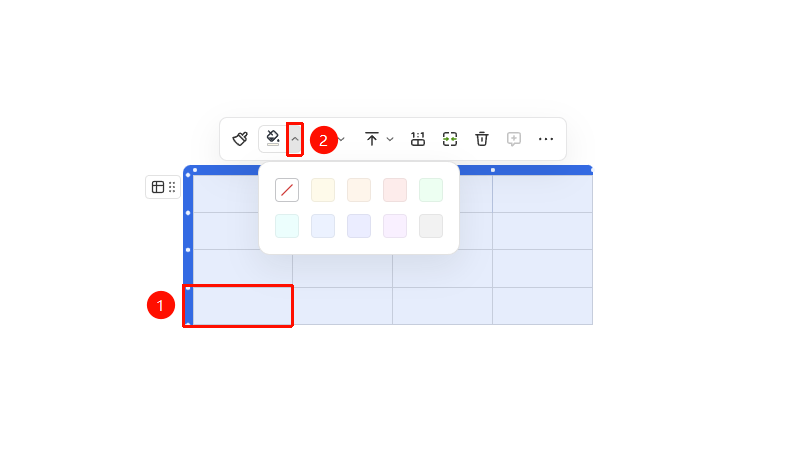
Select cells/rows/columns→「Floating Toolbar」menu→「Cell Background Color」button
- Select the cells, rows, or columns you want to adjust, and the floating toolbar will pop up
- Click the 「Cell Background Color」 button
- Select the desired cell color from the dropdown menu
Selecting the prohibition icon in the box (similar to 🚫) will set it to no color
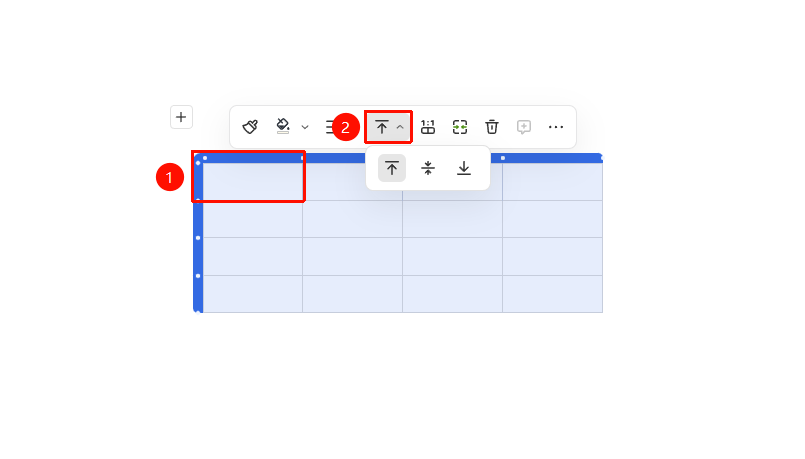
Alignment Settings
Feature Entry
Select cells/rows/columns→「Floating Toolbar」menu→「Alignment」dropdown menu
- Select the cells, rows, or columns you want to adjust, and the floating toolbar will pop up
- Click the 「Alignment」 button
- Select from the dropdown menu:
- Align Top
- Middle Align
- Align Bottom
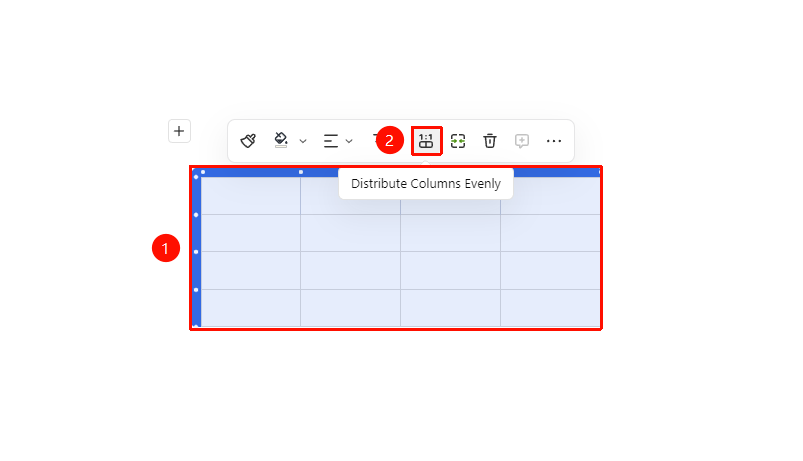
Equal Column Width Settings
Feature Entry
Select cells/rows/columns→「Floating Toolbar」menu→「Equal Column Width」button
- Select the cells, rows, or columns you want to adjust, and the floating toolbar will pop up
- Click the 「Equal Column Width」 button
Equal column width will distribute cell column widths evenly according to the sheet width
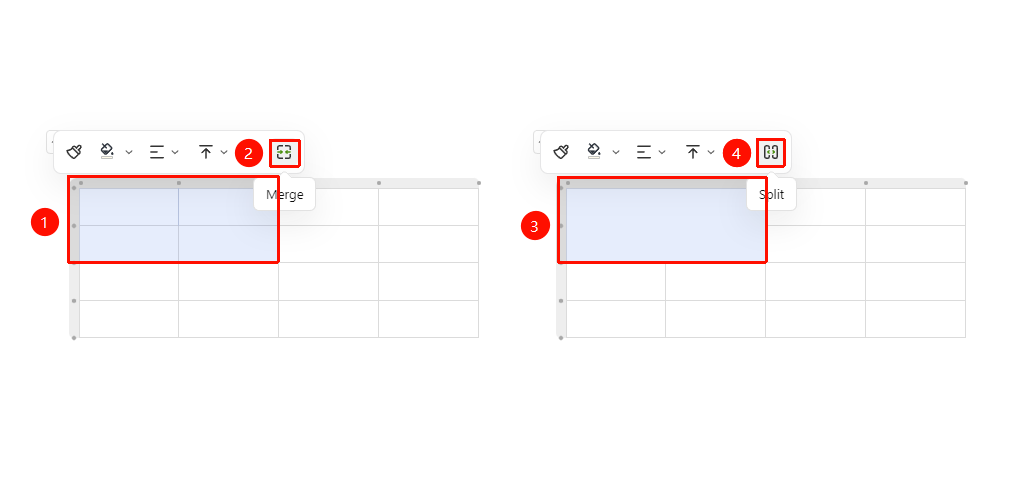
Merge and Split Settings
Feature Entry
Select cells/rows/columns→「Floating Toolbar」menu→「Merge/Split Cells」
- Select the cells, rows, or columns you want to adjust, and the floating toolbar will pop up
- Use the 「Merge Cells」 or 「Split Cells」 feature
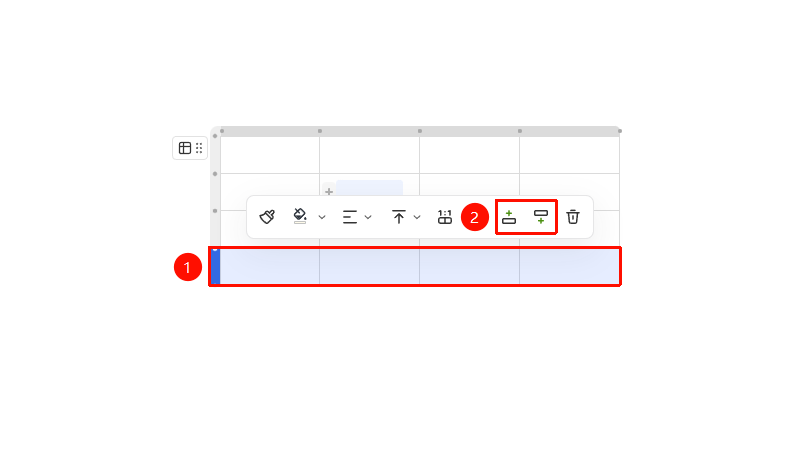
Add Row
Feature Entry
Select cells/rows/columns→「Floating Toolbar」menu→「Add Above」/「Add Below」button
- Select the cells, rows, or columns you want to adjust, and the floating toolbar will pop up
- Click the 「Add Above」 button to add a row above the currently selected area
- Click the 「Add Below」 button to add a row below the currently selected area
Delete Sheet
Feature Entry
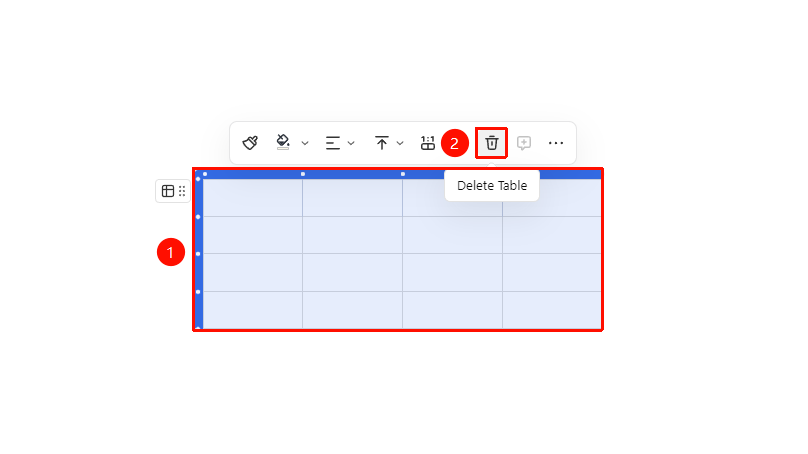
Select cells/rows/columns→「Floating Toolbar」menu→「Delete」button
- Select the cells, rows, or columns you want to adjust, and the floating toolbar will pop up
- Click the 「Delete」 button to delete the currently selected area
Selecting the entire sheet will delete the whole sheet
Hide Sheet Borders
Feature Entry
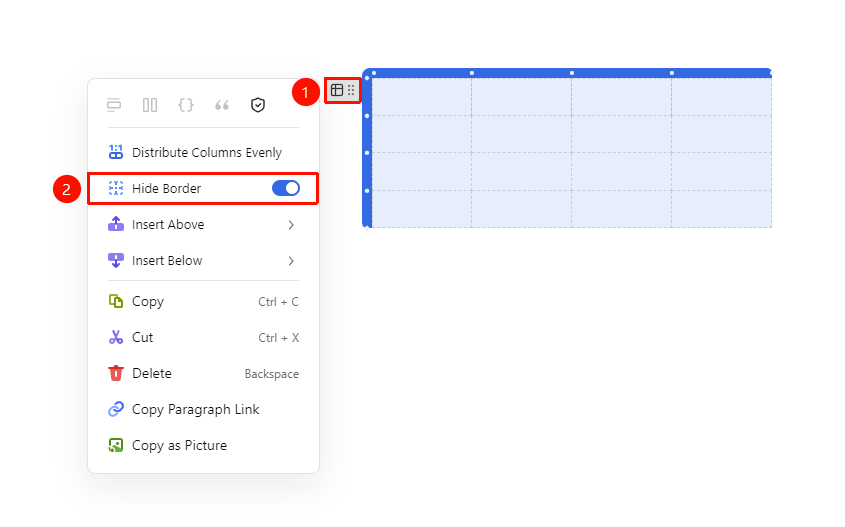
Sheet top-left corner「Paragraph Handle」button→Enable「Hide Borders」
- Click the Paragraph Handle button at the top-left corner of the sheet
- Enable the 「Hide Borders」 option in the menu
- The sheet borders will become invisible, retaining only the sheet content arrangement
FAQ
Q1: Can the inserted sheet support data calculation and filtering?
- Solution: Tables in AirPage are layout tables and do not support statistical features such as data calculation, formulas, or filtering. If you need to perform data calculations, we recommend using the "Insert" → "Sheets" feature.
Question 2: How to quickly delete a row or column?
- Solution: Select the row or column you want to delete, then click the delete button in the floating toolbar. The remaining rows/columns in the table will automatically adjust their positions to fill the layout.
Question 3: Does the table support inserting images?
- Solution: Yes. After clicking a cell, use the insert image feature (/tp or the toolbar) to insert an image into the cell. The image size will be limited by the cell width, so we recommend adjusting the column width first.
Notes
- AirPage tables are layout tables and do not support formulas or filtering; if you need data calculation, please use Sheets
- After merging cells, all text content within the merged area will be combined and displayed together
- Hiding borders is suitable for scenarios such as content alignment and layout