Feature Summary
When you need to personalize the default display and editing behavior of AirPage, the Personal Preference Settings feature supports customizing preference options such as default page width and editor behavior. Once set, the preferences will take effect for all newly created and first-time opened documents, creating a tailored editing environment.
Feature Description
| Feature Dimension | Description |
|---|---|
| Membership Restriction | No membership restriction |
| Version Restriction | No version restriction |
Steps
Access Personal Preference Settings
Feature Entry
"File Operations" button (icon is "≡") → "Document Settings" → "Personal Preference Settings"
- Open any AirPage document
- Click the "File Operations" button in the upper left corner (icon is "≡")
- Select "Document Settings"
- Find "Personal Preferences" in the settings panel and click to enter
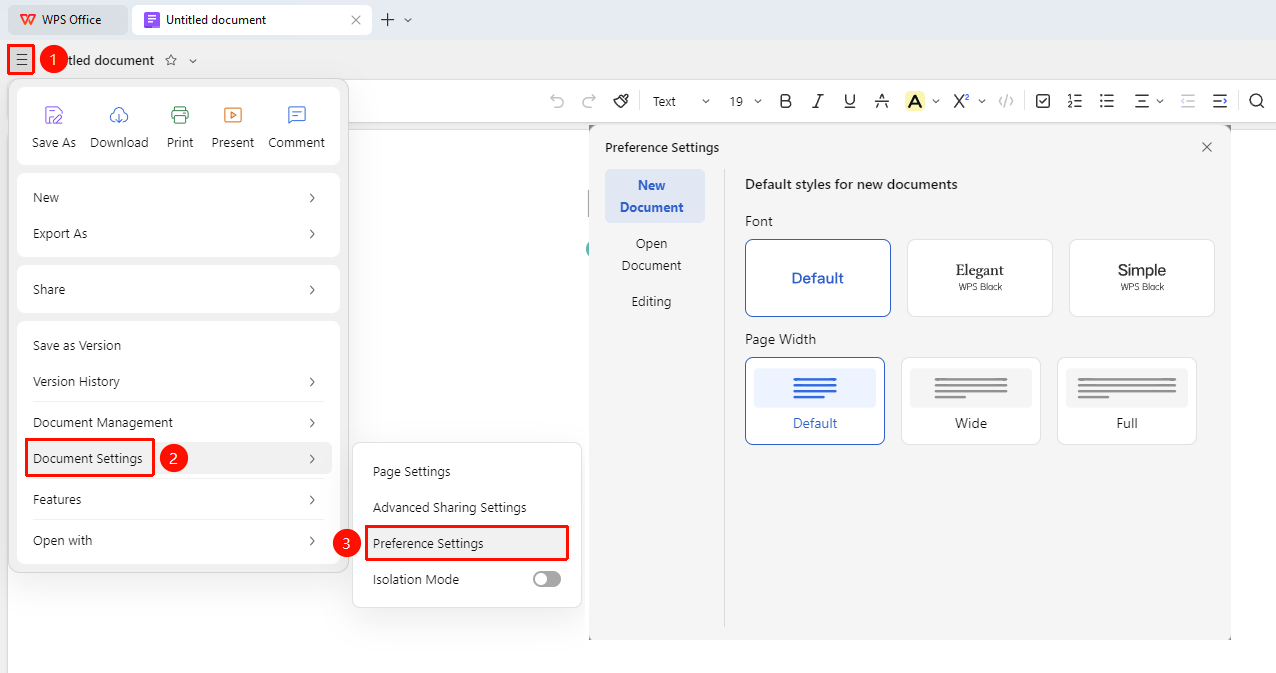
Personal Preferences - New Document
Feature Entry
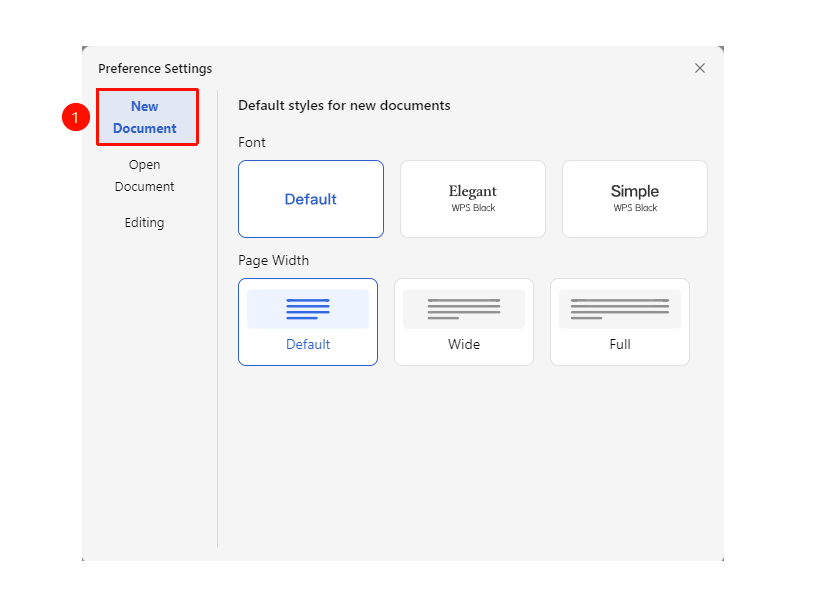
"Personal Preferences" window → "New Document" option
- On the Personal Preferences page, find the "New Document" option
- Select the default text style for new documents:
- System Font
- WPS Lingxiu Hei Elegant Style
- WPS Lingxiu Hei Minimalist Style
- Select the default page width mode for new documents:
- Standard Width: Restricts document width for a more comfortable reading experience
- Wider
- Full Width: Displays at the device's maximum width, suitable for multi-column Sheets/image layouts
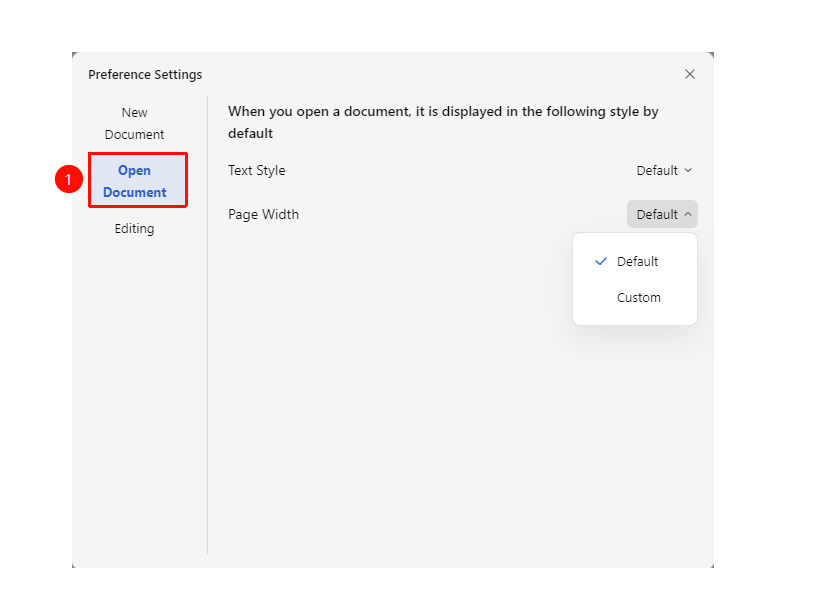
Personal Preferences - Open Document
Feature Entry
"Personal Preferences" window → "Open Document" option
- On the Personal Preferences page, find the "Open Document" option
- Select the default text style for opening documents:
- Follow Original Document
- Custom: System Font, WPS Lingxiu Hei Elegant Style, WPS Lingxiu Hei Minimalist Style
- Select the default page width mode for opening documents:
- Follow Original Document
- Custom: Standard Width, Wider, Full Width
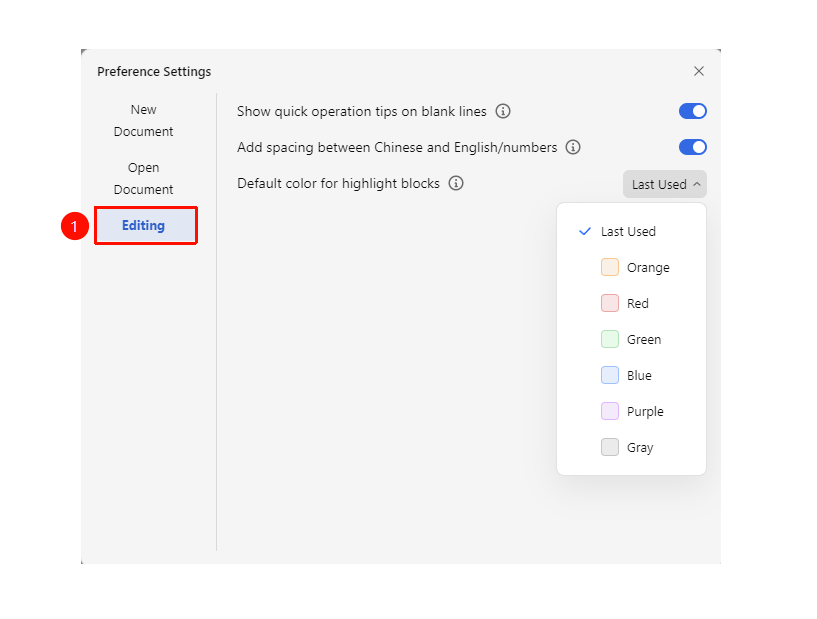
Personal Preferences - Assisted Editing
Feature Entry
"Personal Preferences" window → "Assisted Editing" option
- On the Personal Preferences page, find the "Assisted Editing" option
- Show Quick Action Tips on Blank Lines: Displays action tips on blank lines
- Add Space Between Chinese and English/Numbers: Automatically adds space to improve aesthetics
- Highlight Block Default Color: Choose "Follow Last Use" or select a specific color
FAQ
Q1: Will Personal Preference Settings affect how other users view my documents?
- Solution: No. Personal Preference Settings only take effect for the current account, affecting the default configuration for newly created and first-time opened documents. When other users open the same document, it will still display according to their own preference settings.
Q2: After adjusting the page width for a specific document, will personal preferences still affect this document?
- Solution: No. Once the page width setting of a document has been manually adjusted, that document will no longer be affected by the "Default Page Width" setting in personal preferences. Only newly created documents will apply the preference settings.
Q3: Can I reset personal preferences to the initial settings?
- Solution: One-click Reset to initial settings is not supported; manual adjustment is required.
Notes
- Personal Preference Settings only affect the current account; different accounts are independent of each other
- Preference settings are applied each time a new document is created or a document is opened for the first time
- After manually adjusting the page width within an existing document, that document will no longer be affected by the default settings