Feature Summary
AirPage supports the export feature, allowing you to export documents as different files for offline viewing and sharing.
Feature Description
| Feature Dimension | Description |
|---|---|
| Membership Restriction | No membership restriction |
| Version Restriction | No version restriction |
Steps
Export as Word Document
Feature Entry
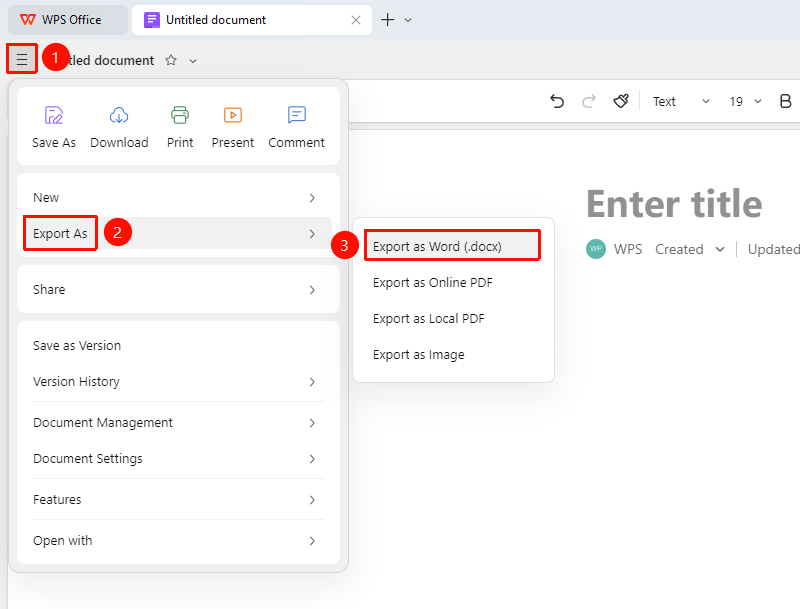
"File Operations" tab → "Export as" → "Export as Word (.docx)"
- Click the "File Operations" tab in the upper left corner of the document
- In the drop-down menu, click "Export as" → "Export as Word (.docx)" in sequence
- Confirm the export and select a save location. The AirPage will be converted to .docx format and saved
Export as Online PDF
Feature Entry
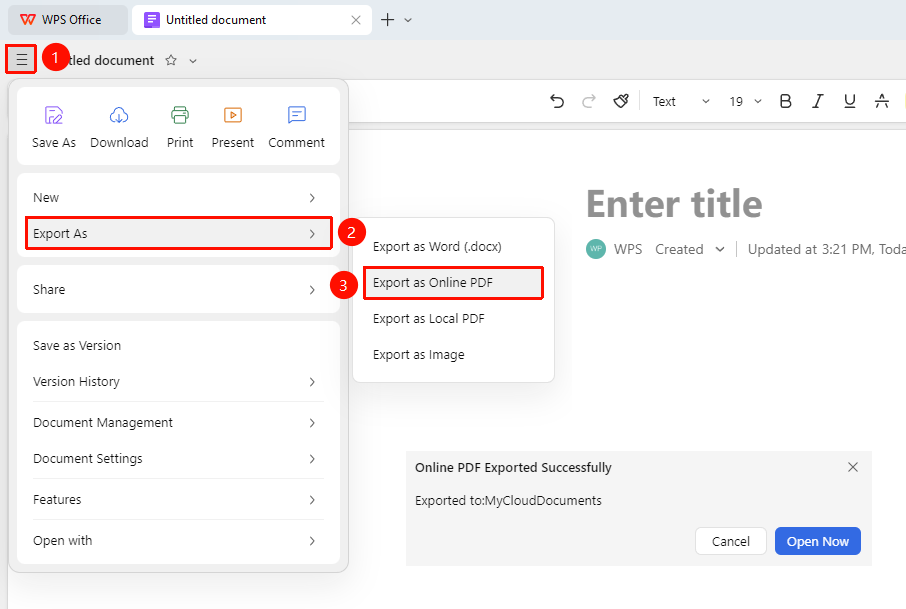
"File Operations" tab → "Export as" → "Export as Online PDF"
- Click the "File Operations" tab in the upper left corner of the document
- In the drop-down menu, click "Export as" → "Export as Online PDF" in sequence
- Wait for the conversion to complete. The AirPage will be converted to an online PDF file and saved in Drive
Export as Local PDF
Feature Entry
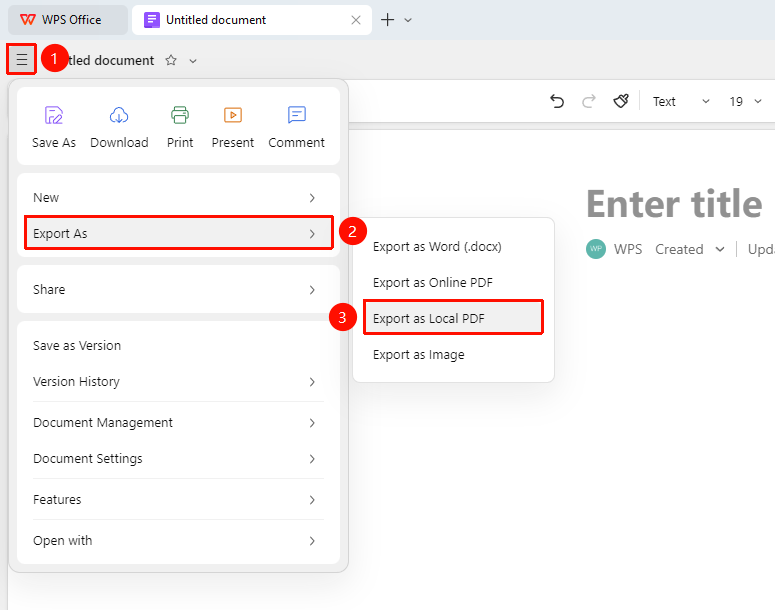
"File Operations" tab → "Export as" → "Export as Local PDF"
- Click the "File Operations" tab in the upper left corner of the document
- In the drop-down menu, click "Export as" → "Export as Online PDF" in sequence
- Wait for the conversion to complete. In the pop-up local save window, enter the file name and select a save location
- Click "Save" to save the PDF file locally
Export as Image
Feature Entry
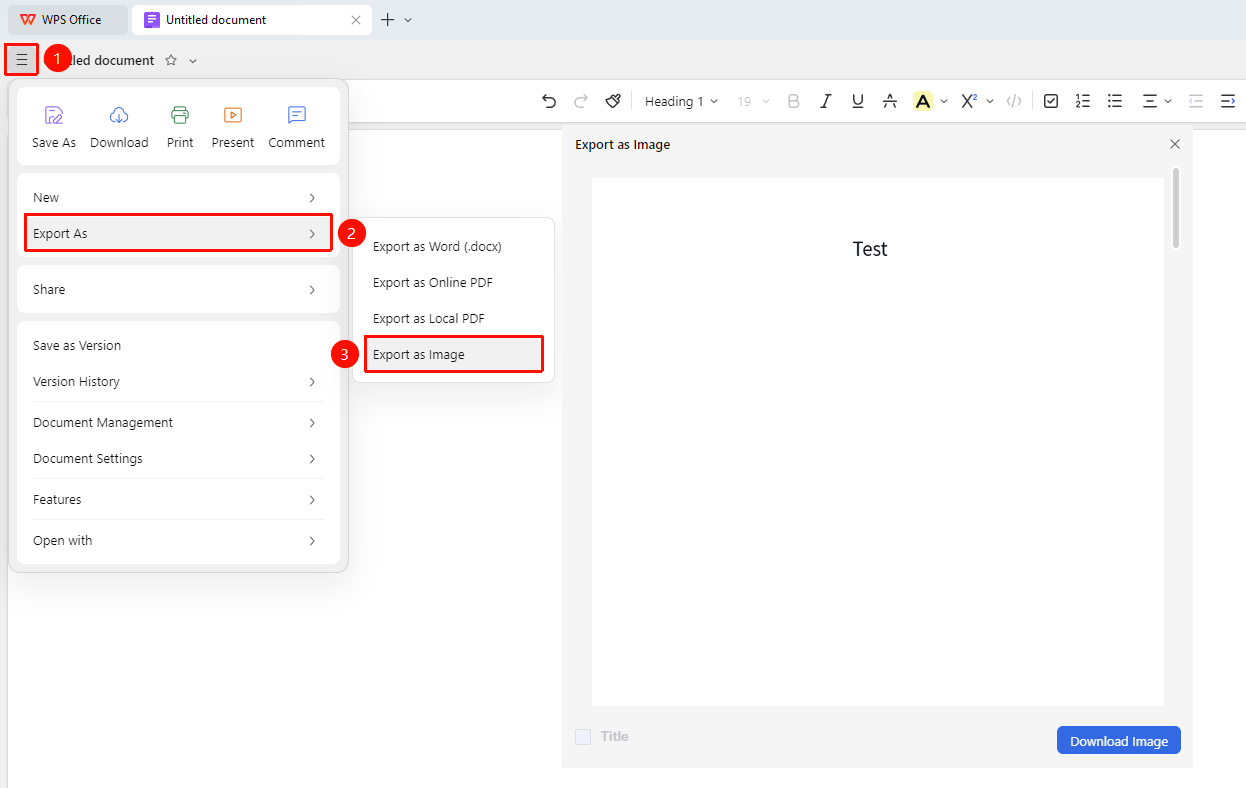
"File Operations" tab → "Export as" → "Export as Image"
- Click the "File Operations" tab in the upper left corner of the document
- In the drop-down menu, click "Export as" → "Export as Image" in sequence
- Wait for the conversion to complete. In the pop-up save window, click "Download Image" to save the image locally
FAQ
Q1: Will the exported file retain all formatting?
- Solution: The export will try to retain the original formatting as much as possible, but certain AirPage-specific features (such as Polls and countdowns) will be displayed as images after export.
Q2: Is there a file size limit for exported files?
- Solution: The exported file size depends on the document content. There is no strict limit, but excessively large files may take longer to process.
Notes
- Exported files will be saved to the local device
- It is recommended to export important documents regularly as a backup
- Exported files are no longer synced with the original AirPage