Feature Summary
When you need to adjust the display width of a document on screen to accommodate different content layouts, the Page Width feature supports switching between Standard Width mode and Full Width mode. Standard Width mode provides a comfortable reading experience, while Full Width mode displays content based on the device's maximum width, making it suitable for dense layouts containing multi-column Sheets and images.
Feature Description
| Feature Dimension | Description |
|---|---|
| Membership Restriction | No membership restriction |
| Version Restriction | No version restriction |
Steps
Switch Page Width via the Bottom Toolbar
Feature Entry
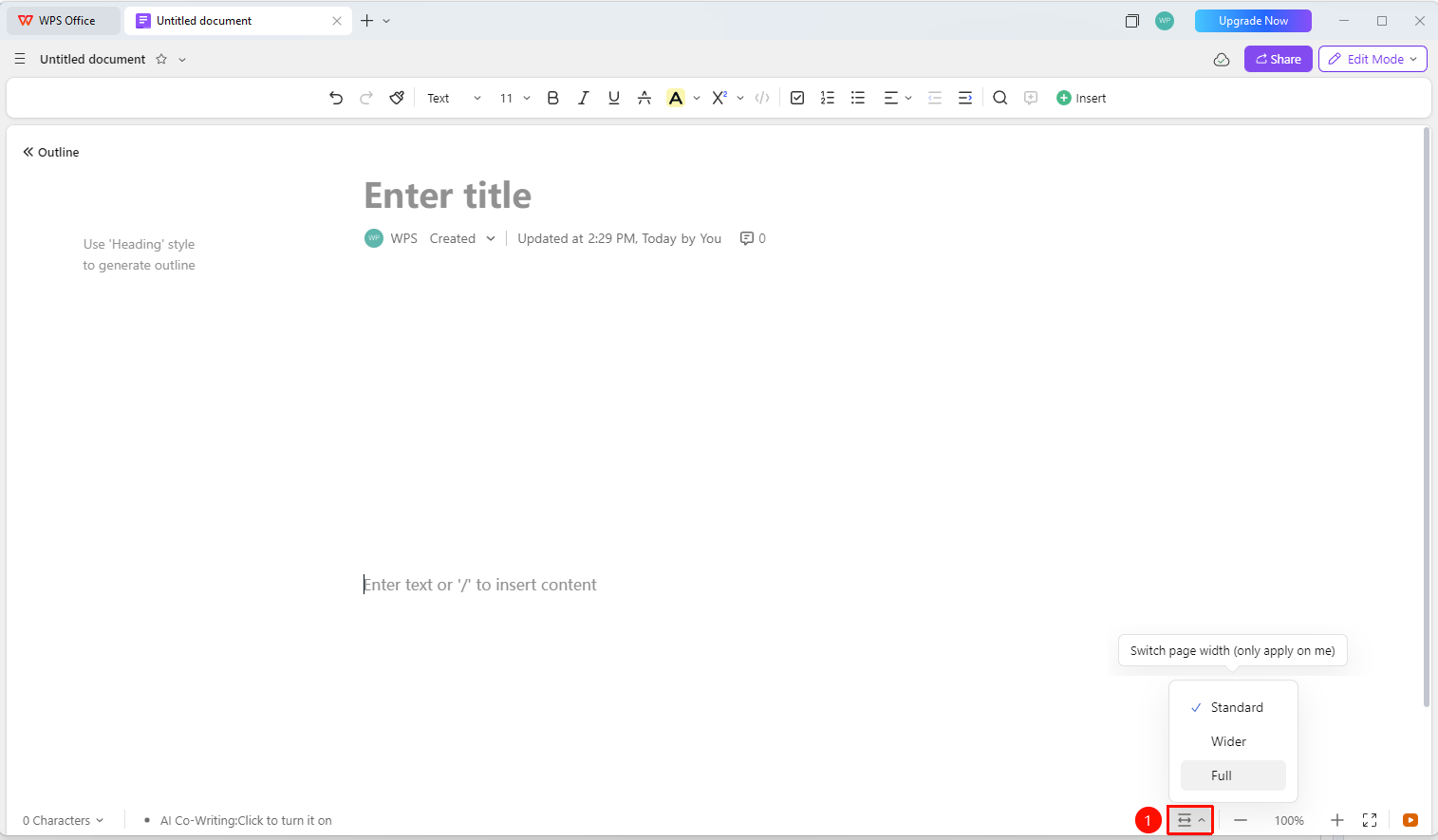
Document bottom right corner → 「Switch Page Width」 button → 「Select Standard Width, Wider, and Full Width」
- Click the Switch Page Width button in the toolbar at the bottom right corner of the Document
- Options available:
- 「Standard Width」 (Restricted width, comfortable layout)
- 「Wider」 (Zoom ratio enlarged to over 100%, making content clearer and easier to read while keeping the page layout compact)
- 「Full Width」 (Display based on the device's maximum width)
Set Default Page Width via the File Menu
Feature Entry
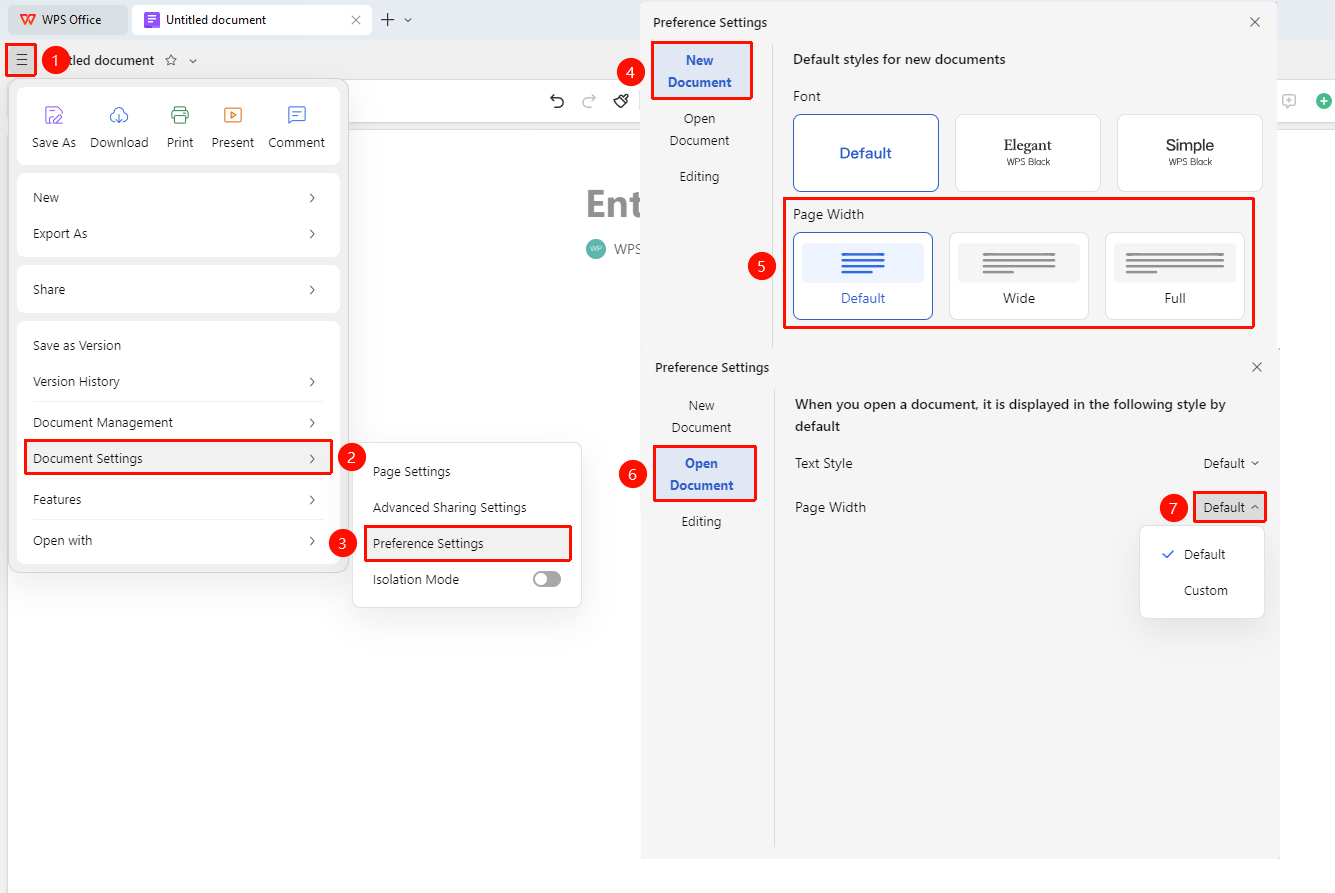
「File Operations」tab → 「Document Settings」 option → 「Personal Preferences」 button
- Click the File Operations tab in the upper left corner
- Select the 「Document Settings」 option
- Click 「Personal Preferences」
- Change the page width for "New Document" and "Open Document"
- After setting, newly created Documents and Documents opened under the current account will apply this default width
FAQ
Q1: Does the page width setting apply to a single document or globally?
- Solution: The page width setting switched via the bottom toolbar only applies to the current Document. To modify the default width for all new Documents, go to 「File」 → 「Document Settings」 → 「Personal Preferences」 to change the default page width.
Q2: After adjusting the default width within a document, will the Personal Preferences still take effect?
- Solution: After manually adjusting the page width in a specific Document, that Document will no longer be affected by the default page width preference. Only newly created Documents that have not been manually adjusted will apply the default preference settings.
Q3: Does the mobile client support page width switching?
- Solution: Due to screen size limitations on mobile devices, the page width feature works best on desktop and tablet landscape mode. In phone portrait mode, it usually automatically adapts to the screen width for display.
Notes
- Standard Width mode is suitable for general Document reading, while Full Width mode is suitable for multi-column dense layouts
- You can set the default page width in Personal Preferences to save time on manual switching each time
- After manually adjusting the Document width, that Document will no longer be affected by the default preference