Feature Summary
When you need to adjust the document display size to fit different screens or reading habits, the Page Zoom feature supports enlarging or reducing the display of document content, enhancing reading and editing comfort.
Feature Description
| Feature Dimension | Description |
|---|---|
| Membership Restriction | No membership restriction |
| Version Restriction | No version restriction |
Operation Steps
Zoom via Toolbar
Feature Entry
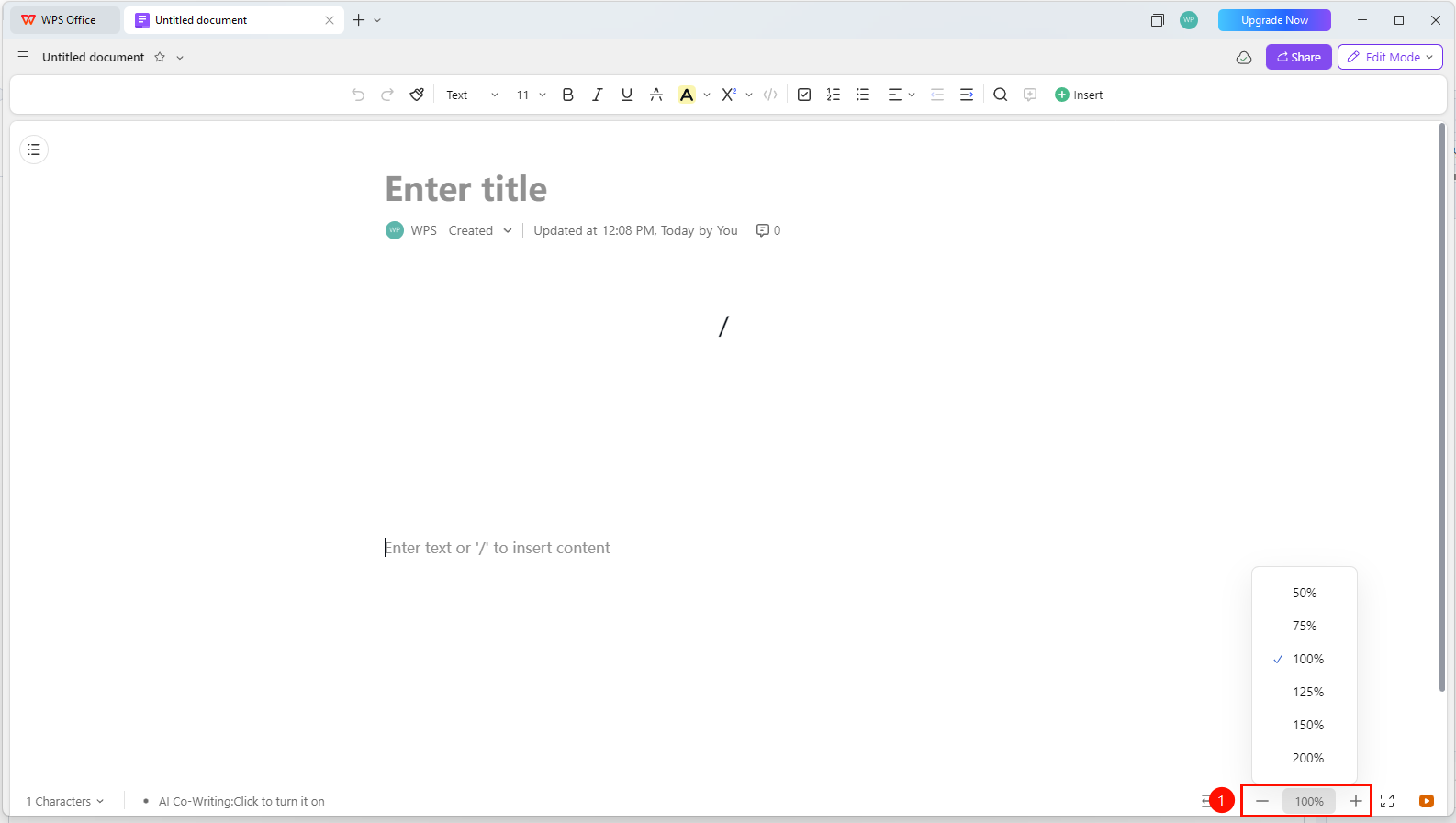
Bottom right corner of the document → "Zoom Control" button → "Adjust Display Scale"
- Open the AirPage and look at the toolbar in the bottom right corner of the document interface
- Find the Zoom Control button (plus/minus signs or slider)
- Click 「+」 to enlarge the display scale, click 「-」 to reduce the display scale
- You can also click the zoom scale value in the middle to adjust the zoom scale (50%, 75%, 100%, etc.)
Switch Page Width
Feature Entry
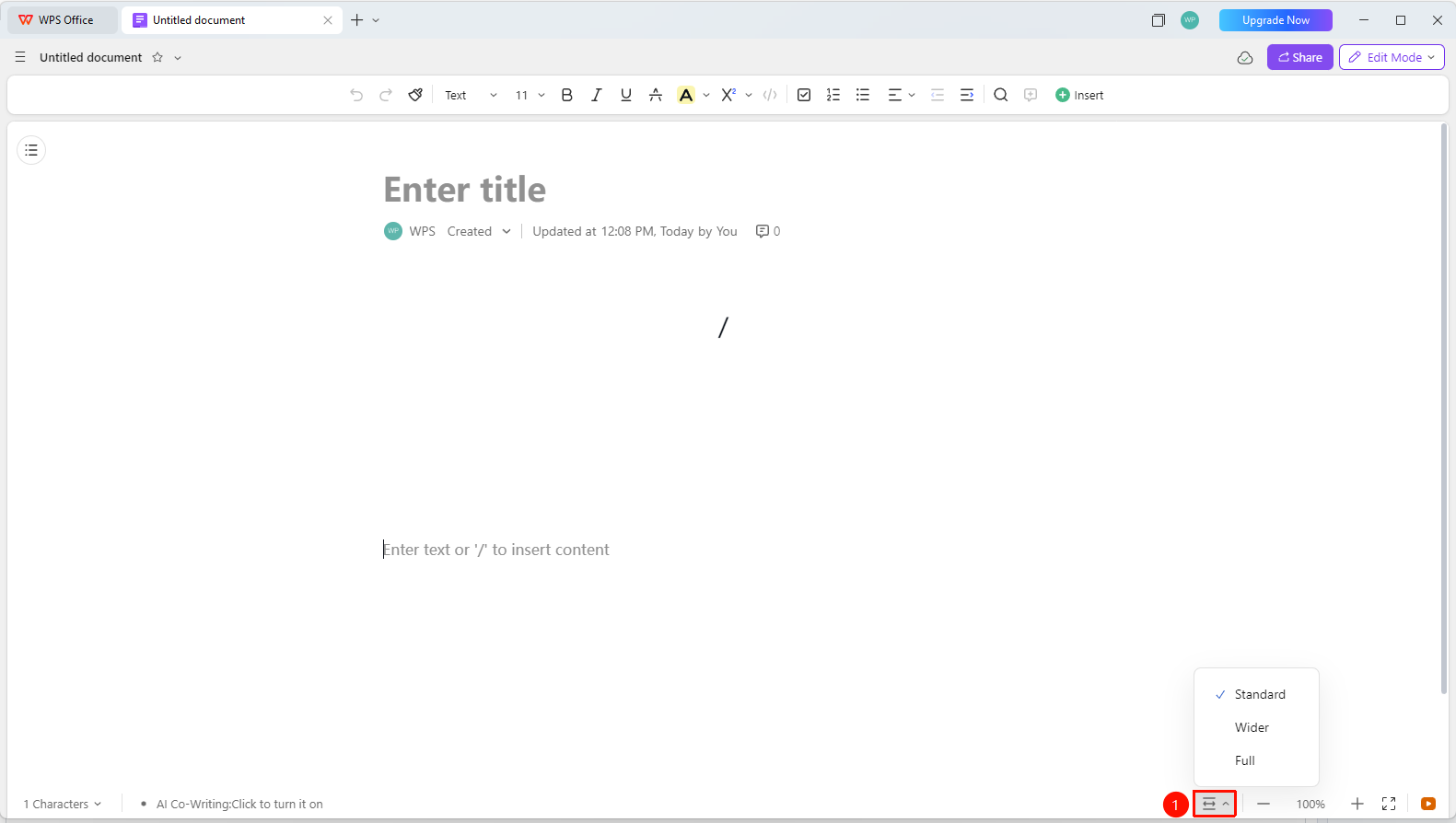
Bottom right corner of the document → "Switch Page Width" button → "Select Standard Width, Wider, and Full Width"
- Click the Switch Page Width button in the toolbar at the bottom right corner of the document
- Options available:
- 「Standard Width」(Restricted width, comfortable layout)
- 「Wider」(Zoom scale enlarged to over 100%, making content clearer and easier to read while keeping the page layout compact)
- 「Full Width」(Display according to the device's maximum width)
FAQ
Q1: What should I do if the text becomes blurry after zooming?
- Solution: AirPage's zoom is vector-level zoom, so text blurriness should not occur under normal circumstances. If blurriness occurs, try refreshing the page or clearing your browser cache and reopening the document.
Q2: How do I zoom in Playback Mode?
- Solution: In Playback Mode, move your mouse to the top area of the window to reveal the toolbar, then click the plus/minus buttons or drag the slider to adjust the content display scale. You can also use the keyboard up/down keys or spacebar to turn pages.
Q3: Will the zoom settings be saved?
- Solution: The zoom settings for the current page are only valid during this editing session. The zoom scale will not be remembered after closing the document. The default zoom scale will be restored each time the document is opened. If you need to set a fixed default zoom, you can adjust it in your personal preference settings.
Notes
- Zoom settings only affect the display effect of the current session and do not affect the actual content of the document
- On mobile devices, you can use a two-finger pinch gesture to zoom
- Playback Mode also supports independent display scale adjustment