The grouping feature automatically categorizes Records in a data sheet by the value of a selected field, making it easy to quickly locate and compare data within the same category. Core capabilities include:
- Automatically display Records grouped by field value
- Support multi-level nested grouping
- One-click collapse/expand each group
Feature Description
| Feature Dimension | Description |
|---|---|
| Membership Restriction | No membership restriction |
| Version Restriction | No version restriction |
Operation Steps
Setting Grouping Fields
Feature Entry
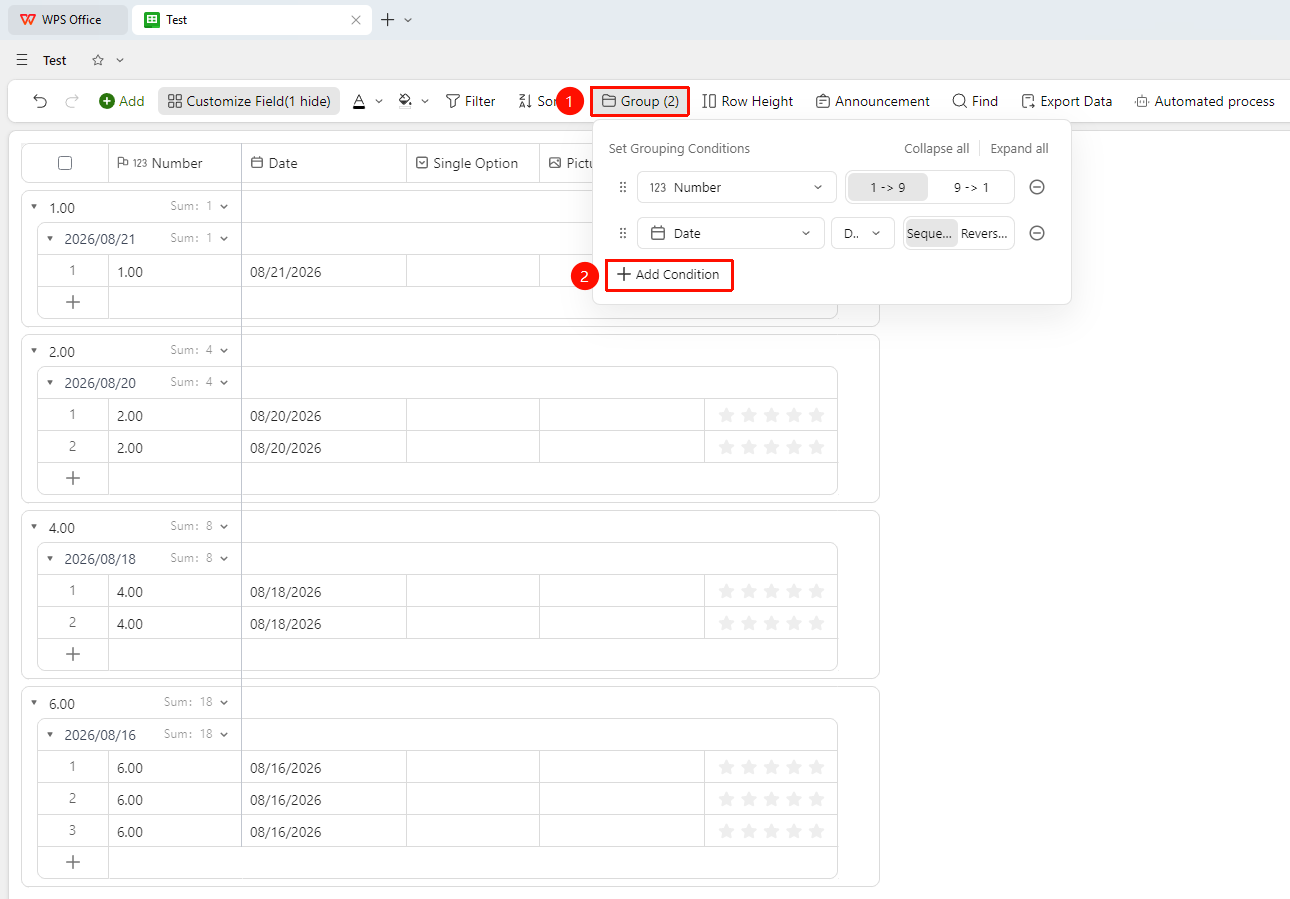
"Toolbar" → "Group" button → "Add Condition" → Select field
- Open the target data sheet and click the Group button in the toolbar
- Click the Add Condition button
- Select the field by which to group, and set the grouping conditions
- After confirming the selection, the system automatically categorizes the data Records into corresponding groups based on field values
- Click Expand/Collapse All to expand or collapse all grouping conditions
FAQ
Q1: Records are not displayed after grouping, why?
- Solution: This may be because there are no matching Records under this group, or the Records have been filtered out by filter conditions. Please check whether the current data sheet has an active filter, and confirm that the field values of the Records match the grouping conditions.
Q2: How to cancel data grouping?
- Solution: Click the Group button in the toolbar, and delete the grouping conditions in the grouping panel. The data will revert to a flat display state without grouping, and all Records will remain unaffected.
Q3: Can I group by multiple fields simultaneously?
- Solution: Yes. Select multiple fields in sequence in Add Condition, and the system will perform multi-level nested grouping according to the field order, forming a clear hierarchical structure.
Notes
- Grouping only affects the way data is displayed and will not modify or delete any Record content
- Grouping and filtering can be used simultaneously