Feature Summary
The filter feature allows users to quickly locate target data based on conditions, supports multi-field combined filtering, and hides Records that do not meet the conditions.
Feature Description
| Feature Dimension | Description |
|---|---|
| Membership Restriction | No membership restriction |
| Version Restriction | No version restriction |
Operation Steps
Setting Up a Filter
Feature Entry
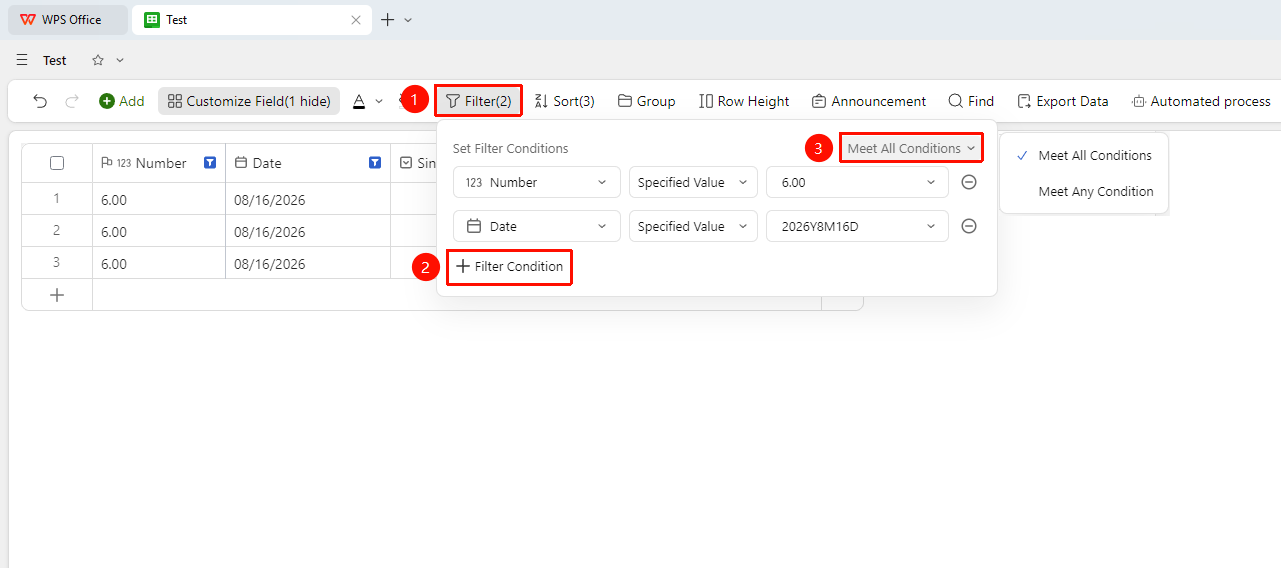
"Toolbar" → "Filter" button → "Add Condition" → Select field
- Open the target data sheet and click the Filter button on the toolbar
- Click the Add Condition button
- Select the field by which to filter and set the filter conditions
- Switch between Meet All Conditions / Meet Any Condition to suit different needs
FAQ
Q1: What should I do if the filter yields no matching results?
- Solution: Check if the filter conditions are too strict, and gradually relax the conditions to view results.
Q2: Does filtering affect sorting?
- Solution: Filtering and sorting can be used simultaneously; the filtered results will maintain the current sorting order.
Q3: How do I cancel a filter?
- Solution: Top "Toolbar" → "Filter" → Delete filter.
Notes
- Filtering only hides rows that do not meet the conditions
- In filter mode, only the filtered result rows are displayed
- Canceling the filter restores all data
- You can also quickly enable filtering from the right side of each field's header