Feature Summary
The export feature allows users to export data sheets into files of various formats.
Feature Description
| Feature Dimension | Description |
|---|---|
| Membership Restriction | No membership restriction |
| Version Restriction | No version restriction |
Steps
Export as DBSheet
Feature Entry
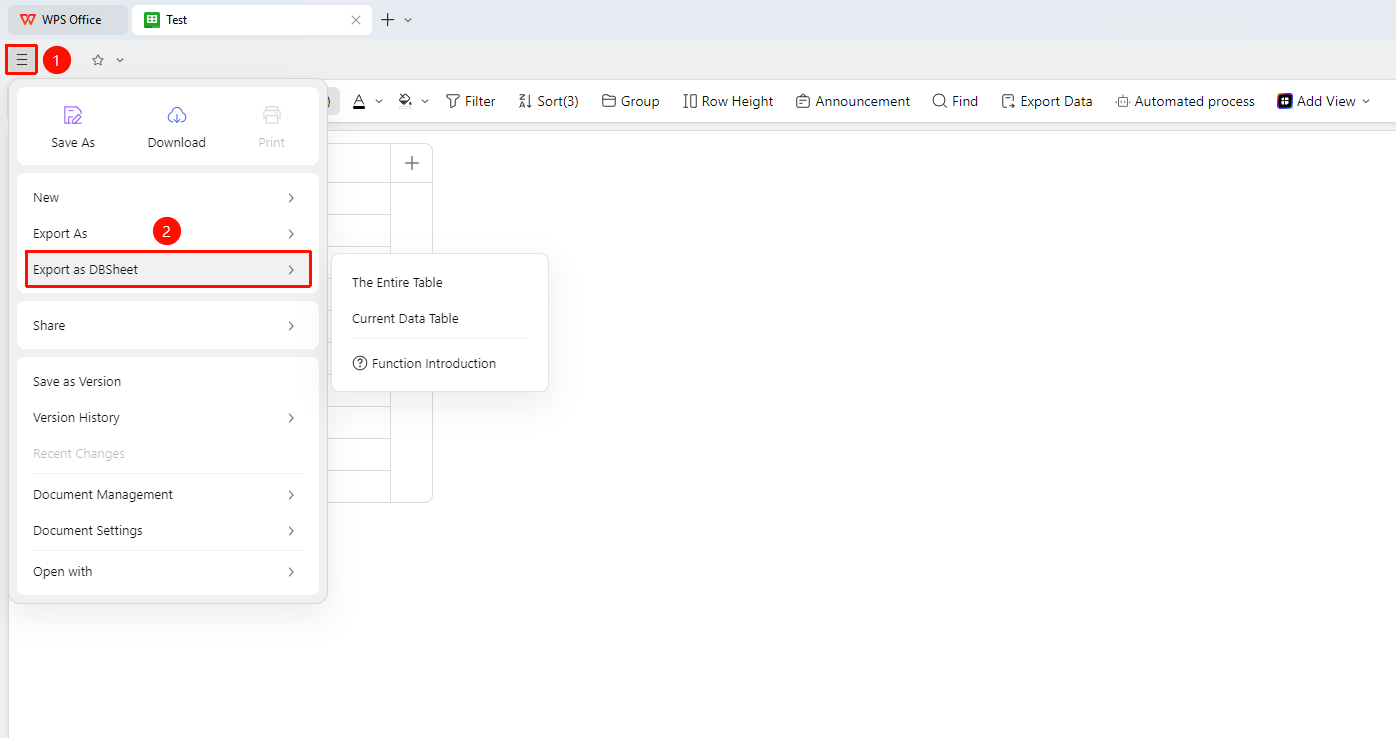
Click the "File Operations" tab → Export as DBSheet
- Click the "File Operations" tab in the upper left corner to expand the drop-down menu
- Select "Export as DBSheet" from the drop-down menu
- Choose to export the "Entire Sheets" or the "Current Data Sheet"
- The entire Sheets or the current data sheet can be converted into a DBSheet
Export Data from Toolbar
Feature Entry
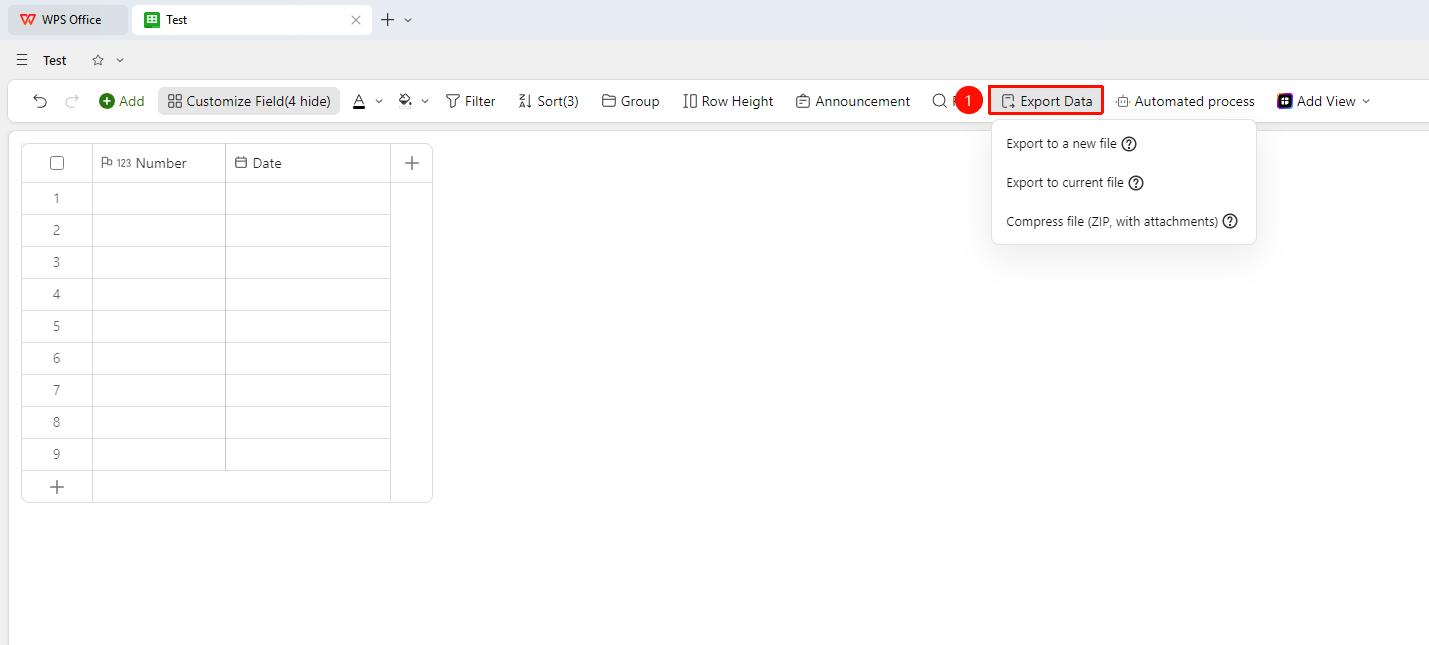
Click the "Export Data" tab in the toolbar
- Click the "Export Data" tab in the top toolbar to expand the drop-down menu
- Select one of the following export options from the drop-down menu:
- Export to New File: Export the visible fields and Records of the current page. Images can be exported along with the Sheets, but attachments are not supported for export at this time
- Export to Current: Export the visible Records within the current page. Hidden fields will NOT be exported. Image and attachment fields are not supported for export at this time
- Compressed File: Export the visible fields and Records of the current view. Visible images and attachments are exported and archived separately
FAQ
Q1: How to batch export attachments and images in the current data sheet?
- Solution: Click the "Export Data" tab in the toolbar and use the "Compressed File" export option.
Q2: Will the original file still exist after export?
- Solution: Yes, it will. A new file or new data sheet is created after saving a copy, and the original data sheet remains unchanged.
Q3: Why are there fewer attachments after export?
- Solution: Cross-check the content against the original sheet to verify whether the images and attachments in the original sheet are still valid files.
Notes
- Exporting large files may take a longer time