Feature Summary
The text field is one of the basic field types in a data table. It supports entering text content and symbols of unlimited length, making it suitable for storing general text information such as product names, personnel names, and remarks. It is also suitable for storing long numeric IDs that do not require calculations (such as order numbers and ID card numbers).
Feature Description
| Feature Dimension | Description |
|---|---|
| Membership Restriction | No membership restriction |
| Version Restriction | No version restriction |
Steps
Create a New Text Field
Feature Entry
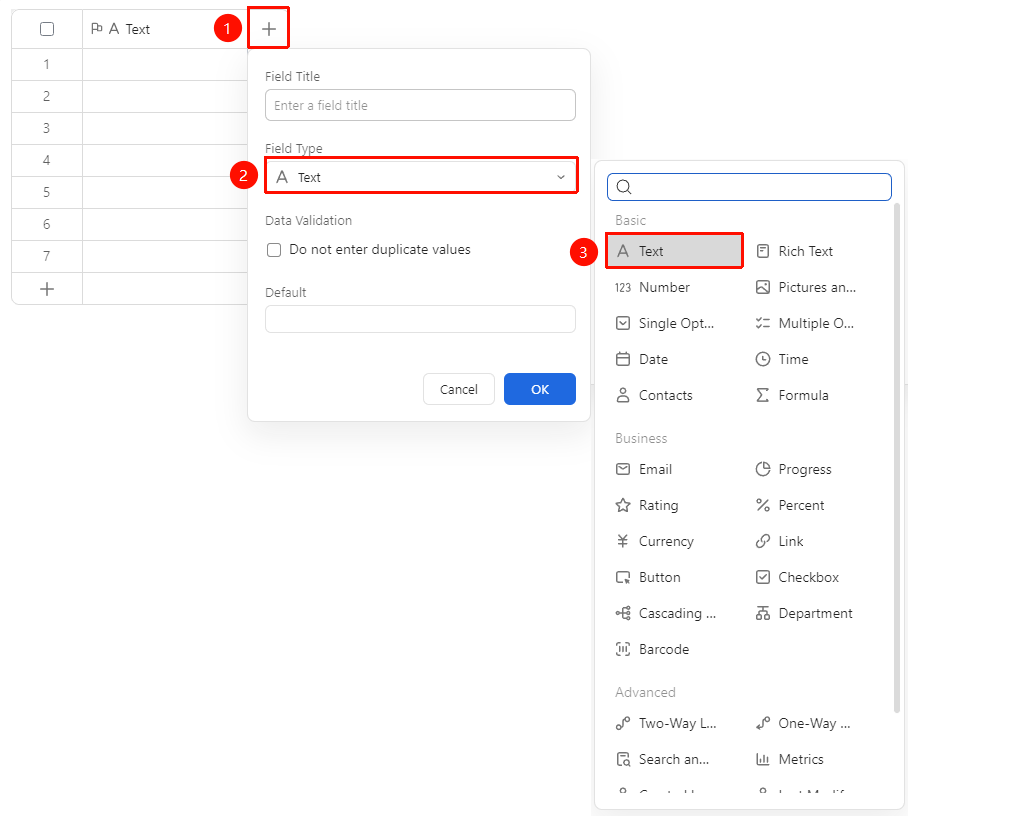
Right side of the header "+" button → "Field Type" dropdown list → "Text" field
- Click the "+" button on the right side of the header
- Select the "Text" field from the pop-up Field Type list
- Enter the field name and click "Confirm" to complete the creation
Set Default Value
Feature Entry
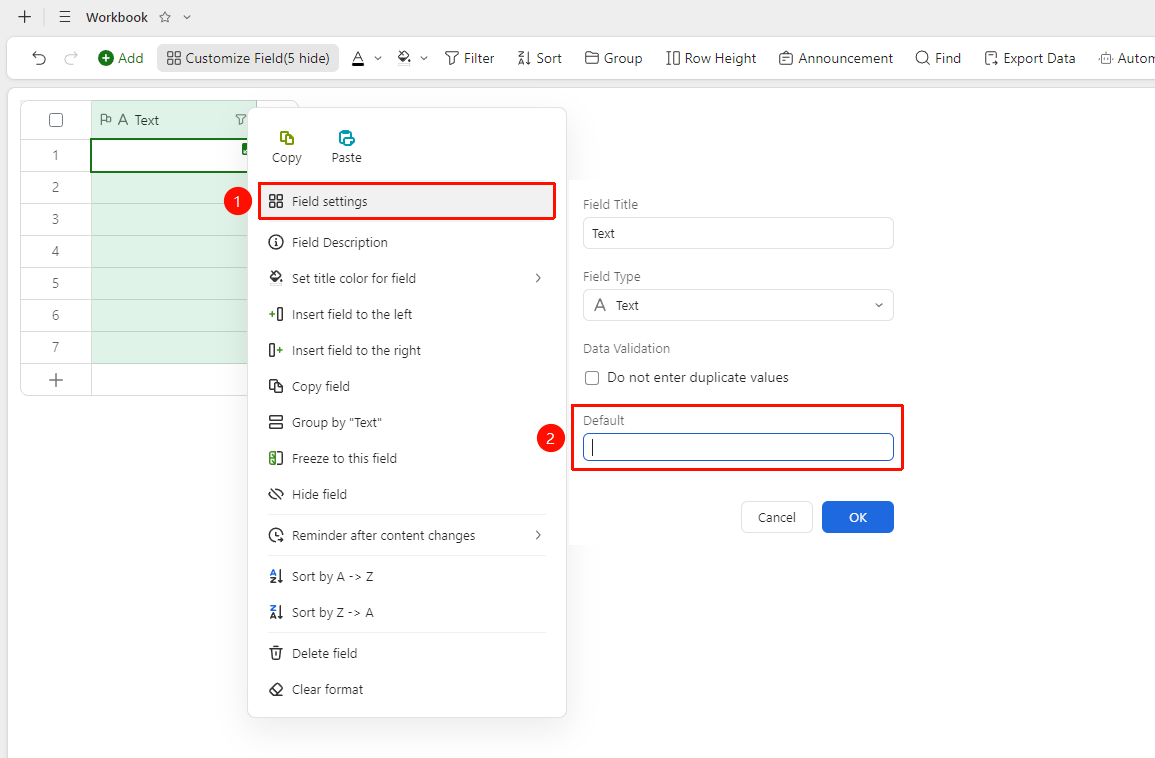
Right-click "Field Title" → "Field Settings" → "Default Value" option
- Right-click the text field title and select "Field Settings"
- Find the "Default Value" option in the settings panel
- Enter the preset default content, which will be automatically filled in when adding new Records
Set Prohibit Duplicate Values
Feature Entry
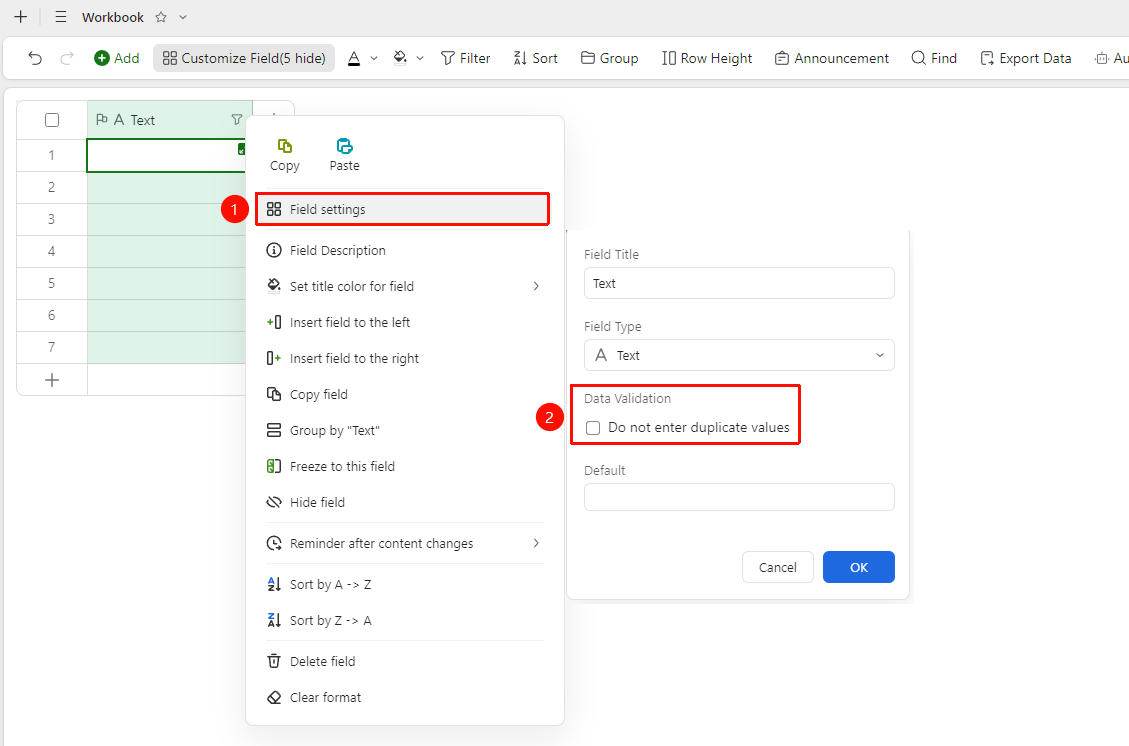
Right-click "Field Title" → "Field Settings" → "Prohibit Duplicate Entry" option
- Right-click the text field title and select "Field Settings"
- Check the "Prohibit Duplicate Entry" option in the settings panel
- After enabling, the system will automatically clear and prompt for modification when duplicate content is entered
Enter Text Content
Feature Entry
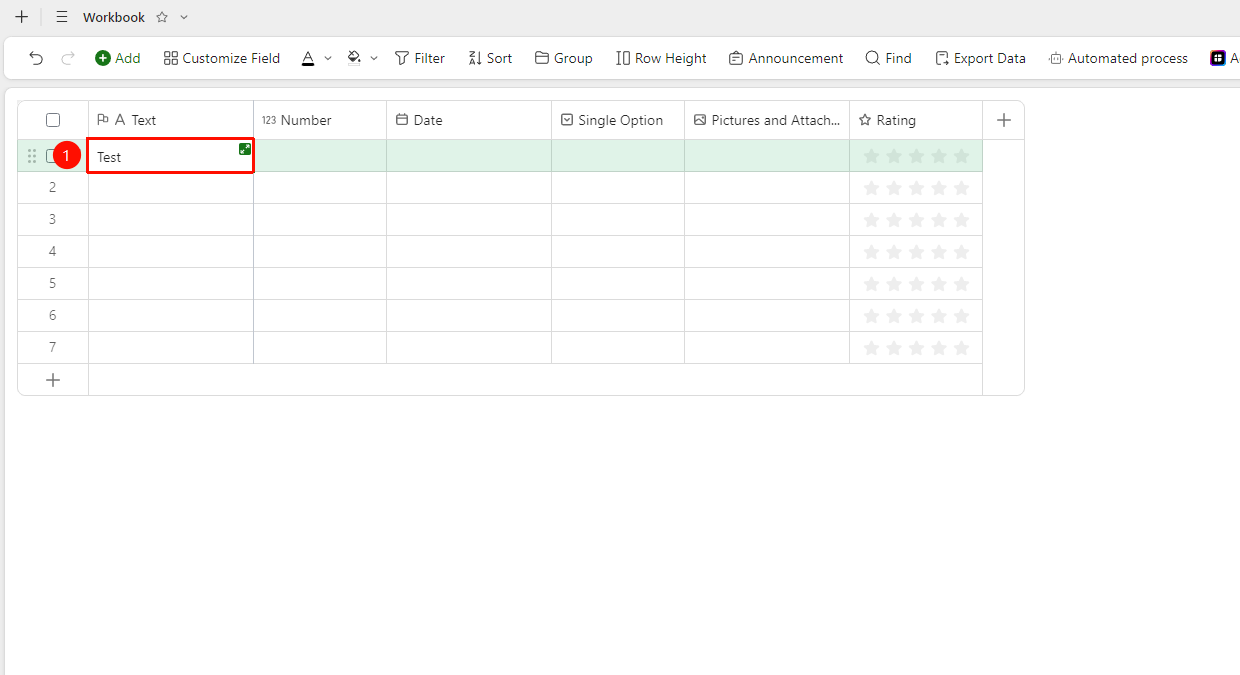
"Target Cell" → Enter directly
- In the text field column, click the target cell to enter edit mode
- Directly enter text, symbols, or long numeric IDs
- Press
Enter(mac:↩) to confirm the entry
FAQ
Q1: What is the difference between a text field and a number field?
- Solution: The text field stores content in string format and does not automatically convert formats; the number field stores numeric values and supports calculation and formatting. It is recommended to use a text field for long numbers (such as ID card numbers and bank card numbers) to avoid loss of numeric precision.
Q2: How to convert an existing number field to a text field?
- Solution: Right-click the field title, select "Field Settings", and switch the field type from "Number" to "Text". Note that before switching, confirm that the values in the cells will not cause anomalies due to the format conversion.
Q3: How to clear existing duplicate data after enabling Prohibit Duplicate Values?
- Solution: When enabling "Prohibit Duplicate Entry", the system will prompt that duplicate data exists. You need to manually find and modify or delete the duplicate content first, and then re-enter.
Notes
- The text field and "Prohibit Duplicate Values" cannot be used together with the default value feature
- Only one text field with Prohibit Duplicate Values can be set per Sheets
- Long numbers in the text field will not participate in numerical calculations such as auto-sum