Feature Summary
The Number field is one of the basic field types in a data sheet, used to store and display numerical data. It supports custom number formats (such as decimal places, percentage, currency, etc.) and is suitable for storing numerical information that needs to be used in calculations, such as product prices, quantities, percentages, and amounts.
Feature Description
| Feature Dimension | Description |
|---|---|
| Membership Restriction | No membership restriction |
| Version Restriction | No version restriction |
Operation Steps
Create a New Number Field
Feature Entry
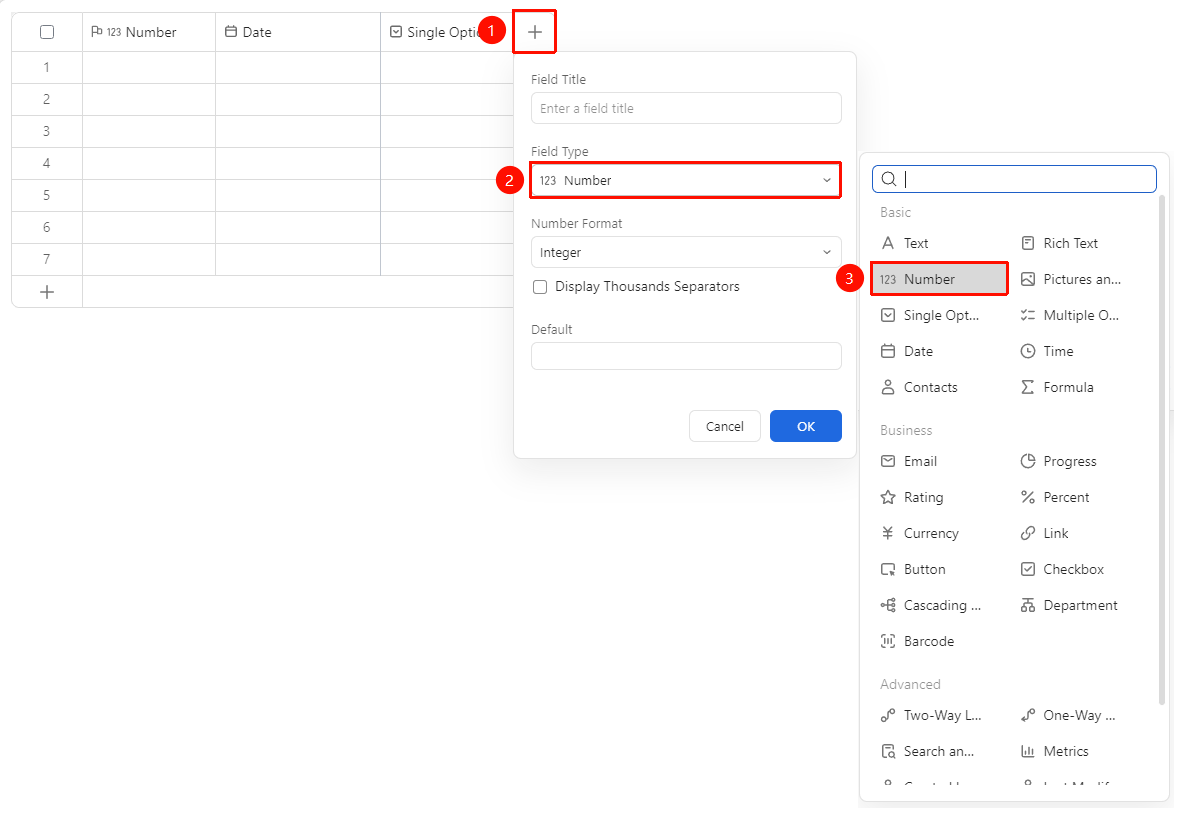
「+」 button on the right side of the header → 「Field Type」 dropdown list → 「Number」 option
- Click the 「+」 button on the right side of the header
- Select the 「Number」 field from the pop-up Field Type list
- Enter the field name and click 「OK」 to complete the creation
Set Number Format
Feature Entry
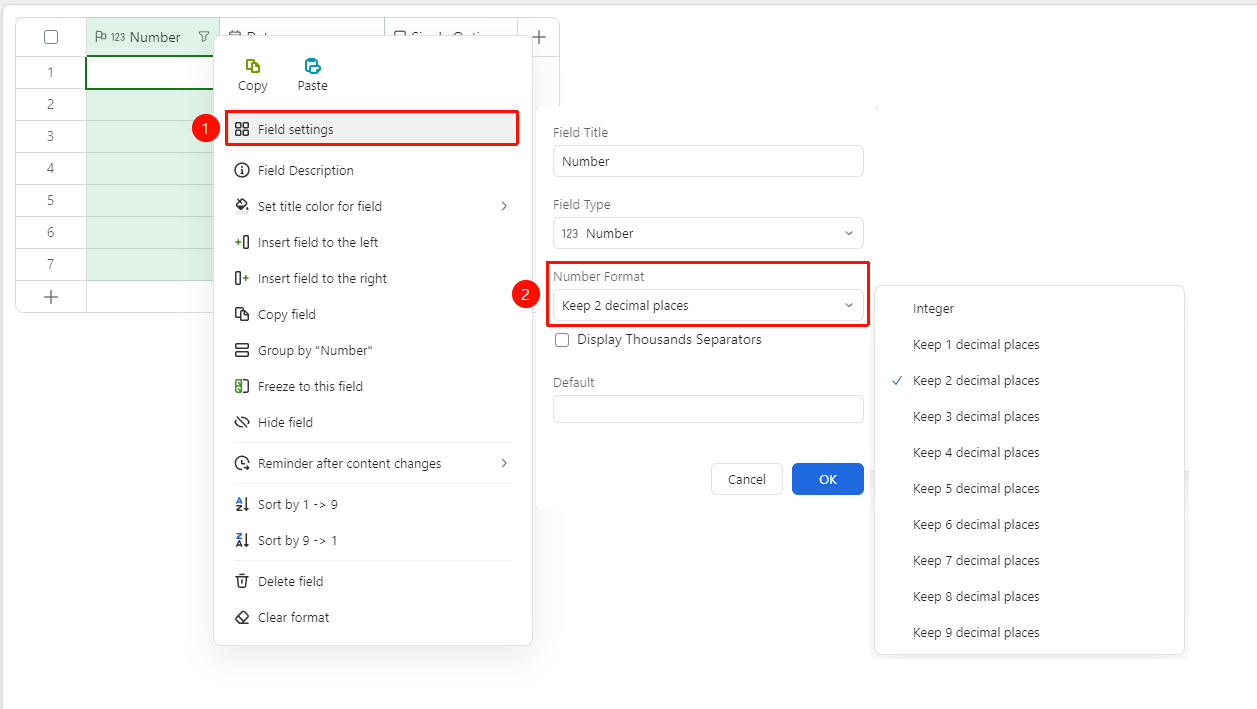
Right-click 「Field Title」 → 「Field Settings」 → 「Format」 option
- Right-click the number field title and select 「Field Settings」
- Find the 「Number Format」 option in the settings panel
- Select the corresponding format type:
- Integer: The number field only displays integer content, without decimals
- Keep 1~9 decimal places: Based on the selected number of decimal places, the value in the number field will retain the specified decimal places
- Click 「OK」 after completing the settings
Set Default Value
Feature Entry
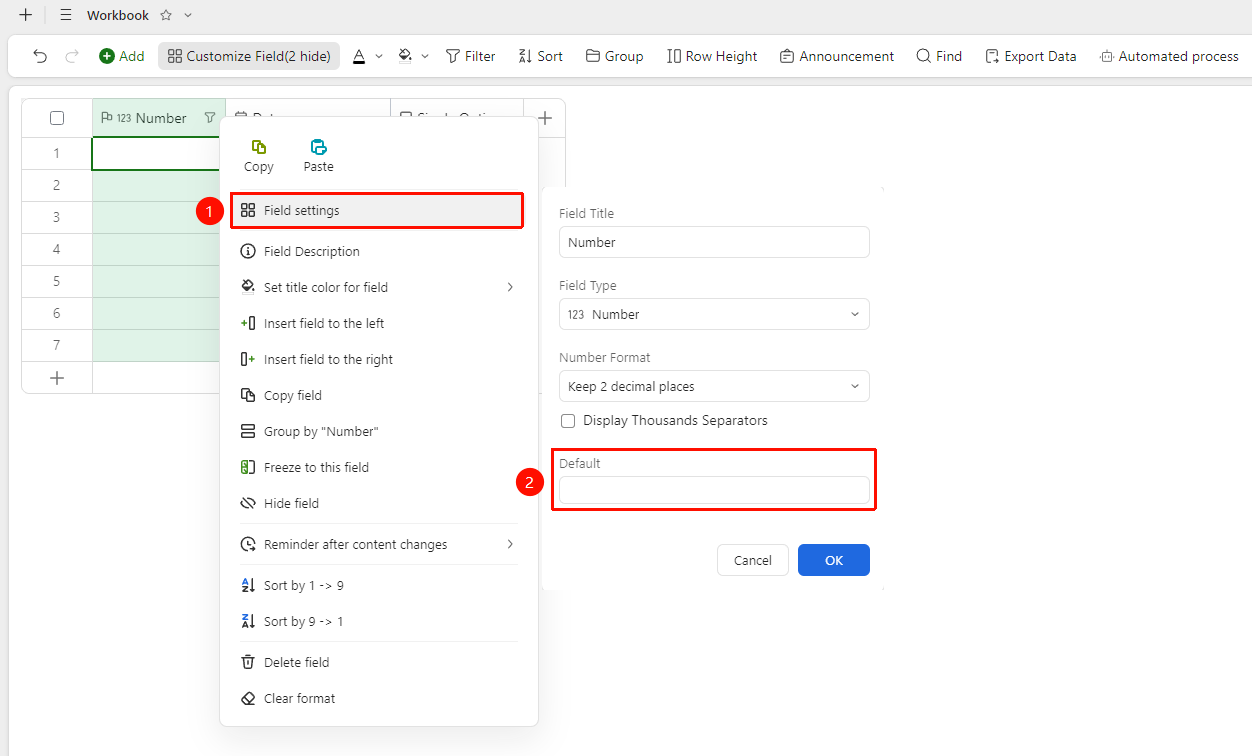
Right-click 「Field Title」 → 「Field Settings」 → 「Default Value」 option
- Right-click the number field title and select 「Field Settings」
- Find the 「Default Value」 option in the settings panel
- Enter the preset default value, which will be automatically filled when adding new Records
Set Thousands Separator
Feature Entry
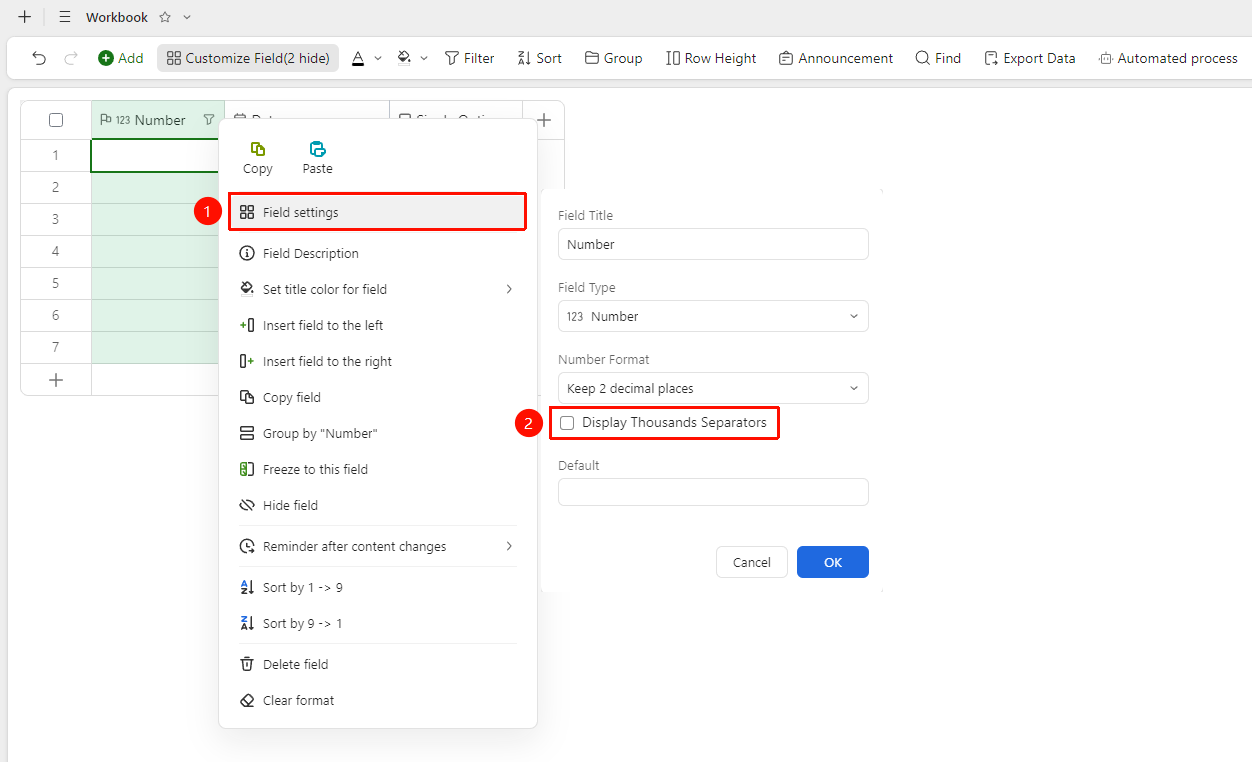
Right-click 「Field Title」 → 「Field Settings」 → 「Default Value」 option
- Right-click the number field title and select 「Field Settings」
- Find the 「Show Thousands Separator」 option in the settings panel
- After checking Show Thousands Separator, the value will be displayed with a thousands separator
FAQ
Q1: The calculation result of the percentage format number is incorrect?
- Solution: Confirm that the format settings of the number field are correct. The percentage field actually stores decimal values (e.g., 0.5 is displayed as 50%). If it needs to be used in calculations, please confirm that the formula logic is consistent with the display format.
Q2: How to clear the custom format of a number field?
- Solution: Right-click the field title, select 「Field Settings」, and choose the default 「Number Format」 in the format options to restore.
Notes
- Format settings only change the display effect of the number and do not affect the actual stored value and calculations
- The number field only supports storing numerical values; entering text content will be automatically ignored