Feature Summary
The multi-select field is one of the basic field types in a data table. It supports selecting multiple options from preset choices to fill into a cell, suitable for scenarios requiring multiple classification tags such as product tags, skill tags, and requirement types.
Feature Description
| Feature Dimension | Description |
|---|---|
| Membership Restriction | No membership restriction |
| Version Restriction | No version restriction |
Operation Steps
Create a New Multi-Select Field
Feature Entry
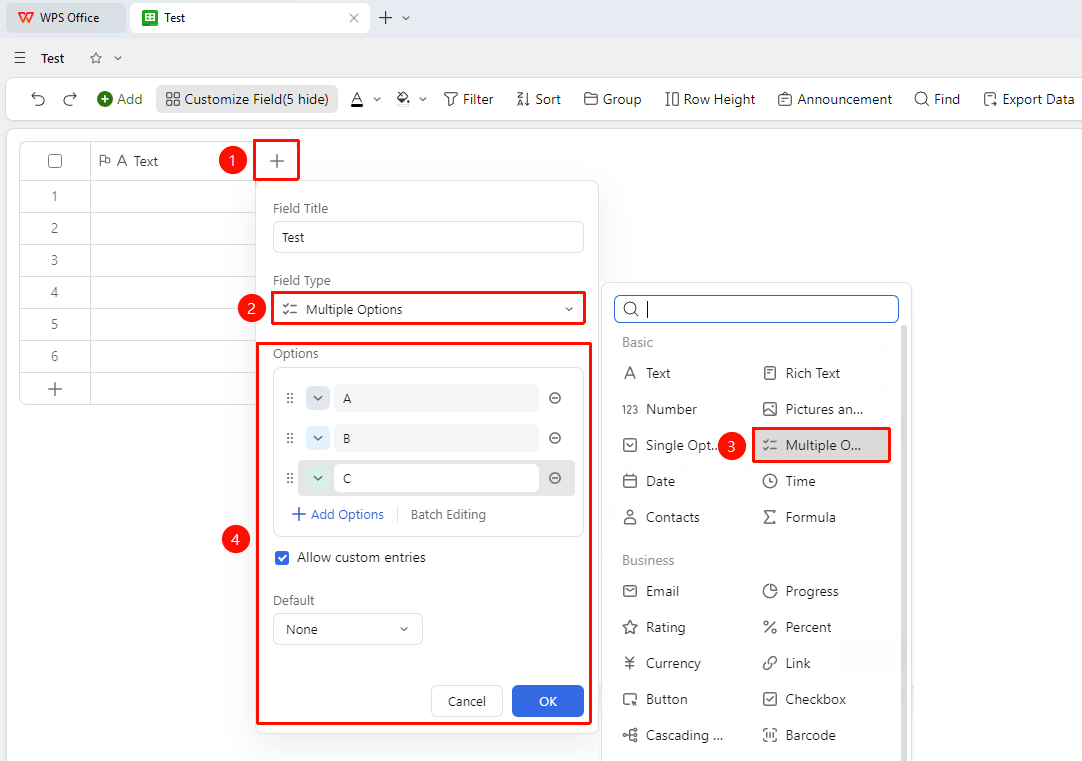
「+」 button on the right side of the header → 「Multi-Select」 option
- Click the 「+」 button on the right side of the header
- Select 「Multi-Select」 from the pop-up field type list
- Edit Options Content, enter the field name and click 「Confirm」 to complete creation
Add and Edit Options
Feature Entry
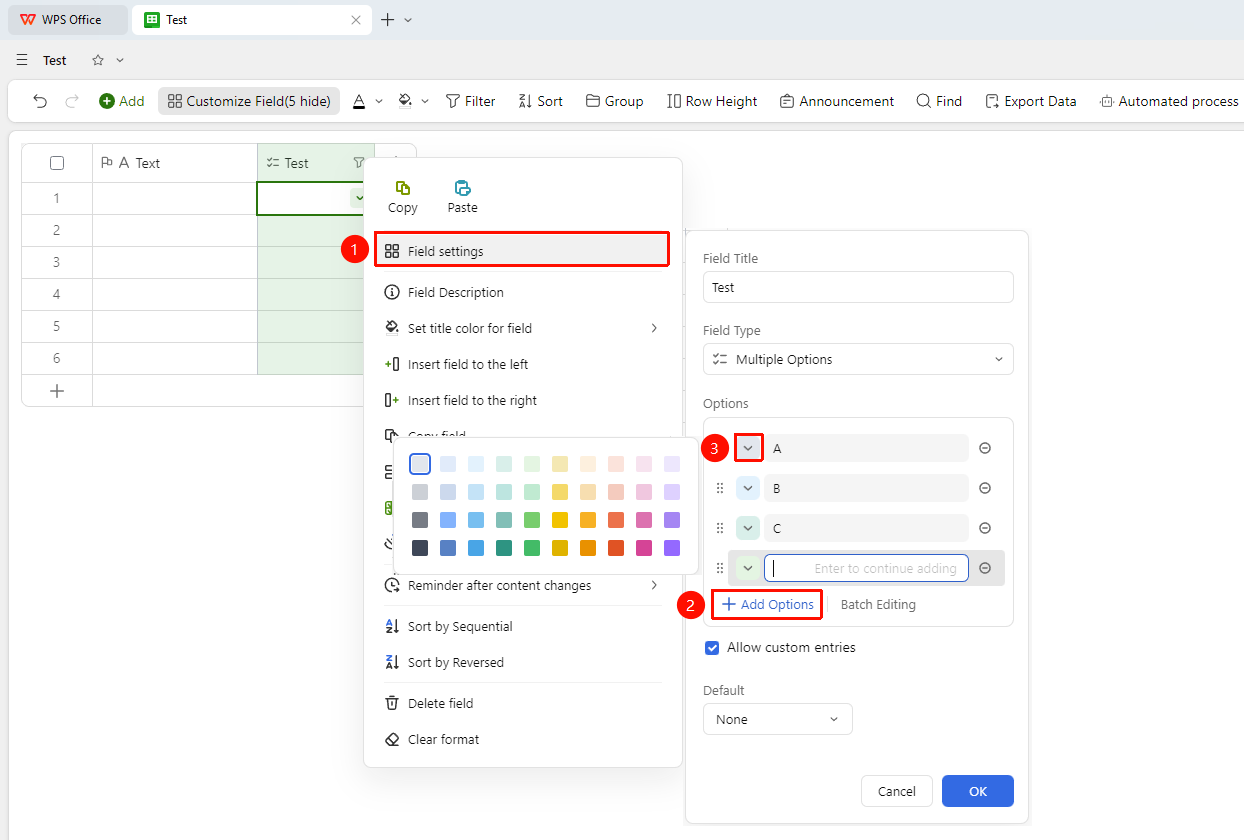
Right-click 「Field Title」 → 「Field Settings」 → 「Option List」 area
- Right-click the multi-select field title and select 「Field Settings」
- Click 「+ Add Option」 in the option list area to add a new option
- Click the square button in front of an option to modify its display color
- It is recommended to maintain sufficient color differentiation between different options
Batch Edit Options
Feature Entry
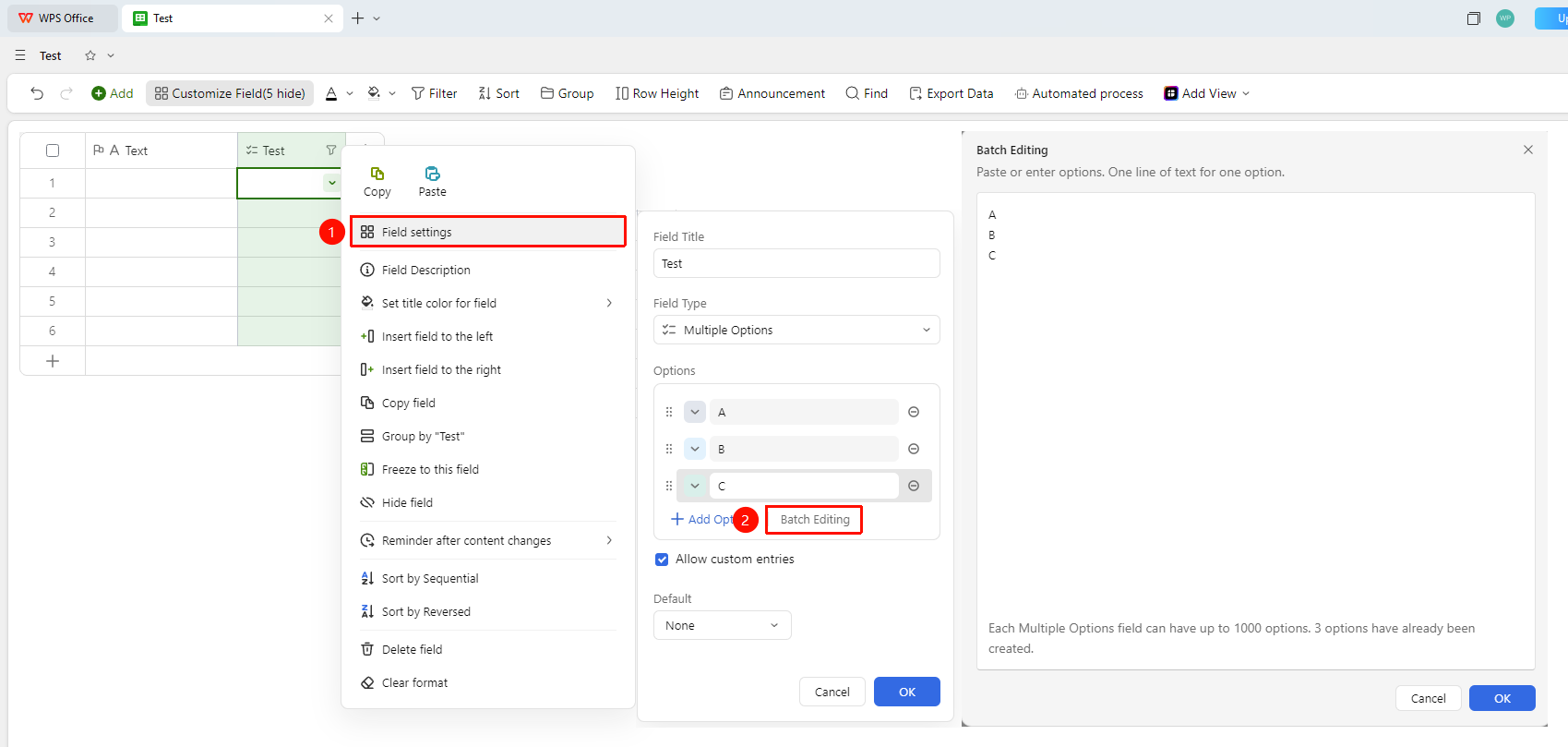
Right-click 「Field Title」 → 「Field Settings」 → 「Batch Edit」 button
- Right-click the multi-select field title and select 「Field Settings」
- Click the 「Batch Edit」 button in the option list
- Enter one option name per line in the text box; pasting will Batch Generate options
- After confirmation, click 「Confirm」 to save
Set Allow Adding Options During Filling
Feature Entry
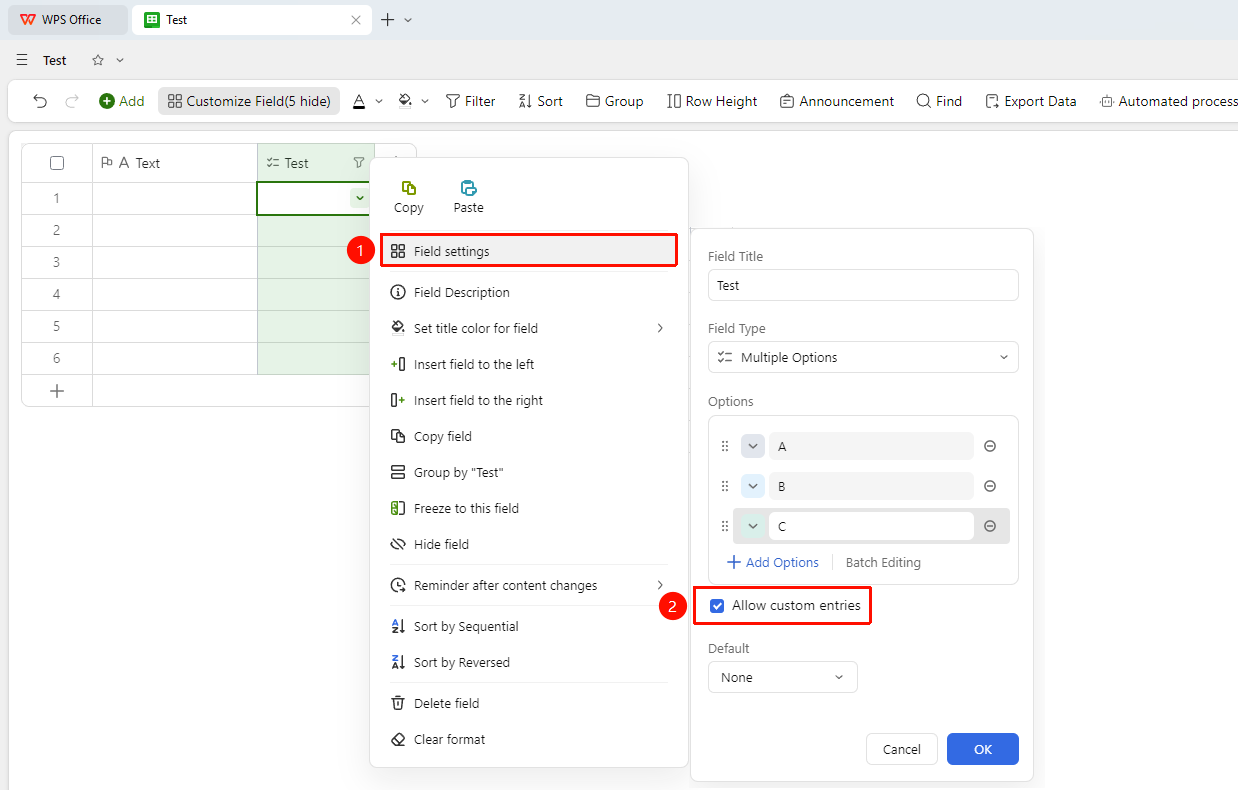
Right-click 「Field Title」 → 「Field Settings」 → 「Allow adding options during filling」 toggle
- Right-click the multi-select field title and select 「Field Settings」
- Turn on the 「Allow adding options during filling」 toggle
- If the entered content does not exist in the preset options during filling, you can add it as a new option with one click
FAQ
Q1: What is the difference between a multi-select field and a single-select field?
- Solution: A single-select field only supports selecting one option, while a multi-select field supports selecting multiple options simultaneously. Both are consistent in option management operations (add, edit, delete, search).
Q2: How to perform grouping statistics by a specific option within a multi-select field?
- Solution: The multi-dimension table supports grouping statistics by individual options, without needing to use the entire set of options as the grouping dimension. Select the multi-select field in the grouping settings, and the system will automatically split each option for independent statistics.
Q3: Will deleting an option cause Record data loss?
- Solution: Yes, after deleting an option, the value of that option in Records that had selected it will be cleared. It is recommended to confirm that no Records are using the option before deletion, or to change the relevant Records to other options in advance.
Notes
- The multi-select field supports custom option colors; it is recommended to maintain sufficient color differentiation
- Modifying the color configuration of multi-select options needs to be done item by item in the field settings
- Each multi-select field can create up to 1000 options; the current option count can be viewed on the 「Batch Edit」 page