Feature Summary
The Date field is one of the basic field types in a data table, used to record date information. It supports multiple date formats and default value settings, making it suitable for scenarios requiring time management, such as project deadlines, creation times, and task scheduling.
Feature Description
| Feature Dimension | Description |
|---|---|
| Membership Restriction | No membership restriction |
| Version Restriction | No version restriction |
Operation Steps
Create a New Date Field
Feature Entry
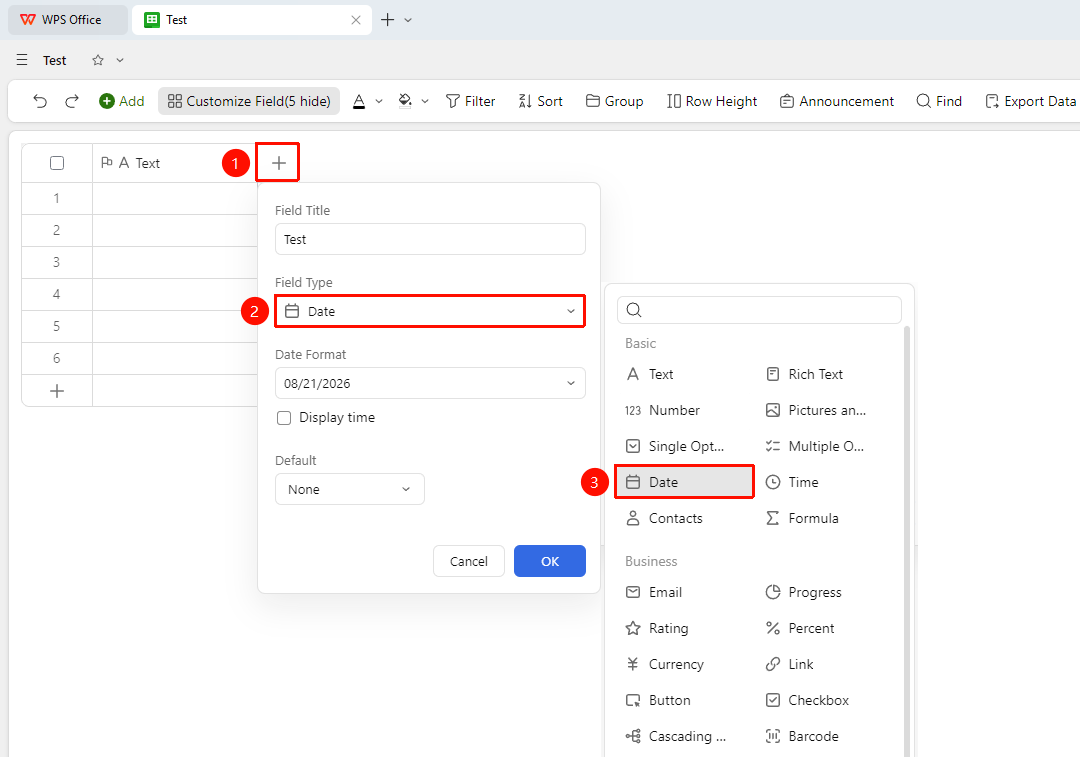
「+」 button on the right side of the header → "Date" field
- Click the "+" button on the right side of the header
- Select the "Date" field from the pop-up field type list
- Enter the field name and click "Confirm" to complete the creation
Set Date Format
Feature Entry
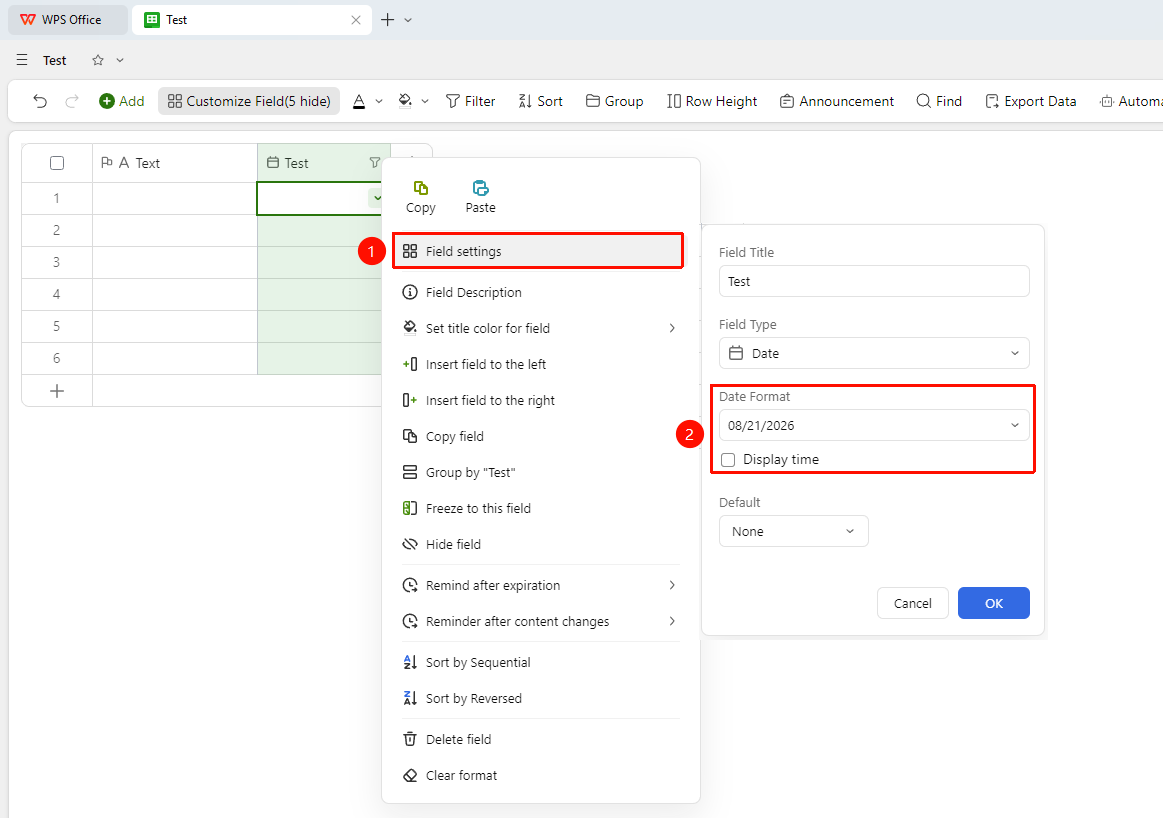
Right-click "Field Title" → "Field Settings" → "Date Format" area
- Right-click the date field title and select "Field Settings"
- In the "Date Format" area, the following options can be configured:
- Display Time: When checked, specific hour and minute information will be recorded synchronously, e.g.
2026/05/26 17:30
Set Default Value
Feature Entry
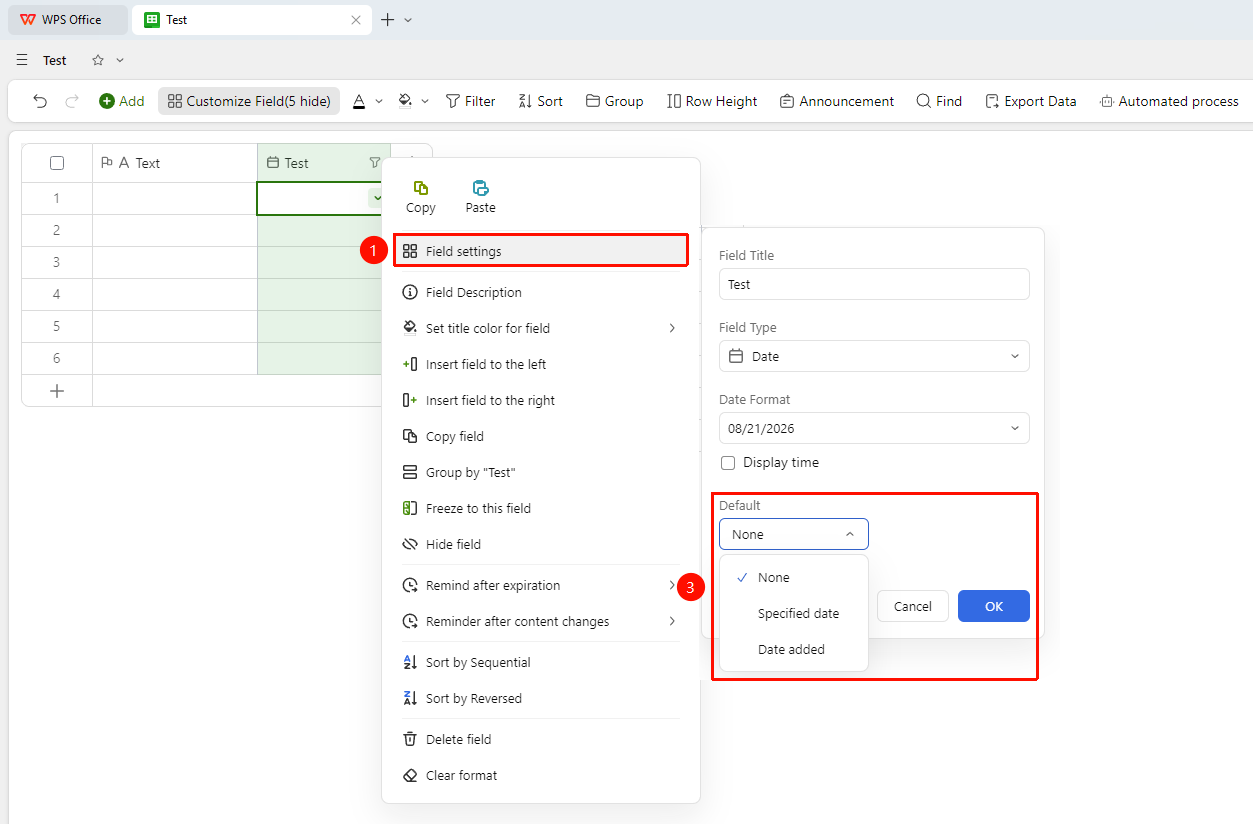
Right-click "Field Title" → "Field Settings" → "Default Value" option
- Right-click the date field title and select "Field Settings"
- In the "Default Value" option, you can choose:
- None: No date is preset; new Records are left blank
- Specific Date: New Records are automatically filled with a fixed date value
- Date of Adding This Record: New Records are automatically filled with the creation date of that day
Enter a Date
Feature Entry
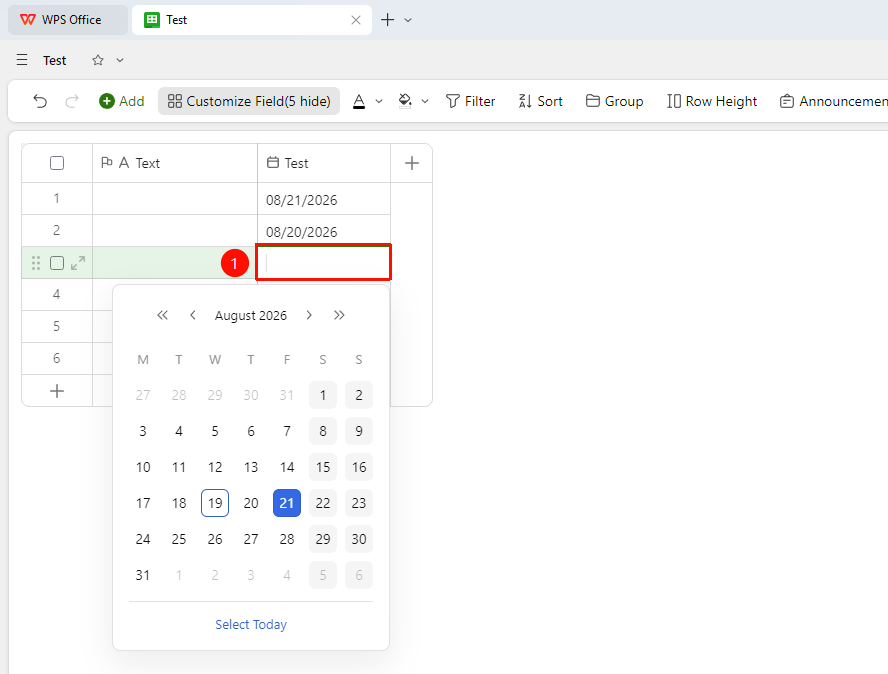
"Target Cell" → Pop-up date picker → Select date
- Click the target cell, and the system will pop up a date picker
- Click the target date on the Calendar panel
- If Show Time is enabled, you also need to set the specific hour and minute using the time slider or input box