Feature Summary
Image and attachment fields are one of the basic field types in data tables, used to store various files such as images and documents, supporting both single and batch uploads.
Feature Description
| Feature Dimension | Description |
|---|---|
| Membership Restriction | No membership restriction |
| Version Restriction | No version restriction |
Operation Steps
Create an Image and Attachment Field
Feature Entry
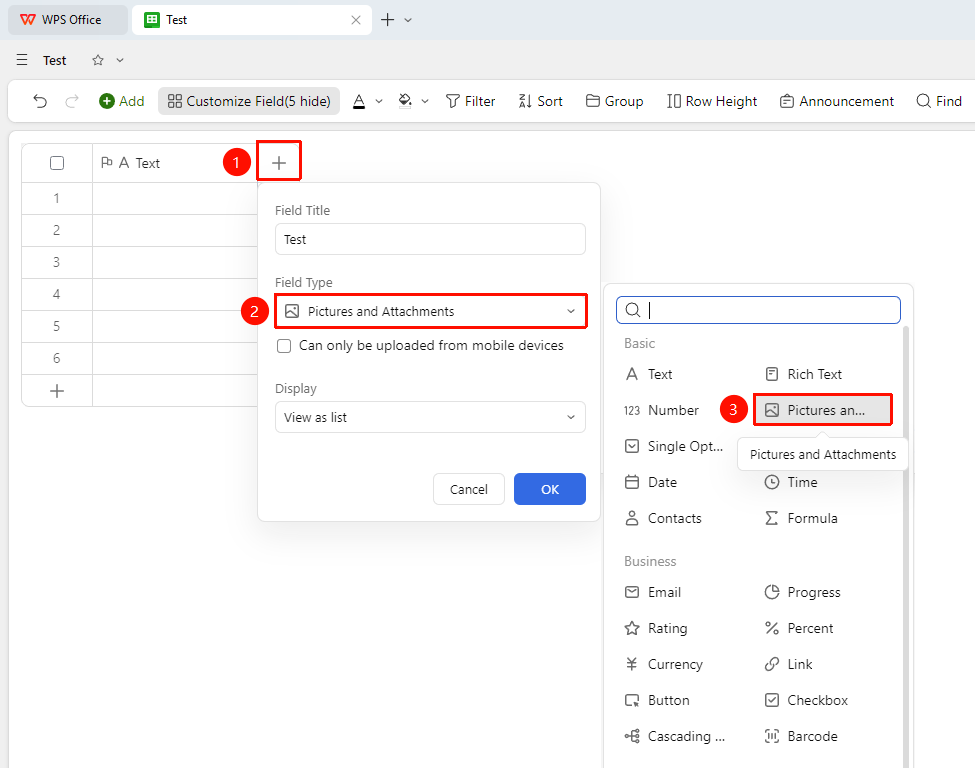
「+」 button on the right side of the header → 「Image & Attachment」 option
- Click the 「+」 button on the right side of the header
- Select 「Image & Attachment」 from the pop-up field type list
- Check 「Images can only be captured and uploaded via mobile」 as needed
- Select 「Display Style」
- Display as thumbnails
- Display as a list
- Enter the field name and click 「OK」 to complete creation
Upload Local Files
Feature Entry
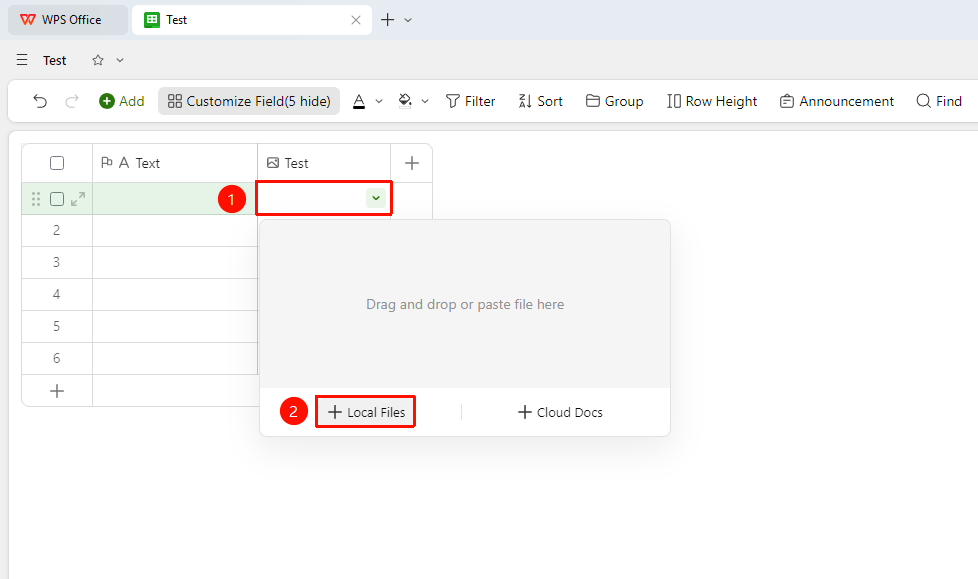
Image & Attachment field 「Target Cell」 → 「Local File」 option
- Click the target cell
- Click the 「Local File」 option to open the file selection dialog
- Select the image or file you want to upload from your local file system
- After selection, click 「Open」 and the file will be automatically uploaded to the cell
Upload Cloud Files
Feature Entry
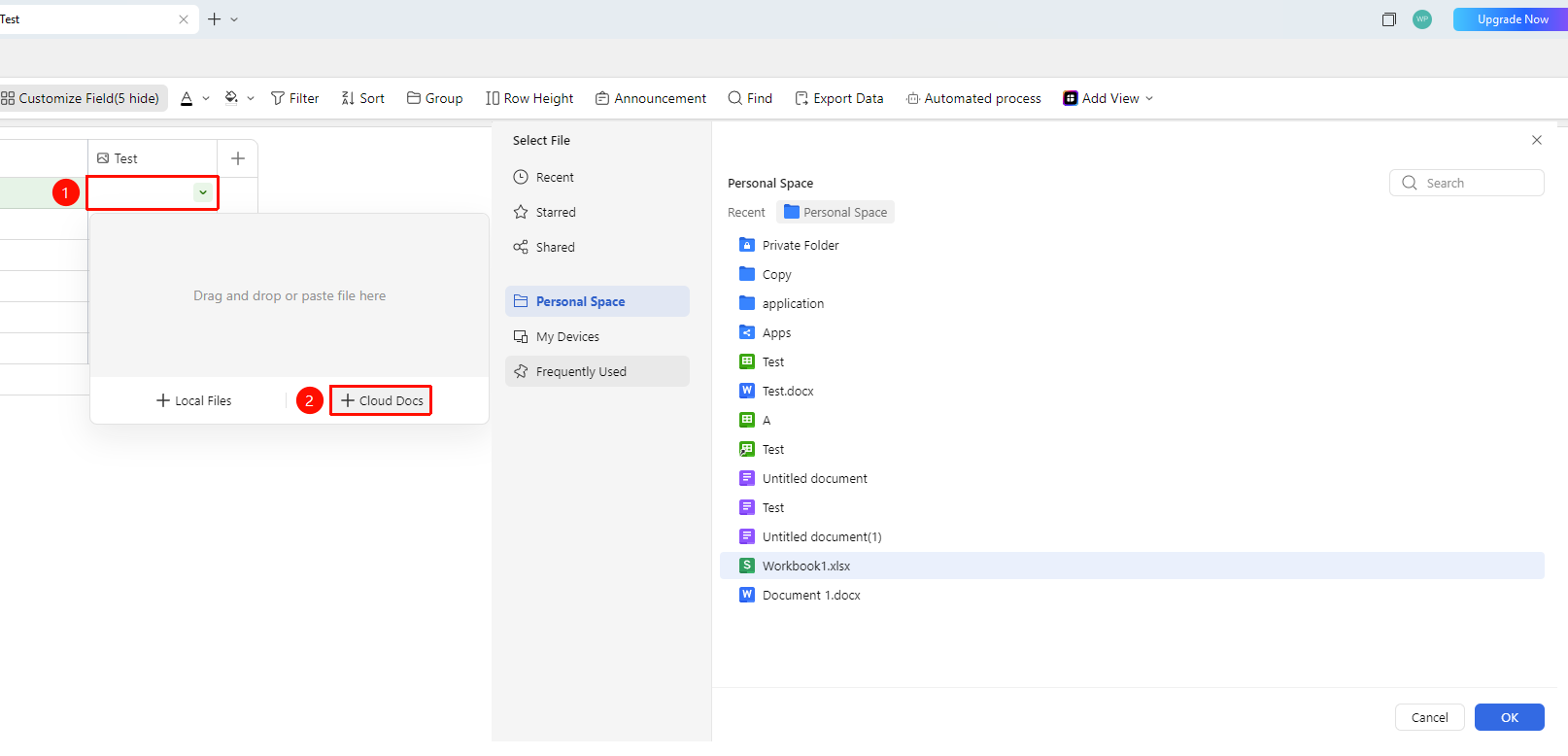
Image & Attachment field 「Target Cell」 → 「Cloud File」 option
- Click the target cell
- Click the 「Cloud File」 option to open the file selection dialog
- Select the image or file you want to upload from your cloud space
- After selection, click 「OK」 and the file will be automatically uploaded to the cell
FAQ
Q1: What file formats are supported by the image and attachment field? What is the single file size limit for each format?
- Solution: Supported formats and size limits are as follows: Document Sheets (.xls, .xlsx) ≤12MB; Slides (.ppt, .pptx, .key) ≤200MB; PDF documents (.pdf) ≤100MB; Images (.jpeg, .png) ≤50MB; Videos (.mp4, .mov) ≤6GB; Audio (.mp3, .flac) ≤6GB. Compressed files only support list display and do not support preview for now.
Q2: Do uploaded attachments take up storage space? What should I do if I run out of space?
- Solution: Yes, uploaded attachments will occupy the personal or organization's WPS Cloud Documents storage space. If storage space is insufficient, uploads will fail; excessively large attachments may affect the opening and operational smoothness of the table. It is recommended to split large files for storage or use link references for management. You can periodically clean up attachments that are no longer needed to free up space. Please confirm that important files have been backed up before deletion.
Q3: How to cross-reference content from image and attachment fields across data tables?
- Solution: Use 「Lookup & Reference」 to sync image and attachment content from other data tables. For example, in an approval process, you can directly reference uploaded Request E-signatures images from a personnel information table to meet process-oriented office needs.
Notes
- When uploading images, you can check the option [Only allow photo capture and upload via mobile] in the field settings. Once checked, only photo uploads taken via mobile phone are supported.