Feature Summary
The Progress field visually displays the completion status of tasks/projects as a percentage, supporting direct numeric input or drag-to-adjust progress bar. It is suitable for project management, task tracking, work progress monitoring, and similar scenarios.
Feature Description
| Feature Dimension | Description |
|---|---|
| Membership Restriction | No membership restriction |
| Version Restriction | No version restriction |
| Value Range | 0% - 100% |
Operation Steps
Create a New Progress Field
Feature Entry
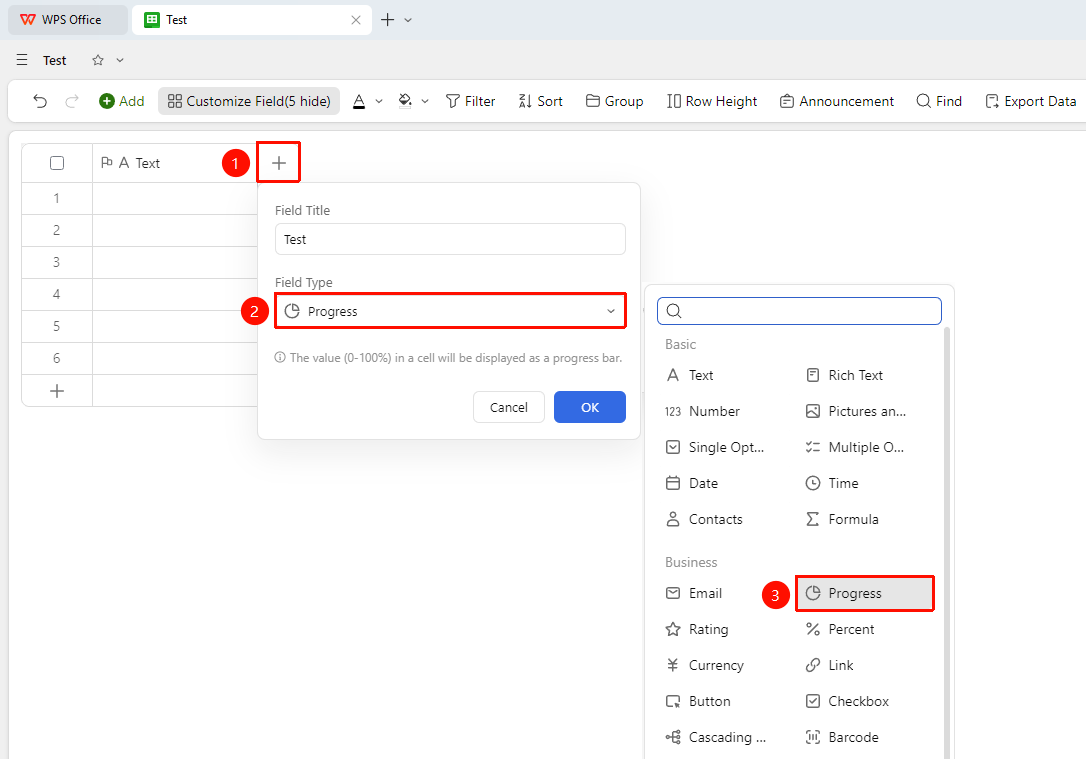
「+」button on the right side of the header → 「Field Type」dropdown list → 「Progress」option
- Click the 「+」 button on the right side of the header
- Select the 「Progress」 field from the pop-up field type list
- Enter the field name and click 「OK」 to complete creation
Set Progress Value
Feature Entry
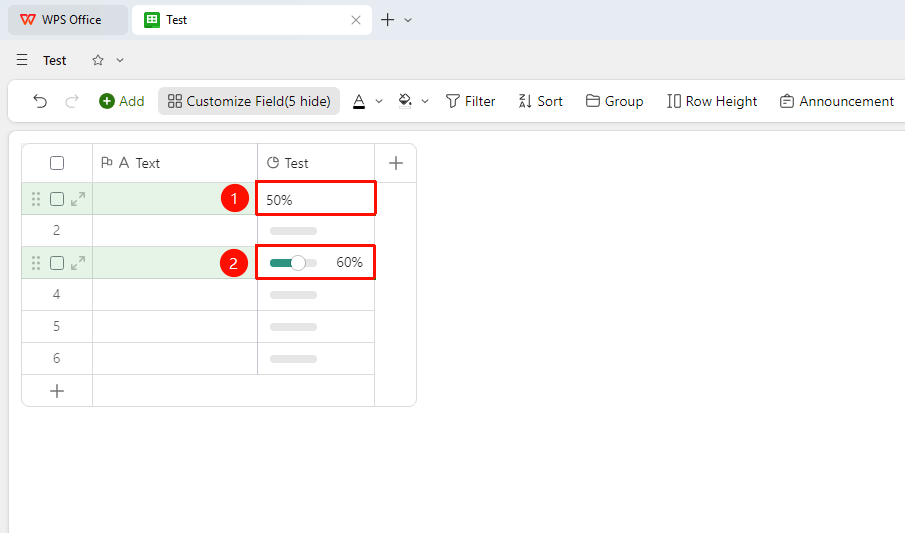
「Target Cell」→ Enter percentage or drag the progress bar
- Click a cell to directly enter a percentage value (e.g., 60%)
- You can also adjust the completion level by dragging the progress bar
- The progress bar will automatically display the fill level according to the value proportion
FAQ
Q1: Can the Progress field directly calculate an average value?
- Solution: Yes. Since the Progress field stores numeric values, it can directly participate in numerical calculations such as sum and average in formulas.
Q2: Can the Progress field be used with conditional formatting?
- Solution: Yes. Through filtering and grouping features, you can quickly view the distribution of Records with different completion levels by progress value.
Notes
- The Progress field is stored in percentage format and supports formula calculations
- In Kanban view, you can group by Progress field to view tasks at different stages
- It is recommended to use color coding to visually indicate task urgency