Feature Summary
The hyperlink field is used to store web links or document links. Clicking them will redirect to the corresponding address. It supports custom display text and is suitable for scenarios such as linking external resources, document references, and resource address management.
Feature Description
| Feature Dimension | Description |
|---|---|
| Membership Restriction | No membership restriction |
| Version Restriction | No version restriction |
Steps
Create a New Hyperlink Field
Feature Entry
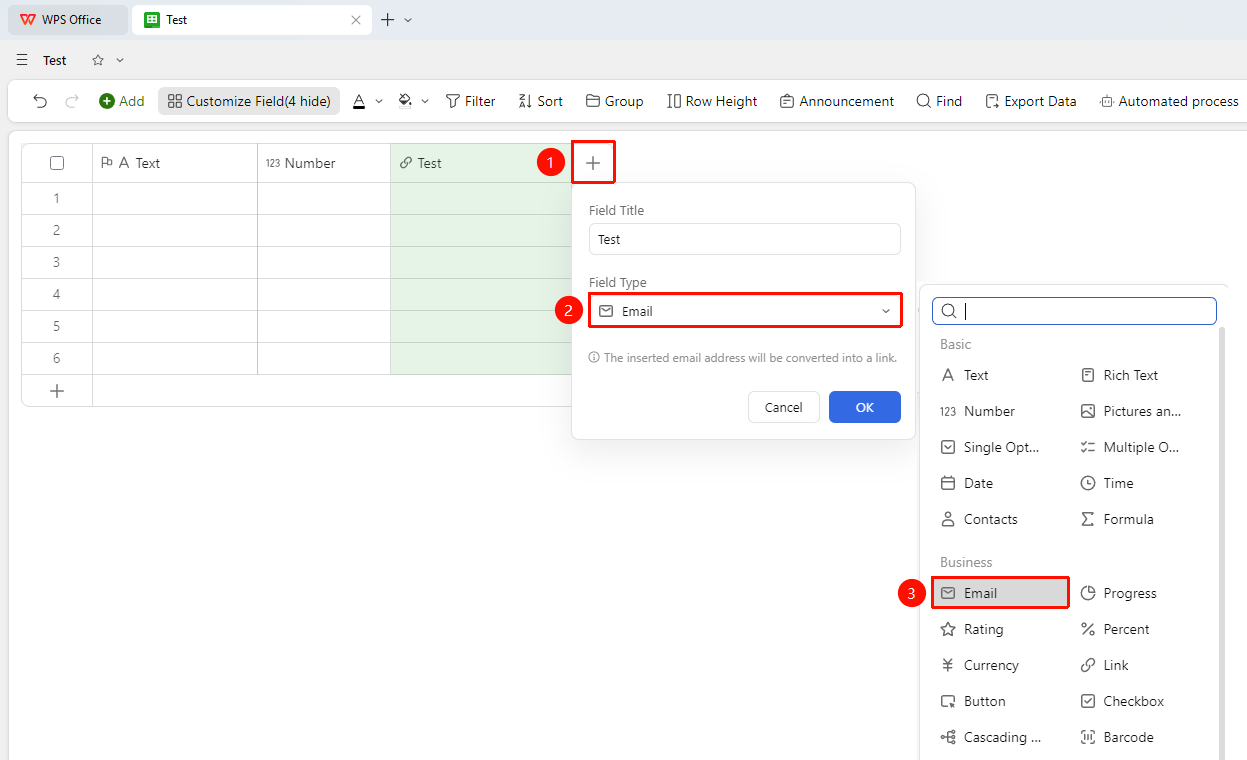
「+」 button on the right side of the header → 「Field Type」 dropdown list → 「Hyperlink」 option
- Click the 「+」 button on the right side of the header
- Select the 「Hyperlink」 field from the pop-up field type list
- Enter the field name and click 「OK」 to complete creation
Enter a Hyperlink
Feature Entry
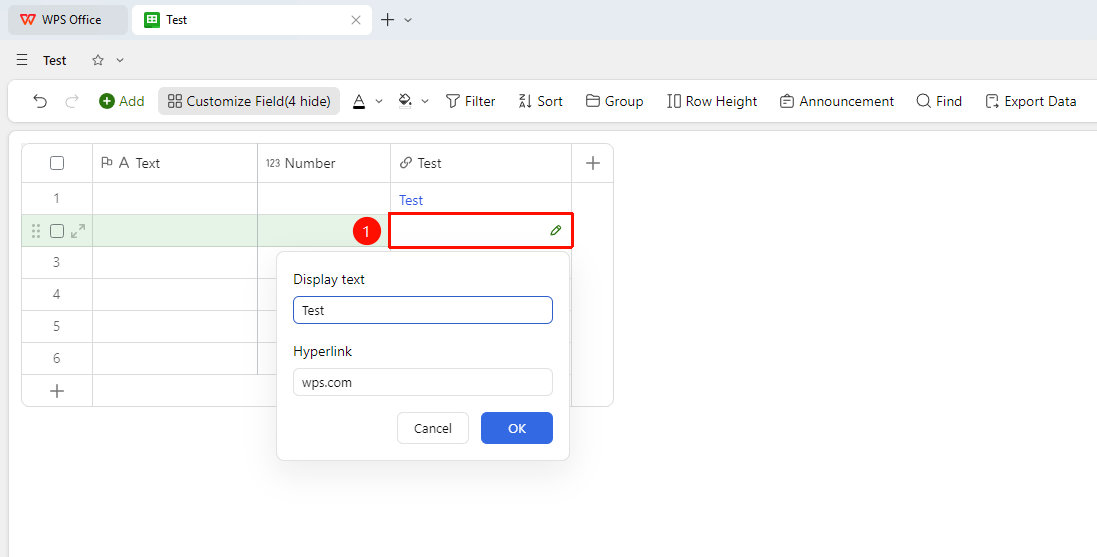
「Target cell」 → Enter the link address
- Click the cell
- Enter the address and display text
- After entering, press
Enter(Mac:↩) to confirm - The cell will automatically display a clickable link
Set Field Properties
Feature Entry
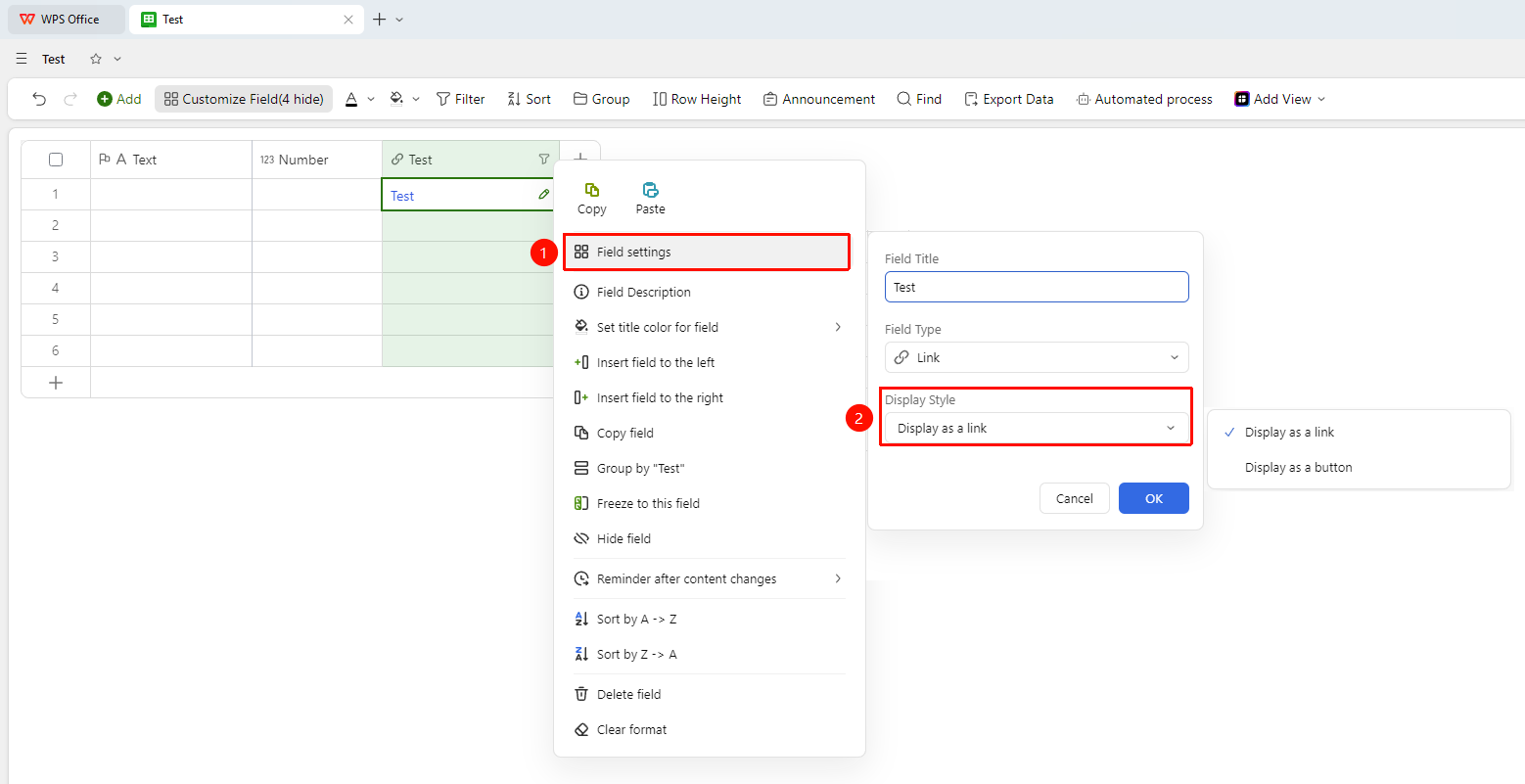
Right-click the field title of the target cell → 「Field Settings」 button
- Right-click the field title of this field and select 「Field Settings」
- Find Display Style in the settings panel, where you can choose:
- Display as hyperlink
- Display as button
3.Click OK to complete the configuration
Notes
- The display text of the hyperlink field only affects the presentation and does not affect the actual redirect address
- Supports linking to various addresses such as web pages, Online Documents, and other Records within AirSheet