Feature Summary
The cascading option field supports setting up multi-level option linkage relationships. After selecting a parent option, the corresponding child options are automatically filtered and displayed. It is suitable for scenarios requiring hierarchical selection, such as province/city/district selection, product category filtering, and department levels.
Feature Description
| Feature Dimension | Description |
|---|---|
| Membership Restriction | No membership restriction |
| Version Restriction | No version restriction |
Steps
Create a New Field
Feature Entry
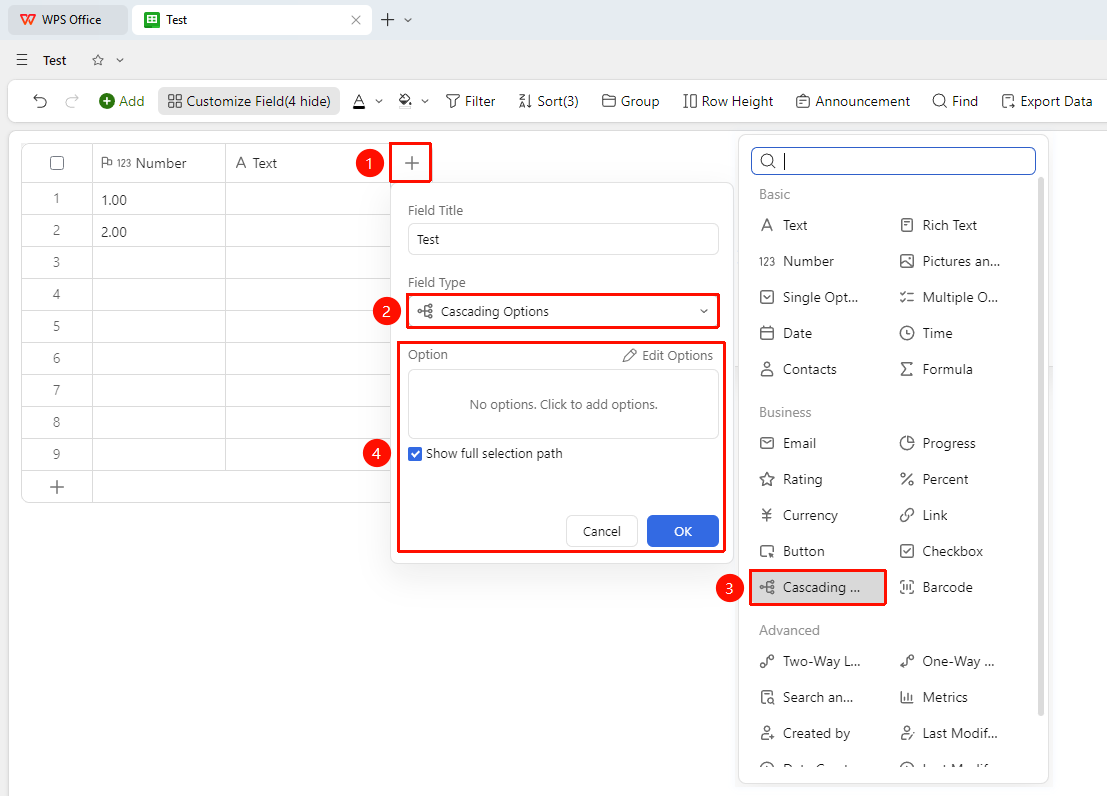
"+" button on the right side of the header → "Cascading Option" option
- Click the "+" button on the right side of the header
- In the field type list, select the "Cascading Option" field
- Edit the options and enter the field name and click "OK" to complete the creation
Set Cascading Option Content
Feature Entry
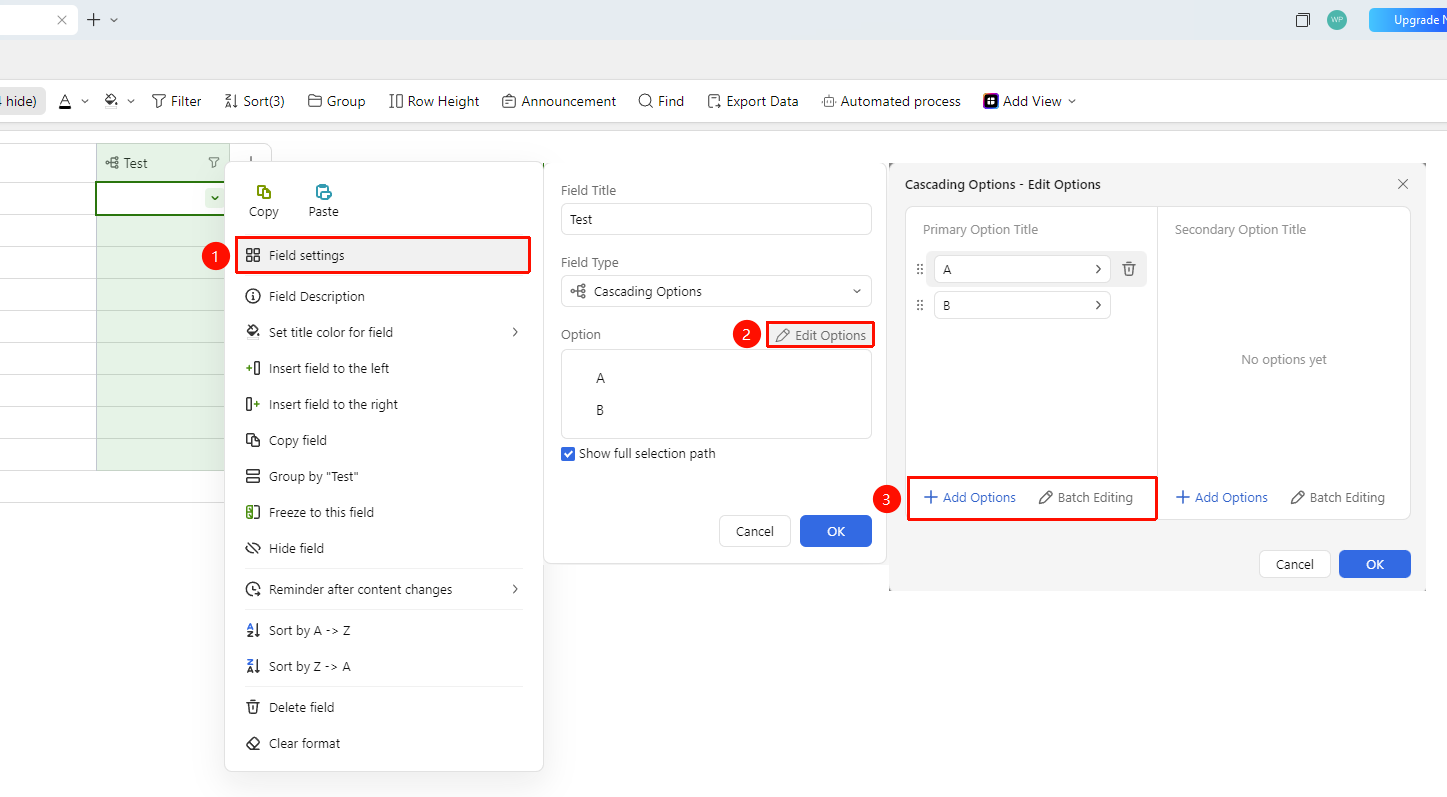
Right-click "Field Title" → "Field Settings" → "Edit Options" button
- Right-click the field title of the cascading option field and select "Field Settings"
- Click the "Edit Options" button
- In the pop-up editing window, you can adjust the first-level option title, second-level option title, and third-level option title
- For each option title, you can click "+ Add Option" or "Batch Edit" to add new options
- Click OK to complete editing
FAQ
Q1: How many levels does the cascading option support at most?
- Solution: The cascading option field supports setting up to 3 levels of cascading option linkage relationships.