Feature Summary
The currency field is a special numeric field that automatically formats values into currency format, supports custom currency symbols (such as RMB ¥, USD $, etc.), and is specifically used for recording product prices, reimbursement amounts, financial data, and other finance-related scenarios.
Feature Description
| Feature Dimension | Description |
|---|---|
| Membership Restriction | No membership restriction |
| Version Restriction | No version restriction |
| Supported Currencies | RMB ¥ / USD $ and other multi-currency options |
Operation Steps
Create a New Currency Field
Feature Entry
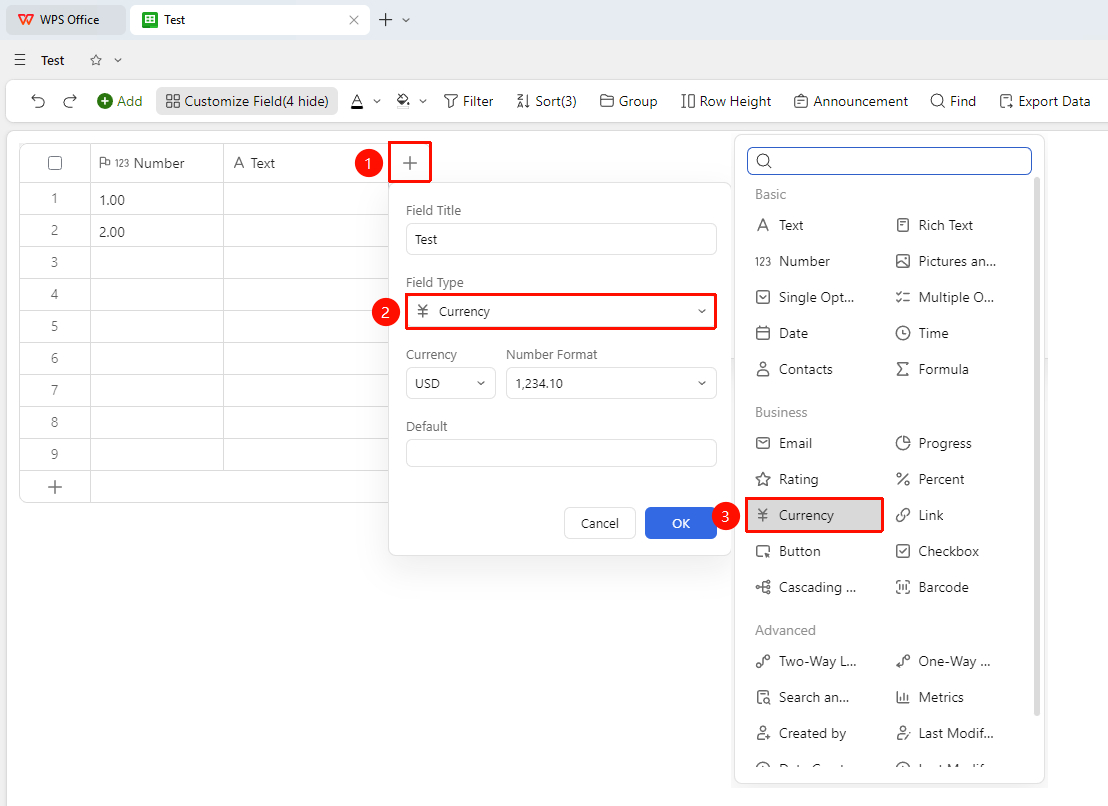
Click the "+" button on the right side of the header → "Field Type" dropdown list → "Currency" field
- Click the "+" button on the right side of the header
- Select the "Currency" field from the pop-up field type list
- Enter the field name and click "Confirm" to complete the creation
Set Currency Symbol
Feature Entry
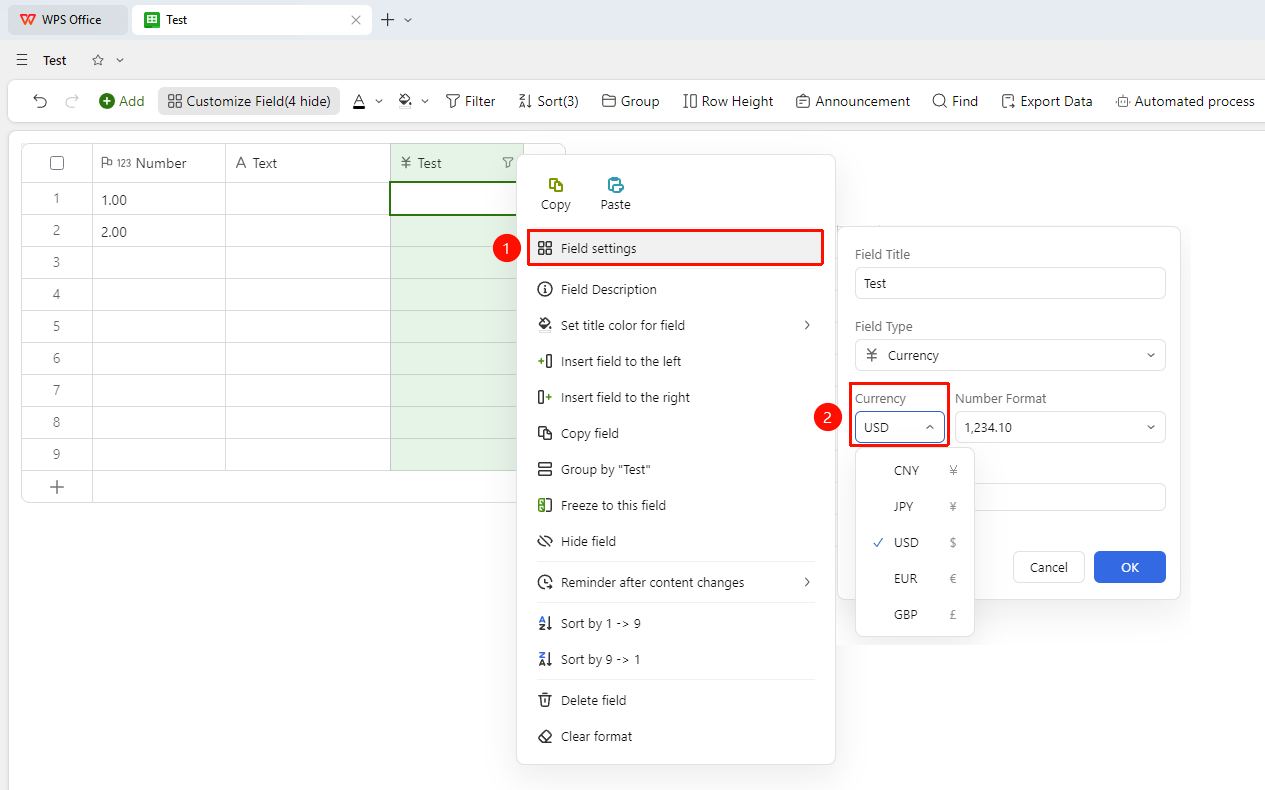
Right-click the "Field Title" → "Field Settings" → "Currency" option
- Right-click the currency field title and select "Field Settings"
- Select the currency type from the "Currency" dropdown list (e.g., ¥ RMB, $ USD, etc.)
Set Decimal Places
Feature Entry
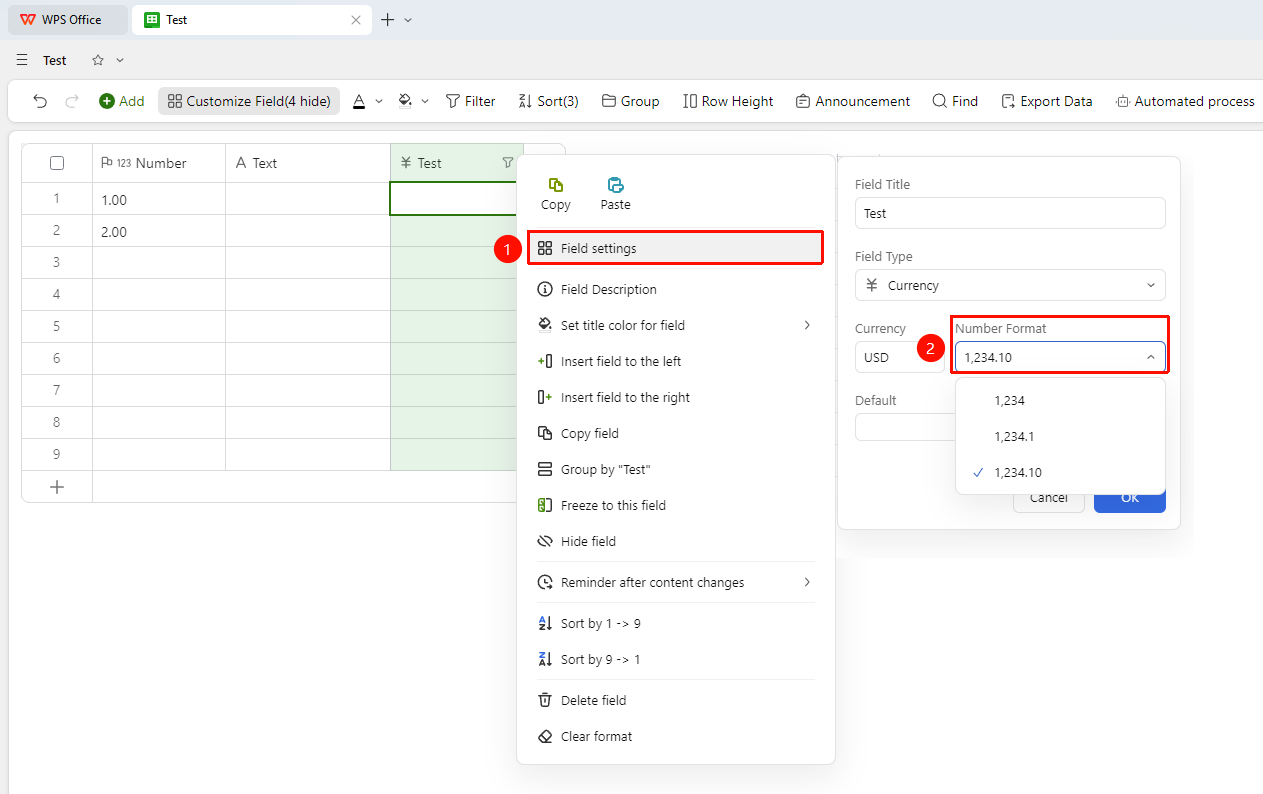
Right-click the "Field Title" → "Field Settings" → "Number Format" option
- Right-click the currency field title and select "Field Settings"
- Select the number of decimal places to retain in "Number Format"
- After setting, all amounts will be automatically formatted for display
Set Default Value
Feature Entry
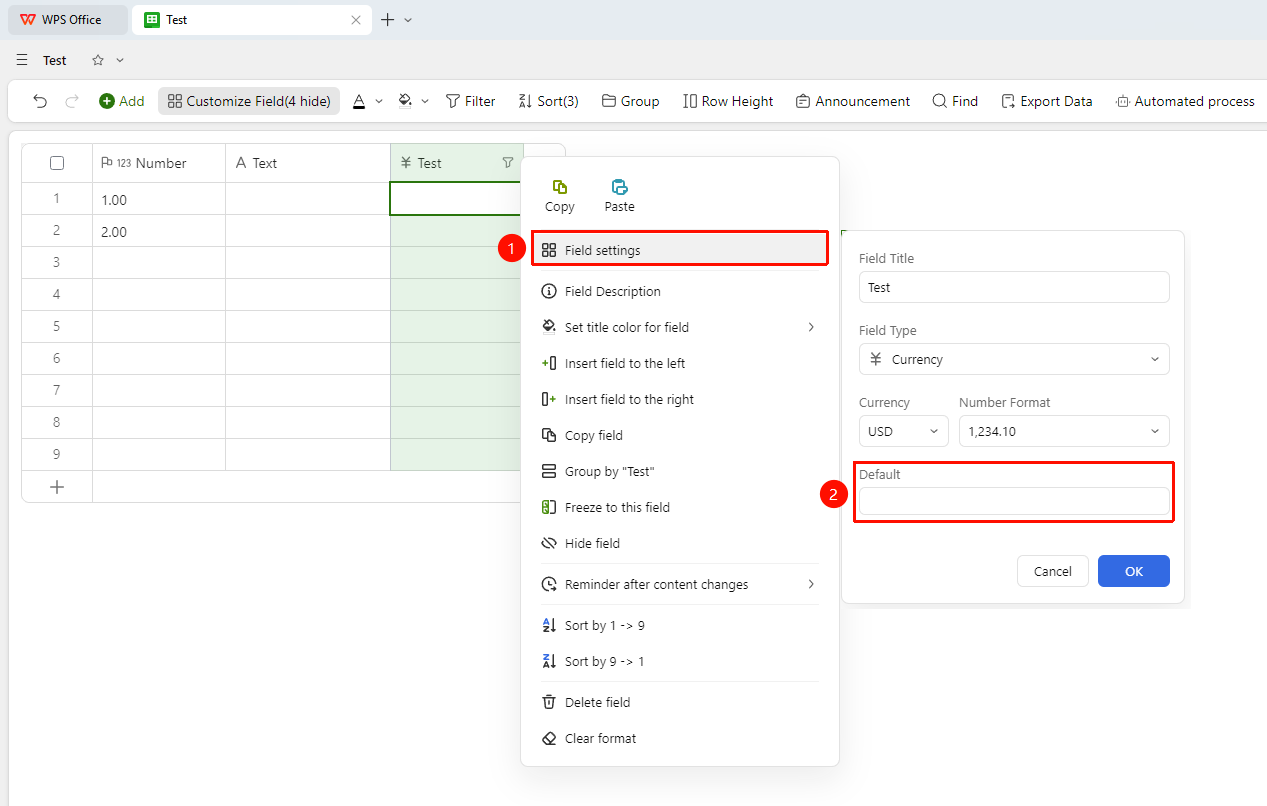
Right-click the "Field Title" → "Field Settings" → "Default Value" option
- Right-click the currency field title and select "Field Settings"
- Enter the default value in "Default Value"
- After setting, the field will display the entered value by default when creating a new Record
Frequently Asked Questions
Q1: Can the currency field be used in calculations?
- Solution: Yes. The currency field is essentially a numeric field and supports participation in all formula calculations. The format settings do not affect the calculation results.
Q2: How do I switch the displayed currency symbol?
- Solution: Simply select a new currency symbol in the field settings. All entered amounts will automatically update their display format, while the actual stored values remain unchanged.
Notes
- Currency formatting only changes the display effect and does not affect the actual stored value or calculation results.
- Supports common international currency symbols and can be switched at any time.
- Using it with the thousands separator can make large values easier to read.